Blaym is a Visual Studio Code extension for live collaborative coding, branching, checkpoints, and session playback.
Connect from VSCode
Once installed, go to the Blaym sidepanel and click Connect to Blaym. You may need to enter the invite code you were sent.
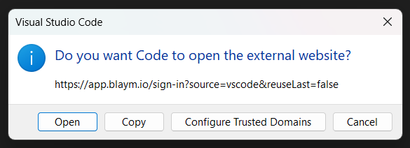
A window asks to connect to the Blaym website. Click OK.
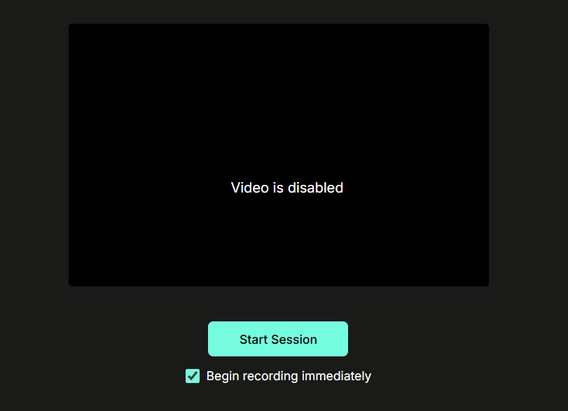
Log in with a valid Google or GitHub account. Once you log in and choose a username, you are taken to your dashboard. Start a live session by pressing Start Session.
Recording a Live Session
Note: To record a live session currently, files must be added after recording has started.
By default, the app begins recording your added files and branches immediately. You can then start adding files and creating branches.
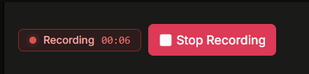
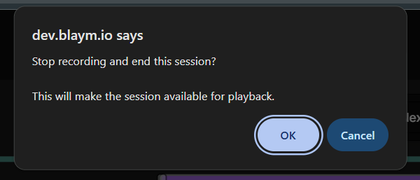
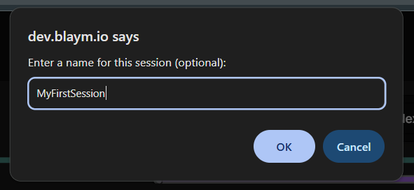
When the session is done, press stop recording. You are asked to confirm and enter a session name. After the session ends and the host leaves, the session is saved to the user's profile.
Adding Files to Session
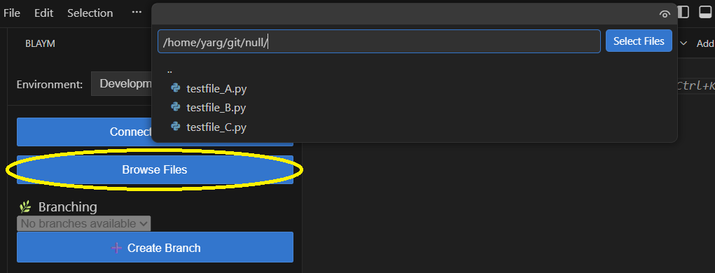
Once the web interface is loaded, return to VS Code and add files to the session. These files appear in the live session, and tabs update as you edit code.
Creating a Branch
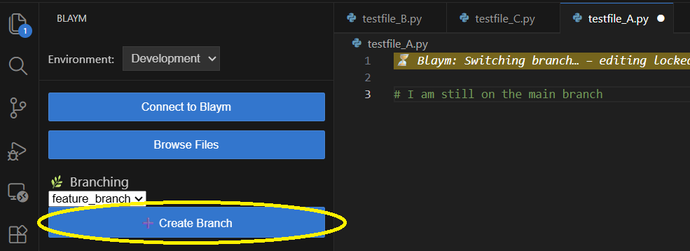
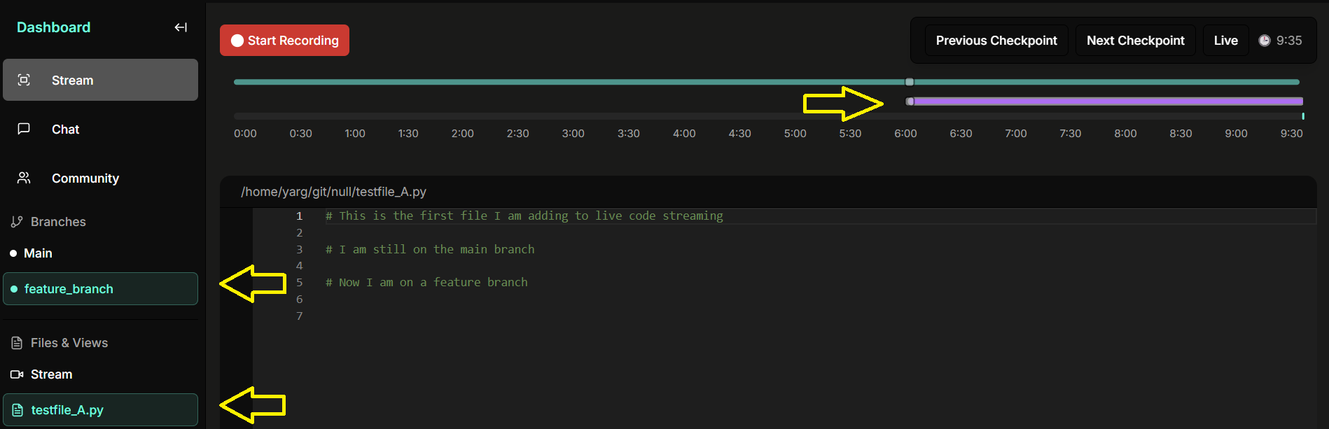
To add a new branch from the current branch (default main), click Create Branch and enter a name. When switching branches, expect a short pause while backend state updates in VS Code.
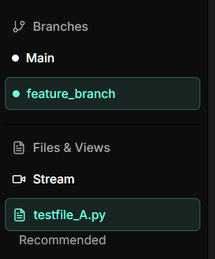
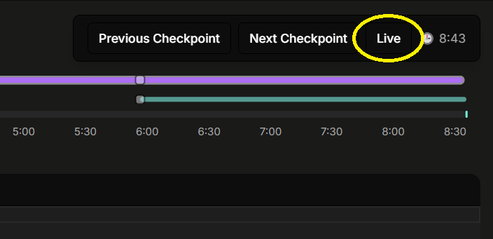
Branches can be viewed independently in the web app from branch/file tabs or the branching timeline. To exit navigation mode and return to host navigation, press Live.
Adding a Checkpoint
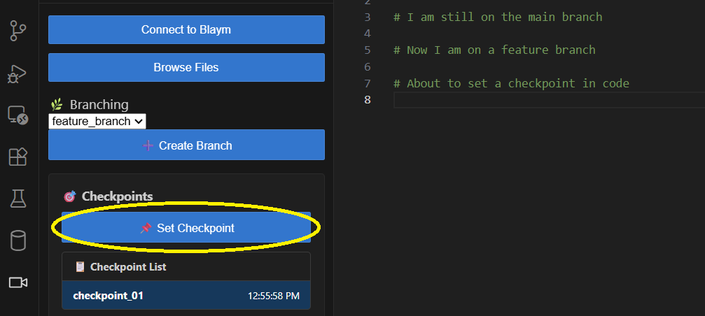
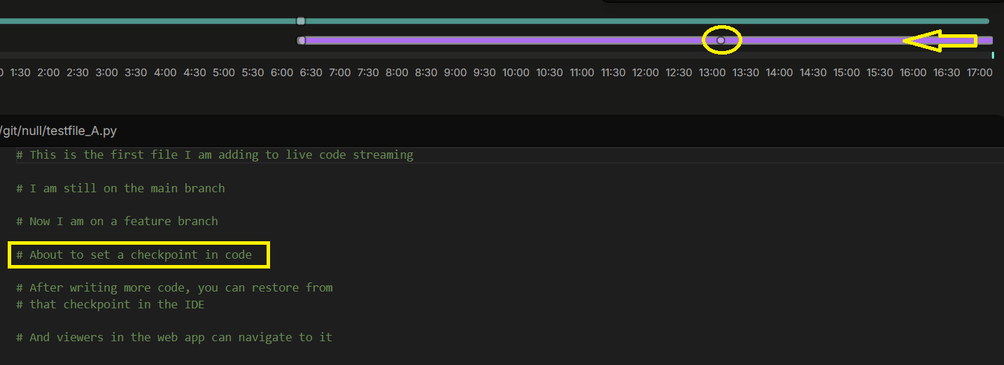
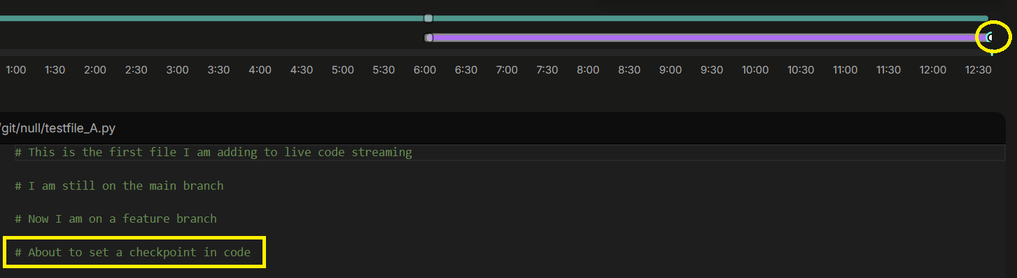
Checkpoints can be set by the host to revert code state, and by viewers to navigate backward/forward through session history.
Viewing Offline Sessions
To view saved sessions for a user, open their profile on the app main page.
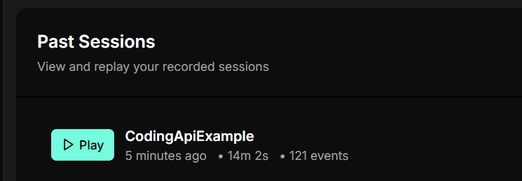
Navigate to Past Sessions and click the play icon.
Start playback using the top navigation play button. The coding session plays back in near real time. Offline playback supports seeking forward/back 30 seconds.
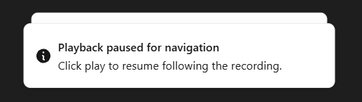
At any point, you can switch files and branches. This pauses playback. To resume host navigation, press Play.
Notes
Release builds are environment-locked to production.
Invite code activation is one-time per install when enabled.