BiosimulantBiosimulant Studio in VS Code: continue sessions with your agent, approve its proposals, see run results and work on Lab files. Installation Launch VS Code Quick Open ( Ctrl+P), paste the following command, and press enter.Copied to clipboard |

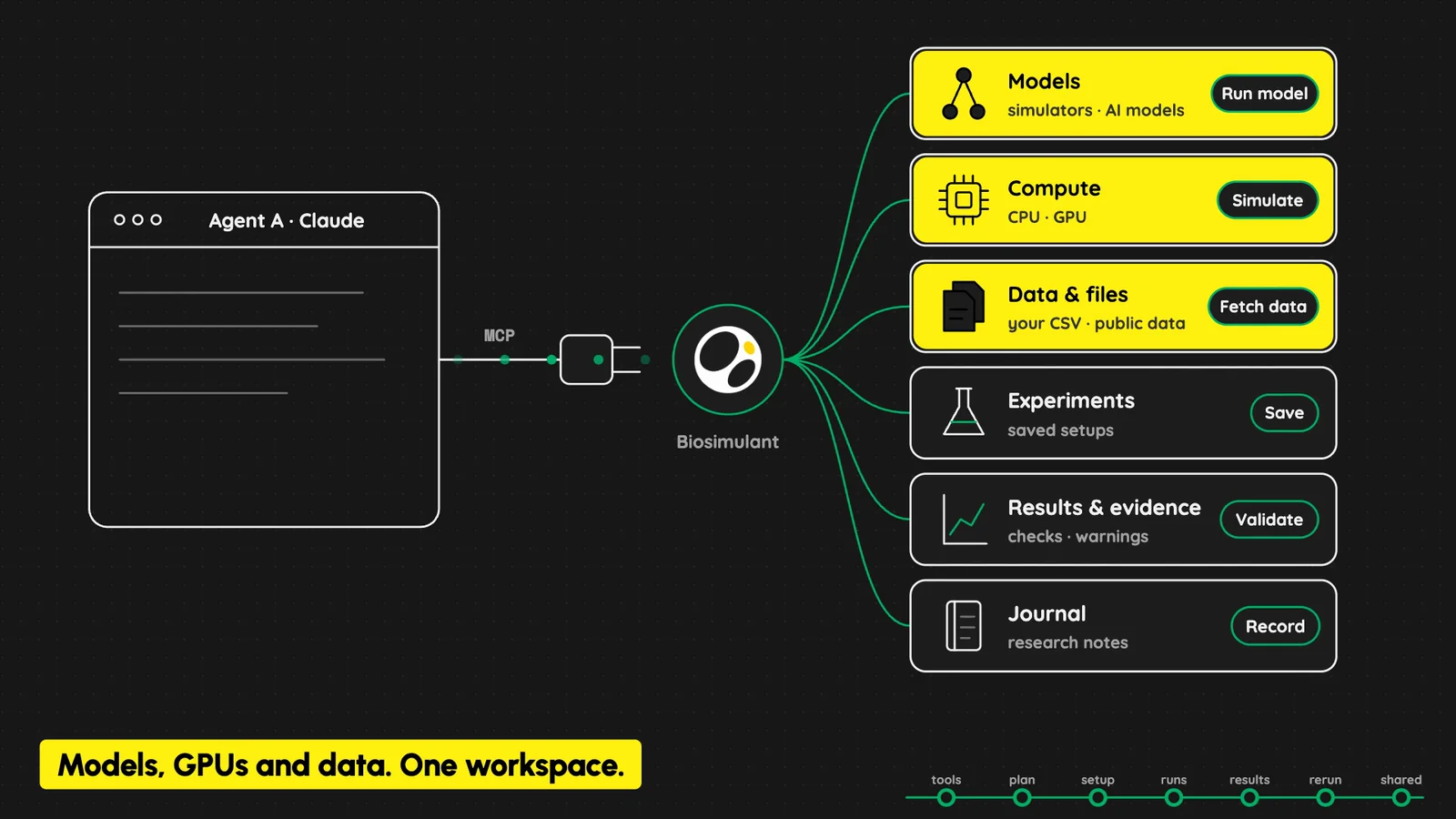
Biosimulant for VS CodeWork on Biosimulant sessions and Labs with GitHub Copilot, Claude Code or Codex, right beside your code. Your agent gets models, GPUs and data in one workspace. Biosimulant records the plan, setup, runs and notes as it works, so you, another agent or a colleague can pick it up next week.
Studio stays the record. Every session, decision, run and Lab change you make in VS Code appears in Biosimulant Studio too. What you can doContinue a session with your agent. In Studio, choose VS Code for a session, then Open in VS Code. The session opens beside your code and its prompt is put in your agent's chat, ready to read and send. Or start one here with New session, a form in an editor tab: your question, no Lab, a new Lab, one of your Labs or a Lab from the Hub, files for the agent to read first, the agent (Studio Chat, GitHub Copilot, Claude Code or Codex) and the session's settings. New Lab creates a Lab the same way. Chat with Studio's agent. Studio Chat opens in an editor tab beside your code: ask it to plan, build, run or explain, watch the reply arrive with its steps, approve or answer it in place, attach files, and stop it any time. Start one with New Studio Chat, from a Lab, or open it on any session. Connect your agent without setup. The extension gives VS Code's agents the Biosimulant MCP server. There are no settings to edit and no keys to paste. Follow a session. Its timeline shows every request, plan, run, approval and model change as it happens, with the details beside it. Search it, or narrow it by type, outcome, who and when. Overview sums up where it started, what it produced and where it stands. Results lists its runs. Settings changes its spending limits, when the agent checks with you and where compute runs. Approve from the editor. A notification and a badge tell you when your agent needs a decision. Approve or decline in the Session panel, with the most it can charge shown first. Read runs. Key outputs, charts, the settings a run used, its files and log, and its execution record. Compare two runs side by side. Explore Labs. A Lab's timeline (searchable and filterable), how its models connect, its inputs and outputs, its sessions and its results. Search. Choose 🔍 on the Sessions or Labs view, or Search sessions and Labs in Quick actions, to find any of your or your teams' sessions and Labs by name, Lab or team. Connect your agent. A page lists the agents that can use Biosimulant (Copilot and Claude Code in VS Code, the Claude Code CLI, Codex, the Claude and ChatGPT apps), shows whether each is connected to this environment's server, and gives each command a Run and a Copy button. Quick actions. The sidebar's Actions section, above Sessions, has Quick actions…, Search…, New session, New Lab and Connect your agent… (signed out: Sign in and Connect your agent). Quick actions…, also on the account item in the status bar, opens one list of what you can do: create a session or Lab, go to a Lab, session or run, connect your agent to Biosimulant (Studio's steps and commands for Copilot, Claude Code, Codex and the Claude or ChatGPT apps), open Studio, and sign in or out. Work on a Lab's files. A Lab's Files tab lists its copies on your computer and how each stands: your changes, a newer version in the Lab, and files changed on both sides. Download a copy (or add one you already have), edit it with full editor support, Get latest to bring in the Lab's newest version while keeping your edits, compare any conflict with the Lab's version, then Propose changes to send yours back for approval. Labs fed from GitHub are cloned with Git instead. Getting started
You need a Biosimulant account, VS Code 1.101 or later, and GitHub Copilot, Claude Code or Codex for VS Code. Codex reads its own settings, so connect Biosimulant in Codex once. Settings
These are user settings only, so a project you open can't redirect where you sign in. Privacy and security
Learn moreReleased under the MIT License. |