Skip to content
| Marketplace
Sign in
Visual Studio Code>Data Science>Stats Explorer MCP: Verified Statistics for AI AgentsNew to Visual Studio Code? Get it now.
Stats Explorer MCP: Verified Statistics for AI Agents

Stats Explorer MCP: Verified Statistics for AI Agents

Ben Meador

|
1 install
| (0) | Free
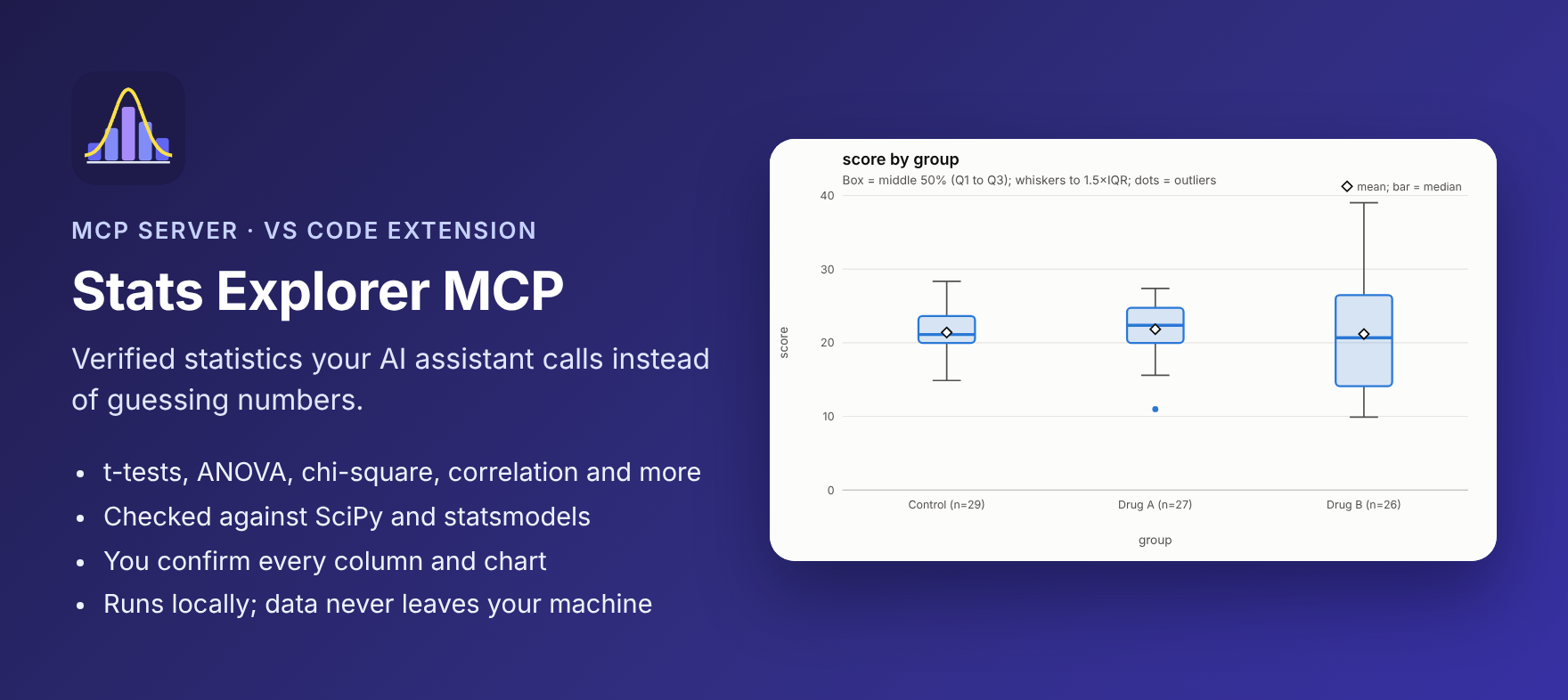
14 statistics tools your AI assistant calls instead of guessing numbers: t-tests, ANOVA, chi-square, correlation and more, with effect sizes, confidence intervals and plain-English results. Runs locally.
Installation
Launch VS Code Quick Open (Ctrl+P), paste the following command, and press enter.
Copied to clipboard
More Info

Stats Explorer MCP: verified statistics for AI agents

Stats Explorer MCP: verified statistics your AI assistant calls instead of guessing numbers

14 statistics tools an AI assistant can call instead of guessing numbers:

  • Tests: t-tests, z-tests, ANOVA, ANCOVA, MANOVA, chi-square, Fisher's exact, binomial and correlation.
  • Helpers: descriptive stats, confidence intervals, power analysis, a "which test should I use?" tool, and a data-file inspector.

The tools can read a developer's CSV, TSV, Excel or Parquet files by column name, so large datasets never get pasted into the chat. Each result includes:

  • the effect size and confidence interval,
  • a plain-English interpretation,
  • warnings when an assumption looks shaky.

Every calculation is checked against SciPy and statsmodels in an automated test suite. Everything runs on your machine: no accounts, no uploads, no network calls.

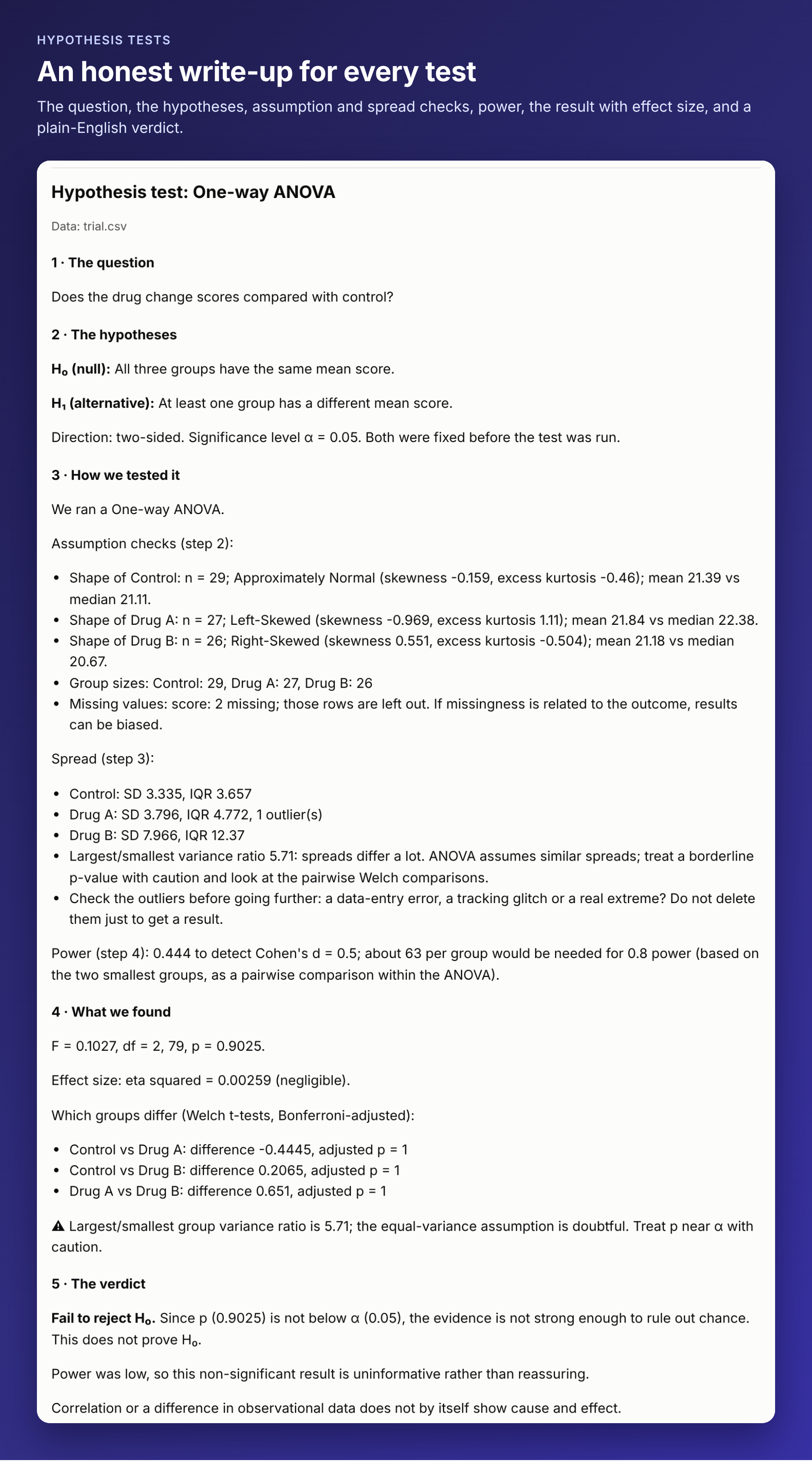
An honest write-up for every hypothesis test

Ask whether a difference is real, and the assistant follows the six steps from Stats Explorer's Bring it all together guide, in order:

  1. state the question, hypotheses and test;
  2. check the assumptions;
  3. check spread;
  4. check power;
  5. run the test;
  6. sanity-check base rates.

It can't skip ahead, and it can't pick the test after seeing the results.

A hypothesis-test write-up: question, hypotheses, assumption checks, power, result and verdict

You confirm every choice

Before anything runs, VS Code shows you the columns, groups, chart type or report sections the assistant picked, as dropdowns you can change. Nothing gets analysed or reported that you didn't ask about.

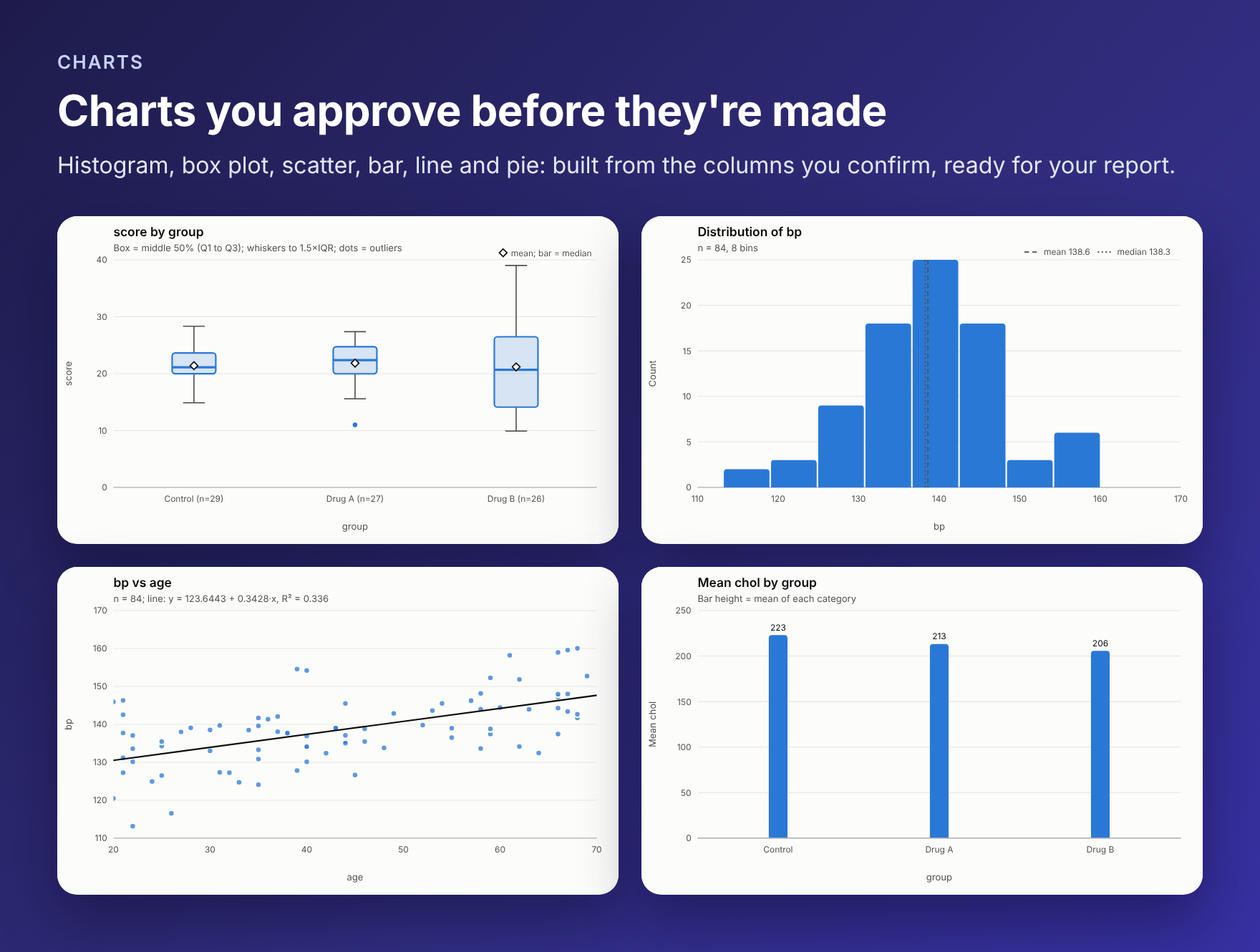
Charts: box plot, histogram, scatter with fitted line, and bar chart

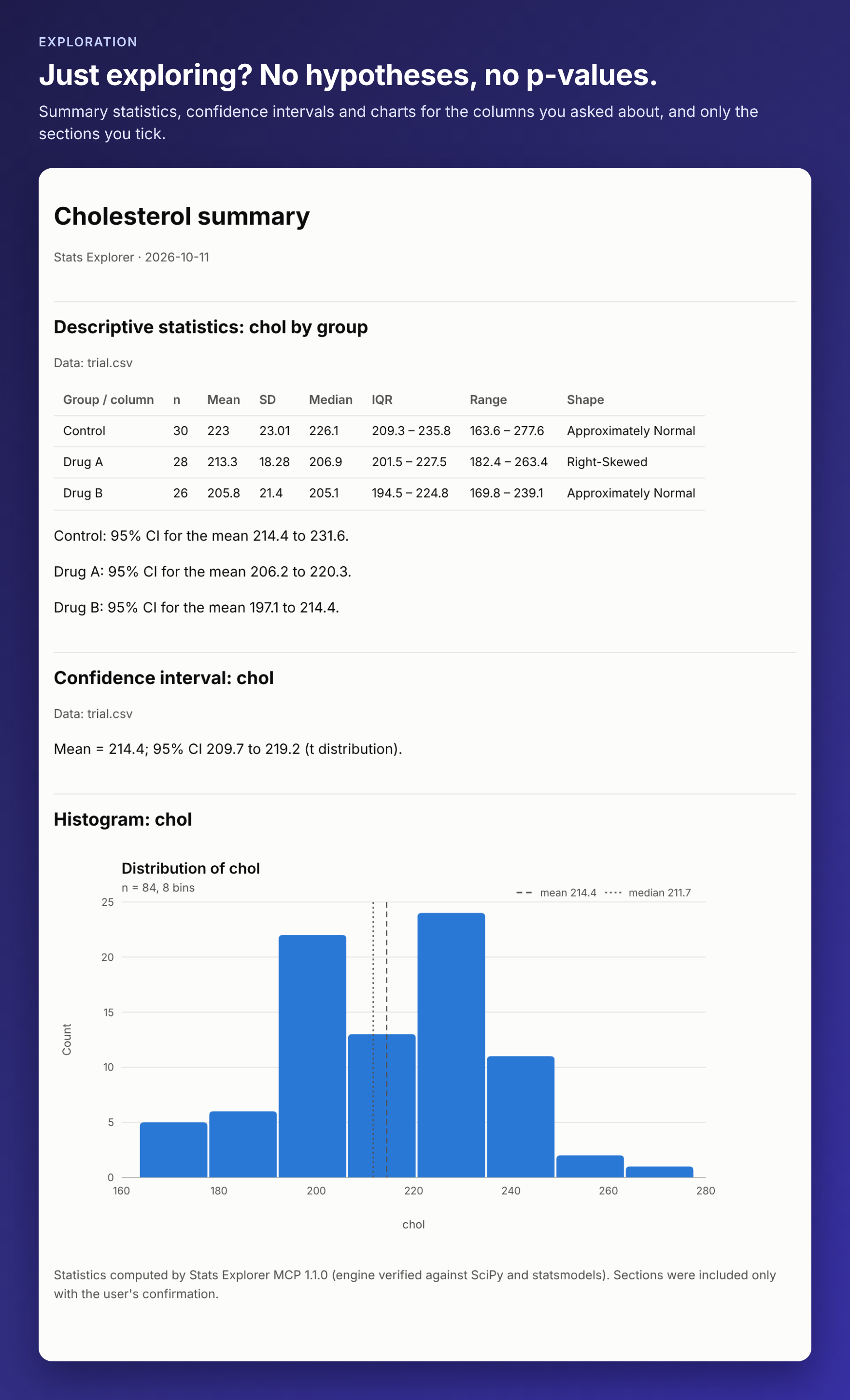
Exploring is not testing

"Summarise this", "show me the distribution", "chart X by Y": the assistant recognises when you just want to explore. You get statistics and charts with no invented hypotheses, no p-values, and no hypothesis section in the report.

An exploration report with summary statistics, a confidence interval and a histogram

Images show real output from the extension on a sample dataset.

Try it

Open a folder with a data file, switch Copilot Chat to Agent mode, and ask:

Does score differ between the groups in data/trial.csv?

Show me the distribution of bp and a box plot by group.

Make a report of what we found.

You can also use the slash commands /mcp.stats-explorer.hypothesis_test and /mcp.stats-explorer.explore_data.

What's included

Hypothesis tests t-tests (one-sample, paired, Welch/Student), z-tests, one-way ANOVA with pairwise comparisons, ANCOVA, MANOVA, chi-square, Fisher's exact, binomial, correlation
Helpers descriptive statistics and distribution shape, confidence intervals, power and sample-size planning, a test chooser, a data-file inspector, base-rate (PPV) checks
Charts histogram, box plot, scatter, bar, line, pie (light and dark mode)
Reports HTML or Markdown, containing only the sections you choose

Data files

Stats Explorer is built for tabular formats (CSV, TSV, Excel and Parquet) to run hypothesis tests or explore statistics. JSON, BSON and NoSQL databases aren't tables, so for those the tools say so and suggest exporting to CSV or Parquet first.

The tools read files only inside your open workspace folders, plus any folders you add under Settings → Stats Explorer: Data Folders. Paths outside those folders are refused, including through symlinks. Reports and charts are written only when you ask, and never over an existing file unless you agree.

Big data files, even terabytes

Files of any size work. Above 512 MB, CSV, TSV and Parquet files are read in parallel streaming passes (one per CPU core). Memory doesn't grow with the file (about 0.5 GB, plus about 0.2 GB per extra core used). A 13-million-row, 2.5 GB CSV takes about 20 seconds on two cores.

  • Tests, means, standard deviations and confidence intervals are exact on every row. Medians, quartiles and histograms of very large groups are estimated from a quantile sketch, and the results say so.
  • If a full read would take more than 2 minutes, VS Code asks whether to read every row or a quick 1% sample.
  • Long reads continue in the background with a progress bar; the assistant checks back for the result.
  • With your OK, the columns that were read are kept, so follow-up questions take seconds.
  • Attaching a data file to the chat works: the assistant passes it to the tools instead of reading it into the conversation.

Settings

Setting Default
statsExplorer.guidedWorkflow on Classify each request and follow the six steps for hypothesis tests. Off gives the assistant the individual test tools directly.
statsExplorer.confirmSelections on Confirm columns, groups, chart types and report sections before anything runs
statsExplorer.dataFolders [] Extra folders the tools may read
statsExplorer.showAppLink on One-line link to the Stats Explorer app at the end of each result
statsExplorer.largeFiles.streamAboveMB 512 Stream CSV/TSV/Parquet files above this size
statsExplorer.largeFiles.parallelReaders 0 (auto) CPU cores used to read a large file
statsExplorer.largeFiles.askAboveMinutes 2 Ask before a full read that would take longer
statsExplorer.largeFiles.samplePercent 1 Size of the quick sample
statsExplorer.largeFiles.saveColumns ask Keep columns read from large files for fast follow-ups
statsExplorer.largeFiles.cacheFolder temp folder Where kept columns go
statsExplorer.maxFileMB 0 (no limit) Refuse files larger than this

Use it in other editors

Run Stats Explorer: Copy MCP Config for Other Editors, or add this to Cursor, Claude Desktop, Windsurf or any MCP client (requires Node.js 22 or later; 24 LTS recommended):

{ "mcpServers": { "stats-explorer": { "command": "npx", "args": ["-y", "stats-explorer-mcp"] } } }

Want to see it, not just read it?

Stats Explorer is the app built on the same engine. It has a guided test picker, interactive charts, a Learn tab that explains each concept, and one-click PDF reports. Run Stats Explorer: Open the Stats Explorer App.

Requirements

VS Code 1.101 or later, with agent mode enabled.

License

MIT. Source and issue tracker: see the repository link on this page.

  • Contact us
  • Jobs
  • Privacy
  • Manage cookies
  • Terms of use
  • Trademarks
  • Your Privacy Choices
  • Consumer Health Privacy
© 2026 Microsoft