Coflow
See how your code runs. A zoomable map beside your editor, from the whole
system down to every line of one function, computed from the code itself.
Languages: Python today (and JSON config files). Support for more languages is planned.
- It starts from what runs. Scripts, web routes, CLI commands, tasks and tests are the
entry points, and the map follows what they reach. It is not a folder tree.
- It shows what is not connected. Code that never runs, requests to routes that do not
exist, and settings no code reads.
- It runs locally. No AI, no network access and no telemetry. The same code always
gives the same map.
Features
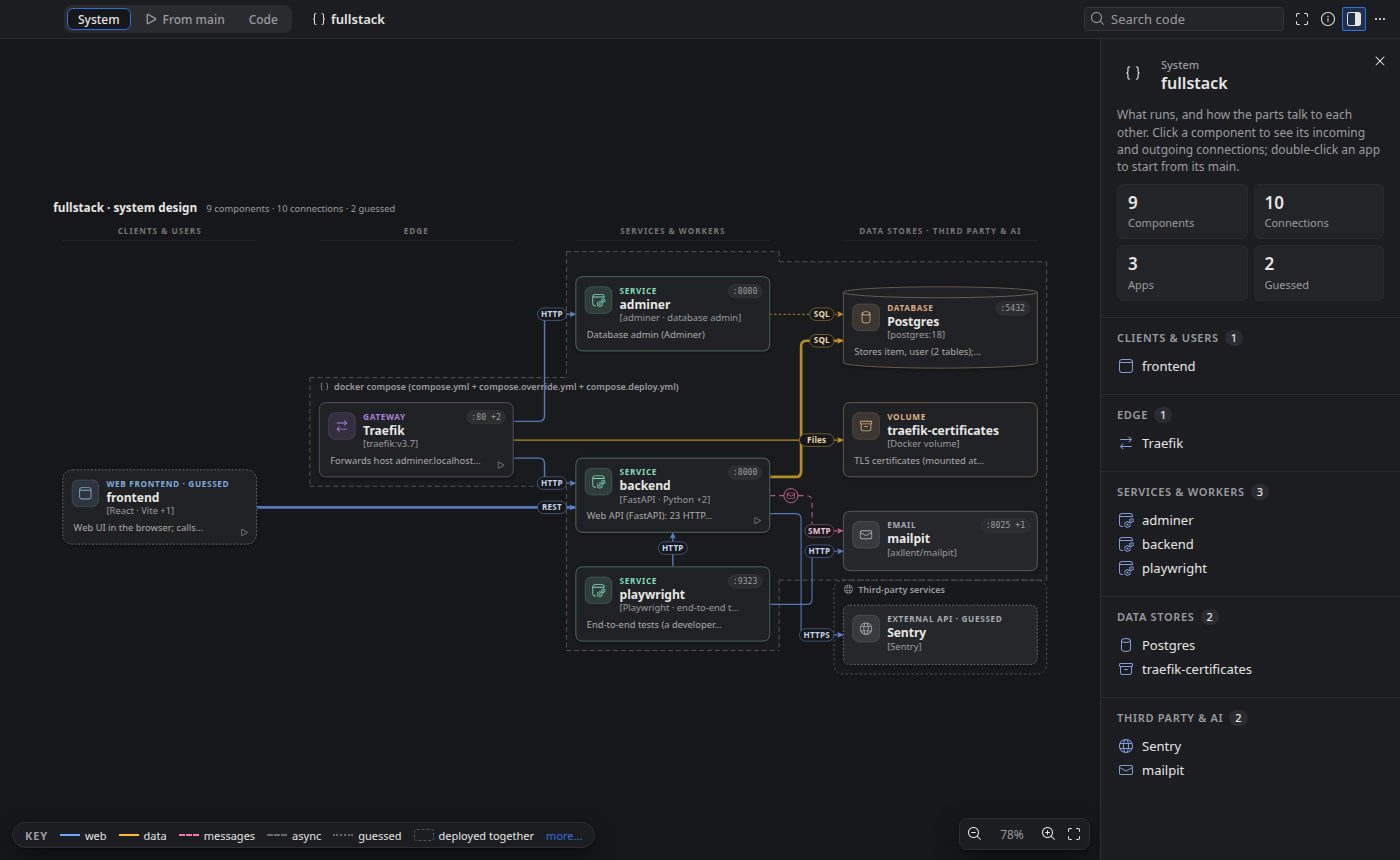
System view: how everything is connected
A system design diagram of the project, the way an architect would draw it on a whiteboard: the
apps people use, the gateway, your services and workers, the databases, caches, queues and
storage, and the third-party and AI services, read left to right in tiers. Each box says what it
is, its technology and its ports; each arrow says what it carries and how (REST · 58 endpoints,
SQL · 37 tables, proxy /api). Frames show what is deployed together (docker-compose) and what
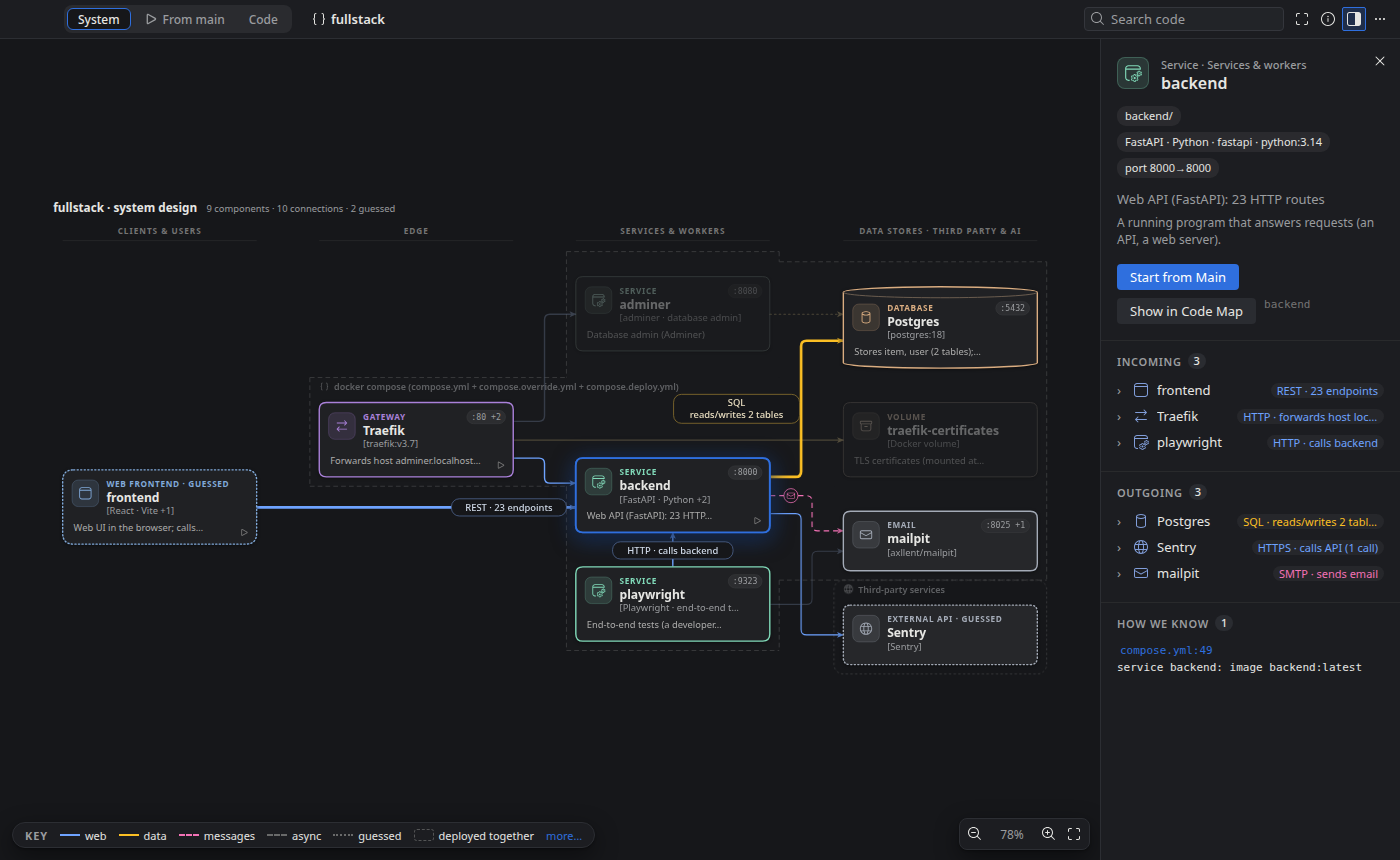
runs elsewhere. Hover or click any box to see how it is connected: its connections and
neighbours light up, the rest fades, and the details panel lists its Incoming and Outgoing
connections, each opening to the routes, tables and file lines behind it. It is the default view
when Coflow detects a system; switch with System · From main · Code in the toolbar.
Start from main
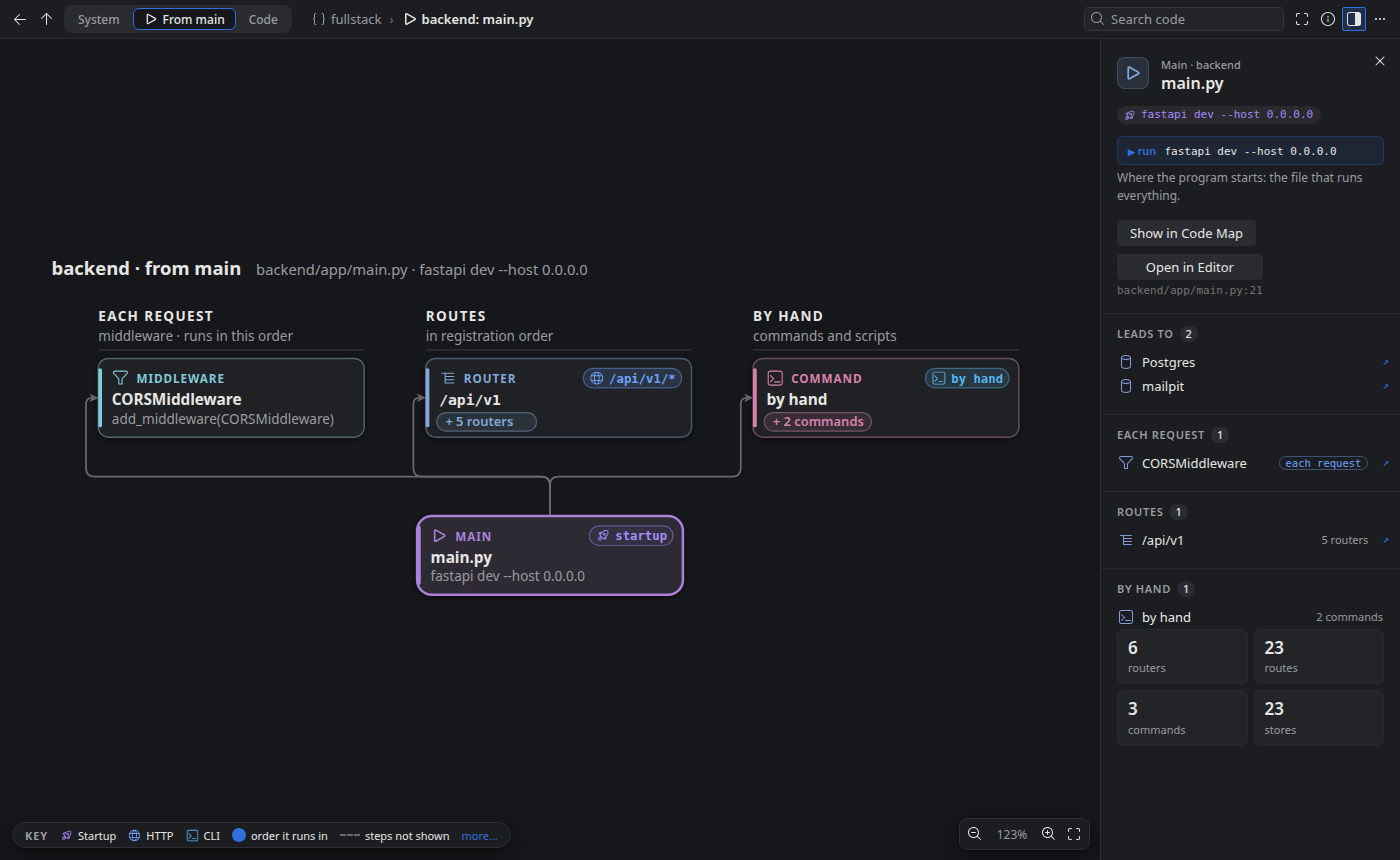
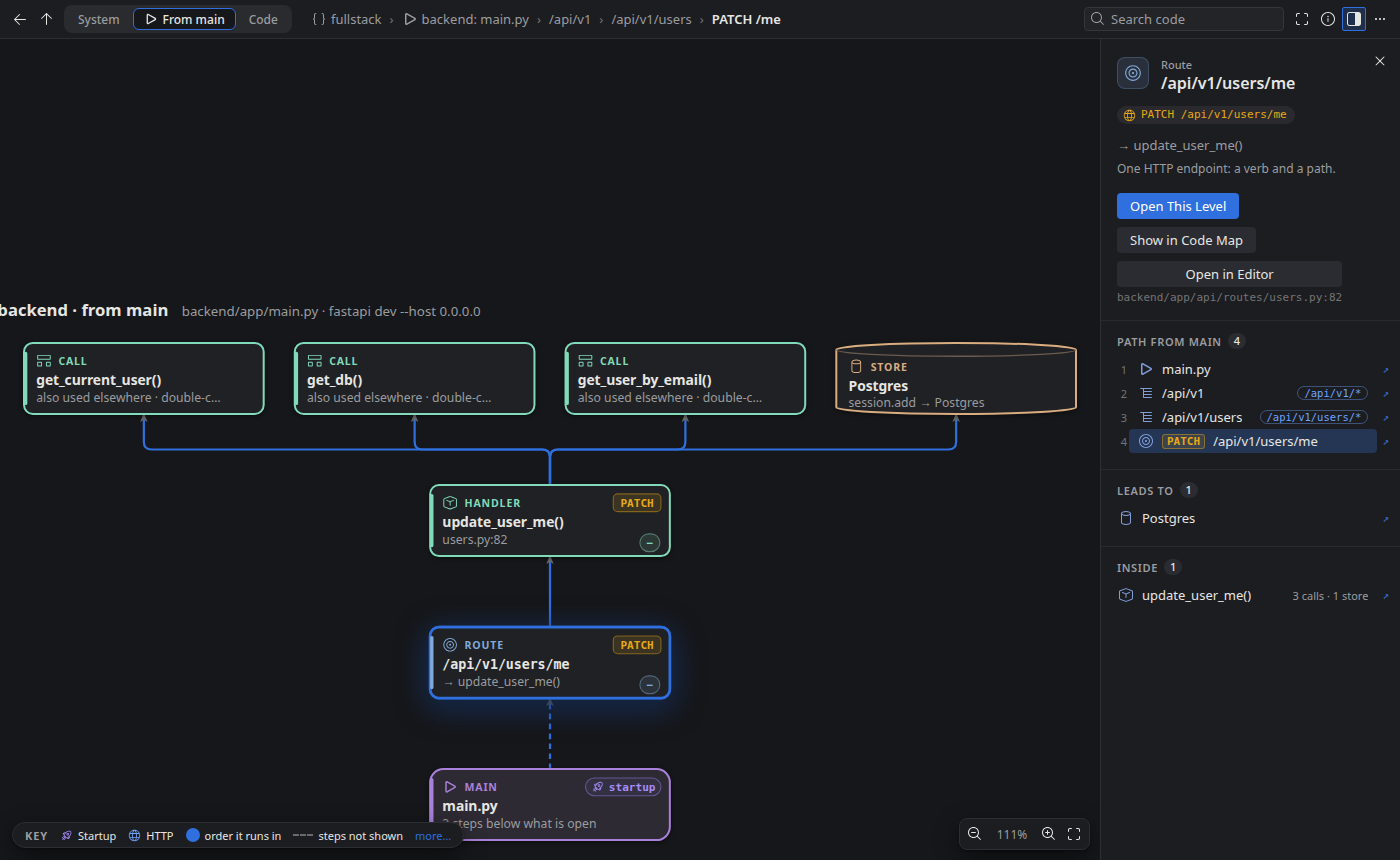
The program as it runs, from the file that starts it: main at the bottom, everything it wires
growing upward (startup hooks, middleware, routers with their prefixes, routes, handlers, the
calls they make and the stores they reach). Every route, task or handler shows what triggers it
(HTTP verb and path, cron, queue, CLI command, startup). Groups open in place with +;
double-click opens a level. Select anything to light the whole path from main to it and down
to its stores; the details panel writes that path as a chain you can click step by step.
The code map
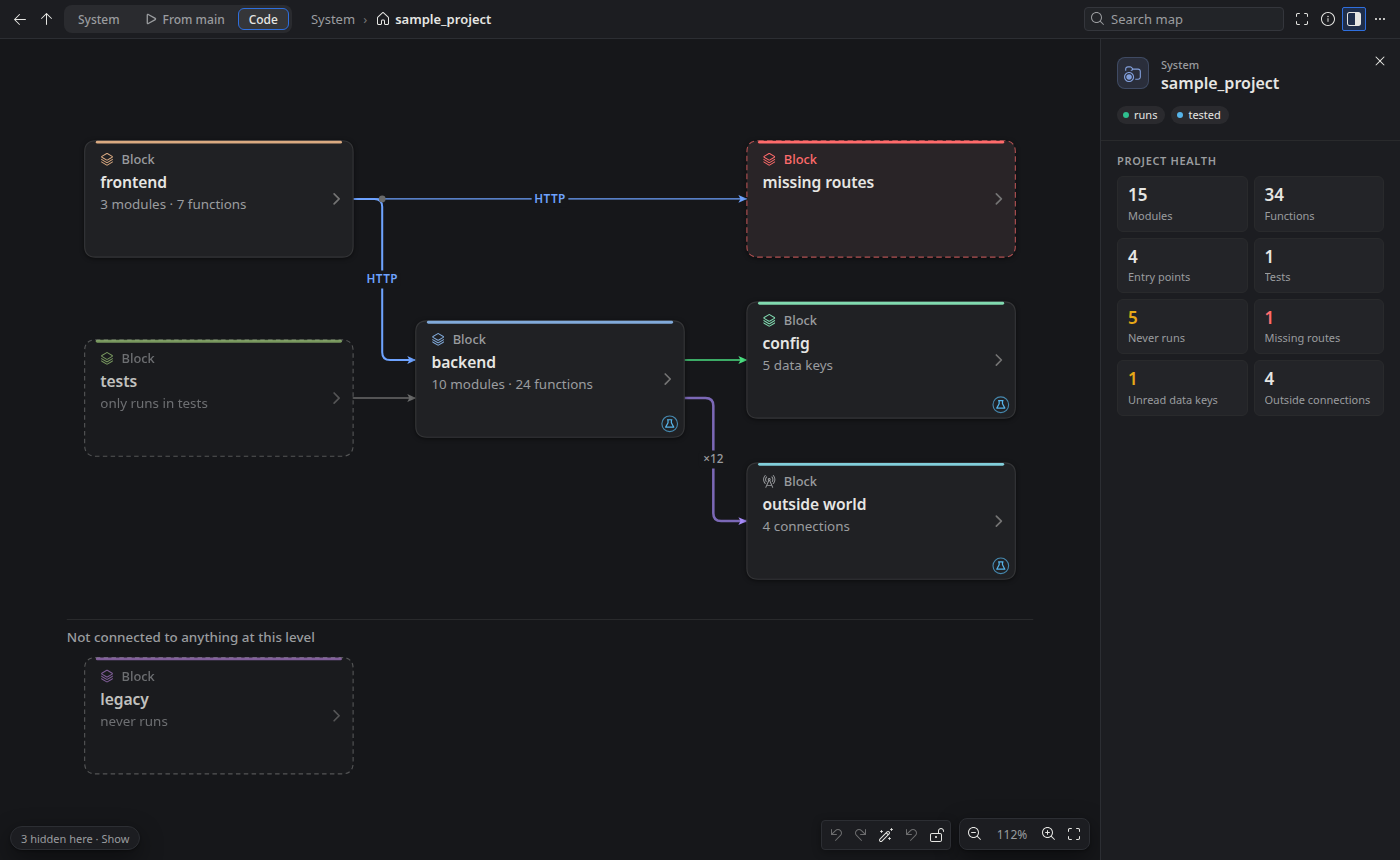
The top level shows the big blocks of the project and how they talk: HTTP requests from the
frontend to backend routes, reads of JSON config, databases, remote APIs, files and
environment variables. Double-click a block to go inside it, and keep going: a package, a
module, a class. Each level shows only what is inside it. Links to the rest of the project
are written on each box, such as ← frontend ×2.
Every function as a flowchart
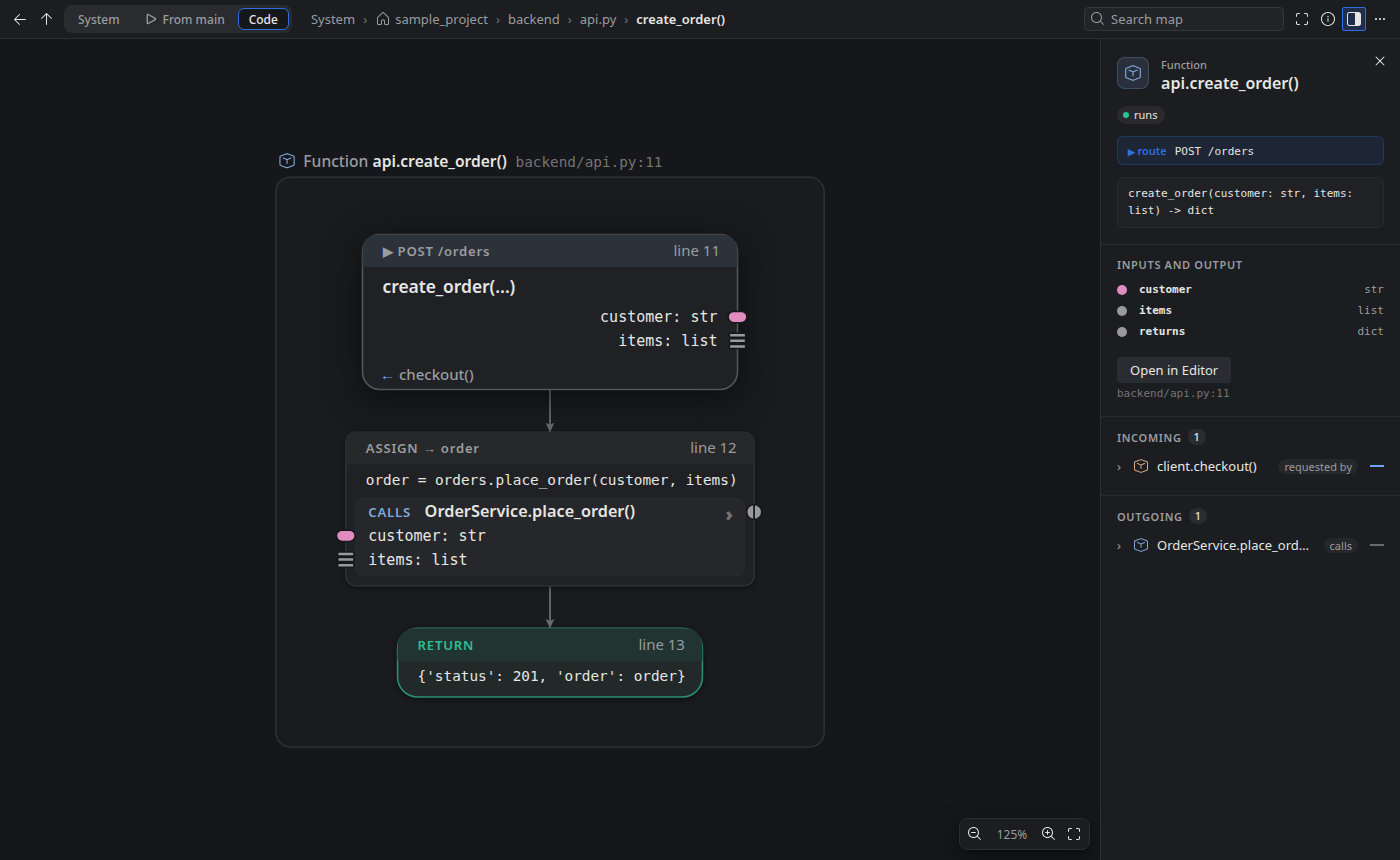
Inside a function you see its whole body, line by line: if and match branches, loops,
try/except, return and raise. Each call is a row with typed inputs and a typed
output. Each type has its own colour and its own shape, so the map stays readable without
colour.
Replay a real run
Pick a script or a test, and Coflow runs it and records every call. The replay
follows the run into each function and shows the real values on each step, the call stack
and the program's output. Use Space to play or pause and ← / → to step.
Find what never runs
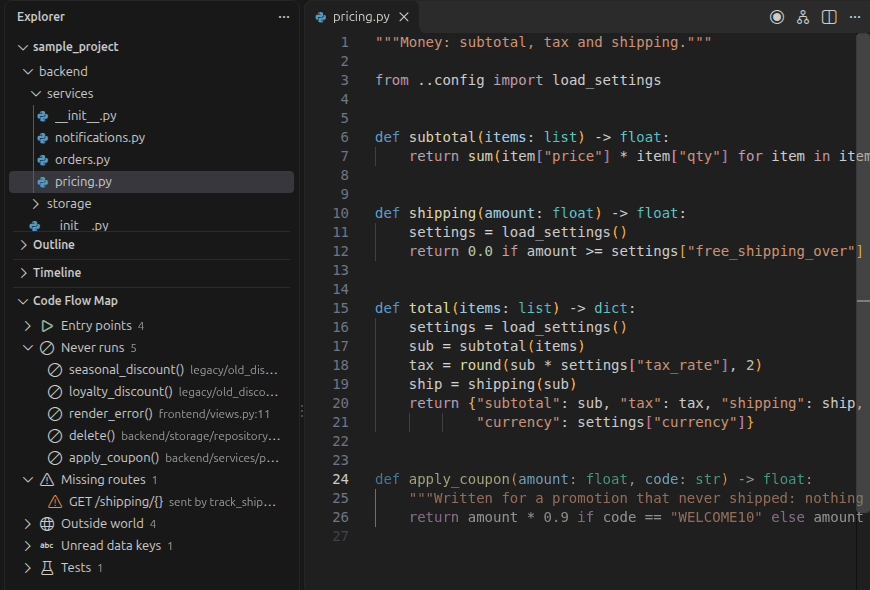
The Coflow view in the Explorer lists what the analysis found: entry points,
code that never runs, requests to missing routes, the outside world, data keys no code
reads, and tests. In the editor, code that never runs is faded, and a request to a missing
route gets a warning on the line that sends it.
Search
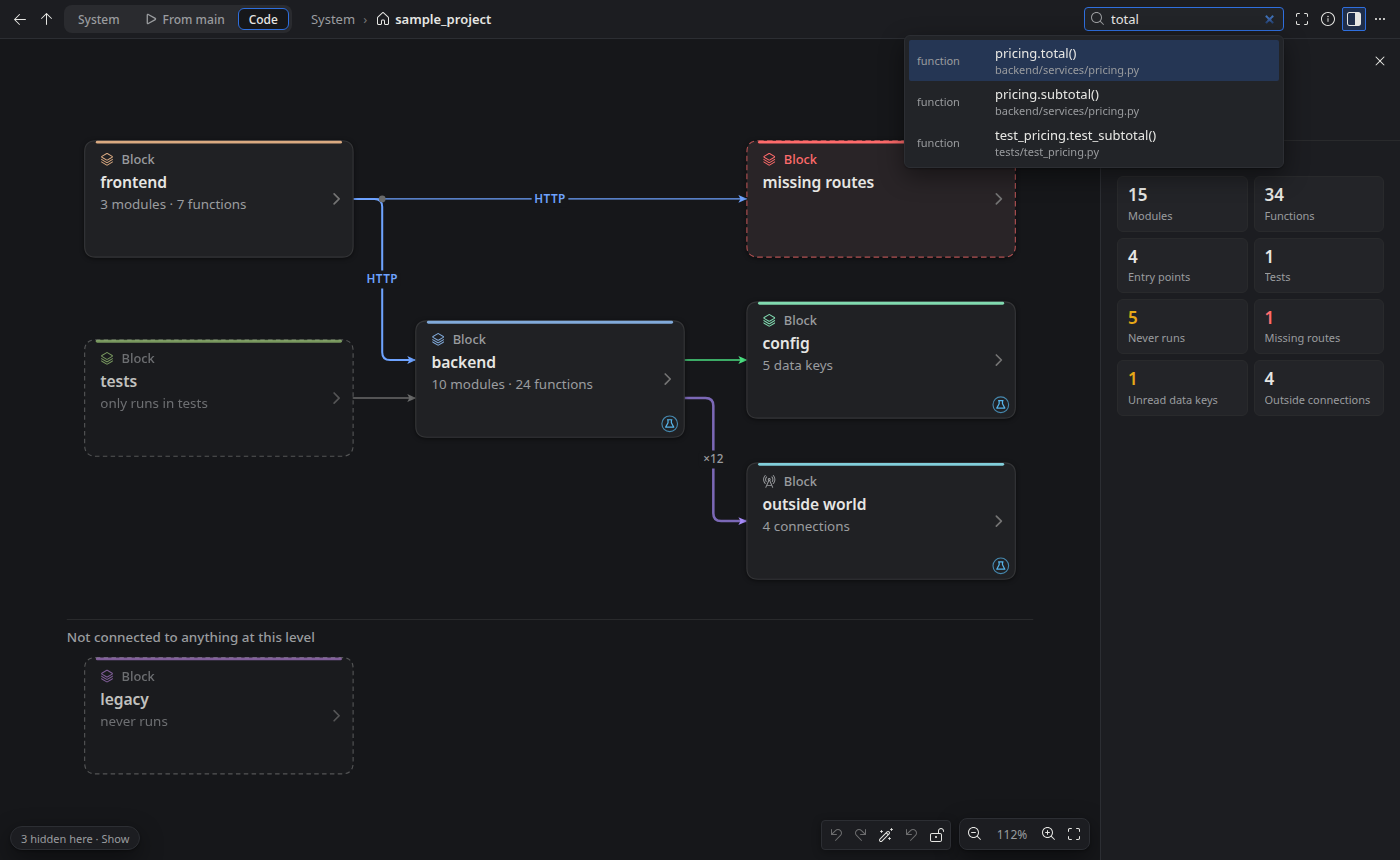
Type in Search map to find any function, class, module or route, then press Enter
to go to it.
Quick start
- Open a folder with Python code, and trust it when VS Code asks.
- Open a Python file and press
Ctrl+Alt+M (Cmd+Alt+M on macOS), or click the map icon
in the editor title bar. The map opens beside your code.
- Double-click a box to go inside it. Press Esc to go back up a level.
- To replay a run, click Record a Run… in the map's title bar and pick a script or a
test.
Help > Welcome > Get Started with Coflow walks through the same steps.
Keyboard and mouse
| In the map |
Action |
| Double-click, or Enter on a selected box |
Go inside |
| Click a box |
Focus: light its connections and neighbours, list them in the details |
| Esc |
Clear the focus, then up one level |
| Alt+← or Backspace |
Back |
| Scroll, or drag |
Pan |
| Ctrl + scroll, + / -, 0 |
Zoom, actual size |
| F |
Fit to view |
| Tab, then arrow keys |
Move between boxes |
| Space, ← / → |
Play or pause a replay, step through it |
Commands
| Command |
Shortcut or place |
| Coflow: Open Map |
Ctrl+Alt+M / Cmd+Alt+M, editor title bar |
| Coflow: Show Current Function on Map |
Ctrl+Alt+R / Cmd+Alt+R, editor context menu |
| Coflow: Record a Run… |
map title bar, editor Run menu, Explorer context menu |
| Coflow: Refresh Map |
map title bar (the map also refreshes on save) |
| Coflow: Export Map as HTML… |
map title bar menu: one self-contained file to share |
| Coflow: Show Log |
map title bar menu |
Settings
| Setting |
Default |
Description |
coflow.pythonPath |
empty |
Interpreter used to analyze and record. Empty uses the interpreter selected in the Python extension, else python3. |
coflow.analyzeOnSave |
true |
Re-analyze the project when a Python or JSON file is saved. |
coflow.exclude |
[] |
Glob patterns to leave out, such as legacy/**. Virtual environments, node_modules, build folders and caches are always left out. |
coflow.followCursor |
true |
Show the function under the editor cursor on the map. |
coflow.showImports |
false |
Also draw import arrows between modules. |
coflow.showOnlyConnected |
false |
Show only what is connected: hide the boxes with no arrow at the level on screen. |
coflow.showTests |
true |
Show test files, test folders and test functions. |
coflow.showNeverRun |
true |
Show code no entry point reaches (faded). |
coflow.showDocuments |
false |
Show data and documentation files: Markdown, YAML, TOML, text, INI/CFG, CSV. |
coflow.showInstalledPackages |
false |
Show the installed (third-party) packages the code calls. |
coflow.showStandardLibrary |
false |
Show the standard-library modules the code calls. |
The coflow.show* settings are also the map's View Options menu (⋯): a toggle there is saved
in the workspace settings, and a change in the settings shows on the map at once. Whatever the options
hide is counted on the map ("5 hidden here"), so nothing disappears silently.
| coflow.system.* | | What the System and From-main views show: each layer, guessed components, connection labels and their detail, only the selected component's connections, deployment frames, direction; startup and middleware, handler depth, stores, triggers and where main sits. Also in View Options while those views are on screen. |
| coflow.playbackSpeed | 1 | Replay speed, from 0.25 to 4. |
| coflow.recordTimeoutSeconds | 60 | Stop a recorded run after this many seconds (5 to 3600). |
| coflow.semanticZoom | false | Zooming far into a box goes inside it, and zooming far out goes up a level. |
Colour themes can override coflow.missingRouteForeground,
coflow.activeStepForeground and coflow.ranForeground.
Privacy and security
- Everything runs on your machine. There is no network access, no telemetry, no account
and no AI.
- The analysis reads your
.py and .json files and never runs them.
- Record a Run… runs the script or test you pick, with your interpreter. For this reason
the extension needs a trusted folder and is disabled in Restricted Mode.
See the privacy statement.
Requirements
- Nothing to install for the map: the engine is built in.
- Python 3.10 or newer, only to record a run (your script runs with your own interpreter).
- The Python extension is optional. It is only used to find the interpreter you selected.
Known limits
- Python and JSON only for now. The System view finds JavaScript and TypeScript apps and the
API calls they make, but their code is not mapped inside.
- Dynamic calls. Calls through
getattr, dependency injection or dictionaries of
handlers cannot always be proven by reading the code. Those links are dashed, and a
recorded run shows exactly what happened.
- Large levels. A module with dozens of functions is shown at a readable size, and you
pan or search. Levels are not yet grouped automatically.
Links

