IES and LDT Light Viewer for VS Code
See how a luminaire distributes light without leaving VS Code. Open an IES or EULUMDAT file to preview its measured light on a floor and back wall, inspect its photometric properties, and check for data issues.
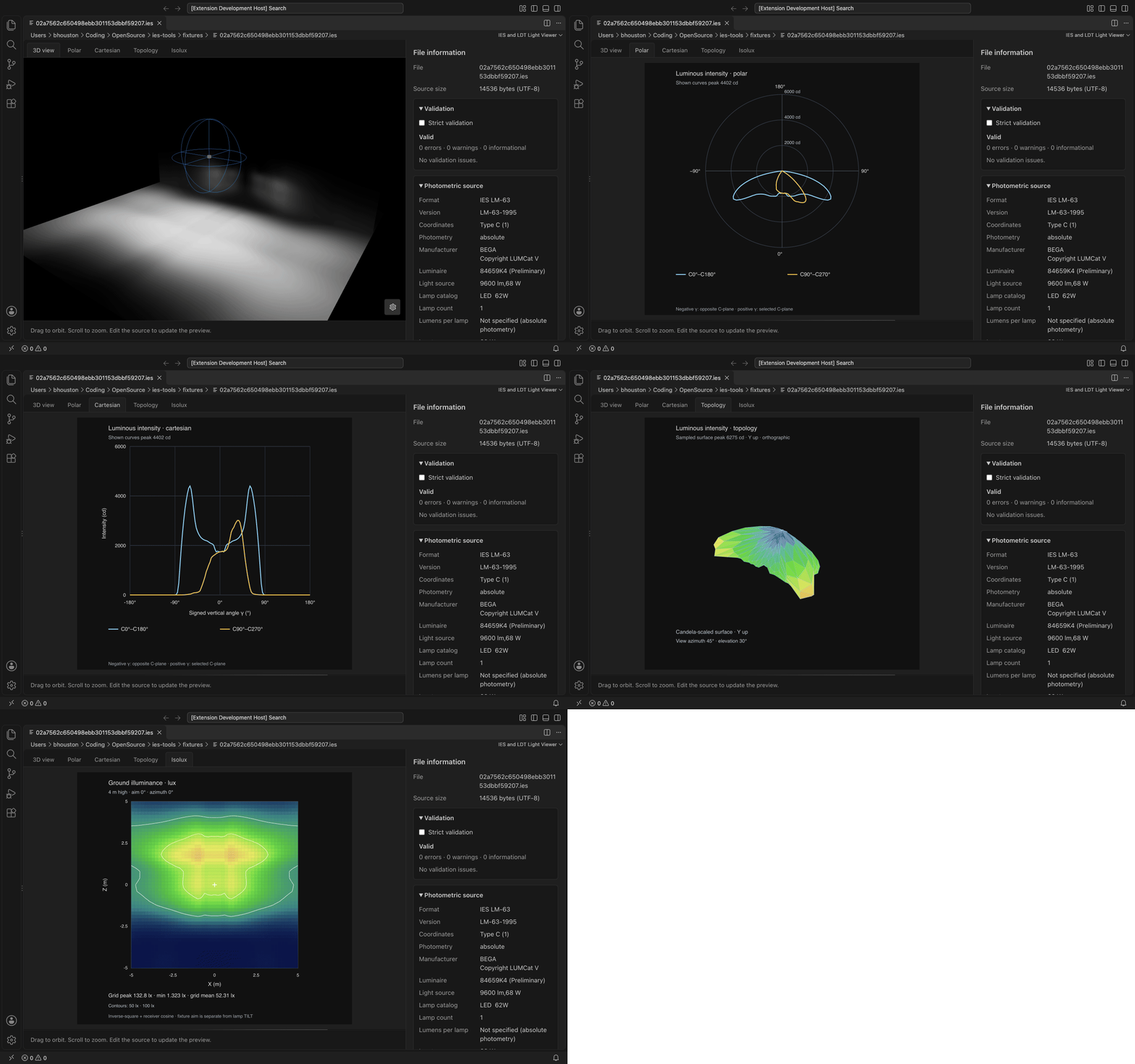
Features
- Interactive light preview: drag to orbit and scroll to zoom around the light distribution.
- Photometric charts: switch tabs to see polar and Cartesian intensity curves, a 3D intensity topology and an isolux ground plot.
- Adjustable viewing conditions: show or hide the back wall, change wall and floor distances, and choose tone mapping and exposure from the viewer's gear menu.
- Photometric information: see the format and version, manufacturer, luminaire and lamp descriptions, power, peak intensity, flux, efficacy, beam and field angles, dimensions, and source metadata.
- Validation alongside the preview: review errors, warnings and their diagnostic codes. Enable Strict validation to flag files with warnings as well as errors.
- Editor language features: in the text editor, errors and warnings appear as squiggles and in the Problems panel, hovering a number explains which field it is, the Outline view lists the header fields, and a summary above the first line shows flux, peak intensity, beam angles and efficacy.
- Live updates: keep the preview open while editing the source, including unsaved changes.
- Syntax highlighting: open the source as text to see IES keywords,
TILT lines and numbers, or EULUMDAT numeric and text lines, highlighted in the IES Photometric (LM-63) and EULUMDAT (LDT) language modes.
- IES and LDT support: preview either format and choose between alternative lamp configurations when an LDT file provides them.
- Format conversion: convert IES, LDT and JSON from the Explorer context menu or the Command Palette, one file, a multi-selection or a whole folder at a time.
- A familiar workspace: controls and file details follow your VS Code color theme. Files are processed locally, with no upload or account required.
Declared lamp ratings and calculated luminaire values are labeled separately, so you can distinguish file-provided information from estimates derived from the intensity distribution.
Open a light preview
- Open an
.ies or .ldt file. The light preview is the default editor for these files.
- If the file opens as text, select Open Light Preview in the editor title bar, run IES: Open Light Preview from the Command Palette, or right-click the file in the Explorer and choose the same command. From the preview, select Open as Text in the title bar to return to the highlighted source.
- Drag the scene to orbit and scroll to zoom. Open the gear menu in the lower-right corner to adjust the wall, distances, tone mapping and exposure.
- Use File information on the right to inspect properties and validation results. Its sections expand and collapse; in narrow windows, the information panel moves below the preview.
For an LDT file with multiple lamp configurations, choose one from the selector above the preview. Each configuration is an alternative; the viewer uses one at a time.
Edit the source while previewing
Split the editor into two groups. In one copy, select Open as Text in the title bar (or choose Reopen Editor With → Text Editor) and leave the other copy in the light preview. Source changes refresh the preview and file information without requiring a save.
If an edit makes the file incomplete or invalid, the information panel shows the current diagnostics instead of retaining outdated statistics. Inspection and validation remain available when a file cannot be rendered in 3D.
Syntax highlighting
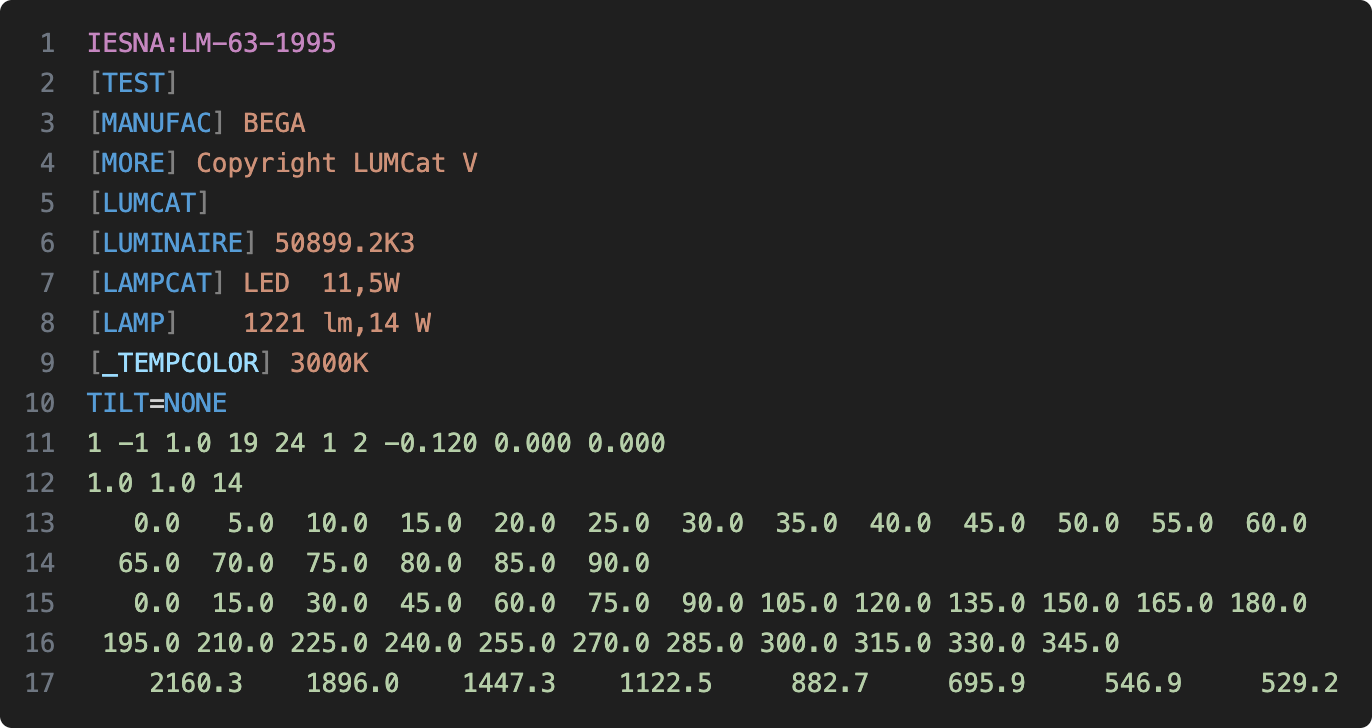
Opened as text, IES files use the IES Photometric (LM-63) language mode, which colors the format line, [KEYWORD] tags and values, user [_KEYWORDS], [MORE] continuations, the TILT= line and numbers:
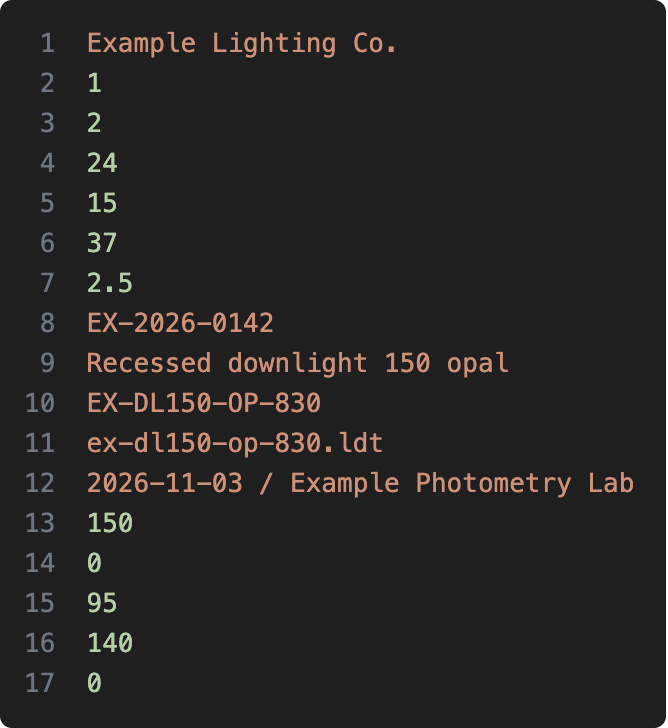
LDT files use the EULUMDAT (LDT) language mode, which distinguishes numeric lines from text lines:
Text editor features
When you open an .ies or .ldt file as text (IES: Open as Text, or Reopen Editor With → Text Editor):
- Problems: validation errors and warnings are underlined at the offending token and listed in the Problems panel with their diagnostic codes. They update as you type.
- Hover: point at any number or header line to see the field name and what it means, for example
Candela at horizontal 45°, vertical 30° (before multiplier) or the meaning of each EULUMDAT symmetry code.
- Outline: the Outline view and breadcrumbs list one entry per header field. Angle and intensity arrays are collapsed into single entries such as Candela values (1332).
- Summary: a CodeLens on the first line shows
Φ … lm · Imax … cd · beam …°/…° · … lm/W and links to Open Light Preview. When the file has errors, it shows the error count and opens the Problems panel instead.
These features are read-only and work in untrusted workspaces. Settings:
| Setting |
Default |
Effect |
iesTools.validation.enabled |
true |
Report diagnostics in the editor and Problems panel. |
iesTools.validation.strict |
false |
Report warnings as errors. |
iesTools.hover.enabled |
true |
Show field explanations on hover. |
iesTools.codeLens.enabled |
true |
Show the first-line summary and preview link. |
Right-click one or more .ies or .ldt files in the Explorer and choose Convert Photometric File → Convert to IES (LM-63), Convert to EULUMDAT (.ldt) or Convert to JSON. The same commands are available from the Command Palette for the open file. Right-click a folder and choose Convert Folder… to convert every IES and LDT file in it, optionally including subfolders (dot-folders and node_modules are skipped).
Each result is written next to its source with the new extension. When that file already exists you choose Overwrite, Keep Both (saves name (1).ies, name (2).ies, …) or Skip; the iesTools.convert.overwrite setting (ask, always or never) changes this default. Converting an LDT file with several lamp configurations to IES asks which configuration to use. Conversion warnings, such as fields the target format cannot represent, are listed in the IES Tools output channel. A file that fails to convert is reported without stopping the rest of the batch.
Supported files
The extension reads IES LM-63 files, including the 1986, 1991, 1995, 2002 and 2019 formats, and EULUMDAT .ldt files.
The 3D preview requires Type C photometry. Type A and B IES data can be inspected and validated, but their 3D distributions are not rendered.
Help and feedback
See the viewer documentation for more details, or report an issue.
Contributor setup and build instructions are in CONTRIBUTING.md.

