
Local AI Code ChatChat with your own AI server (OpenAI-compatible URL) and let it read and correct the code in the open project folder. Installation Launch VS Code Quick Open ( Ctrl+P), paste the following command, and press enter.Copied to clipboard |

Local AI Code ChatA VS Code extension that opens a chat with your own AI server and lets the AI read and
correct the source files of the opened project folder. It works like the well-known coding
assistants, but talks only to the URL you set, for example
Requirements
InstallIn VS Code open the Extensions view (Ctrl+Shift+X), search for Local AI Code Chat and click Install. Alternatively install a downloaded package file: Extensions > Set up
Project on a remote machine (Remote SSH, WSL, containers)The extension prefers to run on your PC (the machine with the VS Code window). The requests
to the AI server therefore start from your PC, so an address in your local network such as
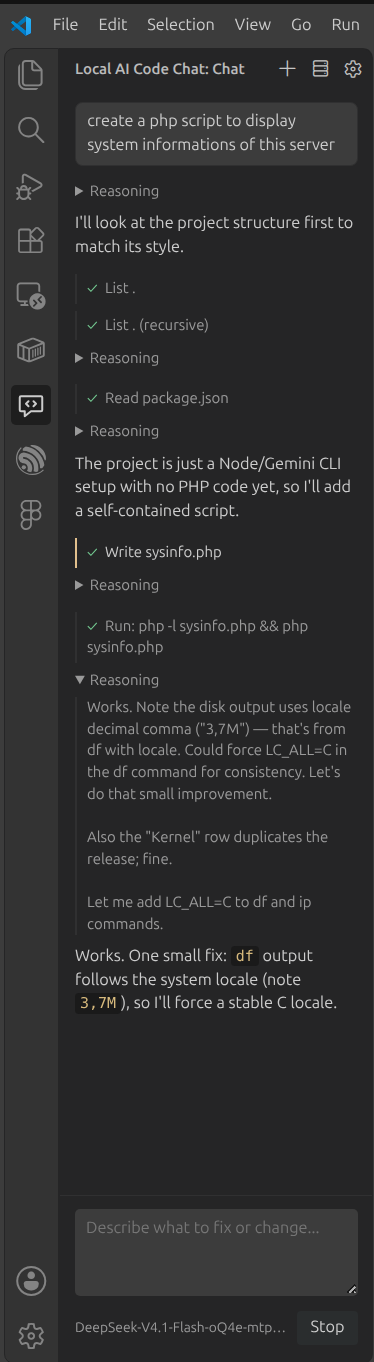
For this the extension must be installed locally: install it in a local VS Code window (one without a remote connection), and remove a copy installed on the remote machine. Shell commands for a remote project run in a VS Code terminal named "AI Code Chat" (needs the terminal's shell integration, VS Code 1.93+). If instead the AI server is only reachable from the remote machine, force the extension to run there with this user setting: UseType what you want: "why does the login test fail?", "fix the bug in parse_date", "add input validation to the upload handler". The AI then
The model's reasoning (thinking) is shown while it is generated and folded once the answer is complete; click Reasoning to open it again. Adding context
Text files are sent as text, pictures (PNG, JPEG, GIF, WebP, up to 5 MB) as images. Pictures need a model that can see images; other models answer with an error from the server. Context sizeAbove the input field the panel shows how many tokens of the model's context window are in
use, for example The file you are looking at and your selection are sent along as context; click the chip above the input field to leave them out. In the editor's context menu there are Ask About Selection and Fix Problems in This File. Changes go through the editor when the file is open, so Ctrl+Z works. The AI can only touch files inside the opened folder. Settings (
|
| Setting | Default | Meaning |
|---|---|---|
baseUrl |
http://my-ai.local:8000 |
Address of the AI server |
apiPath |
/v1/chat/completions |
Chat endpoint, appended to the URL |
model |
empty | Model name; empty = first model the server lists |
apiKey |
empty | API key (plain text setting); alternatively the command Set API Key keeps it in the secret storage |
editApproval |
ask |
ask = diff and confirmation, auto = apply directly |
allowCommands |
ask |
never, ask or auto for shell commands |
toolMode |
auto |
native = function calling of the server, text = tool calls as text blocks (for servers without function calling), auto = try native, fall back to text |
temperature |
0.2 |
|
maxTokens |
0 |
Limit per answer, 0 = server default |
maxSteps |
30 |
Maximum tool rounds per request |
contextTokens |
0 |
Context window of the model in tokens; 0 = the size the server reports, else 32768 |
stream |
true |
Show the answer while it is generated |
systemPrompt |
empty | Extra instructions (conventions, language) |
Notes on models
Editing files needs a model that follows tool instructions reliably. Coding models of roughly
14B parameters and up usually work; small models often fail to produce exact edits. If the
server supports function calling (vLLM with --enable-auto-tool-choice, llama.cpp with
--jinja, Ollama with a tool-capable model) the native mode is the most reliable.
Development
No build step, no runtime dependencies.
npm test            # node --test, uses a mock AI server
npm run package     # builds the .vsix with @vscode/vsce
src/llm.js- HTTP client (streaming and plain answers)src/tools.js- file tools, confined to the project foldersrc/vsfs.js- file access through the VS Code API (local and remote folders)src/agent.js- chat loop and text-mode tool callssrc/extension.js- VS Code side: chat view, diff approval, commandsmedia/- chat panel (webview)
Press F5 in this folder to try the extension in a second VS Code window.