Benchdog SQL Scheduler
A VS Code extension for scheduling backups, scripts and the other Benchdog tools on SQL Server, SQL Server Express and Azure SQL, the way SQL Server Agent does and where there is no Agent. Every job of a project shows its schedule in plain words, when it next runs and how its last run went, and opens on a page with its steps and its history. All the work is done by the Benchdog engine (benchdog serve); this extension is the screen. The jobs run on their schedules in the scheduler service, installed with benchdog scheduler service install; from VS Code a job runs when you ask.
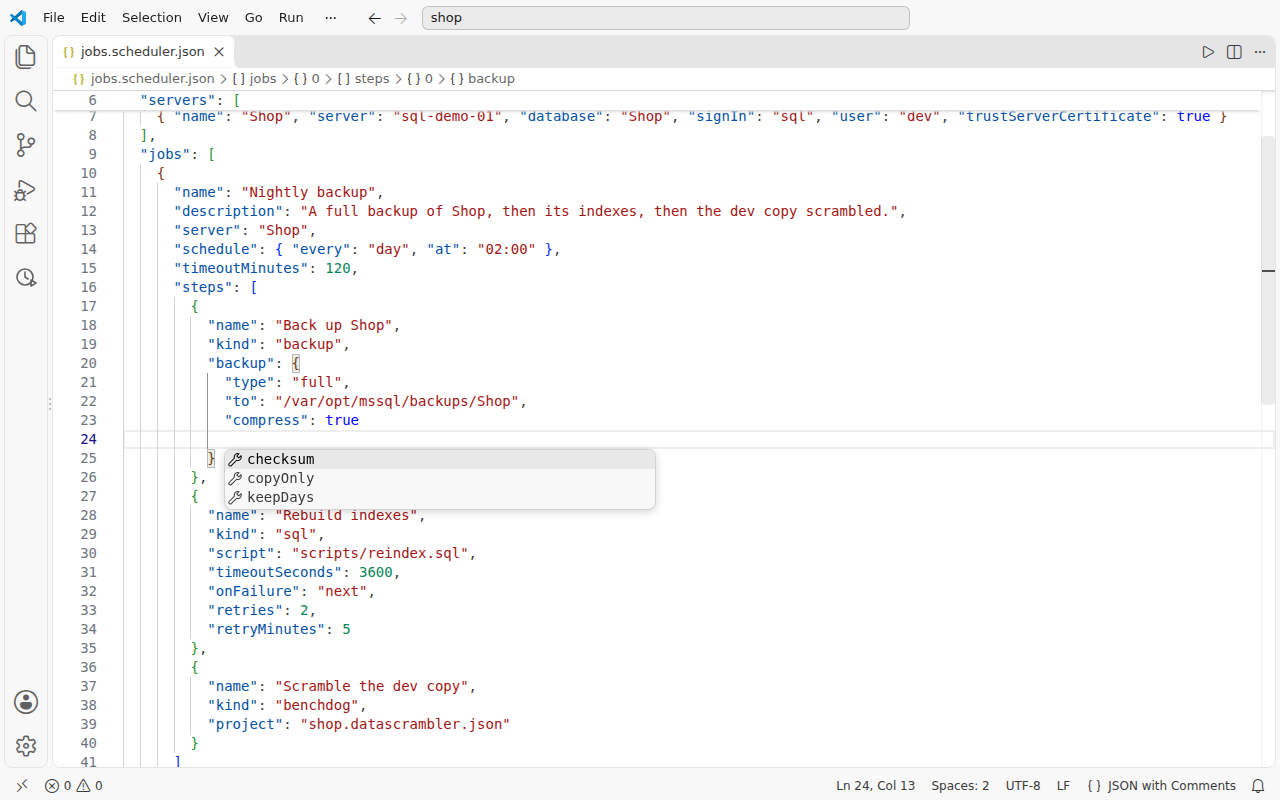
Back up, run a script, scramble the copy. One job.
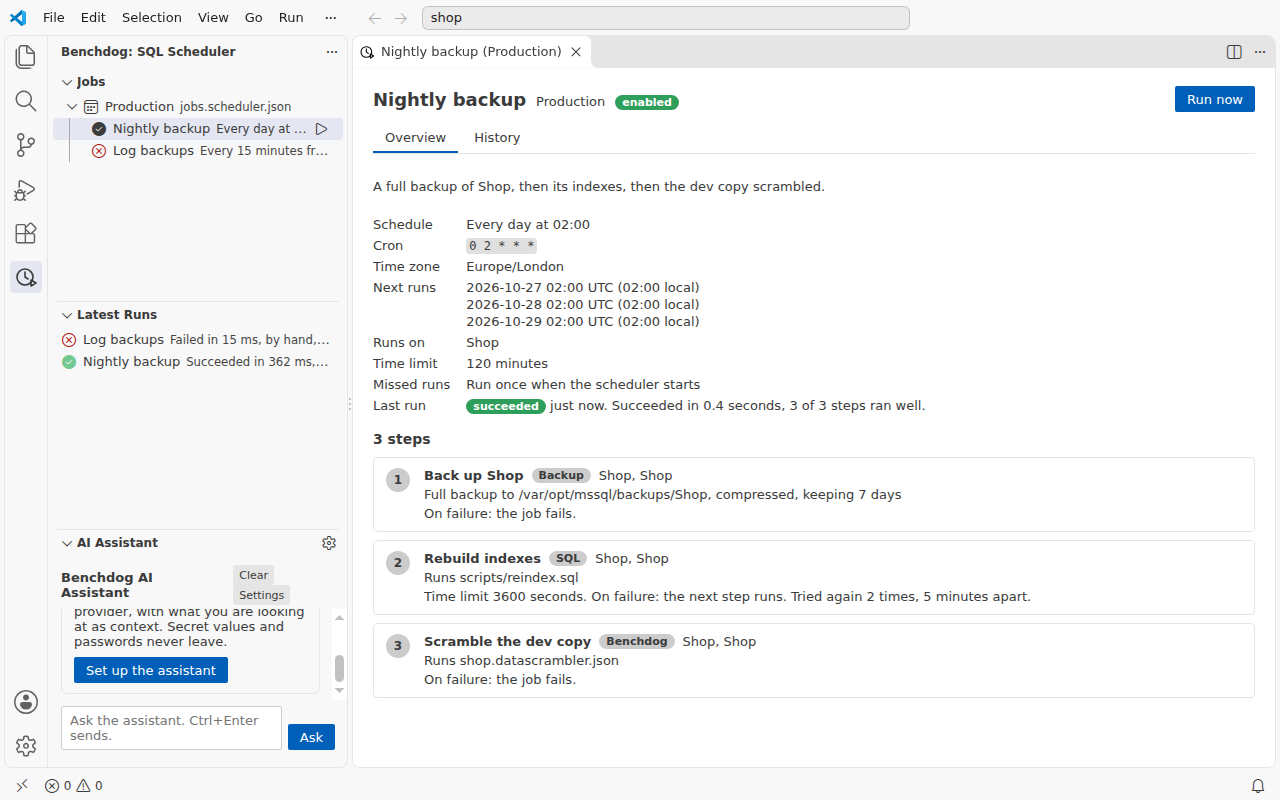
Say what happens when a step fails.
Install
Install it from the Marketplace in VS Code. The Benchdog engine ships inside the package for Windows (x64), so there is nothing else to install and no .NET needed. Mac and Linux are coming. The desktop app and the benchdog command for the same tool are at benchdog.dev.
What it does
- Jobs view: a SQL Scheduler panel in the activity bar lists every
.scheduler.json project in the workspace, and any you open from elsewhere, each with its jobs under it. A job's line says its schedule and when it next runs, such as Every day at 02:00, in 3 hours; its icon says how its last run went: green succeeded, red failed or timed out, amber skipped, grey stopped or never run, a circle with a slash for a job that is not enabled. With a history store, the last runs come from what the scheduler kept.
- Run Now (the play button on a job, or in the editor's title bar for a
.scheduler.json) runs the job straight away, step by step, with each step's progress, and shows the run in full when it ends: each step, how many tries it took, what it did and what it wrote. The run is kept in the history store when the project has one.
- Job page: click a job to open it. Overview shows the schedule in words and as cron, the time zone, the next three runs in UTC and local time, where it runs, its time limit, what it does about missed runs, and its steps as a numbered list: what each runs (the SQL, the script, the backup or the project), where, its time limit, what follows when it succeeds or fails, and how often it is tried again. History (with a store) lists the runs of the last week with how each went; click one to see each step and its output, and copy the output.
- Latest runs view: the last runs of every project with a store, the newest first. Click one to open it in full.
- Show Next Runs says when a job next runs. New Project (the + button) asks for a name, where to save the file, the first server and how to sign in to it, and whether to keep the history in a database, which can be SQL Watchdog's history store, then writes the project with an example job to edit.
- Save Alert Channel Secret keeps a channel's SMTP password or webhook address in the system's secure store, and Send Test Alert shows a channel works. A job that fails or is skipped raises an alert, which is fine again when the job succeeds.
- Scheduler Service Status says whether the scheduler service is installed on this computer and running, and copies the command that installs it. Installing it needs an administrator, so it is done from a terminal (or with the scripts in
scripts/scheduler), not from VS Code. Add --monitor with a SQL Watchdog project for one service to run the collector too.
- Project files: open one to get IntelliSense for every setting, its problems in the Problems panel on the line that names the job or step, and a Run a Job Now link at the top. A project file never holds a password or a secret.
- Sign in and SQL logins work as in the other Benchdog SQL tools: your Windows account for SQL Server on your network, your Benchdog account for Azure SQL, or a SQL login whose password Benchdog keeps until VS Code closes or, if you choose, in the system's secure store. The eye on the password box shows what you typed. Azure managed identity is for a scheduler running in Azure; runs from VS Code can not use it.
Settings
| Setting |
Does |
benchdogScheduler.enginePath |
Full path to the benchdog executable. Empty uses the one that ships with the extension. |
benchdogScheduler.tenant |
Tenant id to sign in to for servers that use Entra. Empty means your home tenant. |
benchdogScheduler.useAzureCli |
Sign in through your existing az login instead of the browser. |
benchdogScheduler.refreshMinutes |
How often the views read each history store again while they are open. 5 by default; 0 turns it off. Jobs only run from VS Code when you ask. |
The settings are separate from the other Benchdog extensions', so they can all be installed together.
How it stays safe
- Every server is reached as you. The extension keeps only the paths of project files you opened from outside the workspace; never a password or a secret.
- A job only runs when you ask, or on its schedule in the scheduler service. A run from VS Code can be stopped, and a step that fails stops the job unless the step says otherwise.
- A channel's secret is given to the engine once and kept only in the system's secure store. It is never sent back, shown or logged. Error messages have values taken out. Names, values and a step's output are set as text on the page, so nothing from a server can become markup. The page is thrown away when hidden.
Diagnostics
Turn on the benchdogScheduler.diagnostics setting to have the engine write a debug log of what it does, for finding out why something went wrong. Run Benchdog SQL Scheduler: Open Diagnostics Logs Folder to see the logs. Passwords, connection strings, tokens and your data are never written.
Trial and licence
Every Benchdog tool has a thirty day trial with every feature and no card: ask for one at benchdog.dev/trial. One licence is for one person and covers the VS Code extension, the desktop app and the command line, on every machine you work from. Prices are at benchdog.dev/pricing. The licence is checked offline; the tool contacts benchdog.dev only when you ask it to, never in the background. The terms are in LICENSE.md and at benchdog.dev/terms.
Help and support
Getting started, how to do the common jobs, the questions people ask and what to try when something goes wrong: benchdog.dev/help/sqlscheduler. Something else? The support form, or support@benchdog.dev, and a person replies.
| |

