Pixel Art & Spritesheet Editor
A complete pixel art editor inside VS Code, with drawing and selection tools, undo history, and a spritesheet mode with animation preview.
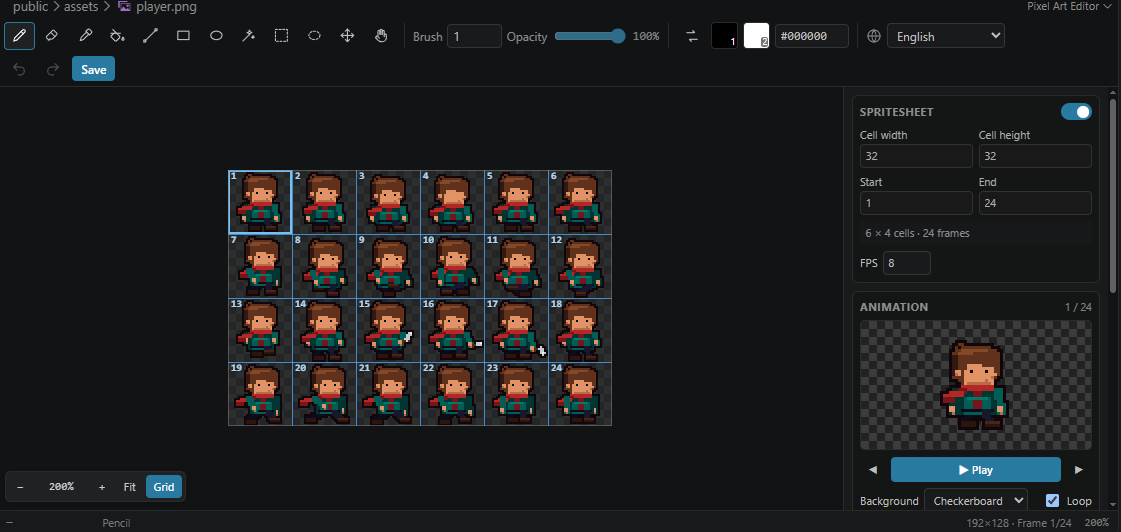
Features
- Edit PNG images inside VS Code without leaving the editor.
- Tools: pencil, eraser, eyedropper, fill, line, rectangle, ellipse, magic wand, rectangular selection, elliptical selection, move, and hand.
- Photoshop-style modifiers: Shift constrains lines and shapes and adds to selections; Alt draws from the center and subtracts from selections.
- The magic wand selects the contiguous area of the exact color you click.
- With an active selection, drawing, erasing, and fill tools only affect the selected pixels.
- Per-tool properties: brush size, brush shape (square or circle), opacity, shape fill, and fill tolerance.
- Primary and secondary colors. Right-click draws with the secondary color.
- 16-color palette, custom colors, and recent colors.
- Selection with copy, cut, paste, delete, and floating-content move. Copying and cutting use the active layer, and pasting creates a new layer.
- Photoshop-style layers with visibility, opacity, rename, duplicate, delete, reorder, and merge down.
- Layers are for editing only. Saving flattens the visible layers into the PNG, and reopening the image starts again with one layer.
- Undo and redo with per-document history, including layer changes.
- Zoom (1x to 64x), panning with Space or the middle mouse button, pixel grid, and transparency background.
- Resize and flip affect every layer. Clear empties the active layer.
- Spritesheet mode: cell width and height, columns and rows, start and end frame, FPS, and loop playback.
- Animation preview with a checkerboard, theme background, or solid color.
- English and Spanish interface, with a top-bar selector and the
pixelArt.language setting.
- Saving through VS Code's native save flow (Ctrl+S and Save As).
Installation
From a VSIX file
code --install-extension pixel-art-spritesheet-editor-0.5.4.vsix
You can also open the Extensions view, click the three dots, choose Install from VSIX..., and select the file.
From source
npm install
npm run build
Open this folder in VS Code and press F5 to launch the Extension Development Host. The sample PNG is in dev/sample.png.
Usage
- PNG files open with this editor by default. To use the built-in image preview, choose Reopen Editor With... on the editor tab.
- Use Pixel Art: New Sprite from the Command Palette to create a blank canvas.
- Use Pixel Art: Open Image with Editor or the Explorer context menu to open an existing PNG.
- Changes are marked as pending in the tab. Ctrl+S saves the original PNG.
- Save As lets you export to another PNG file.
- If you already had another PNG association, VS Code may ask you to choose the default editor. You can change it at any time with Reopen Editor With... → Configure Default Editor.
- Change the UI language with the selector in the top bar (Auto, English, or Español) or with the
pixelArt.language setting.
If PNGs still open in the built-in Image Preview, your user settings may contain:
"workbench.editorAssociations": {
  "*.png": "imagePreview.previewEditor"
}
Change the value to pixelArt.editor, or remove the entry to let the extension's default association apply.
Selection and magic wand
- With the Magic Wand (
W), click a pixel to select the entire contiguous area with exactly the same color and transparency.
- Elliptical Selection (
Q) creates circular or elliptical selections; they are stored as a real mask.
- The selection is drawn as marching ants around the actual mask, not a rectangle.
- While a selection is active, the pencil, eraser, line, rectangle, ellipse, and fill tools only affect pixels inside it. The rest of the image stays untouched.
- Hold
Shift before starting a selection to add to the current selection, or Alt to subtract from it. This works with rectangular selection, elliptical selection, and the magic wand.
- If you press
Shift or Alt after the drag has started, they constrain the new selection instead: Shift makes it a square or circle, and Alt draws it from the center.
- Use the Move tool (
V) to drag the selected pixels as floating content. Enter applies the move and Esc cancels it.
Ctrl+C and Ctrl+X copy or cut the selection from the active layer. Ctrl+V creates a new layer with the pasted content, which you can drag and apply with Enter.- You can move, copy, cut, paste, or delete the selection, then keep drawing inside it.
- To clear the selection, use Deselect or
Ctrl+D.
Layers
- The Layers panel shows the stack from top to bottom. Click a row to make that layer active; the active layer receives every paint and selection operation.
- Use the eye button to show or hide a layer, the opacity slider to change the active layer's opacity, and the name field to rename it.
- The toolbar adds, duplicates, deletes, moves, and merges layers. Deleting the last remaining layer is disabled.
- Copy and cut always read the active layer. Paste creates a new Pasted layer above it.
- Layers are not stored in the PNG. Save writes the visible layers flattened together, and reopening the file gives a single layer again.
Modifiers
| Combination |
Effect |
Shift + pencil or eraser |
Draws a straight line from the starting point. |
Shift + line |
Snaps the line to horizontal, vertical, or a 45° diagonal. |
Shift + rectangle or ellipse |
Proportional square or circle. |
Alt + line, rectangle, or ellipse |
Draws from the center. |
Shift held before starting a selection or magic wand click |
Adds to the current selection. |
Alt held before starting a selection or magic wand click |
Subtracts from the current selection. |
Shift pressed after starting a selection drag |
Constrains it to a square or circle. |
Alt pressed after starting a selection drag |
Draws it from the center. |
Shift and Alt can be combined for drawing: for example, Shift+Alt with the rectangle draws a centered square. With selection tools, Alt takes precedence when both are held before starting the drag.
Languages
The interface is available in Spanish and English. By default it follows VS Code's language: Spanish when VS Code is in Spanish, and English for any other language. Auto restores that behavior, while English and Español force the app language.
The pixelArt.language setting accepts auto, en, and es and is saved in your user settings.
Spritesheet and animation
- Turn on the Spritesheet switch in the sidebar.
- Adjust the cell width and height. The grid and frame count update automatically.
- Set the start and end frames you want to preview.
- Press Play to watch the animation at the configured FPS. You can enable or disable looping.
- Use the previous and next frame buttons to inspect the animation frame by frame.
Animation plays only in the preview; the file remains a normal PNG spritesheet.
Shortcuts
Keyboard shortcuts are handled by the editor when the canvas has keyboard focus. Click the canvas first. When a text, number, color, range, or select field is focused, the shortcut is left to that field.
| Action |
Shortcut |
| Pencil |
B |
| Eraser |
E |
| Eyedropper |
I |
| Fill |
G |
| Line |
L |
| Rectangle |
R |
| Ellipse |
O |
| Magic wand |
W |
| Selection |
M |
| Elliptical selection |
Q |
| Move |
V |
| Hand |
H |
| Brush size |
[ and ] |
| Swap colors |
X |
| Zoom |
+, -, mouse wheel |
| Fit to window |
0 |
| Zoom to 100% |
1 |
| Undo / redo |
Ctrl+Z / Ctrl+Y |
| Copy / cut / paste |
Ctrl+C / Ctrl+X / Ctrl+V |
| Select all / deselect |
Ctrl+A / Ctrl+D |
| Delete selection |
Del |
| Nudge selection by 1 pixel |
Arrow keys |
| Apply floating content |
Enter |
| Cancel floating content |
Esc |
| Pan the canvas |
Space + drag, or middle mouse button |
On macOS, use Cmd instead of Ctrl.
- The editor works with PNG files and saves lossless PNGs.
- Maximum canvas size: 4096 × 4096.
- Layers are temporary and are flattened when the image is saved. There is no onion skin.
- The clipboard is internal to the editor: copy and paste work within the same image.
- History is kept in memory while the editor is open.
- If you undo back to the saved state, VS Code may still show the tab as modified. Save once to clear it; the file contents do not change.
- Spritesheet mode and zoom are not stored inside the PNG; UI settings are kept per panel.
License
MIT.
| |

