MeshGraph
Design, visualize, document microservices architecture, API endpoints, and service dependencies directly inside VS Code.

MeshGraph is a VS Code extension that scans your workspace, whether monorepo or multi-repo, and turns your microservices architecture into a visual map. It detects services, API endpoints, and communication patterns such as REST, gRPC, GraphQL, Kafka, RabbitMQ, WebSocket, SignalR, and Socket.IO directly from your code.
Use MeshGraph to explore service dependencies, design API flows, inspect endpoints, generate architecture diagrams, and export your canvas as PDF, PNG, JPEG, or Draw.io. Everything runs locally in VS Code, close to the source code your team already works with. Featured on the VS Code Marketplace homepage.
Whether you are onboarding onto an unfamiliar codebase, planning a new service before writing code, or documenting a distributed system for a design review, MeshGraph builds the service dependency graph from the code itself, so your architecture diagram stays close to what actually ships.
Website · VS Code Marketplace · Watch Demo
Key Features
Why MeshGraph?
- Code-first architecture diagrams — start from real services, endpoints, routes, topics, and realtime connections detected in your workspace
- Microservices service map — understand how APIs, events, and dependencies connect across distributed systems
- Visual architecture canvas — drag services, connect endpoints, add notes, and design API flows without leaving VS Code
- AI-assisted documentation and code generation — use the graph as context for technical docs or implementation help when you need it
- Portable architecture files — save your work as
.mgx and export diagrams for documentation, reviews, and presentations
Workspace Scanner
MeshGraph automatically scans your workspace and detects projects and their API endpoints.
Frameworks






Protocols


Messaging and Realtime


.NET / ASP.NET Core · Java / Spring Boot · Go (Gin, Echo, Fiber, Chi, Mux) · Node.js (Express, Fastify, NestJS, Koa, Hapi) · Python (FastAPI, Flask, Django) · Rust (Actix, Axum, Rocket) · Kafka · RabbitMQ · NATS · WebSocket · SignalR · Socket.IO · SQS · SNS · EventBridge · Azure Service Bus · Google Pub/Sub · Redis Pub/Sub — REST, gRPC, GraphQL, Event-Driven, Realtime
Projects auto-refresh when you add, remove, or change files — no manual rescan needed.
Visual Canvas
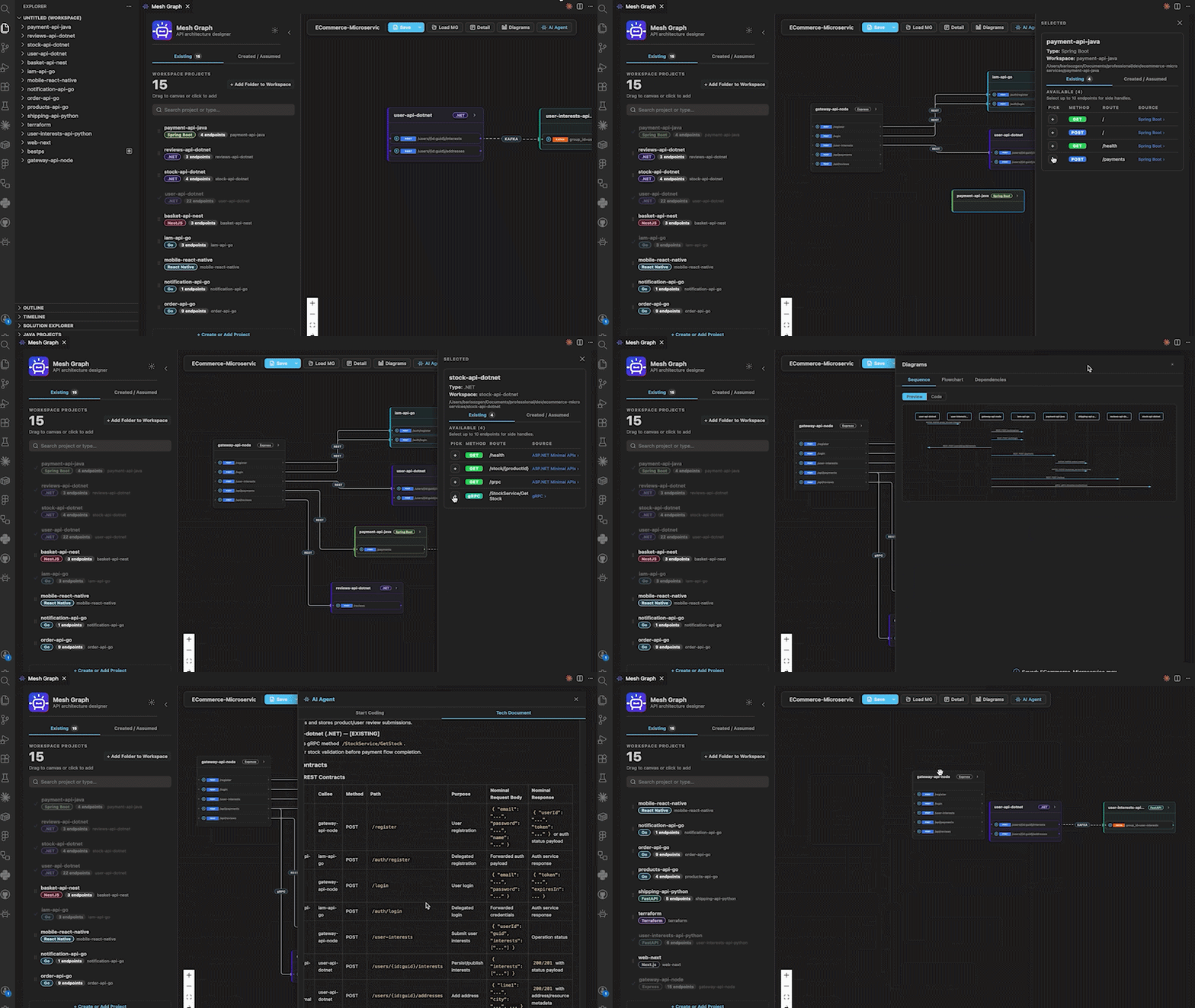
Design your architecture on an interactive canvas — drag projects, draw connections, and annotate your diagram.
Drag, Connect, Annotate
- Drag & drop projects from the sidebar onto the canvas — or click to add
- Draw connections between endpoints to map inter-service communication
- Create projects manually — model services that don't exist yet or external APIs you depend on
- Mark endpoints as Created or Assumed — distinguish between what you're building vs. what's external
- Add notes directly on the canvas as standalone annotation nodes
- Auto Arrange — one-click layout organization for all nodes
- Color-coded by project type for instant visual clarity
- Origin tags on every endpoint: E (Existing — scanned from code), A (Assumed — external), C (Created — new)
- Hover E to preview source code and file path — click to open the file in VS Code
- Hover A or C to see what the tag means
- Search & filter projects in the sidebar by name, type, or folder
- Skeleton loading — smooth animated placeholders while workspace scan runs
Endpoint Inspector
Double-click a project node or click the → arrow button to open the Endpoint Inspector drawer:
- Existing endpoints — all endpoints detected from your source code are listed here. Pick which ones to include on the canvas with a single click
- Search filter for projects with many endpoints (appears automatically when >5 endpoints)
- View endpoint details: method, route, controller, framework, and source file link
- Add new endpoints manually in Create or Assumed mode with full configuration:
- Kind (REST, gRPC, GraphQL, Event, Realtime)
- Method, operation, or broker (Kafka, RabbitMQ, SQS, SNS, EventBridge, NATS, Redis Pub/Sub, Azure Service Bus, Google Pub/Sub)
- Route / topic / channel / RPC method
- Add methods or functions — switch to Method/Function mode for internal actions that aren't API endpoints
- Choose Create (you're building it) or Assumed (external/third-party) — the AI Agent uses this to decide what to implement vs. what to generate client contracts for
- Add a note or prompt per endpoint or method — this context is sent to the AI Agent
Connections
Draw edges between endpoints to define how services communicate:
- Each connection shows a protocol chip (REST, gRPC, GraphQL, Kafka, etc.) with color coding
- Async connections render as dashed lines for event-driven and message-based protocols
- Hover a connection to see the full path, protocol, and any attached note
- Click the connection chip to open an inline note editor — add implementation details, contracts, requirements, or prompts for the AI Agent
- A dot indicator appears on connections that have notes attached
- Notes support multi-line content and auto-save on blur
AI Agent
Turn your architecture into code and documentation with any AI model available in VS Code.
Start Coding
Select any AI model available in your VS Code (GitHub Copilot, etc.) and generate implementation code directly from your architecture.
The AI Agent understands the context of your architecture:
- Existing services (scanned from your workspace) → AI follows your existing project standards, patterns, and naming conventions
- Created services (manually added, new) → AI generates clean, professional, production-ready code with best practices
- Assumed services (external/third-party) → AI does not implement these — instead generates client interfaces, DTOs, and integration contracts on the caller side
Additional features:
- Model picker with search — choose any available AI model or use Auto mode
- Additional Instructions — guide the AI with specific coding guidelines or requirements
- Prompt Preview — inspect the exact prompt before sending
- 4-step progress indicator — Planning → Model Init → Code Generation → Finalization
- Streaming output with live preview and Stop button
- Copy output with one click
- Chat follow-up — after generation, ask the agent to apply changes, clarify, or modify the code
Tech Document
Generate comprehensive technical documentation from your architecture:
- Multiple output formats — Markdown, HTML, Confluence Wiki, Plain Text
- AI Scope — choose what the AI sees: Diagram Only, Repository + Diagram, or Repository Only (includes git diff)
- Template support — upload (PDF, TXT, DOCX) or paste an existing document as a structural template
- Document language — generate in any language (English, German, Turkish, Spanish, etc.)
- Custom instructions — specify topics, sections, or details to include or exclude
- Live preview — toggle between raw output and rendered preview (Markdown & HTML)
- Download — save the generated document to your file system
- Save to .mgx — persist the generated document alongside your architecture diagram
Diagrams
Automatically generated diagrams from your canvas:
- Sequence Diagram — visualize the request flow between services
- Flowchart — see the high-level architecture flow
- Dependency Graph — understand which services depend on each other
- Copy diagram code or preview rendered output
Save MGX File
All save and export actions are available from the Save dropdown menu:
- Save — save your architecture to the current
.mgx file
- Save As — save a copy to a new
.mgx file
- Export
- Export as PDF — full canvas rendered as a PDF document, auto-oriented (landscape or portrait) based on your diagram layout
- Export as JPEG — high-quality image with dark background, ideal for presentations and documents
- Export as PNG — transparent background, perfect for embedding in wikis, docs, or layering over other designs
- Export for Draw.io — generates a
.drawio file with all project nodes, endpoint nodes, connections, and notes. Colors, method badges, edge types (REST, gRPC, GraphQL, Kafka, etc.), async dashed lines, and left-to-right connection direction are all preserved
All exports fit the entire canvas content with padding — no manual zooming or positioning needed.
Project Detail
- Project Name & Description — document your architecture context
- Created & Last Saved timestamps — track your work history
Getting Started
Get up and running in under a minute.
Install and Run
- Install MeshGraph from the VS Code Marketplace
- Click the MeshGraph icon in the Activity Bar (left sidebar) to open the panel
- Or open the command palette (
Cmd+Shift+P / Ctrl+Shift+P) → run MeshGraph: Designer
- Or press
Cmd+Shift+M (macOS) / Ctrl+Shift+M (Windows/Linux)
- Or click the MeshGraph button in the status bar
Your workspace projects will appear in the sidebar automatically.
How to Use
- Add your project folders to the VS Code workspace — MeshGraph scans them automatically
- Drag projects from the sidebar onto the canvas
- Double-click a project node or click → to open the Endpoint Inspector — pick the endpoints you want
- Draw connections between endpoints to map how services communicate
- Click a connection chip to add notes, implementation details, or AI prompts
- Hover the E / A / C origin tag on any endpoint to see source code preview or tag meaning
- Open the AI Agent to generate code or technical documentation from your architecture
▶ Watch the quick tutorial
Customization
Personalize MeshGraph to match your language and style.
Internationalization
Full UI translation in 4 languages: English, Deutsch, Türkçe, Español.
Follows your VS Code language setting automatically, or set it manually in extension settings.
Theme Support
Follows your VS Code theme — Light, Dark, and High Contrast are fully supported. All colors adapt to your current theme.
8 accent color themes built in: Default, Ocean, Sunset, Forest, Lavender, Rose, Amber, and Mono — switch anytime from the settings gear in the sidebar.
Edge Animations
Enable Allow Animations in the settings gear to see animated dots flowing along connection edges in real time.
- Off by default — toggle it on from the settings panel when you want a live visualization (may affect performance on very large diagrams)
- Dots travel from source endpoint to target endpoint along the edge path
- Color transitions — each dot starts with the source protocol color and smoothly transitions to the target protocol color as it travels
- Protocol-aware behavior:
- REST — 2 dots, the second starts when the first reaches the midpoint
- gRPC — 3 dots, each starts when the previous reaches 1/3 of the path
- Async protocols (Kafka, RabbitMQ, etc.) — 2 dots with midpoint stagger
- Animations are purely visual — they are not included in saved
.mgx files or exports (PDF, JPEG, PNG, Draw.io)
Privacy and Disclaimer
MeshGraph does not collect, store, or transmit any data. All processing happens locally on your machine within VS Code.
AI-generated code and documentation are produced by the AI language models available in your VS Code environment (e.g., GitHub Copilot). All generated content — including code, documentation, and architecture designs — is the sole responsibility of the user who created it. The extension acts only as a bridge between your architecture and the AI model; it does not host, store, or process AI requests on any external server.
Your architecture files (.mgx, .json) are saved locally to paths you choose. No telemetry, analytics, or usage data is collected by this extension.
Requirements
- VS Code 1.90.0 or later
- For AI features: an AI language model extension (e.g., GitHub Copilot)
Extension Settings
| Setting |
Description |
Default |
meshgraph.language |
Display language (auto, en, de, tr, es) |
auto |
Feedback & Issues
Found a bug or have a feature request? Reach out via the VS Code Marketplace Q&A section.
Created by Baris Ozgen for developers working with microservices, distributed systems, and API architecture.
Website · VS Code Marketplace · Demo Video ·

