Side Project Notes
Private notes for each project, right in the Explorer sidebar. Notes are kept outside the project folder, so they never show up in git status, never get committed, and never clutter the repo.
Send feedback: a bug, an idea or a question. No account or email needed.
Features
Everything lives in one Notes pane in the Explorer, next to Outline and Timeline.
- Project notes, scoped to the folder you have open and stored outside it.
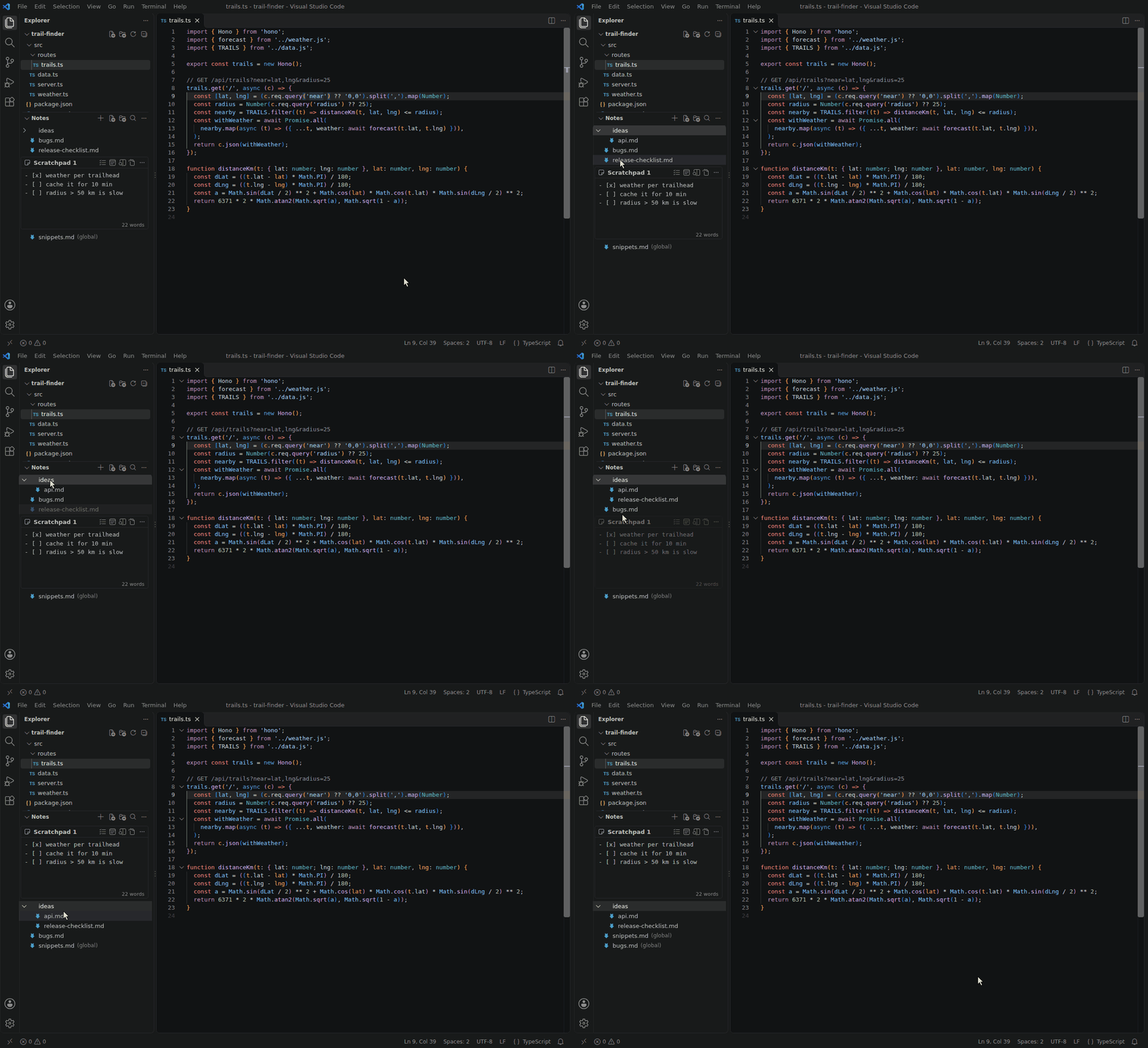
- Global notes, shared by all your projects (snippets, cheat sheets, reading lists). You choose when you create something: tick the circle in the New Note / New Folder box to make it global. Global items show (global) after their name, and Make Global / Make Project-Only in the right-click menu switches an existing item.
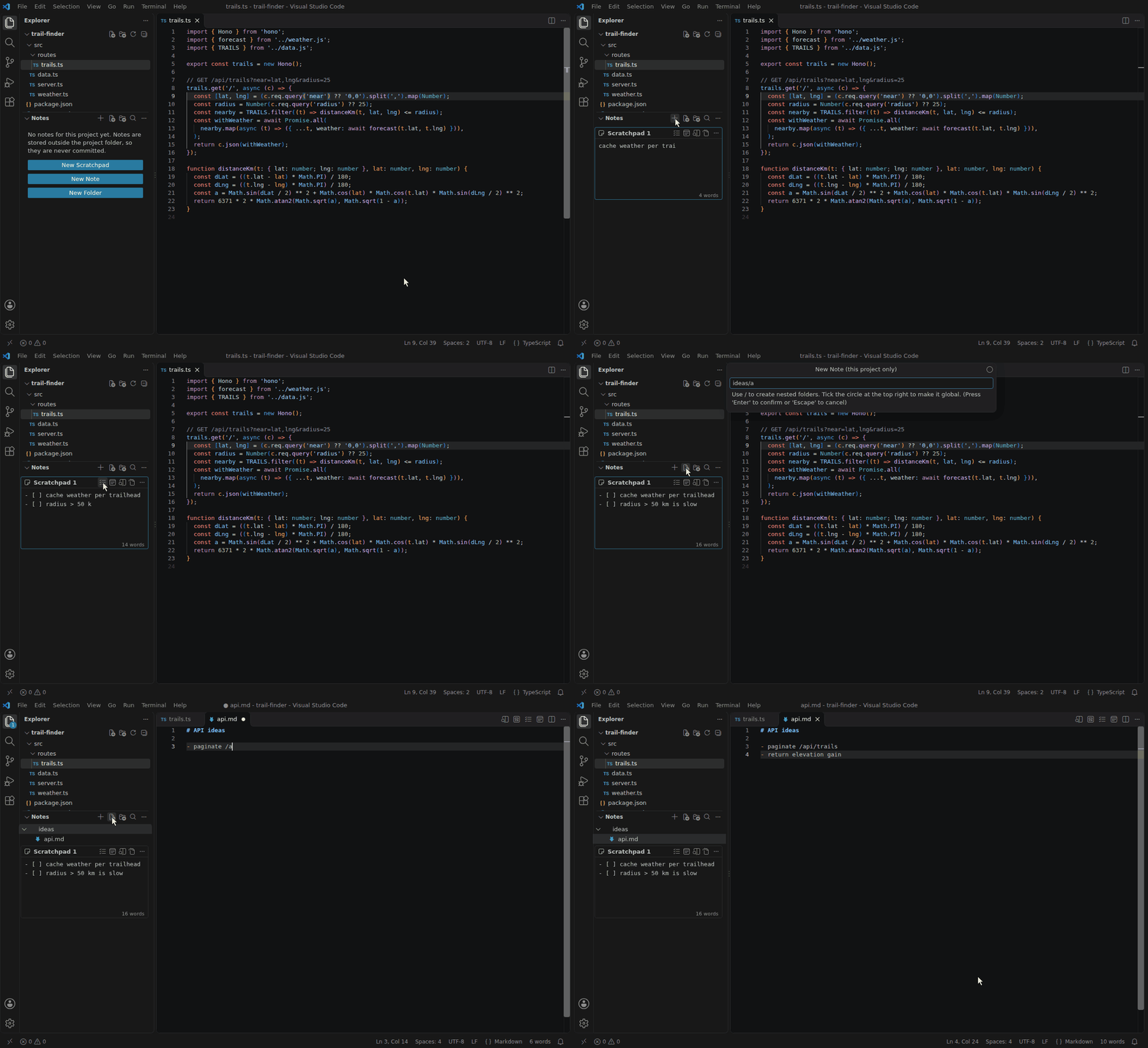
- Scratchpads right in the panel. The + button adds a text box to the Notes panel that you type into directly. It saves automatically, and the bar at the top right has Toggle To-do, Insert Timestamp, Preview, Open in Editor and a
… menu (Copy, Convert to Note, Make Global, Rename, Delete). Drag the bottom edge to make it taller or shorter.
- Everything is a movable block. Drag scratchpads, notes and folders to put them in any order, or drop them onto a folder to move them inside. The order is remembered.
- Predictable "New" buttons. New items go inside the folder you've selected, or next to the selected note. Click empty space, press Esc, or work in an editor to clear the selection, and new items go to the top level again.
- Autosave for notes in editor tabs, about a second after you stop typing (
sideNotes.autoSave). While a note is open, the editor title bar has Toggle To-do and Insert Timestamp, and the status bar shows the word count.
- Find anything fast. Search Notes searches the text of every note (project and global), and Go to Note jumps to any note by name, recently opened first. Type a new name to create it.
- Add Selection to Note. Right-click selected code in any file to add it to a note (or a new scratchpad) as a code block, with a link back to the exact lines.
- Daily notes. Open Daily Note opens today's note (
daily/2026-11-10.md), created from a template the first time.
- Real files. Notes are ordinary files on disk, so Markdown preview, syntax highlighting and every other editor feature just work.
- Nested creation. Type
ideas/api.md in the New Note box and the folders and file are created in one go. Typing todo creates todo.md (see sideNotes.defaultExtension).
- Right-click actions: New Scratchpad, New Note, New Folder, Rename, Move To…, Delete (to the Trash, with confirmation), Open Preview, Make Global / Make Project-Only, Reveal in File Explorer (Finder on macOS, Open Containing Folder on Linux), Copy Path. Keyboard: arrow keys to move, Enter to open, F2 to rename, Delete to delete.
- Your file icon theme. The panel shows the same icons as your Explorer (Material Icon Theme, VS Code's default icons, or any other).
- Multi-root workspaces: one node per workspace folder, with global notes listed after them.
- Portable names. Names that would break on another OS are rejected as you type: Windows-illegal characters, reserved names like
CON or NUL, and trailing dots or spaces. Names are compared ignoring case, so you can't end up with both Notes.md and notes.md.
- Works locally and remotely, on Windows, macOS, Linux, WSL, SSH, Dev Containers and Codespaces. In remote windows your notes stay on your own computer.
- Lightweight. It starts after VS Code has finished loading (so autosave works for note tabs restored from last time), reads folders only when you expand them, and has zero runtime dependencies. No telemetry and no network access.
Commands
| Command |
What it does |
Side Project Notes: New Scratchpad |
Add a scratchpad text box to the panel (the + button). |
Side Project Notes: New Note |
Create a note (nested paths allowed). Goes into the selected folder, or next to the selected file. Tick the circle to make it global. |
Side Project Notes: New Folder |
Create a folder (nested paths allowed), project or global. |
Side Project Notes: Go to Note... |
Pick any note by name, recently opened first. If nothing matches, create a note with that name. |
Side Project Notes: Search Notes |
Search the text of all notes (project and global) and jump to the matching line. |
Side Project Notes: Open Daily Note |
Open today's note, creating it from sideNotes.dailyNoteTemplate the first time. |
Side Project Notes: Add Selection to Note... |
Add the selected code to a note or a new scratchpad, with a link to its file and lines. Also in the editor's right-click menu. |
Side Project Notes: Toggle To-do |
Turn the current or selected lines into - [ ] items, then - [x], then back. |
Side Project Notes: Insert Timestamp |
Insert a ## YYYY-MM-DD HH:MM heading at the cursor. |
Side Project Notes: Refresh |
Re-read the notes folders. |
Side Project Notes: Open Notes Folder |
Reveal this project's notes folder in your OS file manager. In remote windows, opens it in a new VS Code window instead. |
Side Project Notes: Link Notes From Another Project |
Bring back notes after the project folder was moved or renamed (see below). |
Right-click menu only: Make Global, Make Project-Only, Convert to Note, Copy Scratchpad Text, Move To…, Open Preview, Rename, Delete, Reveal in File Explorer (Finder on macOS, Open Containing Folder on Linux), Copy Path.
There are no default keyboard shortcuts, so nothing clashes with your own. To add some, open Preferences: Open Keyboard Shortcuts (JSON) and add, for example:
{ "key": "ctrl+alt+n", "command": "sideNotes.newScratchpad" },
{ "key": "ctrl+alt+o", "command": "sideNotes.goToNote" },
{ "key": "ctrl+alt+f", "command": "sideNotes.searchNotes" }
Settings
| Setting |
Default |
Description |
sideNotes.storagePath |
"" |
Absolute folder to keep notes in instead of ~/.side-project-notes. Supports ~ and ${userHome}. Set it in your User settings; it can't be set in Remote settings or in a repo's workspace settings. |
sideNotes.defaultExtension |
md |
Extension added to new notes typed without one. |
sideNotes.autoSave |
true |
Save notes about a second after you stop typing. |
sideNotes.dailyNotePath |
daily/${date}.md |
Where today's note goes, relative to the project's notes. Variables: ${date}, ${year}, ${month}, ${day}. |
sideNotes.dailyNoteTemplate |
# ${date} |
What a new daily note starts with (same variables). Empty for a blank note. |
Where are my notes stored?
Each project gets its own folder named <folder-name>-<hash>, for example my-app-0vrtcumarbv. The hash comes from the project's full path. The quickest way to find it is Open Notes Folder, or right-click a note and choose Copy Path.
By default, notes live in a .side-project-notes folder in your home folder: global notes in global/, project notes in projects/. It's the same folder for VS Code, Insiders, VSCodium and Cursor, and it isn't touched when you uninstall the extension.
| Your computer |
Default notes location |
| Windows |
%USERPROFILE%\.side-project-notes\ |
| macOS, Linux |
~/.side-project-notes/ |
Remote windows (WSL, SSH, Dev Containers, Codespaces in the desktop app): the extension runs on your own computer, so notes for remote projects are stored there too, in the same folder as everything else. One set of notes covers all your windows, rebuilding a container doesn't touch them, and Reveal in File Explorer (Finder on macOS, Open Containing Folder on Linux) works. Two things to know:
- Notes for a remote project are named after its path on the remote, for example
/home/you/app → app-<hash>. Two remotes with a project at exactly the same path share one notes folder.
- Add Selection to Note from a remote file adds a link that includes the remote's name. It opens from a window connected to that remote.
Codespaces or tunnels in a browser have no local side for the extension to run on, so there it runs in the codespace and keeps notes in the codespace's home folder. Those are deleted with the codespace, and rebuilding it throws away everything outside /workspaces. To keep them, set "sideNotes.storagePath": "/workspaces/.side-notes", next to your repo.
Backing up and syncing notes
Settings Sync does not sync notes. It syncs settings, not extension files. To back up or sync notes, set sideNotes.storagePath to a folder you already back up or sync, for example:
"sideNotes.storagePath": "~/Dropbox/side-notes"        // or OneDrive, iCloud Drive, Syncthing…
"sideNotes.storagePath": "${userHome}/notes-repo"      // a private git repo just for notes
Copy your existing notes from the default location (see above) into the new folder. The project folder names (<name>-<hash>) stay the same, so each project finds its notes again.
The hash depends on the project's path, and paths differ between machines. On a second machine with a different path, use Link Notes From Another Project once.
I moved or renamed my project and my notes are gone
They're not gone. The project's path changed, so its hash changed too. Run Side Project Notes: Link Notes From Another Project and pick the old project from the list (it's shown by its old folder name). You'll see where the notes will move from and to before anything happens. If the project already has new notes, the old ones go into a subfolder, so nothing is overwritten.
FAQ
If I delete a global note in one project, is it gone from the others too?
Yes. Global notes are one shared folder, not copies per project, so deleting (or renaming or editing) one changes it everywhere. The delete confirmation says so. Deleted notes go to the Trash, so you can restore them.
Why doesn't VS Code's search (Ctrl+Shift+F) find my notes?
VS Code only searches folders in your workspace, and notes are deliberately kept outside it. Use Search Notes (the 🔍 button in the Notes title bar) instead.
How do global notes work?
Tick the circle in the New Note / New Folder box, or right-click an item and choose Make Global. Global notes appear in every project's Notes pane with (global) after their name. They're stored in ~/.side-project-notes/global/, so they follow the same rules for backups, and remote windows see the same global notes as local ones.
How are scratchpads stored?
Each scratchpad is an ordinary Markdown file named <name>.scratch.md in the notes folder, so search, Go to Note, Move To and backups all include it. Convert to Note turns it into a normal .md note that opens in an editor tab.
Where is my custom order kept?
In a small hidden file, .sidenotes.json, in each notes folder. Delete it to go back to alphabetical order (folders first).
Can notes end up in git?
No. They're never stored inside your project folder, unless you point sideNotes.storagePath there yourself.
Does it work in Restricted Mode (untrusted workspaces)?
Yes. The extension never runs anything from the workspace, and storagePath can't be set by a repo's workspace settings.
Does it work in vscode.dev / github.dev, or with virtual workspaces (e.g. GitHub Repositories)?
Not yet. The extension is disabled there.
Why can't I name a note CON.md or what?.md on Linux?
Those names break on Windows (and sometimes macOS). Rejecting them everywhere keeps your notes portable between machines.
Why are symlinks in my notes folder not shown?
A symlink could point outside the notes folder, and VS Code's file API can't safely tell where it leads, so symlinks are skipped.
Why do I get a warning about long paths?
Many Windows tools fail on paths of 260 or more characters. The note is still created; the warning is so you know before syncing to a Windows machine.
Delete says the Trash isn't available.
Some containers and remote hosts have no Trash. You'll be asked before anything is deleted permanently.
Does it send any data anywhere?
No. There's no telemetry, no network access and no remote content.
Feedback
Found a bug or have an idea? Send a message. No account or email is needed.
Privacy
Side Project Notes collects nothing and makes no network requests.
Credits
Fallback and toolbar icons are codicons by Microsoft, licensed under CC BY 4.0. See THIRD-PARTY-NOTICES.md.
License
MIT

