
Hermes Agent for Cursor & VS Code
Your AI agent, inside your editor.




Bring the full power of Hermes Agent directly into your Cursor or VS Code editor. Chat with your AI agent, manage kanban tasks, search sessions, execute commands, navigate files, and monitor your workflow — all from a native sidebar.
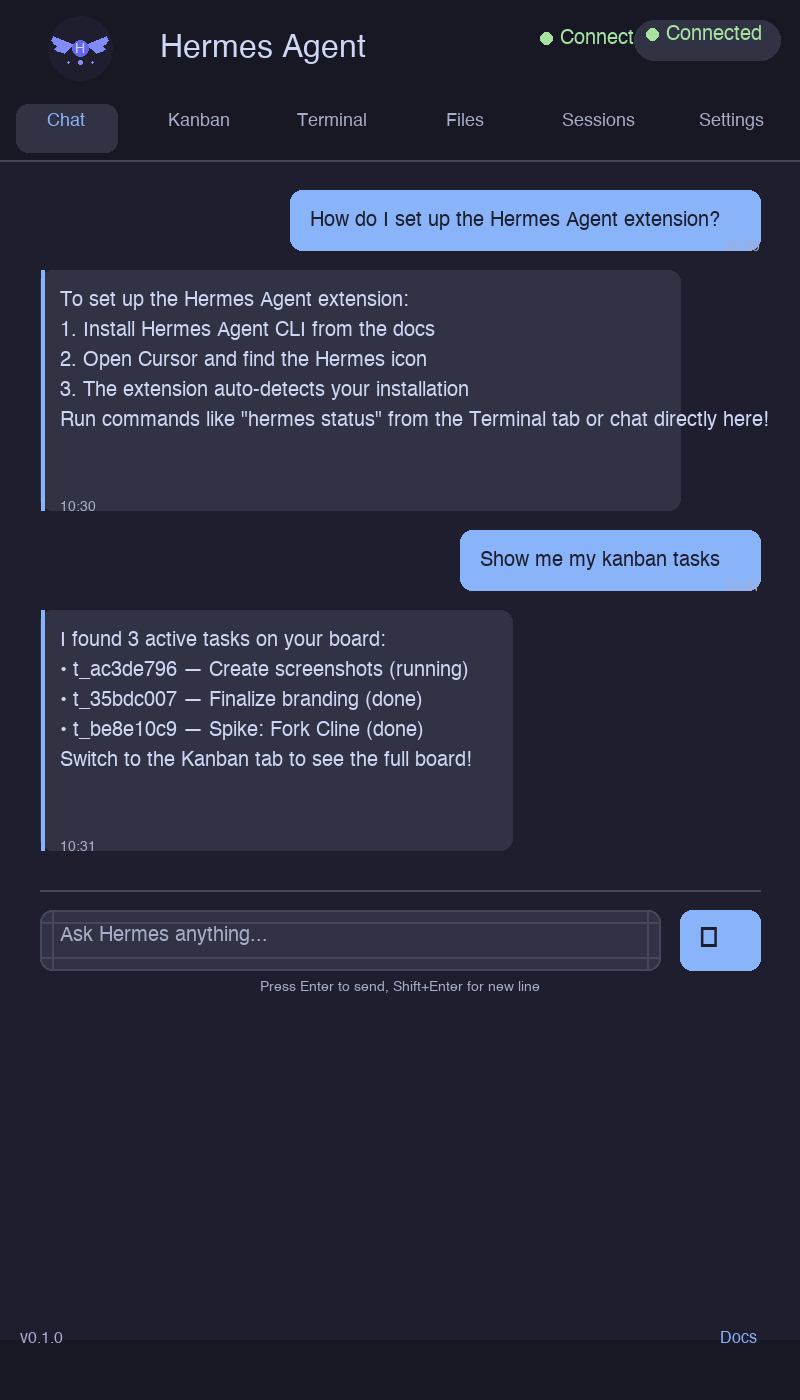
▶ Watch the demo video (67s)
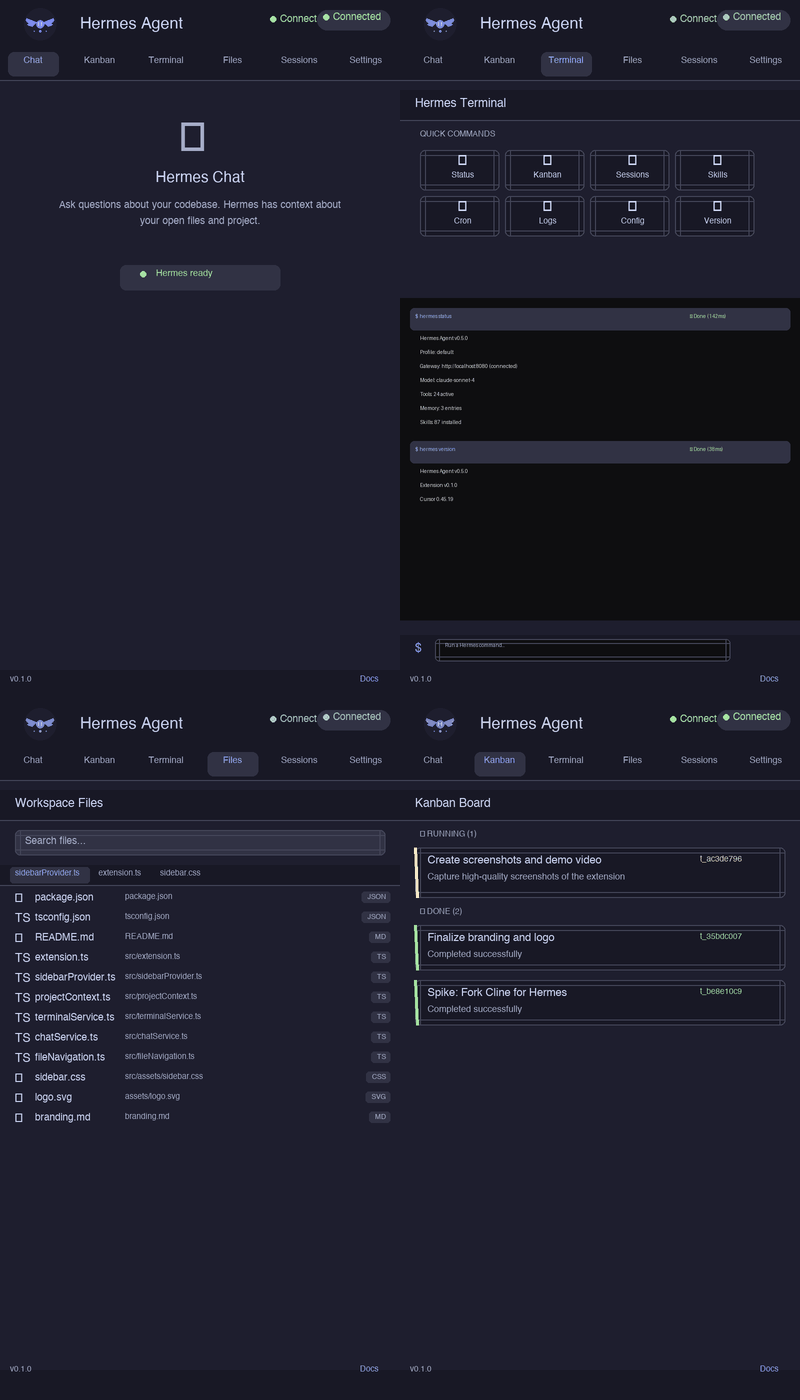
Table of Contents
Features
| Feature |
Description |
| Chat |
Converse with Hermes Agent directly from the sidebar. Streaming responses, session persistence, and automatic project context enrichment. |
| CLI Integration |
Run any hermes command from the sidebar with live output streaming. |
| Kanban Board |
View tasks grouped by status (todo, in progress, done, blocked) with auto-refresh. |
| Session Search |
Browse and search your Hermes session history. |
| Skills Browser |
Discover and inspect available Hermes skills. |
| Project Context |
Automatic detection of project root, Git status, open files, active selection, and key configuration files. |
| File Navigation |
Search and open workspace files, with an open-files bar and editor switching. |
| Terminal |
Execute predefined and custom Hermes commands with output channel integration. |
| Dark/Light Theme |
Adapts to your IDE's color theme automatically. |
Requirements
- Cursor or VS Code version 1.85.0 or later
- Hermes Agent CLI installed and available in your
PATH
Verify your Hermes installation:
hermes --version
Installation
Option 1: From VSIX Package
- Download the latest
.vsix file from Releases
- In VS Code / Cursor, open the Extensions view (
Cmd+Shift+X / Ctrl+Shift+X)
- Click the ... menu → Install from VSIX...
- Select the downloaded
.vsix file
Option 2: From Source
git clone https://github.com/automaitiq/TOOL_Ext_Cursor_Hermes.git
cd TOOL_Ext_Cursor_Hermes
npm install
npm run compile
npm run package
Then install the generated .vsix file as described above.
Option 3: Development Mode
- Open the project folder in VS Code / Cursor
- Press
F5 (or Run → Start Debugging)
- A new "Extension Development Host" window opens with the extension loaded
Option 4: Marketplace (Coming Soon)
The extension will be available on the VS Code Marketplace and Cursor extensions catalog.
Configuration
The extension works out of the box — no configuration required as long as hermes is in your PATH.
What's Detected Automatically
| Setting |
Detection Method |
| Hermes CLI path |
Searches PATH on startup |
| Project root |
Walks up from the active file looking for .git, package.json, pyproject.toml, Cargo.toml, go.mod |
| Git status |
Uses VS Code's Git extension API (with CLI fallback) |
| Project type |
Inferred from manifest files (Node, Python, Rust, Go, Ruby) |
| Key files |
Identifies README, config files, CI pipelines, lockfiles |
Chat Settings
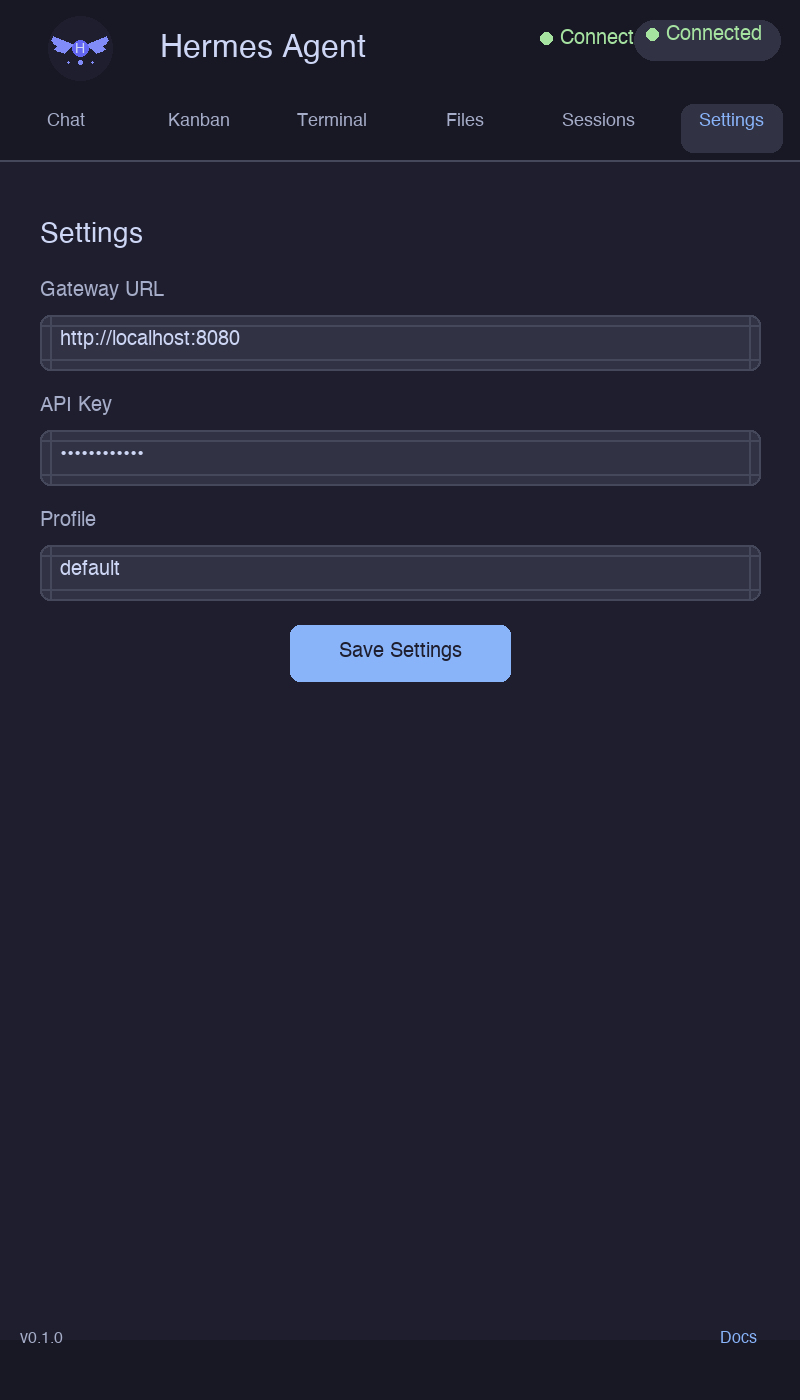
The Chat feature connects to your local Hermes Agent gateway:
| Setting |
Default |
Description |
| Gateway URL |
empty |
Optional URL of your Hermes gateway |
| Profile |
default |
Hermes profile to use |
These can be adjusted from the Settings tab in the sidebar.
Predefined Commands
The extension ships with these Hermes commands, accessible from the Terminal tab:
| Command |
Description |
hermes status |
Show Hermes agent status |
hermes kanban list |
List all kanban tasks |
hermes sessions list |
List recent sessions |
hermes skills list |
List available skills |
hermes cron list |
List scheduled cron jobs |
hermes logs |
View recent logs |
hermes config show |
Show current config |
hermes version |
Show Hermes version |
You can also run custom commands by typing any Hermes CLI command in the sidebar's command input.
Usage
The Hermes Agent icon  appears in the Activity Bar on the left side of your editor. Click it to open the sidebar.
Alternatively, use the command palette:
Cmd+Shift+P (macOS) / Ctrl+Shift+P (Linux/Windows)- Type Hermes: Open Sidebar
Chatting with Hermes
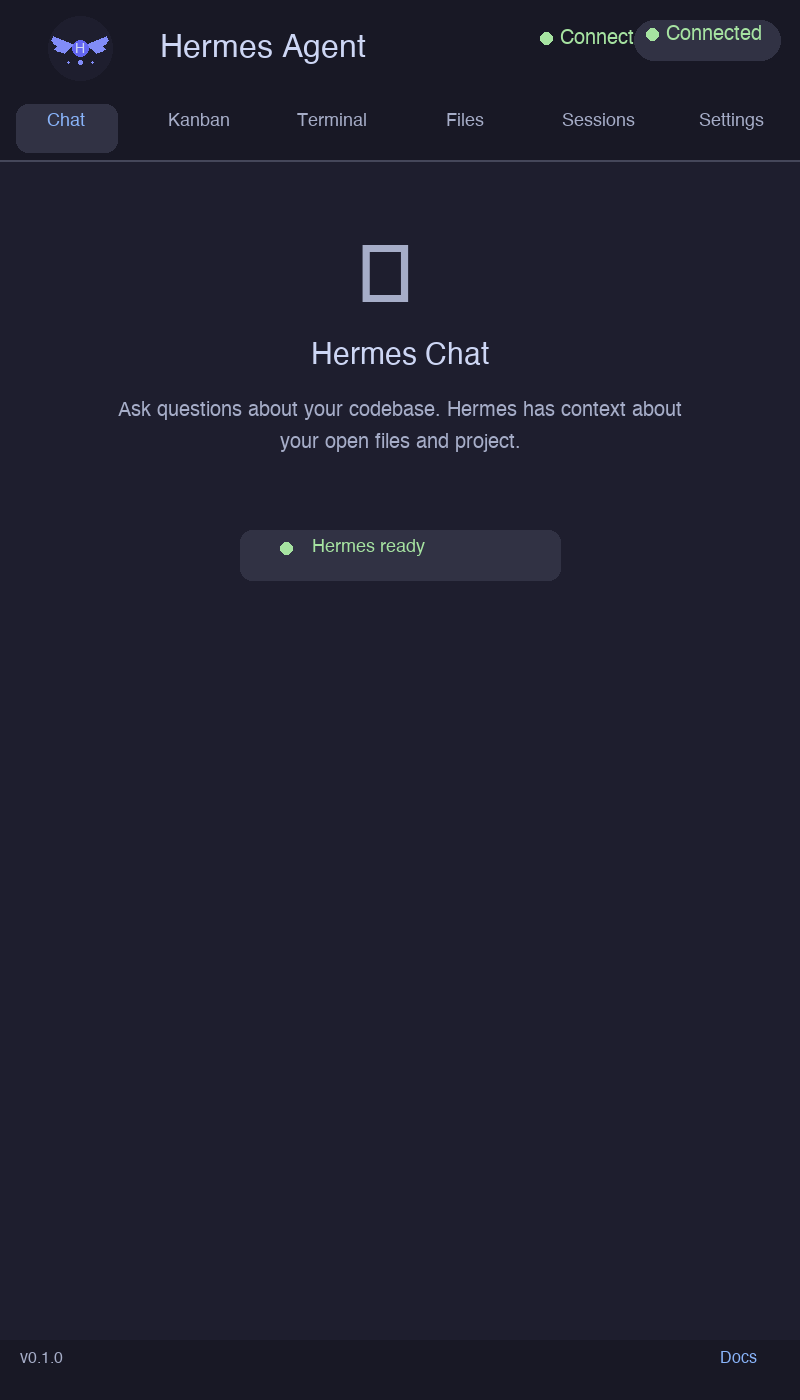
The Chat tab gives you a conversational interface to Hermes Agent:
- Type your message in the input field at the bottom
- Press Enter or click Send
- Hermes streams its response in real-time
- Your project context is automatically included (open files, Git status, project type)
Chat features:
- Streaming responses — see the answer as it's generated
- Session persistence — conversations are saved across restarts
- Multiple sessions — start new chats or switch between previous ones
- Cancel — stop a response mid-stream
- Context-aware — project context is automatically prepended to your prompts
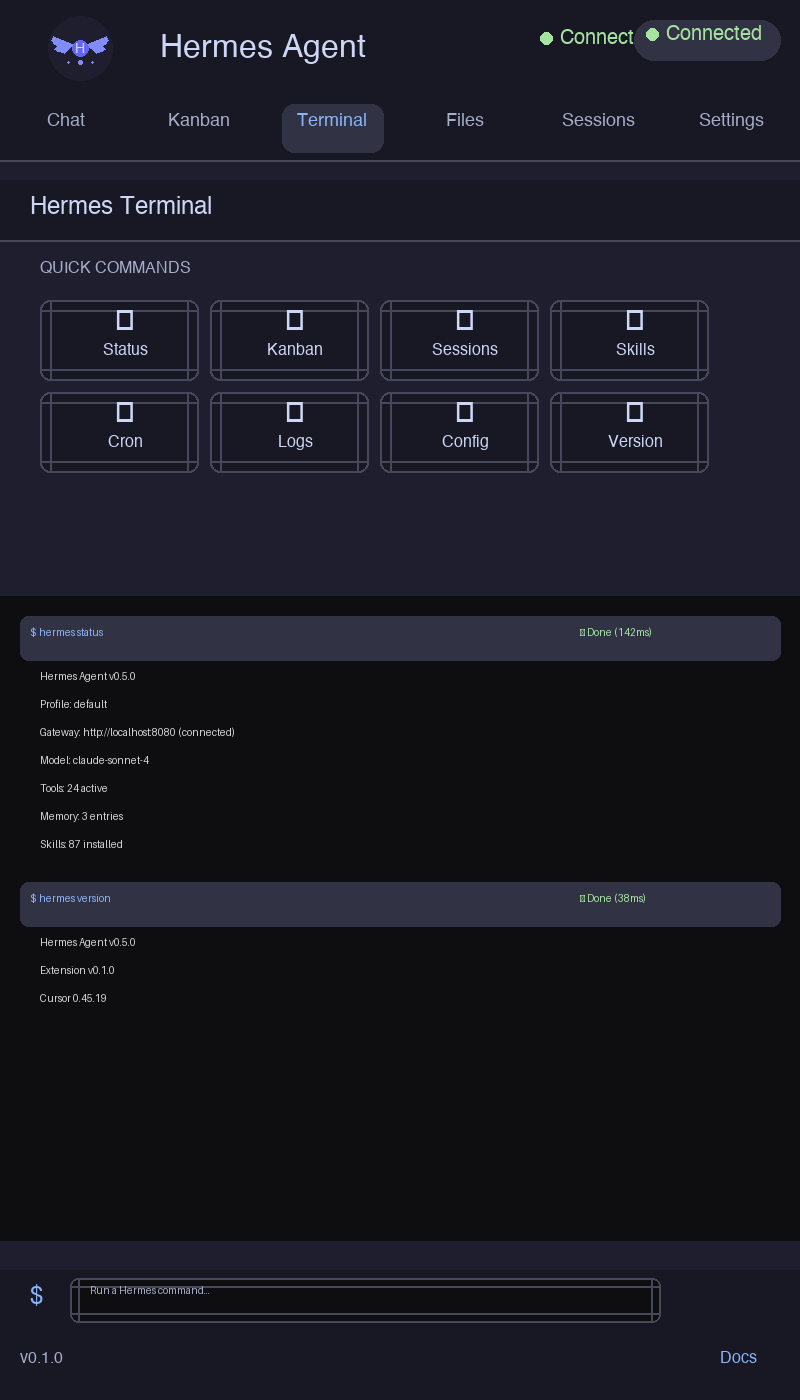
Running Terminal Commands
From the Terminal tab:
- Click any predefined command button, or
- Type a custom command in the input field (e.g.,
status, kanban list)
- Output streams in real-time to the sidebar and the Hermes Terminal output channel
To view the full output channel: Command palette → Hermes: Show Output Channel
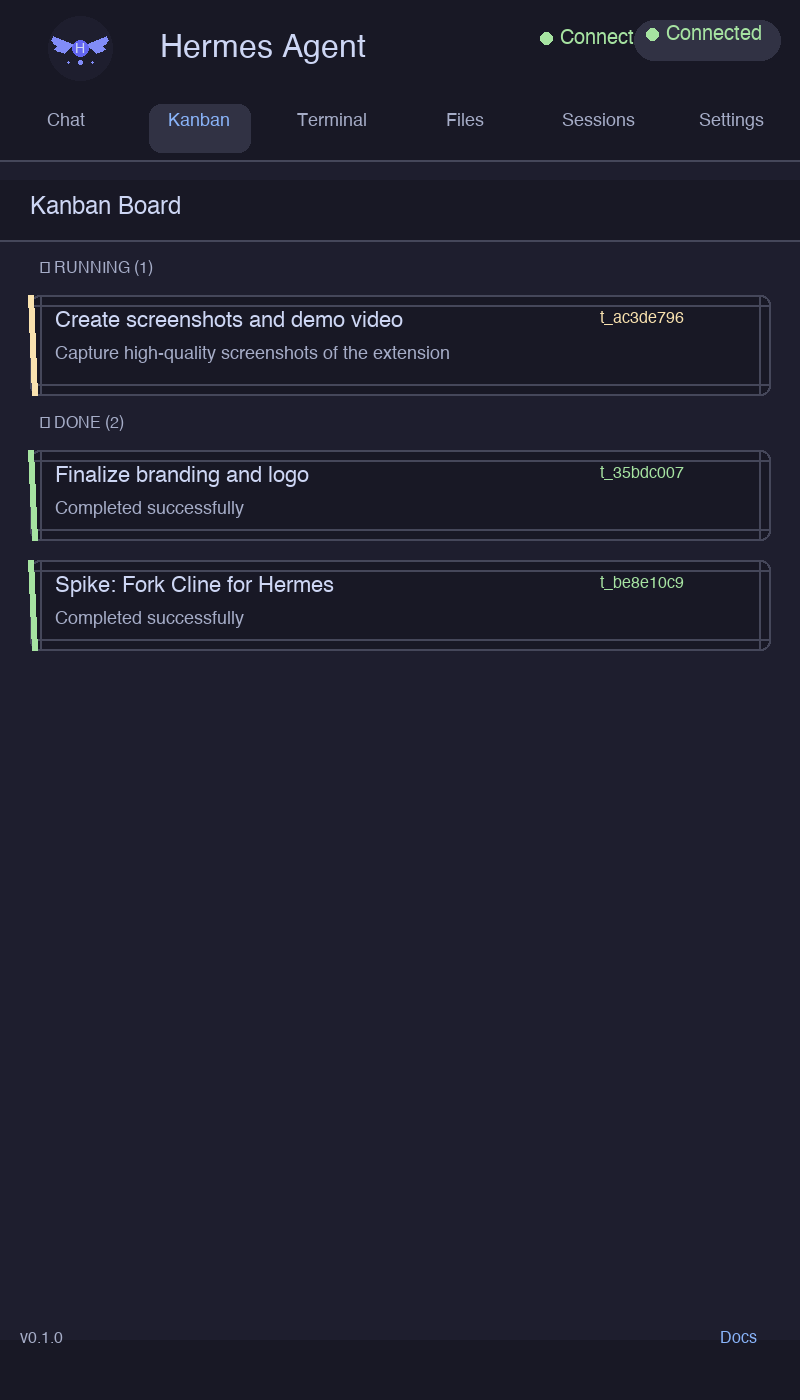
Viewing Kanban Tasks
From the Kanban tab:
- Tasks are grouped by status: Todo, In Progress, Done, Blocked
- Auto-refreshes every 60 seconds
- Click the refresh button to reload immediately
- Click a task to see its details
Browsing Files
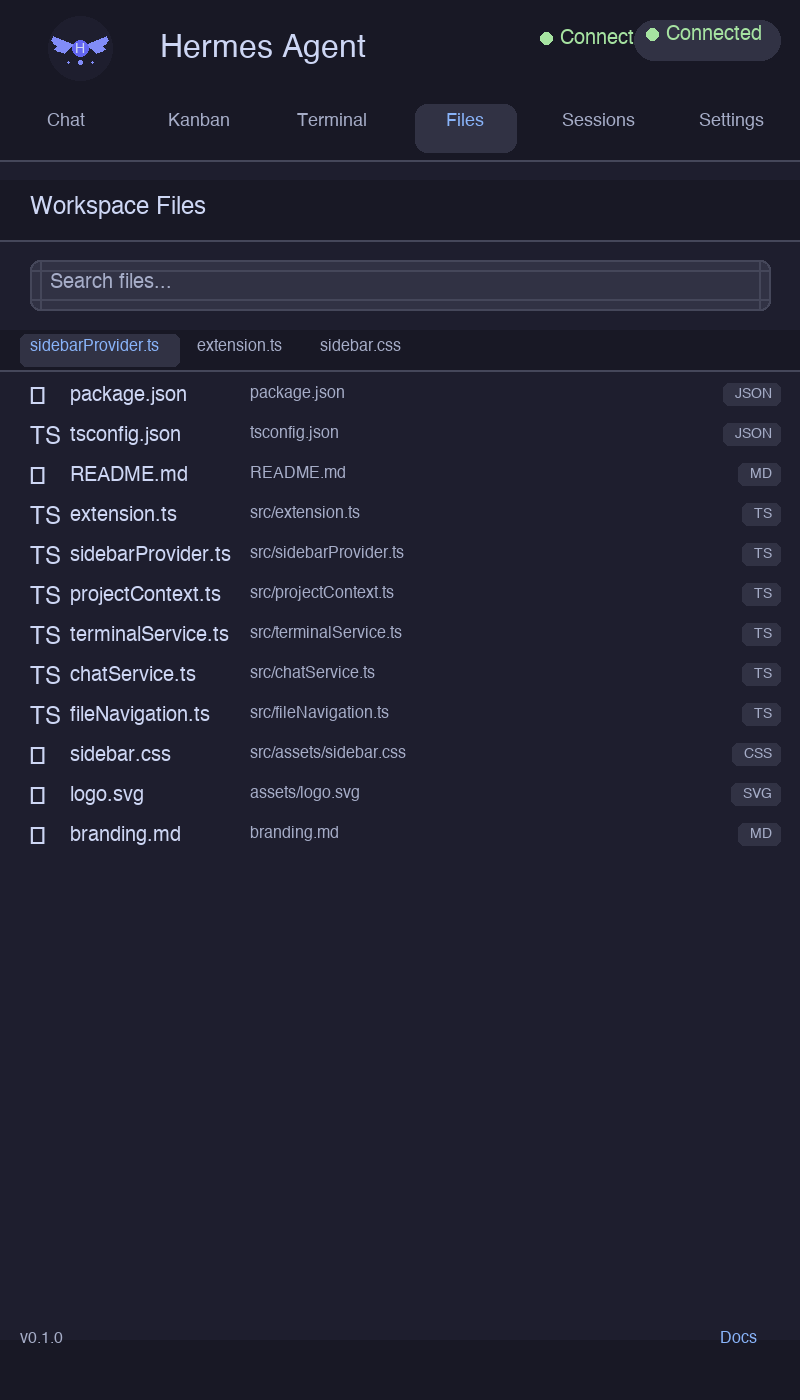
From the Files tab:
- See all files in your workspace project root
- Search files by name using the search bar
- Click a file to open it in the editor
- See currently open files in the open-files bar
- Switch between open editors with the left/right arrows
Commands
All available VS Code commands:
| Command |
Palette Name |
Description |
hermes.openSidebar |
Hermes: Open Sidebar |
Focus the Hermes sidebar |
hermes.runCommand |
Hermes: Run Command |
Run a custom Hermes CLI command |
hermes.showOutput |
Hermes: Show Output Channel |
Open the Hermes Terminal output channel |
hermes.status |
Hermes: Show Status |
Show Hermes connection status |
hermes.kanban.list |
Hermes: List Kanban Tasks |
Fetch and display kanban tasks |
hermes.sessions |
Hermes: List Sessions |
Fetch and display recent sessions |
hermes.skills |
Hermes: List Skills |
Fetch and display available skills |
hermes.cron |
Hermes: List Cron Jobs |
Fetch and display cron jobs |
hermes.logs |
Hermes: View Logs |
Fetch and display recent logs |
hermes.config |
Hermes: Show Config |
Display current Hermes configuration |
hermes.version |
Hermes: Show Version |
Show Hermes and extension versions |
hermes.file.open |
Hermes: Open File |
Open a file by path |
hermes.file.reveal |
Hermes: Reveal in Explorer |
Reveal a file in the Explorer |
hermes.file.quickSwitch |
Hermes: Quick Switch File |
Quick-open file picker |
hermes.inspectContext |
Hermes: Inspect Project Context |
Debug: show detected project context |
hermes.inspectContextJson |
Hermes: Inspect Context (JSON) |
Debug: show full context as JSON document |
The sidebar has five tabs:
Chat
Conversational interface to Hermes Agent with streaming responses and session persistence. Your project context (open files, Git branch, project type) is automatically enriched in every message.
Terminal
Execute Hermes CLI commands and view their output. Supports both predefined command buttons and free-form command input. Output streams in real-time. You can cancel running commands and clear the history.
Kanban
Display your Hermes Kanban board tasks, organized by status. Features auto-refresh every 60 seconds, filter chips for quick status filtering, and task detail view.
Files
Workspace file navigation with complete file listing, real-time search/filter, open-files bar, editor switching, and click-to-open.
Settings
Configure the extension: gateway URL, profile selection, and other preferences.
Project Context Detection
The extension automatically detects and tracks your project context, providing Hermes with rich information about your workspace:
What's Detected
| Data |
Details |
| Project root |
Auto-detected by walking up from the active file (.git, package.json, pyproject.toml, Cargo.toml, go.mod) |
| Project type |
Inferred from manifest files: Node.js, Python, Rust, Go, Ruby, C/C++ |
| Git status |
Current branch, ahead/behind count, staged/unstaged/untracked file counts |
| Open files |
All visible editors with file path, language ID, and active selection |
| Key files |
README, config files (tsconfig, eslint, prettier), CI pipelines, manifests |
| Active selection |
Currently selected text in the active editor |
| Workspace stats |
Total file count, detected languages |
How Context Enriches Chat
When you send a chat message, the extension automatically prepends your project context:
[Project Context]
Project: my-app (/home/user/projects/my-app)
Type: node
Git: main (+2/-0, 3 staged, 1 unstaged, 0 untracked)
Key files: package.json, tsconfig.json, .eslintrc.json
Open files (2):
  - src/app.ts (typescript)
  - src/utils.ts (typescript)

[User Query]
How do I add rate limiting to my Express routes?
This gives Hermes full awareness of your project without you having to copy-paste context.
Debug Context
Use Hermes: Inspect Project Context from the command palette to see what the extension currently detects. Use Hermes: Inspect Context (JSON) to get the full structured HermesApiContext object.
Development
Project Structure
TOOL_Ext_Cursor_Hermes/
├── src/
│   ├── extension.ts          # Extension entry point
│   ├── sidebarProvider.ts    # Webview sidebar with embedded HTML/CSS/JS
│   ├── projectContext.ts     # Project root detection, Git status, key files
│   ├── terminalService.ts    # Hermes CLI execution, output streaming
│   ├── chatService.ts        # Chat with Hermes Agent, streaming, persistence
│   └── fileNavigation.ts     # Workspace file listing, search, open
├── assets/                   # Branding assets (logo, icons)
├── screenshots/              # README screenshots and demo GIF
├── tests/                    # Extension tests
├── package.json              # Extension manifest
├── tsconfig.json             # TypeScript configuration
├── .eslintrc.json            # ESLint configuration
└── README.md                 # This file
Build Commands
# Install dependencies
npm install

# Compile (one-shot)
npm run compile

# Compile (watch mode)
npm run watch

# Lint
npm run lint

# Package as VSIX
npm run package

# Run tests
npm test
Tech Stack
- TypeScript (ES2020, CommonJS)
- VS Code Extension API v1.85+
- Webview API for the sidebar UI (embedded HTML/CSS/JS)
- Node.js
child_process for Hermes CLI execution
- VS Code Memento for chat session persistence
- No bundler — compiles directly to
out/ with tsc
Troubleshooting
"Hermes CLI not found"
The extension cannot locate the hermes command in your PATH.
Fix:
- Verify Hermes is installed:
hermes --version
- If installed but not found, check your shell profile (
~/.bashrc, ~/.zshrc) exports the correct PATH
- On macOS, VS Code may not inherit your shell PATH — launch VS Code from the terminal (
code .) instead of from Finder/Dock
- Restart VS Code / Cursor after PATH changes
Chat Not Streaming / No Response
- Ensure the Hermes gateway is running (
hermes status should succeed)
- Check the gateway URL in the Settings tab if you use gateway mode
- Verify the correct profile is selected
- Check the Hermes output channel for errors: Hermes: Show Output Channel
Kanban Board Empty
- Run
hermes kanban list in your terminal to verify tasks exist
- Ensure the Hermes CLI is configured with a valid database path
- Check the output channel for parse errors
Project Root Not Detected
The extension walks up from the active file looking for marker files. If no root is found:
- Open a file inside your project directory
- Ensure your project has at least one of:
.git, package.json, pyproject.toml, Cargo.toml, go.mod
- Use Hermes: Inspect Project Context to see what's detected
- Verify the extension is installed: check the Extensions view for "Hermes Agent"
- Try the command palette: Hermes: Open Sidebar
- Reload the window:
Cmd+Shift+P → Developer: Reload Window
Compilation Errors
# Clean and rebuild
rm -rf out/
npm install
npm run compile
Reporting Issues
If none of the above helps, please open an issue with:
- VS Code / Cursor version
- Extension version
- OS and version
- Output of
hermes --version
- Any errors from the Hermes: Show Output Channel output
Contributing
We welcome contributions! Here's how to get started:
- Fork the repository
- Create a branch for your feature or bugfix
- Make your changes and compile:
npm run compile
- Test in development mode: press
F5 in VS Code
- Submit a pull request
Areas We Need Help With
- Enhanced Kanban interactions (inline status changes, drag-and-drop)
- Extension settings UI (VS Code settings.json integration)
- Internationalization (i18n)
- More predefined command presets
- Keyboard shortcuts for common actions
- Test coverage improvements
License
MIT — see the LICENSE file for details.
Built by Automaitiq with ❤️
Support

