Skip to content
| Marketplace
Sign in
Visual Studio Code>Themes>Auric Artisan File IconsNew to Visual Studio Code? Get it now.
Auric Artisan File Icons

Auric Artisan File Icons

Auric Artisan

|
2 installs
| (0) | Free
Facet, Playful and Modern file icons in one Studio: SVG insertion, code hovers, appearance controls, framework packs and smart Explorer matches.
Installation
Launch VS Code Quick Open (Ctrl+P), paste the following command, and press enter.
Copied to clipboard
More Info

Auric Artisan File Icons

Your files, with character. Three icon styles. One Studio.

Give your VS Code Explorer a consistent look with Facet, Playful and Modern file and folder icons. Find artwork in File Icon Studio, customize your Explorer, and insert SVG or JSX directly into your code.

1,464 SVG assets · 3 Explorer themes · 4 code formats · No account required

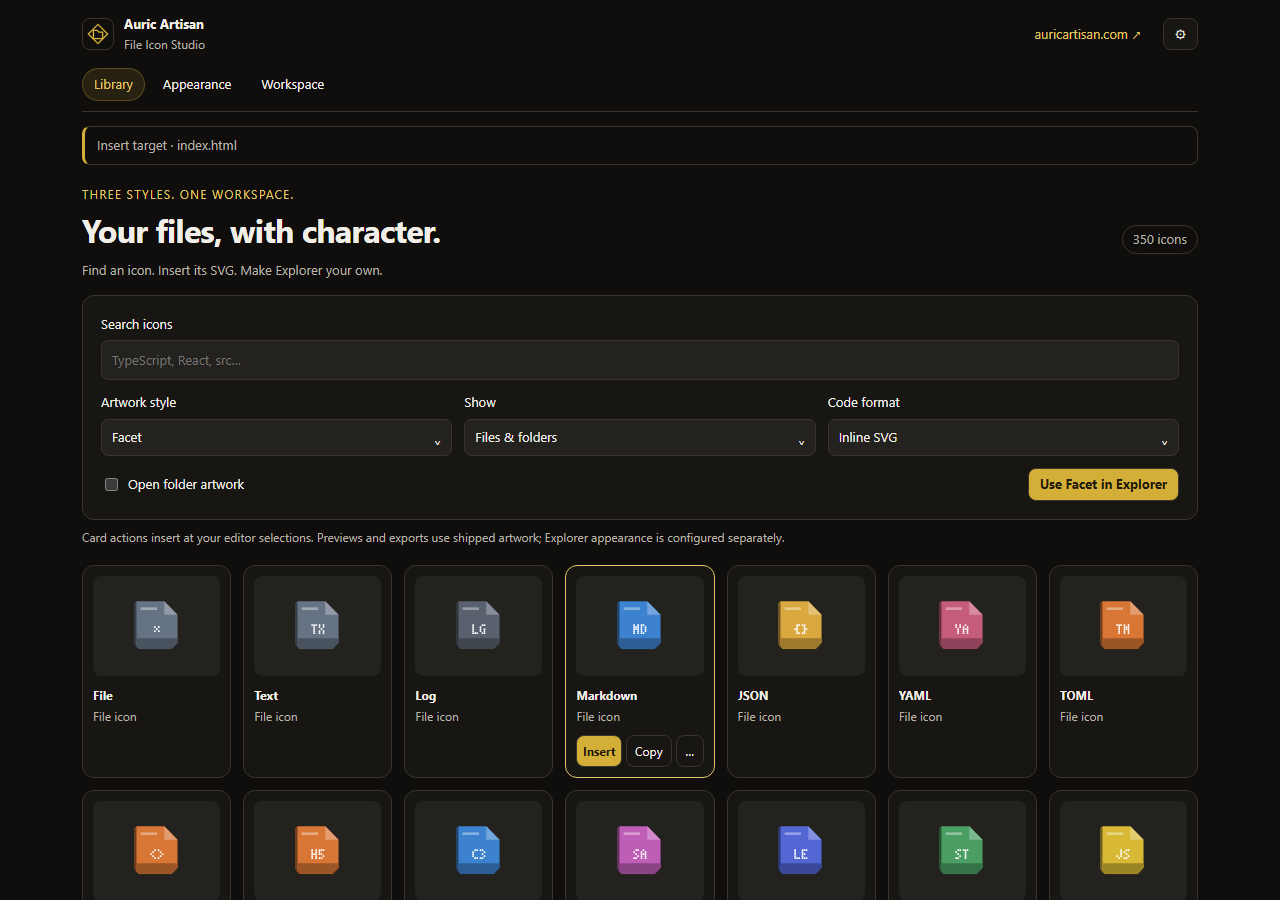
File Icon Studio with searchable artwork and insertion actions

Get started · Explore the studio · Insert into code · Upgrade · Troubleshooting

Auric Artisan website · Release notes · Report an issue

Get started

Requires Visual Studio Code 1.85 or newer. No separate icon extension is needed.

  1. Install Auric Artisan File Icons from the Extensions view. The extension ID is auric-artisan.auric-artisan-file-icon.
  2. Open the Command Palette and run Auric Artisan File Icons: Open File Icon Studio.
  3. Choose Facet, Playful or Modern, then select Use … in Explorer.

Prefer VS Code's native picker? Run Preferences: File Icon Theme and select an Auric Artisan File Icons theme. To keep the Studio beside your editor, select Auric File Icons in the Activity Bar.

Browsing a style only previews its artwork. Your Explorer theme changes when you explicitly activate it.

For an official downloaded .vsix, run Extensions: Install from VSIX… and choose the package.

Choose your style

Style Included artwork What you get
Facet 500 SVGs Faceted artwork with 200 file designs and 150 closed/open folder pairs.
Playful 500 SVGs A distinct playful palette and artwork, covering the same file and folder catalog as Facet.
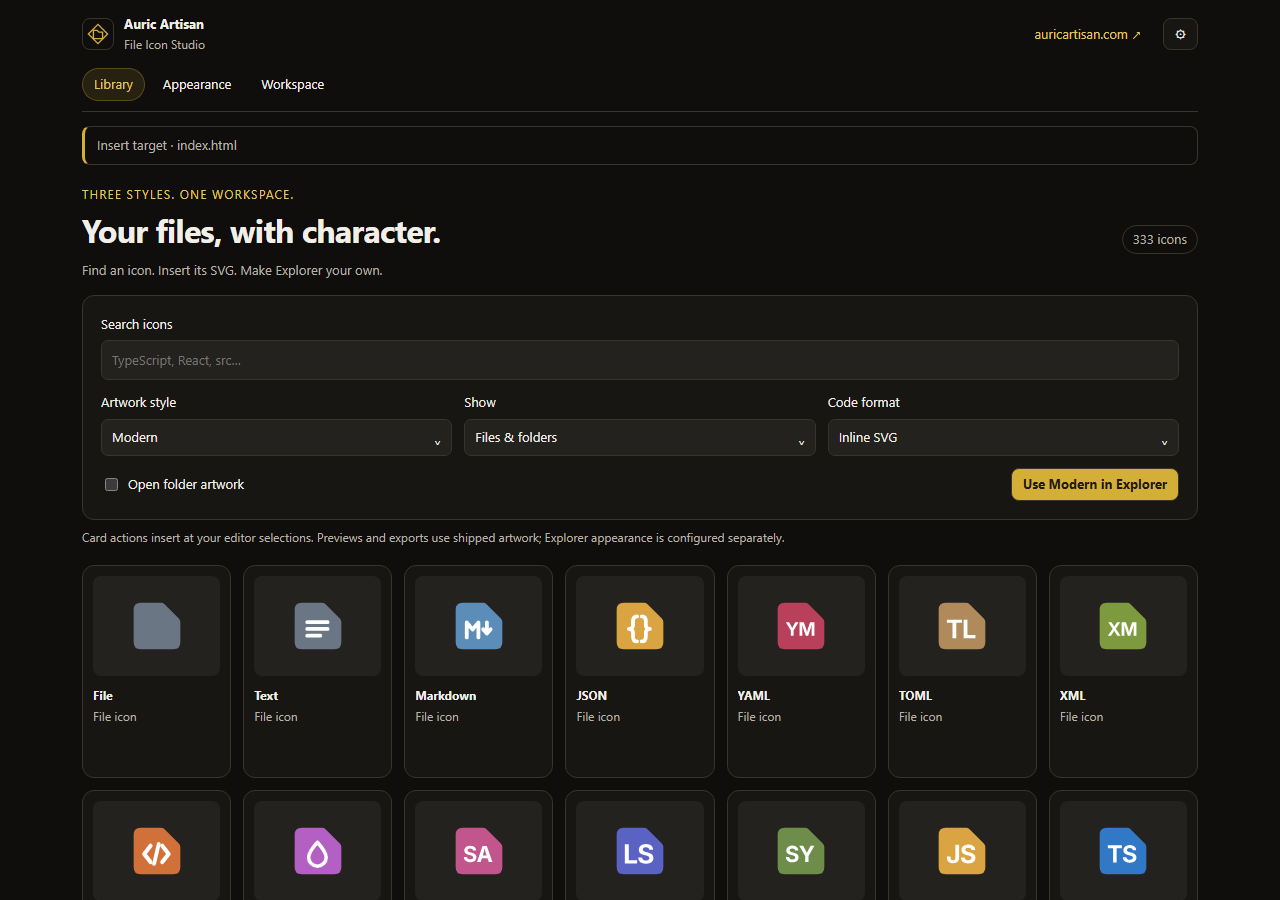
Modern 464 SVGs 219 file designs, 114 closed/open folder pairs, light alternatives and state overlays.

The asset total includes open-folder states, framework artwork and alternatives; it is not a count of unique file types. Facet and Playful include 270 extension mappings, 453 exact filenames, 84 language IDs and 357 folder aliases. Modern uses its own mappings.

Modern also offers Angular, NestJS, React and Vue association packs. Choose a pack in Appearance → Modern framework pack. This changes Modern's automatic Explorer associations; all framework artwork remains searchable in the Studio.

Modern file and folder artwork in the unified Studio

Browse the Facet artwork overview

Explore the Studio

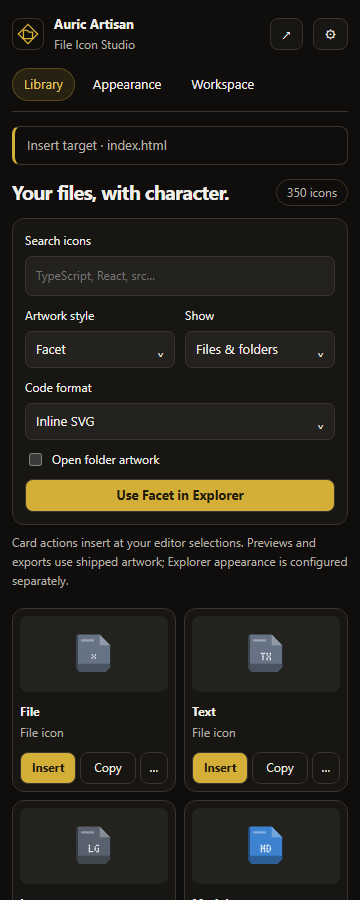
Use the full editor tab or the compact sidebar. Both provide the same tools, with keyboard-accessible dropdowns, native scrolling and controls that adapt to your VS Code color theme.
Area What you can do
Library Search artwork, switch styles, filter files or folders, preview open folders, inspect source, and insert or copy code.
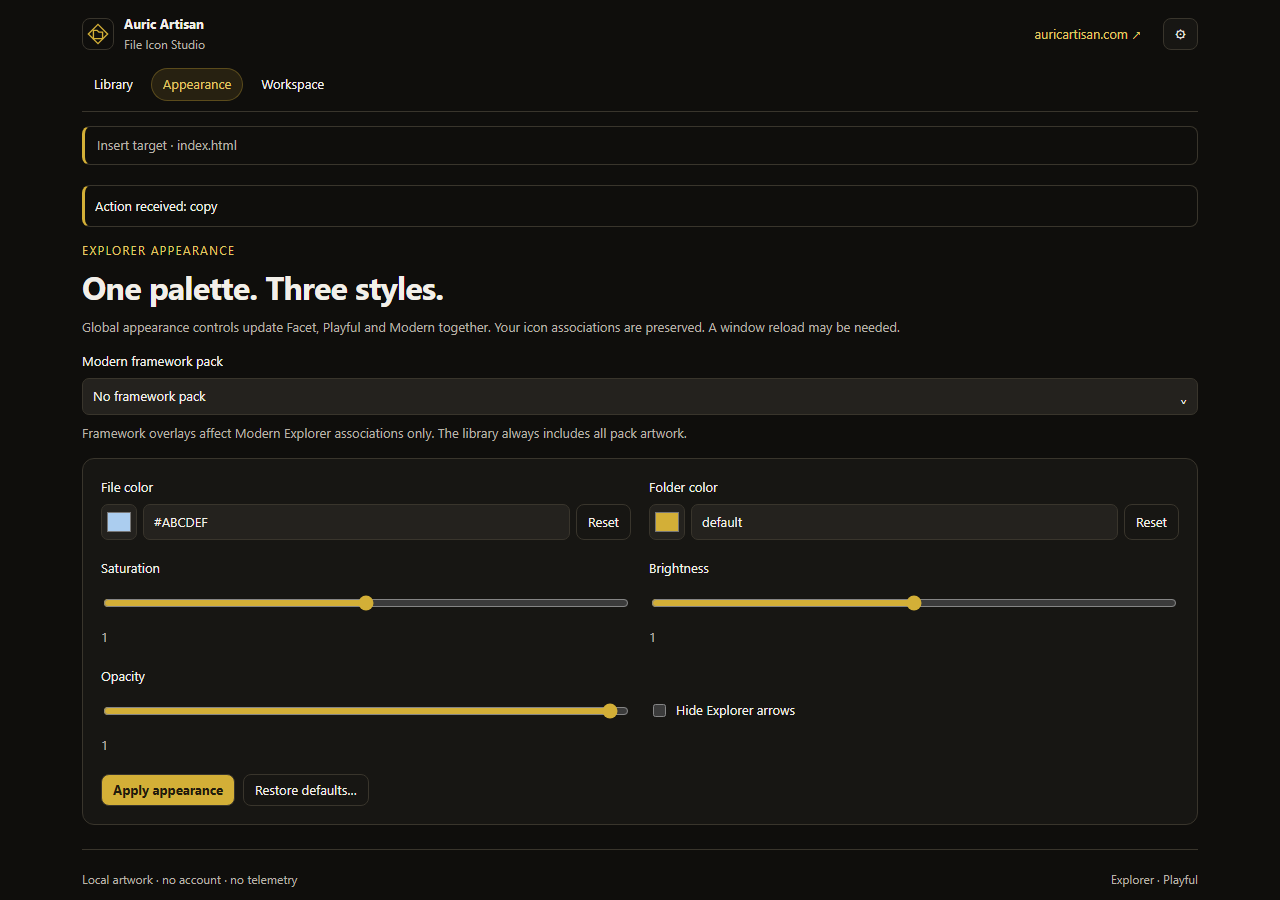
Appearance Set file and folder colors, adjust saturation, brightness and opacity, control Explorer arrows, and choose a Modern framework pack.
Workspace Manage smart detection, apply or save profiles, import previous settings, and inspect diagnostics.
Compact File Icon Studio sidebar with artwork search and style controls

Screenshots show the extension's actual webviews rendered with a simulated editor target, not a full VS Code extension-host recording.

Make Explorer yours

Open Appearance to customize file and folder colors independently. Use a color swatch or a hex value, then adjust saturation, brightness and opacity. Select Apply appearance and reload the window if prompted. These controls update all three Explorer styles.

Appearance controls for colors, saturation, brightness, opacity and framework packs

For a ready-made look, run Apply Icon Profile and choose Classic Facet, Vivid Studio, Focused Explorer, Graphite Mono, High Visibility or Minimal. Built-in profiles preserve your custom associations and smart rules.

To reuse your setup, choose Save Current Icon Profile. Export and import profile JSON through the Studio's Workspace tab or the Command Palette.

Assign an icon to a file or folder

Right-click a resource in Explorer, open Auric File Icons, and select Set File or Folder Icon. Use Clear Custom File or Folder Icon to remove that association. Activate an Auric file icon theme to make these actions available.

Associations support extensions, exact filenames, folder names, direct-parent patterns and workspace-root names. Closed and open folder artwork stays paired.

Live filename previews

VS Code uses the active theme's filename and folder mappings while you type a new name in Explorer. Supported names can preview their icon before you press Enter. This is native theme rendering: no temporary file is created and no keyboard input is intercepted.

Content-aware decorations

Smart detection adds a badge, category color and explanation to recognized resources. It can identify project folders from direct child names and package dependencies, and classify small text files such as tests, generated files and schemas.

These decorations supplement the base icon; they do not dynamically replace its SVG. To persist a detected folder icon, use Apply Detected Folder Icon. Scan Workspace for Folder Icons checks a bounded number of first-level folders and preserves existing manual associations.

Use Explain Smart Icon Match to see the matching rule, Refresh Smart Icon Matches to clear cached results, or Configure Smart Icon Detection to change its presentation or turn it off.

Insert icons into code

  1. Open a writable text file and place your cursor where the icon should go.
  2. In Library, choose a style, search for an icon and select a code format.
  3. Hover over or focus the card, then choose Insert. Choose Copy to use the clipboard instead, or open the card's inspector to review the source.
Format Output
Inline SVG A self-contained <svg> element, sized 24 × 24 by default.
JSX SVG with JSX-compatible attribute names.
HTML image A 24 × 24 <img> with an embedded SVG data URI.
CSS background A background-image declaration with an embedded SVG data URI.

Insertion replaces selected text, supports multiple cursors and creates one undo step. It does not save the file or add surrounding quotes. Copy works without an open editor. For a native picker, run Insert Icon into Code… from the Command Palette or editor context menu.

Library previews and code exports use the shipped artwork. Explorer color adjustments do not recolor exported code. Check the insertion context and add meaningful alternative text when an icon conveys information.

Insert from an editor hover

Type a complete token such as :icon-file-typescript: or :icon-folder-src:, then hover over it and select Insert SVG, Insert JSX or Insert IMG. Only that token is replaced. You can copy valid tokens from the Studio's source inspector.

Hovers prefer the active Auric Explorer style, defaulting to Facet when another theme is active. If an icon is unavailable in that style, they use an available style for that icon. Hovering alone never changes your file. If the document changes, closes or becomes hidden, hover again before inserting.

Disable this feature with auricFileIcons.hover.enabled. VS Code's editor hovers must also be enabled for it to appear.

Settings and advanced use

Open Settings and search for @ext:auric-artisan.auric-artisan-file-icon. Settings use the auricFileIcons namespace; you do not need to edit JSON to use the Studio.

Example: appearance, code insertion and custom associations
{
  "auricFileIcons.insertFormat": "svg", // svg | jsx | img | css
  "auricFileIcons.hover.enabled": true,
  "auricFileIcons.folderColor": "#D8A33C",
  "auricFileIcons.fileColor": "default",
  "auricFileIcons.saturation": 1.15,
  "auricFileIcons.brightness": 1.05,
  "auricFileIcons.opacity": 0.9,
  "auricFileIcons.hidesExplorerArrows": false,
  "auricFileIcons.modernPack": "none", // none | angular | nest | react | vue
  "auricFileIcons.files.associations": {
    "*.feature": "test",
    "server/*.log": "log",
    "PROJECT_NOTES": "markdown"
  },
  "auricFileIcons.folders.associations": {
    "domain": "models",
    "app/domain": "database"
  },
  "auricFileIcons.folders.rootAssociations": {
    "my-monorepo": "packages"
  }
}

Values are shipped icon IDs. The Explorer picker helps you choose a valid ID for the active style. Use none to remove a built-in mapping from the generated theme. Parent patterns match a direct parent, not an arbitrary recursive path.

Example: a custom smart detection rule

Custom rules run before built-ins, highest priority first. Patterns support * and ?, not regular expressions. Badges have at most two characters.

{
  "auricFileIcons.smart.rules": [
    {
      "id": "design-system",
      "label": "Design system package",
      "target": "folder",
      "badge": "DS",
      "color": "custom",
      "priority": 950,
      "whenAll": ["package.json", "tokens"],
      "dependenciesAny": ["storybook", "@storybook/*"]
    }
  ]
}

File rules can use fileNames, contentAny, contentAll and contentPrefix. Semantic colors include auric, framework, language, infrastructure, test, docs, data, generated, security and custom. Theme color IDs such as auricFileIcons.smart.framework can be customized in VS Code.

Upgrading from earlier extensions

From the separate Playful extension

Facet and Playful now live in this extension. Their existing theme IDs and all 500 original Playful SVGs are preserved.

  1. Export any saved profiles from the old Playful extension before uninstalling it.
  2. Install this extension and run Import Legacy Playful Settings…. The import copies missing auricPlayfulIcons settings into auricFileIcons at their original user, workspace or folder scope; existing unified values are not overwritten.
  3. Import exported profiles through Workspace → Profiles → Import….
  4. Disable or uninstall the old Playful extension to avoid duplicate themes and decoration providers.

The unified extension cannot read another extension's private profile storage. Removing an old source folder does not uninstall its VS Code extension.

From Modern Icon's file theme

Update File Icons and Modern Icon together. File Icons now owns Modern's 464 file-theme assets and retains the auric-artisan-modern-icon theme ID.

Run Import Modern File Icon Settings… from the Studio's Workspace tab. Only missing file-theme settings are copied at their original scopes. Existing unified settings, general-library preferences, favorites, recent items and emoji are not changed.

Keep Modern Icon installed if you use its general-purpose Modern/Sharp icon library. The updated Modern Icon extension no longer registers an Explorer file theme; its general artwork remains separate.

Privacy and performance

  • No account or telemetry. The extension does not automatically contact a server, run shell commands or execute workspace code. Website links open only when requested.
  • Bounded inspection. By default, smart matching considers up to 250 direct folder entries and text files up to 64 KiB, with a 15-second cache. Explicit workspace scans inspect up to 80 first-level folders.
  • Exclusions built in. Common dependency, output, cache and version-control directories are excluded. Binary, oversized and unavailable files are skipped.
  • Remote-aware access. Inspection uses VS Code's workspace.fs API for local, remote and virtual resources. Availability and write access depend on the file-system provider.
  • Explicit edits. Code insertion happens only after your action. Smart scanning never executes project code; automatic matching can be disabled with auricFileIcons.smart.enabled.

See Security for inspection and profile-import safeguards.

Troubleshooting

What you see What to try
Explorer still uses another icon set Activate a style with Use … in Explorer, or choose it through Preferences: File Icon Theme. Previewing alone does not activate it.
Colors or associations have not changed Accept the reload prompt, or run Developer: Reload Window. Check for workspace or folder settings overriding user settings.
Duplicate Auric themes or actions Disable the old standalone Playful extension and update Modern Icon alongside File Icons.
No Insert action or no writable target Open and focus a writable text editor first. Use Copy if you only need the code on your clipboard.
A token hover does not appear or its action expires Use a complete token from the inspector, enable editor hovers and auricFileIcons.hover.enabled, then hover again after editing the document.
A smart badge is unexpected Run Explain Smart Icon Match, then refresh matches or adjust smart detection settings.
Exported code does not match your Explorer tint Exports intentionally use shipped artwork; Explorer appearance settings are separate.

Still need help? Run Show Icon Theme Diagnostics, then report an issue with your VS Code version, extension version, active style and steps to reproduce. Diagnostics omit filenames and file contents. Remove private information from any screenshots or additional logs you share.

Release and project information

Changelog · Source repository · Publishing checklist · Media kit

For local development, see the publishing checklist for build, validation, test and packaging commands. No development toolchain is needed to install the extension.

License

Copyright © 2026 Auric Artisan. Free to install and use under the Auric Artisan Free Use Licence. This is not an open-source or unrestricted asset license: redistribution, resale, republishing and extraction of bundled artwork are restricted. Review the license before reusing artwork outside the extension; code insertion does not change those terms. See attribution for third-party notices.

  • Contact us
  • Jobs
  • Privacy
  • Manage cookies
  • Terms of use
  • Trademarks
  • Your Privacy Choices
  • Consumer Health Privacy
© 2026 Microsoft