Skip to content
| Marketplace
Sign in
Visual Studio Code>Programming Languages>EnvPilot ManagerNew to Visual Studio Code? Get it now.
EnvPilot Manager

EnvPilot Manager

Atharav Uttekar

|
2 installs
| (1) | Free
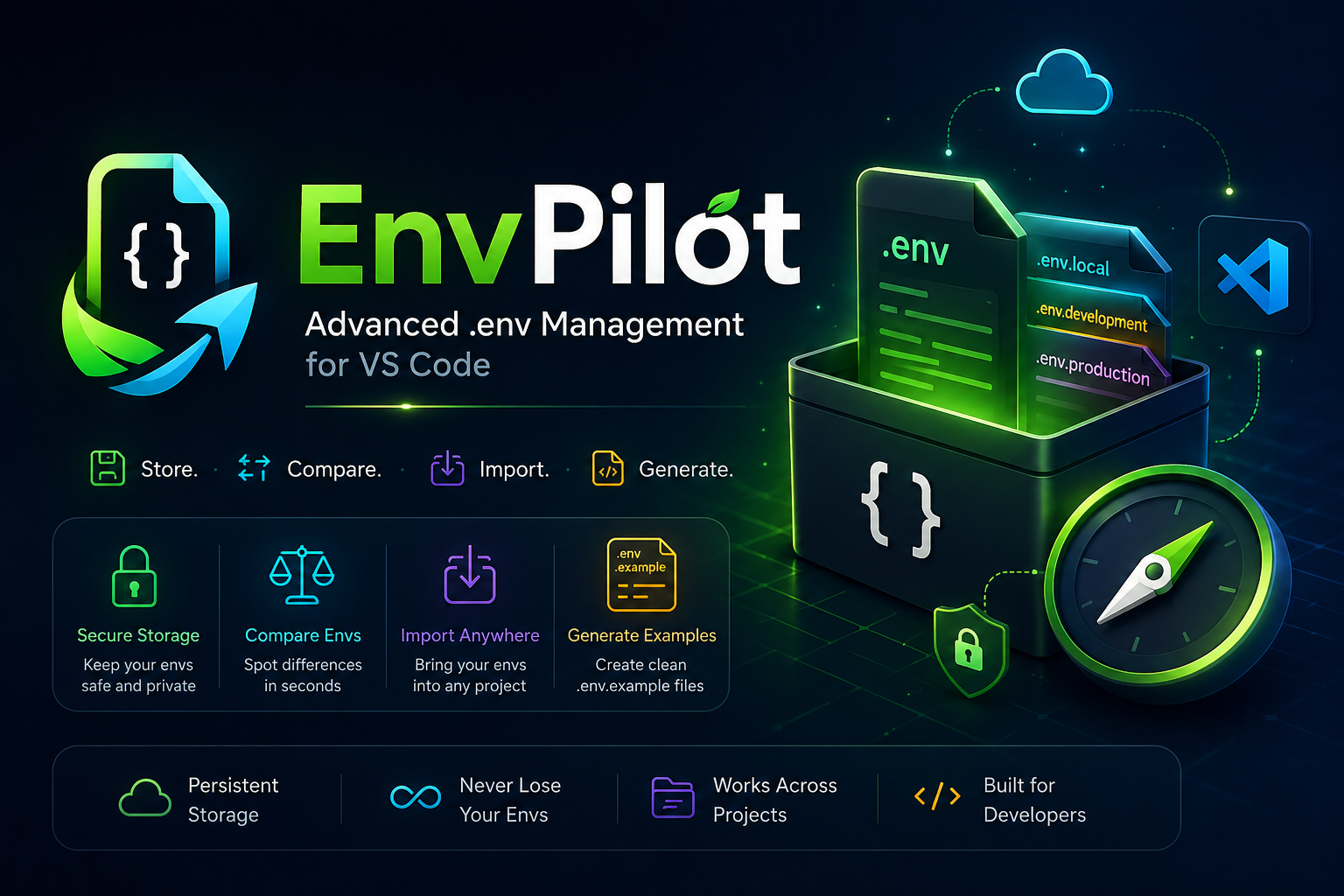
Secure local .env manager for VS Code: save, preview, import, export, compare, and generate .env.example files.
Installation
Launch VS Code Quick Open (Ctrl+P), paste the following command, and press enter.
Copied to clipboard
More Info

EnvPilot Manager — manage, save, preview & import .env files in VS Code

License VS Code TypeScript Local First EnvPilot

EnvPilot Manager - Advanced .env Management for VS Code

EnvPilot Manager is a Visual Studio Code extension for developers who work with many .env files across frontend apps, backend services, Docker setups, monorepos, and multi-project workspaces. It detects workspace env files, lets you save reusable env configurations, preview variables safely, import/export envs, generate .env.example, and compare env files directly inside VS Code.

Author: Atharav Uttekar · Marketplace extension ID: atharav-dev.envpilot-manager · Display name: EnvPilot Manager


Why EnvPilot? (.env manager for real projects)

Modern projects rarely have just one env file. You may have .env, .env.local, .env.production, frontend envs, backend envs, Docker envs, staging secrets, and old project configs that disappear when a repo is deleted.

EnvPilot gives you a local env vault next to your files:

  • detect .env* files automatically
  • store important envs permanently in VS Code extension storage
  • reuse saved envs across projects
  • preview keys without casually exposing secrets
  • import envs safely with overwrite confirmation
  • generate clean .env.example files
  • compare workspace and saved envs

Features

  • Activity Bar sidebar called EnvPilot with workspace envs shown before saved envs.
  • Automatic .env* detection for .env, .env.local, .env.development, .env.production, .env.staging, and nested env files.
  • Current Workspace Envs with status indicators for valid files, missing values, and duplicate keys.
  • Saved Envs stored in VS Code global storage so they persist across projects and VS Code restarts.
  • Explicit save only: EnvPilot never auto-saves env files. You choose Save this env to EnvPilot.
  • Duplicate name validation with suggestions such as Production API (2), Production API - Backend, and Production API - Staging.
  • Preview saved envs with redacted values, project metadata, tags, and variable search.
  • Dashboard inventory for many envs: filter by source, search by name/project/tag/key, and inspect one env at a time.
  • Import saved envs into .env, .env.local, or a custom env filename with confirmation before overwrite.
  • Export saved envs to disk through VS Code's save dialog.
  • Generate .env.example from a real env while stripping sensitive values.
  • Compare envs to find missing keys, extra keys, changed values, and empty variables.
  • Optional local encryption using AES-256-GCM password protection for saved env payloads.

Getting started

  1. Install EnvPilot from the VS Code Marketplace by searching EnvPilot, envpilot, or Atharav Uttekar.
  2. Open a project that contains one or more .env* files.
  3. Open the EnvPilot icon in the Activity Bar.
  4. Review detected files under Current Workspace Envs.
  5. Right-click a detected env and choose Save this env to EnvPilot.
  6. Add a name, description, and tags. Optionally encrypt it with a password.
  7. Use Preview, Import, Export, Compare, or Generate .env.example from the sidebar or command palette.

If no folder is open, saved envs still remain available through EnvPilot's global storage.


Sidebar layout

EnvPilot prioritizes the env files you are actively working with:

  1. Current Workspace Envs

    • detected .env* files
    • status indicators
    • save to EnvPilot
    • generate .env.example
  2. Saved Envs

    • persistent env library
    • search and sort
    • tags and project metadata
    • preview, import, export, rename, delete

Clicking a saved env opens a safe preview. Import remains a deliberate action so files are not overwritten by accident.


Dashboard

The dashboard is built for developers with many env files.

Open it with EnvPilot: Open EnvPilot Dashboard.

It includes:

  • compact env inventory
  • All / Workspace / Saved filters
  • search across env names, projects, tags, and variable keys
  • summary stats for workspace envs, saved envs, unique keys, and issues
  • selected-env detail pane
  • variable-level search
  • redacted value previews
  • comparison result view

Commands

Command Description
Open EnvPilot Dashboard Open the full dashboard webview.
Refresh EnvPilot Rescan workspace .env* files and refresh the sidebar.
Search Saved Envs Filter saved envs by name, project, description, or tag.
Sort Saved Envs Sort saved envs by recent update, name, or project.
Save this env to EnvPilot Persist a detected env in VS Code global storage.
Create EnvPilot Env Create a saved env manually.
Preview Env Open a redacted preview of a saved env.
Import Env Import a saved env into the current workspace.
Export Env Export a saved env to a file.
Rename Env Rename a saved env with duplicate-name validation.
Delete Env Delete a saved env after confirmation.
Generate .env.example Create .env.example from a detected workspace env.
Compare Envs Compare workspace and saved envs.

Common workflows

Save a production env for later

  1. Open the project containing .env.production.
  2. Open the EnvPilot sidebar.
  3. Right-click .env.production.
  4. Choose Save this env to EnvPilot.
  5. Add tags such as production, api, or backend.
  6. Choose whether to encrypt it.
  7. Click Preview after save to verify the stored keys.

Import a saved env into a new project

  1. Open the target project.
  2. Find the env under Saved Envs.
  3. Choose Import Env.
  4. Select Replace current .env, Create .env.local, or Create custom env filename.
  5. Confirm before EnvPilot replaces any existing file.

Generate .env.example

  1. Open a workspace with a real .env file.
  2. Right-click the detected env.
  3. Choose Generate .env.example.
  4. Review the generated file before committing it.

Example output:

# Database Url value
DATABASE_URL=

# Jwt Secret value
JWT_SECRET=

Compare frontend and backend envs

  1. Run EnvPilot: Compare Envs.
  2. Pick the frontend env.
  3. Pick the backend env.
  4. Review missing keys, changed values, and empty variables in the dashboard.

Extension settings

EnvPilot currently works without required user settings.

Future settings may include dashboard defaults, preview redaction preferences, and import filename preferences.


Data & privacy

  • Workspace env files are read from the currently opened VS Code workspace.
  • Saved envs are stored in VS Code global state on your machine.
  • Encrypted saved envs are protected locally with AES-256-GCM.
  • Passwords are never stored and cannot be recovered by EnvPilot.
  • Env files are never auto-saved.
  • Existing files are never overwritten without confirmation.

Nothing is sent to the network by EnvPilot; env data stays local unless you export or share it yourself.


Requirements

  • VS Code ^1.120.0 (see engines in package.json).

Development

npm install
npm run compile
npm test

Launch locally:

  1. Open this repository in VS Code.
  2. Press F5.
  3. Use the Extension Development Host window.
  4. Open the EnvPilot Activity Bar view.

Tech stack

  • TypeScript
  • VS Code Extension API
  • React webview UI
  • esbuild
  • Tailwind-ready styling
  • dotenv
  • zod
  • Node crypto

Project structure

src/
  commands/       command registrations and user flows
  parsers/        dotenv parsing and env diagnostics
  services/       compare, encryption, import/export, validation, example generation
  storage/        VS Code globalState persistence
  types/          shared TypeScript models
  ui/             sidebar provider and webview panel
  utils/          ids and workspace helpers
  webview/        React dashboard

License

MIT — see LICENSE.


Links

  • Repository: github.com/Atharav31/envpilot
  • Issues: github.com/Atharav31/envpilot/issues
  • Author: Atharav Uttekar — extension EnvPilot (envpilot)
  • Contact us
  • Jobs
  • Privacy
  • Manage cookies
  • Terms of use
  • Trademarks
© 2026 Microsoft