🚀 Redshift Query for VS Code
The fastest way to query Amazon Redshift directly from your editor.
Stop switching between tools. Write SQL, execute queries, and explore your data warehouse—all without leaving VS Code.
🎯 Why Choose This Extension?
Built for Speed & Productivity
- Execute queries in milliseconds with instant UI feedback
- No context switching—stay in your flow
- Background operations keep your editor responsive
Smart Analytics Built-In
- Automatic table analysis with performance metrics
- Data skew detection and optimization recommendations
- Storage usage insights and vacuum suggestions
Developer Experience First
- Clean, modern interface that respects VS Code themes
- Sortable result tables with one-click CSV export
- Multi-query execution with tabbed results
- Smart query detection at cursor position
📸 Screenshots

Connection Management & Database Explorer
|
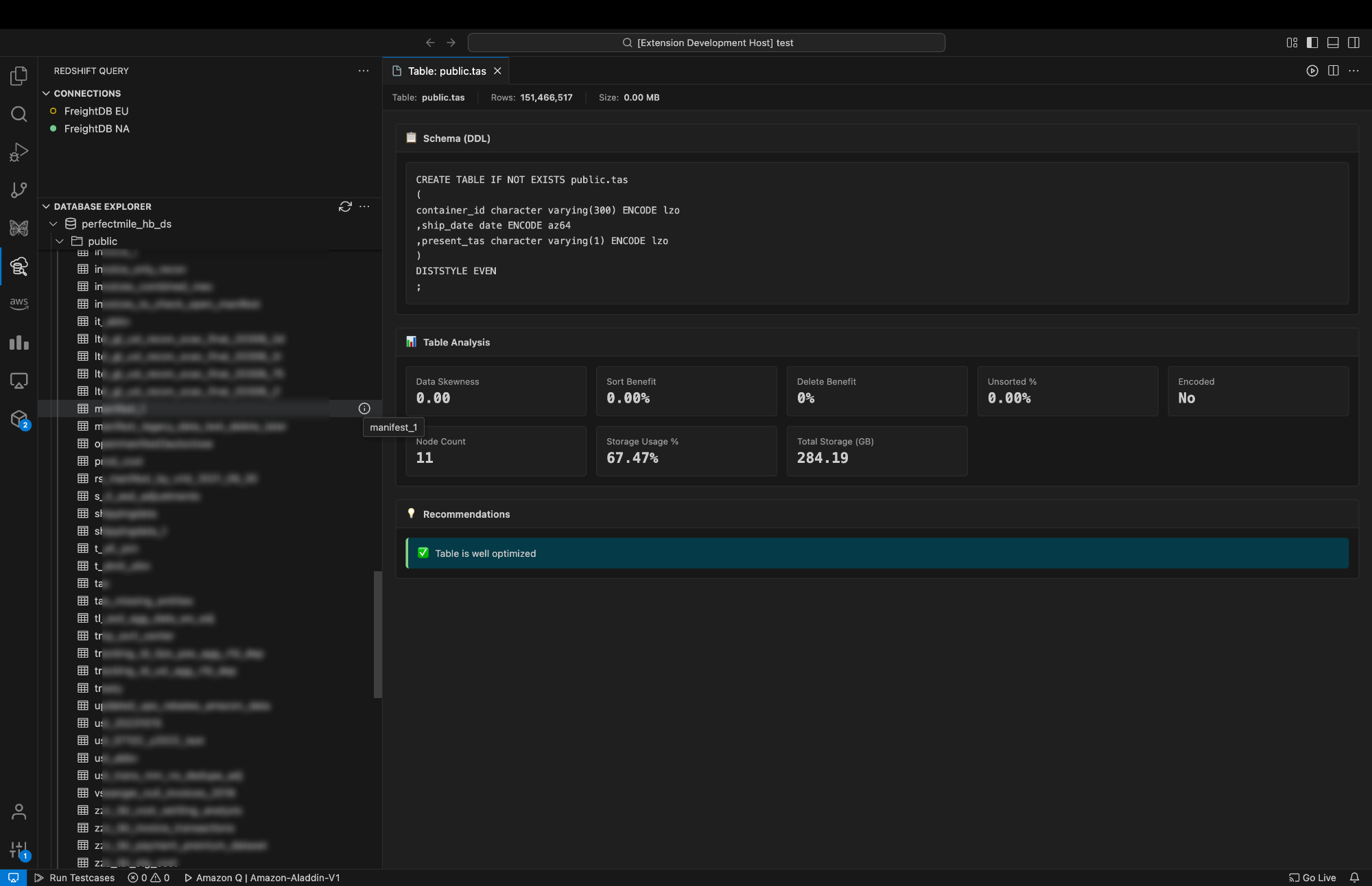
Table Analysis & Performance
|
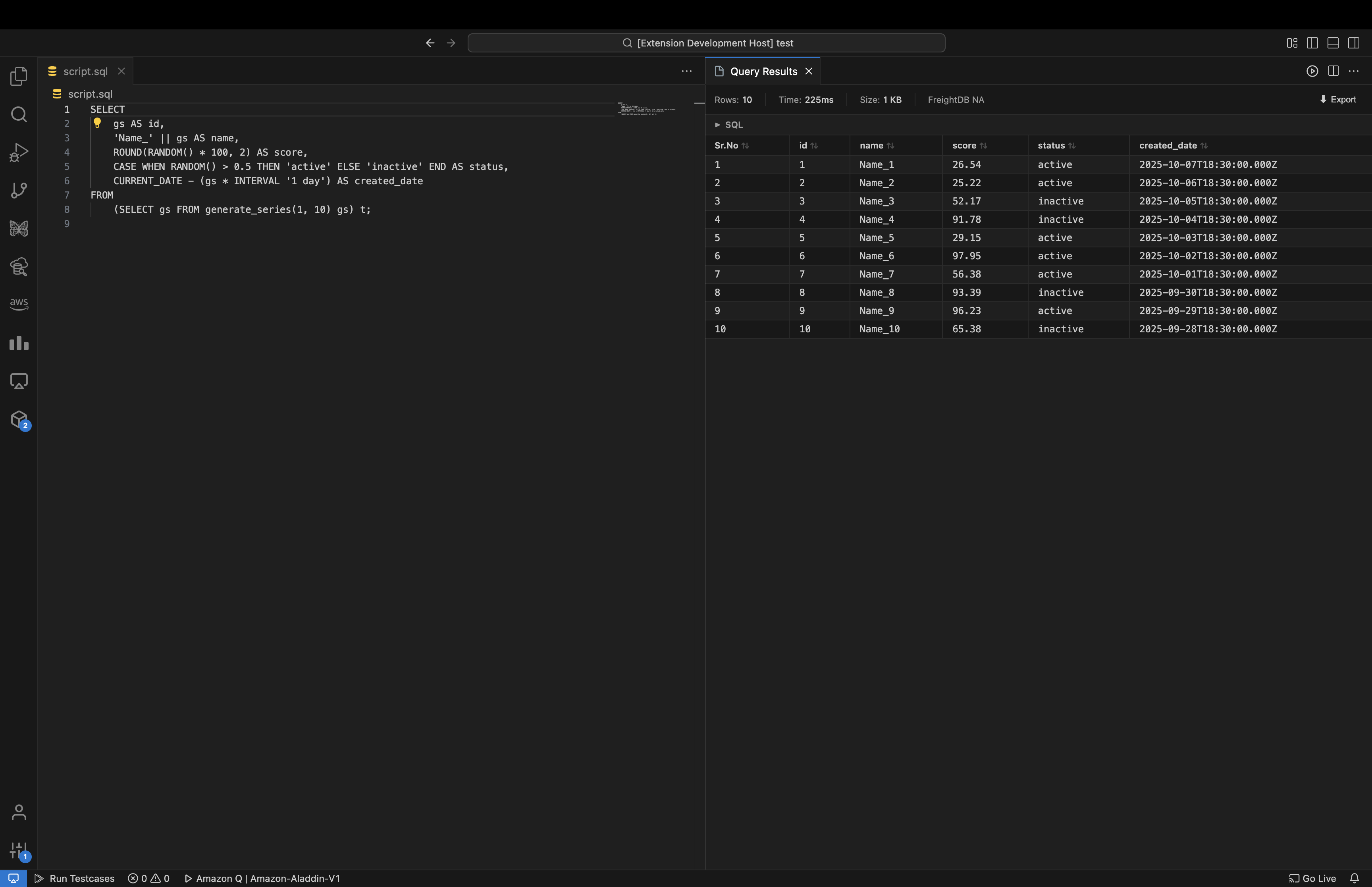
Insights Query Execution & Results
|
✨ Features
🔌 Seamless Connection Management
- Multiple Clusters: Manage unlimited Redshift connections simultaneously
- Flexible Authentication: Connect via JDBC URL or individual connection details (host, port, database)
- Instant Testing: Verify connections before saving with one-click test
- Secure Storage: Credentials encrypted and stored safely in VS Code's secret storage
- Quick Reconnect: Restore disconnected sessions without re-entering credentials
- Edit Anytime: Update connection details without recreating from scratch
⚡ Lightning-Fast Query Execution
- Smart Query Detection: Automatically detects query at cursor—no selection needed
- Execute Selected: Run only highlighted SQL for quick testing
- Batch Execution: Run all queries in file with automatic semicolon splitting
- Instant Results: Query window opens immediately with loading state
- Performance Metrics: See row count, execution time, and result size at a glance
- Multi-Query Tabs: Execute multiple queries and switch between results seamlessly
- Visual Feedback: Temporary highlighting shows which query is executing
📊 Advanced Table Analysis
- Complete DDL Generation: View full CREATE TABLE statements with all constraints
- Performance Insights: Analyze data skew, sort key efficiency, and storage usage
- Smart Recommendations: Get actionable suggestions for VACUUM operations
- Distribution Analysis: See DISTKEY, SORTKEY, and encoding details
- Storage Metrics: Track table size, node distribution, and compression status
- Optimization Alerts: Detect high skew, unsorted data, and deleted row overhead
🗂️ Smart Database Explorer
- Hierarchical Tree View: Browse databases → schemas → tables in organized structure
- Real-Time Refresh: Update explorer to see latest schema changes
- Quick Actions: Right-click tables for instant describe and analysis
- Connection Indicator: Visual status shows active connection at a glance
- Lazy Loading: Efficient data fetching for large databases
📈 Rich Result Visualization
- Sortable Columns: Click any column header to sort ascending/descending
- Serial Numbers: Track original row order even after sorting
- Zebra Striping: Alternating row colors for easy reading
- Collapsible SQL: Toggle query display to maximize result space
- CSV Export: One-click export to CSV for further analysis
- Responsive Tables: Horizontal scroll for wide result sets
🎯 Developer-Friendly
- Dedicated Sidebar: Redshift icon in Activity Bar for instant access
- Context Menus: Right-click actions for connections and tables
- Editor Integration: Execute buttons appear automatically in
.sql files
- Theme Aware: Respects your VS Code color theme (dark/light)
- Keyboard Ready: All actions accessible via Command Palette
🎬 Quick Start
Step 1: Install
Search for "Redshift Query" in VS Code Extensions marketplace and click Install.
Step 2: Connect to Your Cluster
- Click the Redshift icon (🗄️) in the Activity Bar (left sidebar)
- In the Connections panel, click the + button
- Choose your connection method:
- JDBC URL: Paste your full JDBC connection string
- Connection Details: Enter host, port (default: 5439), and database name
- Enter your username and password
- Click Test Connection to verify (optional but recommended)
- Click Create Connection to save
Step 3: Explore Your Database
- The Database Explorer panel automatically loads your schemas and tables
- Expand databases → schemas → tables to browse structure
- Right-click any table and select Describe Table for detailed analysis
Step 4: Execute Queries
- Create or open a
.sql file
- Write your SQL query
- Click ▶️ EXECUTE QUERY in the editor toolbar, or:
- Select specific SQL text and click execute to run only that portion
- Click ▶️ EXECUTE ALL QUERIES to run all queries in the file
- Results appear instantly in a new panel with metrics and sortable columns
Step 5: Analyze & Export
- Click column headers to sort results
- Click Export button to save results as CSV
- Review query execution time and row counts in the toolbar
🛠️ Commands
| Command |
Description |
Add new cluster |
Connect to a Redshift cluster |
Test Connection |
Verify your connection works |
Execute Query |
Run the selected SQL query |
Execute All Queries |
Run all queries in the file |
Describe Table |
View table schema and details |
Refresh |
Update the database explorer |
💡 Pro Tips
Query Execution
- No Selection Needed: Place cursor anywhere in a query—the extension auto-detects it
- Multi-Statement Files: Separate queries with semicolons (
;) and use Execute All
- Quick Testing: Select a portion of complex SQL to test subqueries independently
- Visual Confirmation: Watch for the brief highlight that shows which query is executing
- Check Table Health: Use Describe Table to see skew, vacuum needs, and optimization tips
- Monitor Query Speed: Execution time appears in results toolbar—track slow queries
- Storage Insights: Table analysis shows compression status and storage efficiency
- Follow Recommendations: The extension suggests VACUUM SORT/DELETE when beneficial
Workflow Optimization
- Multiple Connections: Add dev, staging, and prod clusters—switch context instantly
- Reconnect Fast: Lost connection? Click the refresh icon on any connection
- Export Results: Use CSV export for sharing results or importing into other tools
- Sort Intelligently: Click Sr.No column to restore original row order after sorting
Database Exploration
- Refresh Explorer: Click refresh icon after schema changes (CREATE/DROP/ALTER)
- Copy DDL: Describe Table shows complete CREATE statement—copy for documentation
- Find Tables Fast: Use tree view search instead of querying information_schema
Advanced Usage
- Batch Operations: Execute All Queries runs them sequentially with individual result tabs
- Error Handling: Failed queries in batch mode show error messages in their tabs
- Connection Testing: Test before saving to catch typos in connection details
- Edit Connections: Update passwords or hosts without deleting and recreating
📋 Requirements
- VS Code 1.104.0 or higher
- Access to an Amazon Redshift cluster
- Valid database credentials
🐛 Known Issues
None yet! Found a bug? Open an issue and we'll fix it fast.
📝 Release Notes
v3.0.0 (Latest)
🎨 Modern UI Overhaul - Completely redesigned connection form with smooth animations
✨ Enhanced Visual Feedback - Button animations and real-time form validation
🔄 Edit Connection Support - Update existing connections seamlessly
🎯 Improved Form Validation - Clear error indicators and better UX
🖱️ Drag & Drop Query - Drag tables to SQL editor to insert SELECT * queries
⚡ Performance Optimizations - Faster rendering and smoother interactions
🐛 Bug Fixes - Fixed update form data loading issue
v2.0.2
📸 Added visual screenshots in side-by-side layout
🌐 Screenshots hosted on CDN for faster loading
📝 Improved documentation with better visual presentation
v2.0.1
📸 Screenshots section in README
📝 Visual documentation for key features
v2.0.0
🏗️ Complete rearchitecture for better performance
🎨 Improved UI with modern design
📊 NEW: Analyze query metrics and performance insights
💡 NEW: Smart recommendations for query optimization
⚡ Enhanced query execution engine
🔧 Better error handling and diagnostics
v1.1.0
✨ Instant UI responsiveness for all operations
🚀 Query window opens immediately
⚡ Connection status updates without delay
🎯 Background operations run asynchronously
v1.0.1
🐛 Bug fixes and stability improvements
📝 Documentation updates
v1.0.0
🎉 Initial release
✅ Multiple connection management
✅ SQL query execution
✅ Database explorer
✅ CSV export functionality
🤝 Contributing
Love this extension? Star it on GitHub! Have ideas? Open an issue or submit a PR.
📄 License
MIT
Made with ❤️ for data engineers and analysts who live in VS Code

