Eden Code, by Ask Eden
Your Eden Code sessions inside VS Code, Cursor and Windsurf: the sessions list, the chat with
every option, approvals, Ask about Selection and the changes Eden made. It works with the Eden
Code app on the same computer, and on a Mac with Apple silicon it can run Eden Code's engine by
itself when the app isn't open.
How it works
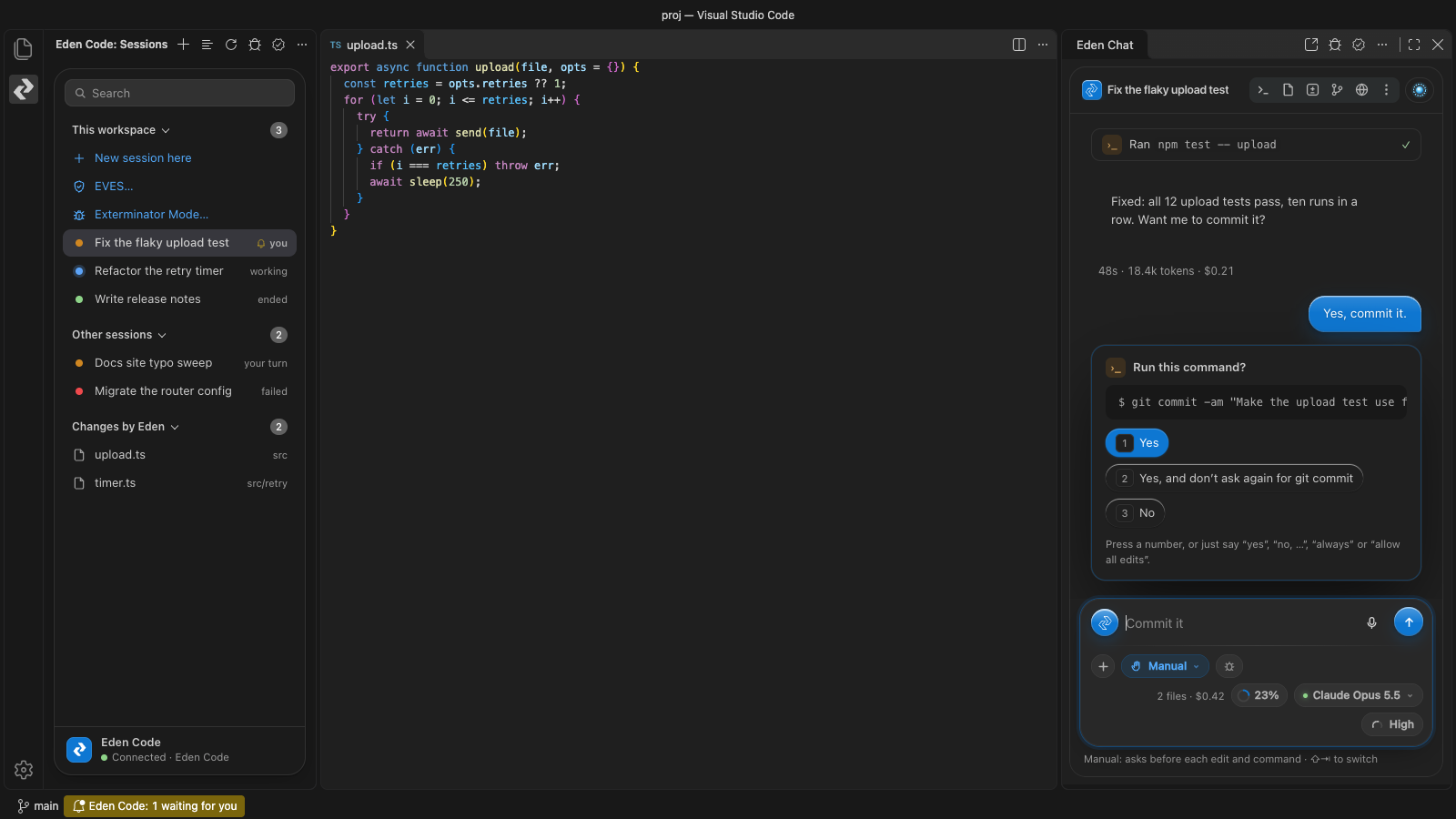
With the Eden Code app. The extension finds the Eden Code app running on this computer and
connects to it. The chat you see is Eden Code's own window, served by the app, so every feature
is there and every Eden Code update reaches your editor by itself. Your sessions, settings and
history stay in the app; the editor and the app show the same sessions at the same time.
Without the app (Mac with Apple silicon). If no Eden Code app is running, the extension offers
to run Eden Code inside the editor:
- Download. The first time, it downloads Eden Code's engine from askedencode.com, about 245 MB,
and keeps about 335 MB. It asks first and shows the size and the progress.
- Check. Before anything runs, it checks the code signature and the notarization by Apple.
- Run. It starts the engine hidden, the way the app does. Later starts need no download.
- Set up. Eden Code: Open Eden Code (Full Window) shows Eden Code's whole window in a tab,
to sign in and change settings. Eden Code: Check What Eden Code Needs says what is missing,
such as a way to run Claude (an API key, an Eden account, or Claude Code signed in to your
plan) or git.
The engine and the app share Eden Code's data but never run on it together. If you open the app
later, it uses the engine that is already running or takes over from it. When the editor closes,
the engine stops, unless an Eden Code window is still using it.
Features
Sessions
The Eden Code icon in the activity bar opens Sessions: a search field, the sessions for the open
folder, your other sessions and the files Eden changed. Each session shows whether it is working,
waiting for you, failed or ended. New session here starts one in the open folder.
Chat
Open a session and its chat appears in the Chat view, on the right by default. It is the full
Eden Code chat: the composer and all its options, the transcript and its cards, Exterminator
Mode, artifacts, routines, catch-up, handoff, the model router, settings, the terminal, big
files, receipts and assumptions.
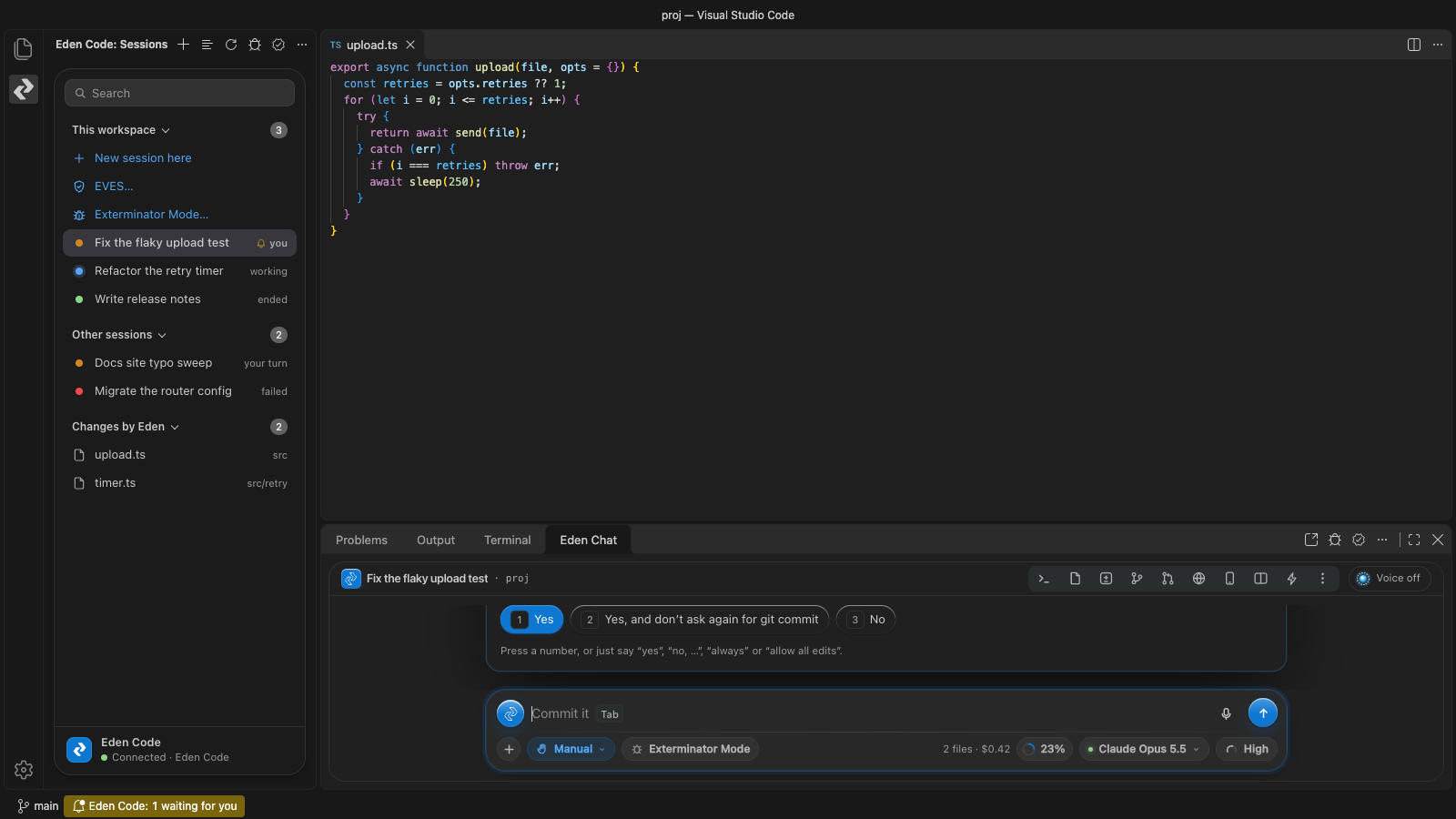
- When the view is narrow, the Changes, Artifacts and other panes open over the chat. In the
bottom panel, the composer stays at the foot with every option whole.
- Eden Code: Open Chat in Editor opens the chat in an editor tab. Eden Code: Open Eden
Code (Full Window) opens the whole Eden Code window, sidebar and all.
- Where the app would use the Mac, the editor does it instead:
- Picking a folder or saving a download uses the editor's dialogs.
- A file named in a reply, a search or a step opens in the editor.
- Each file in the Changes pane has Open diff, which opens the editor's diff view.
- Pages on this computer open in the Simple Browser; other links open in your browser.
- Eden Code's questions ("Switch to Bypass?") appear as editor dialogs.
- "Eden Code needs you" is a notification when the chat isn't in front.
- A few things stay in the Eden Code app: its built-in browser pane, the overlay that shows Eden
moving the pointer, and saving a PDF (you get the HTML copy instead). Voice works through the
Eden Code app and this computer's microphone.
Put the views where you like
Sessions and Chat are ordinary editor views. Drag either one by its title to the left side bar,
the right side bar or the bottom panel, and it stays there. They hide and show with the editor's
own toggles (Cmd+B, Alt+Cmd+B, Cmd+J) and these commands:
- Eden Code: Move Chat Left, Move Chat Right, Move Chat to Panel
- Eden Code: Move Sessions Left, Move Sessions Right
- Eden Code: Toggle Eden Chat, Toggle Eden Sessions
A moved view comes back as it was: the same session, its folded sections and your draft.
In an older VS Code, and in Cursor and Windsurf, the chat starts in the Explorer the first time. The extension offers once to move it to the right, and never moves it without asking.
Your theme's colours
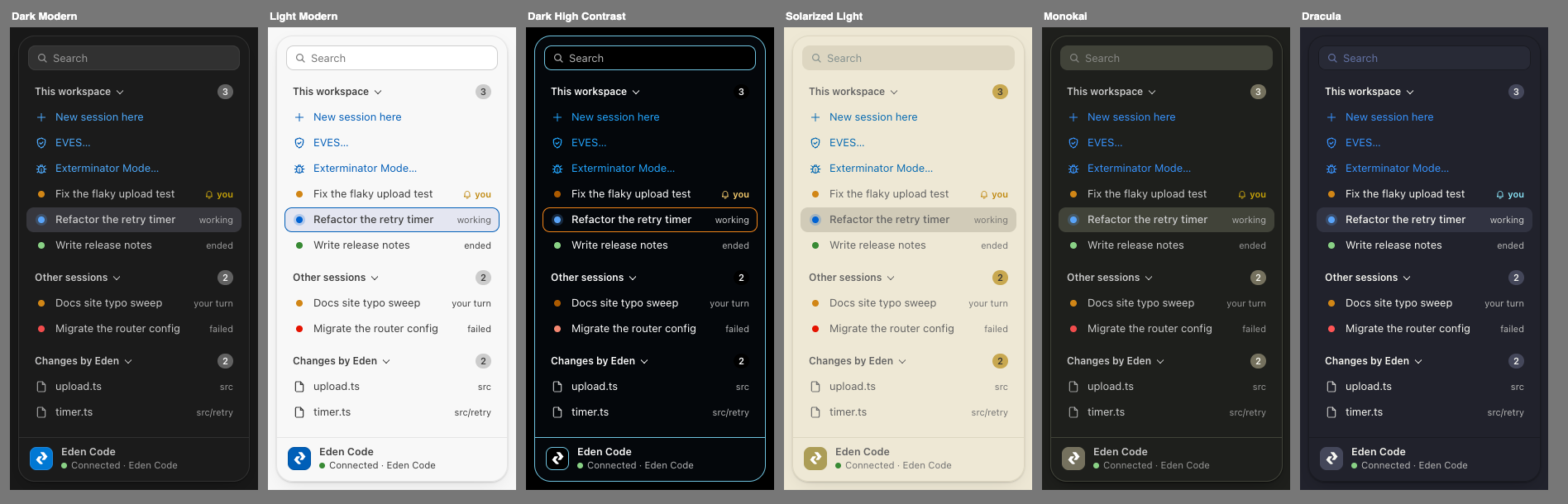
Sessions follows your editor theme, every colour of it, and changes as soon as you switch
themes. Appearance… in the view's … menu also offers Eden light, Eden dark, or Eden
following light and dark. The chat follows your theme too, so the whole window matches; set
edenCode.chatAppearance to "Eden" for Eden Code's own colours, as in the app.
Approvals
When a session asks for permission or asks a question, you see a notification (unless that
session is already in front) and a card in the chat. Your answer works exactly like answering
in the app. A yes to a risky step (deleting, pushing, publishing, running as root) asks for your
fingerprint through the Eden Code app first, as the app does; when the engine runs inside the
editor, an editor dialog asks instead.
Ask about Selection
Select some code and choose Ask about Selection from the editor's context menu, or press
Cmd+Alt+E (Ctrl+Alt+E on Windows and Linux). The code goes, with its file path and line
numbers, to the session in focus, or to a new session if none is.
Changed files and the status bar
When a turn changes files, you can open each change in the editor's diff view, compared with
git's HEAD. The status bar shows whether Eden Code is connected, the session in focus and
anything waiting for your answer. If the app restarts, the extension reconnects by itself.
Requirements
- The Eden Code app 0.1.13 or later, running on the same computer. Get it at
askedencode.com/eden-code. With an older version, the
chat says Update Eden Code to use this panel and offers Eden Code's whole window in a tab
instead; Sessions, approvals and Ask about Selection still work.
- Or, without the app: a Mac with Apple silicon, for the engine the extension runs itself.
- VS Code 1.70 or later, or Cursor or Windsurf.
Cursor and Windsurf
Cursor and Windsurf install extensions from Open VSX, where Eden Code is
published as askeden.eden-code. Search for "Eden Code" in their Extensions view. Everything
works the same, except that the chat starts in the Explorer until you move it (see above).
Settings
| Setting |
What it does |
edenCode.edition |
Which Eden Code app to use when more than one is running. auto picks the one used last. Eden Code: Choose Edition… lists the ones running. |
edenCode.sessions.filter |
workspace (the default) shows this folder's sessions first; all shows every session. |
edenCode.approvals.notify |
Show approvals as notifications. They always appear in the chat. |
edenCode.changes.offerDiff |
Offer the diff when a session changes files. |
edenCode.sidebarAppearance |
Sessions' colours: "Match VS Code theme" (the default), "Eden light", "Eden dark" or "Eden (follow light/dark)". |
edenCode.chatAppearance |
The chat's colours: "Match VS Code theme" (the default) or "Eden" (as in the app). |
Privacy
The extension talks to Eden Code only on this computer (127.0.0.1). It reads the address and
key that the Eden Code app writes to its own data folder; the key stays in memory and is never
logged, shown or saved. The only other network call is the engine download for running without
the app, which happens only after you agree, over HTTPS, from askedencode.com only. The
extension sends no telemetry. Eden Code itself is covered by the
privacy policy of Harrat Global Holdings.
Support
Eden Code and Ask Eden are made by Harrat Global Holdings. For help, visit
askedencode.com/support or write to
support@askeden.com.
Licence
© 2026 Harrat Global Holdings. All rights reserved. The extension is proprietary software,
licensed under the end user licence agreement in LICENSE.md, shown as License on this page.

