OasysAPI IntelliSense
Autocomplete, parameter hints, types, and inline docs for Oasys LS-DYNA Environment JavaScript APIs in VS Code
(PRIMER, D3PLOT, REPORTER, T/HIS).
Works in .js and .mjs files.
Quick Start: Choose an API from the Status Bar
- Open a JavaScript file (
.js) to activate the extension
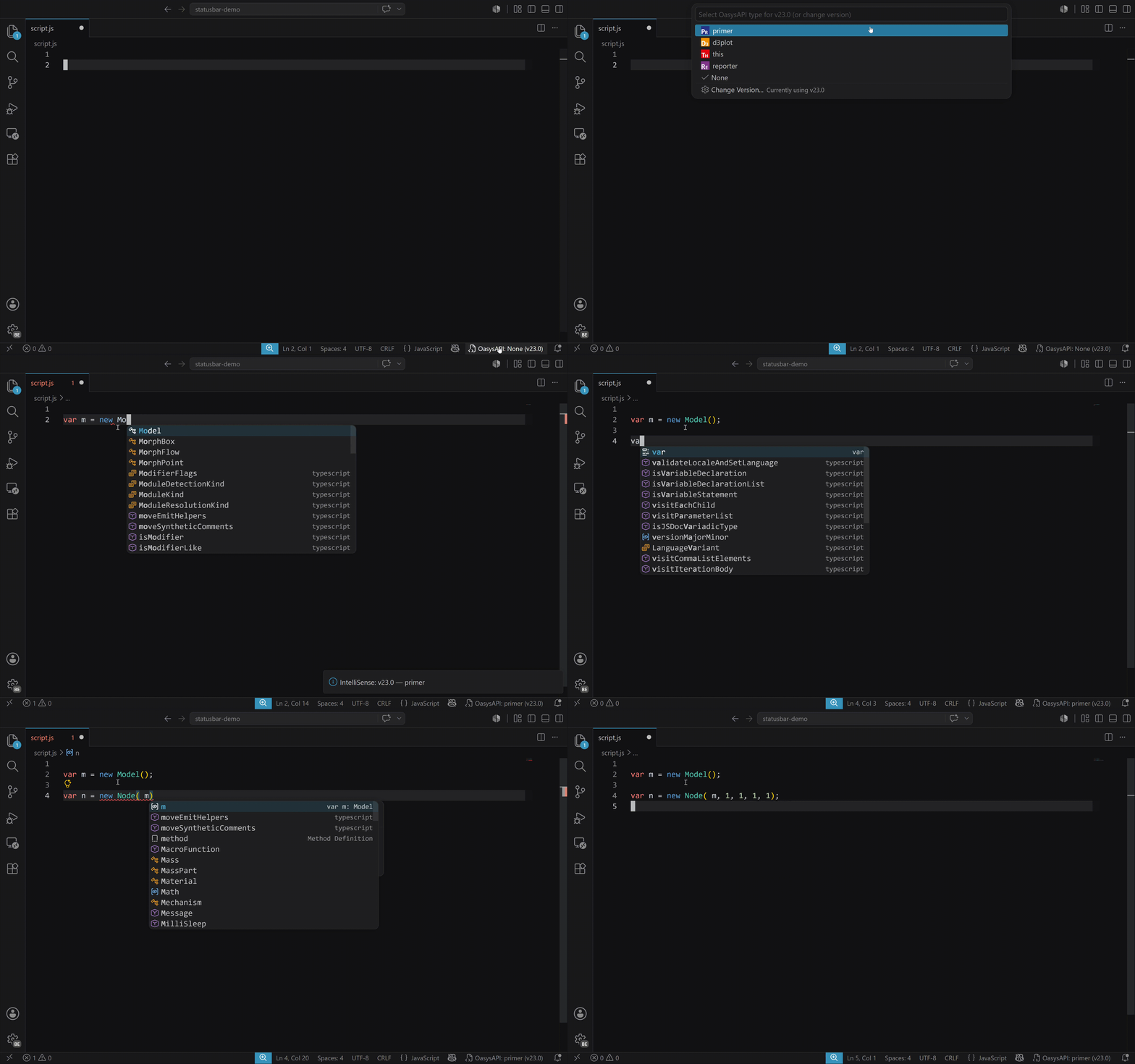
- Click the IntelliSense indicator in the bottom-right corner of VS Code
- Select your desired API type from the picker:
PRIMERD3PLOTREPORTERT/HISNone
- Optionally click "Change Version..." to switch between v21.1, v22.0 or v23.0
Keyboard Shortcuts
Quickly switch API types while editing JavaScript files:
| Windows/Linux |
macOS |
Action |
Ctrl+Alt+P |
Cmd+Alt+P |
Use PRIMER API |
Ctrl+Alt+D |
Cmd+Alt+D |
Use D3PLOT API |
Ctrl+Alt+T |
Cmd+Alt+T |
Use T/HIS API |
Ctrl+Alt+R |
Cmd+Alt+R |
Use REPORTER API |
Ctrl+Alt+N |
Cmd+Alt+N |
Disable IntelliSense |
These shortcuts can be customized via File > Preferences > Keyboard Shortcuts (search for "OasysAPI").
Workspace API mode
The extension supports two workspace API modes:
- Fixed - one API type is used for the whole workspace
- Auto-detect - the API type is chosen per file
Use Fixed if most files in the workspace use the same Oasys API.
Use Auto-detect if the workspace contains a mix of PRIMER, D3PLOT, REPORTER, or T/HIS scripts.
In Auto-detect mode, the plugin resolves the API type in this order:
File name
Files ending in .<type>.js or .<type>.mjs take priority
Examples:
myscript.primer.jsmyscript.t-his.js
Special comment
Add a comment within the first 10 lines:
// api: PRIMER
Workspace config
Add oasysapi.config.json in the workspace root:
{
  "files": {
    "relative/path/to/file.js": "T_HIS"
  },
  "wildCards": {
    "**/d3plot/**": "D3PLOT"
  }
}
Selected default API
If no per-file marker is found, the extension falls back to the currently selected API type.
Notes:
- API type detection allows upper and lower case values. Avoid using
T/HIS with a forward slash, use THIS, T_HIS, or T-HIS instead.
- Fixed mode is the simplest and lowest-risk option
- Auto-detect is intended for mixed workspaces and does a little more work behind the scenes
- File names and comments are usually easier to maintain than large wildcard configs
Workspace Configuration
The extension will check your jsconfig.json file and:
- Create one if it doesn't exist
- Set
lib to ["es5"] to avoid DOM type conflicts
- Remove any other
.d.ts file includes
- Save a backup of your old config as
jsconfig.json.old
Icon theme
The extension includes an optional icon theme. To enable it:
- Open the Command Palette (
Ctrl+Shift+P / Cmd+Shift+P)
- Search for
Preferences: File Icon Theme
- Select
OasysAPI Icons from the list
Files with the .<type>.js naming convention will show custom icons.
Troubleshooting
IntelliSense Not Working?
- Confirm you're editing a
.js file
- Check the bottom-right status bar: it should show
IntelliSense: <apiType> (v2x.x)
- Click it and select a valid API (not
None)
- If it still doesn’t update, try running
TypeScript: Restart TS Server (Command Palette)
Commands
Access these commands from the Command Palette (Ctrl+Shift+P / Cmd+Shift+P):
| Command |
Description |
OasysAPI: Choose API |
Select which API and version, same as the status bar picker |
OasysAPI: Get Extension Log |
Open the extension's log file for troubleshooting |
OasysAPI: Get TS Plugin Log |
Open the plugin's log file for troubleshooting |
OasysAPI: Package Dev Logs |
(Dev builds only) Create a zip file of Oasys and TS server logs |
Settings
| Setting |
Description |
Default |
oasysapi.apiVersion |
Oasys API version |
"v22.0" |
oasysapi.apiType |
Default IntelliSense file used by Fixed mode, and fallback file for Auto-detect mode |
"PRIMER" |
oasysapi.apiMode |
Workspace API mode: Fixed or Auto-detect |
"fixed" |
oasysapi.enableLogging |
Enable diagnostic logging |
false |
oasysapi.extensionLogLevel |
Log level for extension host logging |
"info" |
oasysapi.pluginLogLevel |
Log level for the IntelliSense plugin |
"info" |
oasysapi.acceptedExtensions |
File extensions that activate IntelliSense |
[".js", ".mjs"] |

