Find and fix problems in your Angular project without leaving VS Code.
This extension checks your project for mistakes, messy code and things you no longer use. Every problem it finds shows up in VS Code's Problems panel. Click one and you jump straight to the right line.
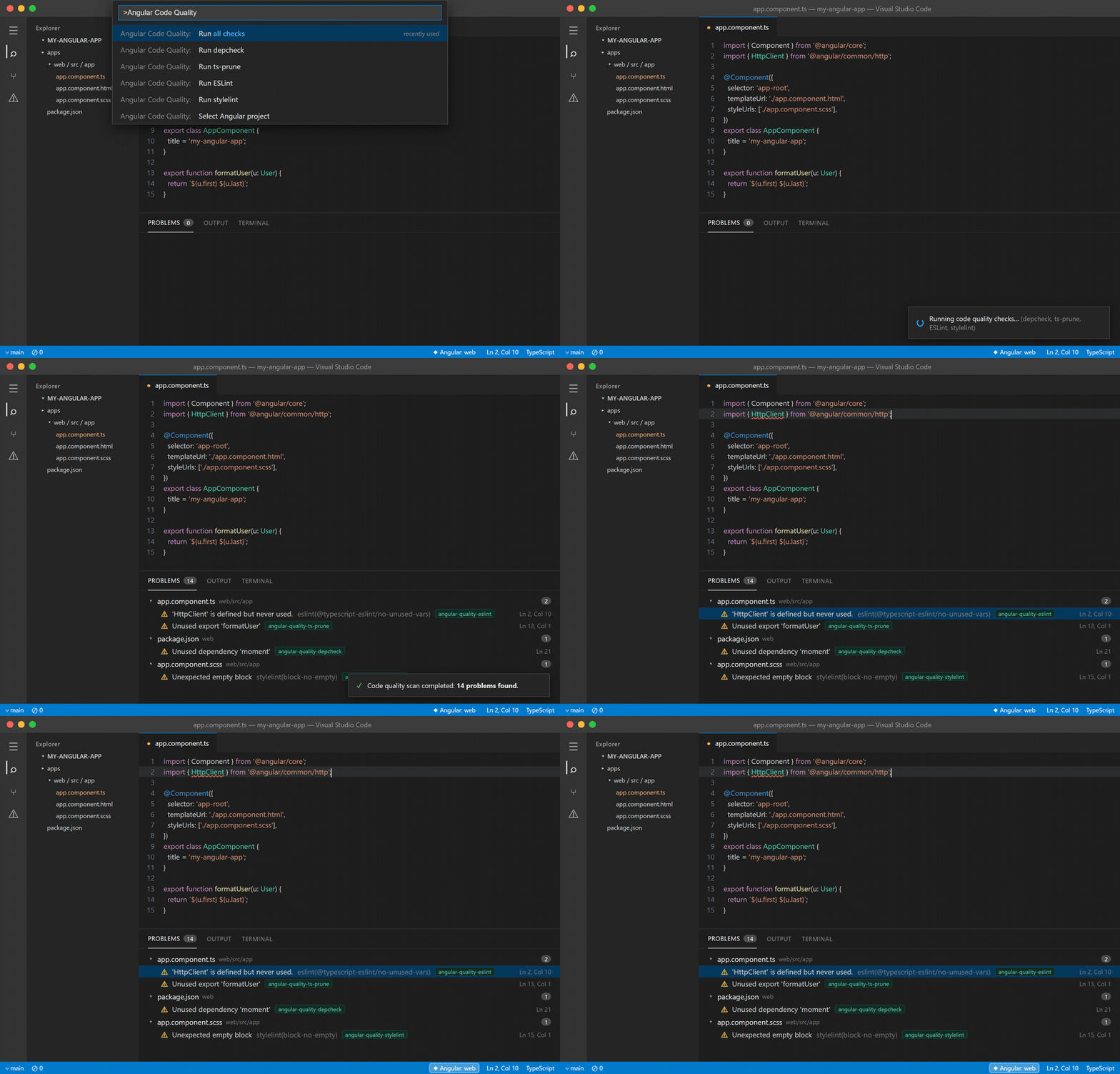
It works in VS Code, Cursor, Windsurf, VSCodium and Gitpod. Get it from the VS Code Marketplace or Open VSX, or search for "Angular Code Quality Toolkit" in the Extensions view.
Get started in 1 minute
- Open your Angular project in VS Code. The extension starts by itself.
- Install the tools. If some are missing, a message offers to install them. Just click Install….
- Click the shield icon 🛡️ in the left sidebar, then press Run all checks (▶▶).
- Open the Problems panel (
View → Problems) and click any problem to jump to it.
That's it. For a guided tour, open the Command Palette (Ctrl+Shift+P) and run Angular Code Quality: Get started.
What it finds
| Problem |
Found by |
| Code mistakes and bad patterns in your TypeScript |
ESLint |
| Mistakes in your CSS / SCSS |
stylelint |
| Files, exports and npm packages you don't use anymore |
knip |
| Components, directives and pipes that nothing uses |
Built-in Angular check, nothing to install |
| Files that import each other in a circle |
madge (optional) |
| Mistakes in your HTML templates |
Template lint (optional) |
The extension doesn't include these tools. It uses the ones in your project, so you get the same results as your CI. If a tool is missing, the extension installs it for you with one click.
Click the shield icon 🛡️ in the left sidebar. You'll see one row for each tool:
- ✅ clean: no problems found
- ⚠️ 5 problems: see them in the Problems panel
- 🔄 running…
- ⬇️ not installed: click the row to install it
Hover over a row to get buttons to run, fix or install that tool. The buttons at the top let you run everything, refresh, clear results or open the health report. More options are in the … menu.
Fixing problems
- Fix everything automatically. Hover over ESLint or stylelint in the sidebar and click the 🔧 button. It fixes everything that can be fixed safely, then shows what's left.
- Fix one file. Put your cursor on a problem, press
Ctrl+. (or click the 💡 lightbulb) and choose Fix all auto-fixable problems in this file.
- One-click fixes from the 💡 lightbulb:
- Unused package → remove it from
package.json
- Unused export → remove the
export word (the code still works inside its file)
- Unused file → delete it (it goes to the trash, so you can get it back)
Your unsaved work is always saved first, so nothing gets lost.
Health report
Click the 📈 pulse icon at the top of the sidebar to see your project's health:
- a score out of 100 and a grade from A (great) to E (needs work)
- how many problems each tool found, and whether that went up or down since last time
- a chart showing your progress over time
- the files with the most problems, so you know where to start
You can also save the report as a web page to share with your team (… menu → Export health report (HTML)).
Working on an old project with lots of problems?
Seeing 500 old warnings makes it hard to spot the new ones. Two options help:
- Baseline. Choose Create baseline from the
… menu. The extension remembers every problem you have today and hides them. From then on you only see new problems. Commit the baseline file so your whole team uses it.
- Changed files only. Choose Only show problems in changed files from the
… menu. You'll only see problems in files you've edited, which is great for keeping your own changes clean.
Keep results up to date automatically
Turn these on in Settings (search for "Angular Code Quality"):
- Run on save: re-checks a file each time you save it.
- Run on activation: checks everything when you open the project.
Both run quietly in the background with no popups.
Good to know
- Big projects and monorepos are supported. If your workspace has several Angular apps, click the project name in the status bar to switch between them.
- Nothing runs twice. If you start a check that's already running, it simply restarts.
- You can cancel any check from its progress message.
- The status bar shows your total number of problems (for example
Quality: 6). Click it to open the Problems panel.
- Stuck? Open
View → Output and choose Angular Code Quality to see exactly what ran.
Settings
Open Settings → Extensions → Angular Code Quality Toolkit. The defaults work for most projects, but here's what you can change:
| Setting |
What it does |
Default |
checks |
Pick which tools Run all checks uses. Leave empty and it picks for you. |
empty (automatic) |
runOnSave |
Re-check files when you save them. |
off |
runOnActivation |
Check everything when the project opens. |
off |
onlyChangedFiles |
Only show problems in files you've changed. |
off |
changedFilesBase |
Also include everything changed on your branch, e.g. origin/main. |
empty |
angular.suggestOnPush |
Suggest the faster OnPush change detection for components. |
off |
packageManager |
npm, yarn, pnpm or bun. auto works it out for you. |
auto |
depcheck.ignores |
Packages that depcheck should never report as unused. |
empty |
revealOutputOnRun |
Open the log window every time a check runs. |
off |
Advanced settings
| Setting |
What it does |
Default |
tsPrune.tsconfigPath |
Which tsconfig ts-prune uses. |
tsconfig.app.json |
stylelint.globs |
Which style files stylelint checks (when you have no stylelint script). |
src/**/*.scss, src/**/*.css |
template.globs |
Which HTML files the template lint checks. |
src/**/*.html |
eslint.useJsonFormat |
Read ESLint results as JSON (more accurate). Turn off if your lint script complains. |
on |
stylelint.useJsonFormat |
Read stylelint results as JSON. |
on |
depcheck.ignoreAngularImplicit |
Don't report Angular packages that are used behind the scenes (@angular/*, zone.js, rxjs…). |
on |
All settings start with angularCodeQuality. in settings.json.
The easiest way is Install / check tools… in the … menu. It does this for you. If you'd rather do it by hand:
npx ng add @angular-eslint/schematics
npm install --save-dev stylelint stylelint-config-standard-scss knip
Optional extras:
npm install --save-dev madge @angular-eslint/eslint-plugin-template @angular-eslint/template-parser
Questions people ask
Does it find unused CSS?
No. Angular keeps each component's styles separate, which makes "unused CSS" very hard to detect reliably. stylelint checks your CSS for mistakes instead.
How does it decide a component is unused?
It only reports a component, directive or pipe when it can't find it used anywhere: not in any template, not in any route or code, and not lazy-loaded or exported by a library. If it isn't sure, it stays quiet. Results are marked "possibly unused", so check before you delete.
How is the health score calculated?
100 ÷ (1 + (3 × errors + warnings) ÷ 50). Errors count three times as much as warnings. No problems scores 100, and 50 warnings score 50.
I still use ts-prune and depcheck. Do they still work?
Yes. If you install knip, it does the same job, so the extension uses knip and skips the other two.
Does it work with pnpm, yarn or bun?
Yes. It works out which one you use from your lock file.
Contributing
npm install
npm test
Press F5 in VS Code to try your changes in a new window. See CONTRIBUTING.md for more.
Found a bug or have an idea? Open an issue. We'd love to hear from you.


