Archibara for VS Code
See your Archibara architecture next to your code. Browse a project's diagrams, model elements and records, preview diagrams and copy architecture context for your coding agent.
You need an Archibara account. Sign up free or sign in when the extension opens your browser. Browsing and previews need no AI subscription.
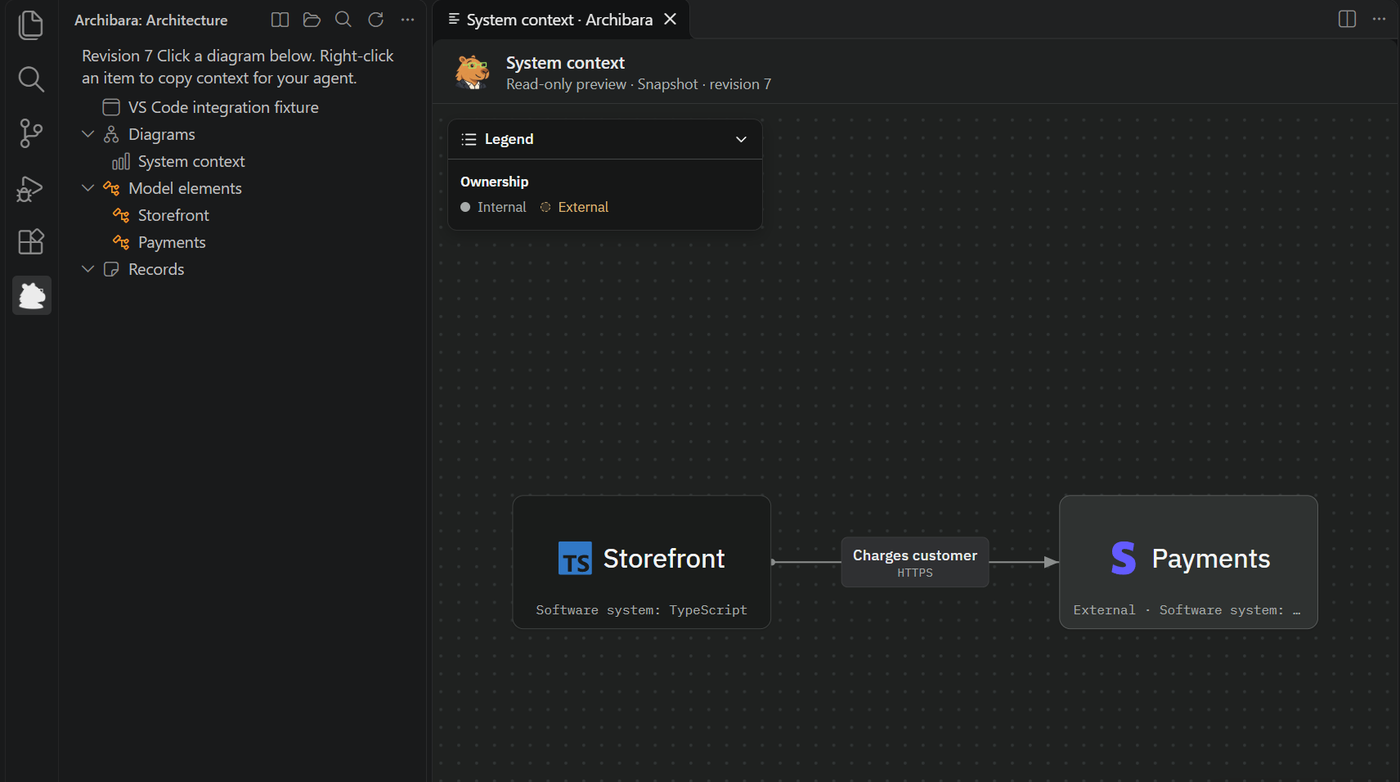
Sign in
- Open the capybara Archibara icon in the Activity Bar and select Sign in and connect. If a connection is already saved, select Sign in again.
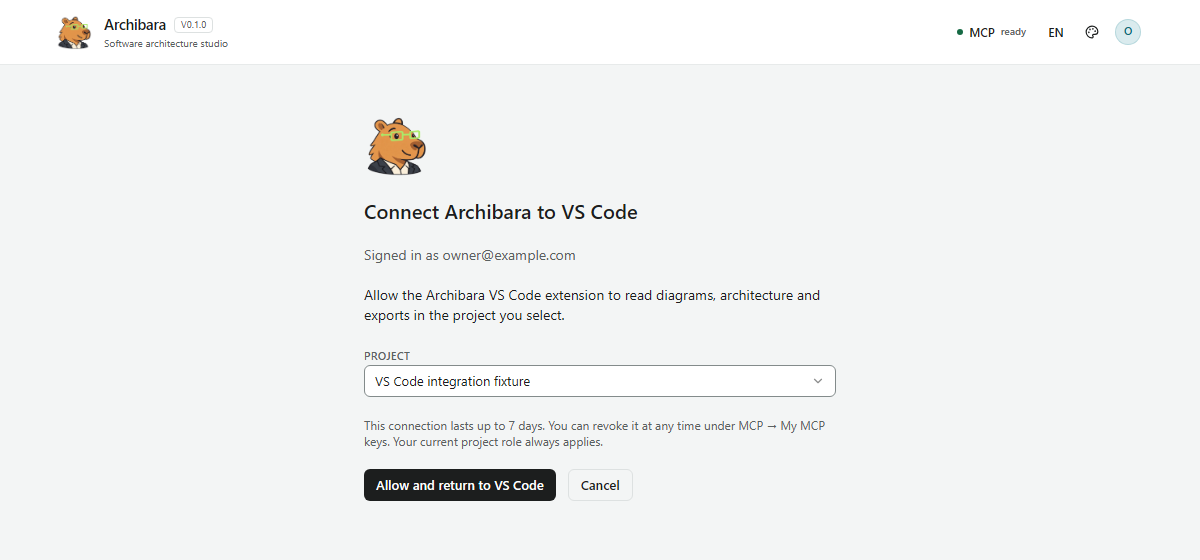
- Sign in or register in your browser.
- Choose one project and select Allow and return to VS Code.
- VS Code opens that project. You don't need to copy a key.
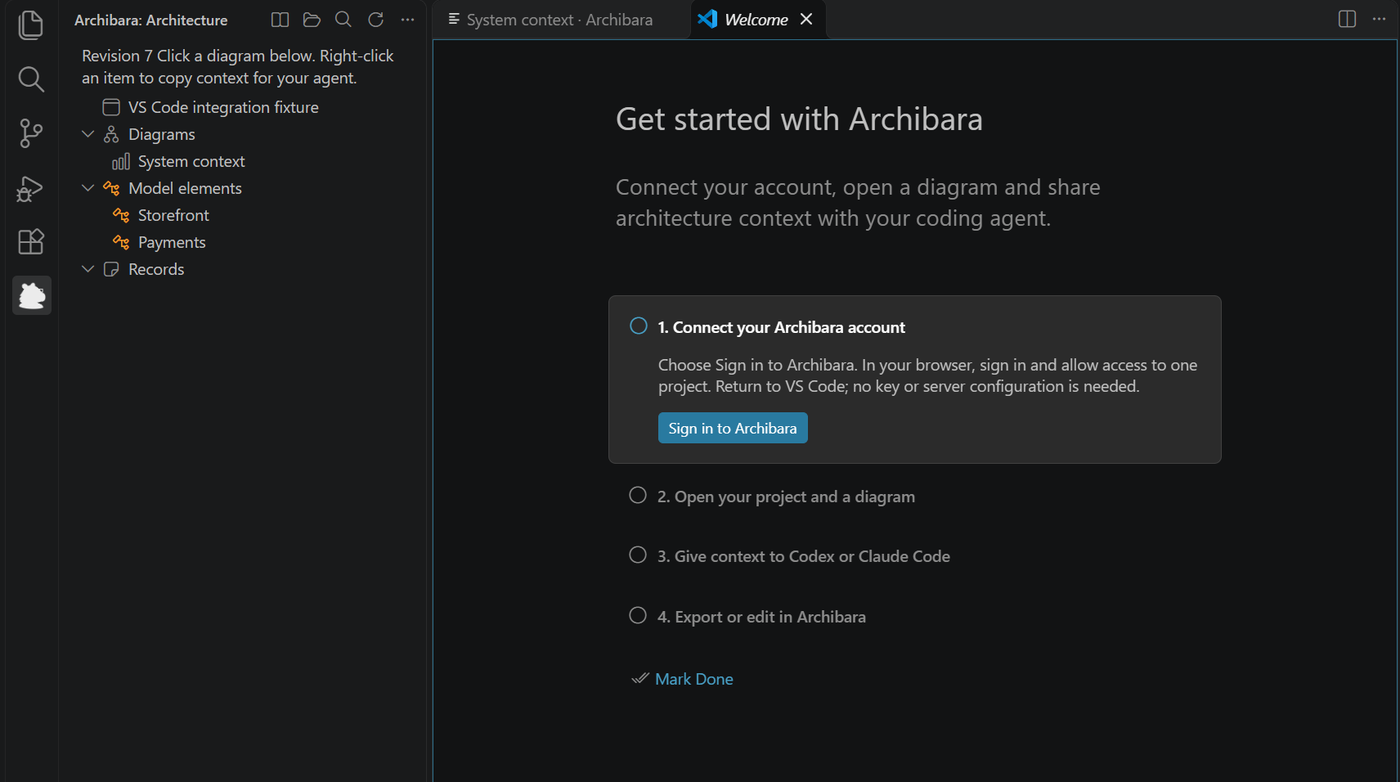
Archibara: Get started in the Command Palette (Ctrl+Shift+P, or Cmd+Shift+P on macOS) opens a guided walkthrough.
Features
- Browse diagrams, model elements and records of the project you allowed. Search them from the sidebar.
- Preview diagrams with Archibara's read-only renderer, including layout, boundaries and relationships. Previews are snapshots: Refresh reloads them.
- Copy for your agent. Right-click an item to copy an agent reference or its resolved context, then paste it into Copilot Chat, Codex, Claude Code or another agent. Copying does not call a model or send a message.
- Export JSON, Mermaid or editable draw.io.
- Open in the browser to edit the object in Archibara.
- The interface follows the VS Code language: English, Ukrainian or Polish.
Access and security
- Browser sign-in grants read access to one project. Your current Archibara role and plan limits apply to every call.
- Sign-in uses OAuth with PKCE. Access tokens last 15 minutes and refresh tokens rotate. A connection lasts up to 7 days.
- Tokens are kept in VS Code SecretStorage, never in settings, project files, exports or logs.
- Disconnect removes the local tokens and revokes the connection on the server. You can also revoke it on the Archibara MCP page under My MCP keys.
- No telemetry, background polling or source upload. The extension does not change your model.
Use Archibara MCP in Copilot
On the Archibara MCP page, select Add Archibara MCP to VS Code. Review the server, start it and sign in in your browser. Then enable its tools in agent chat and ask, for example, "Explain the architecture of this project". This connection has its own authorization.
The extension can also register the server for Copilot: run Archibara: Enable / disable MCP for Copilot. When VS Code starts the server, it asks you to sign in in your browser once and keeps that sign-in itself. It doesn't configure Codex, Claude Code or other agents.
Self-hosted servers
Choose Advanced connection in the sidebar, enter your server's URL and sign in with your account. Personal MCP keys still work for servers without browser sign-in. HTTPS is required except on localhost.
Requirements and limits
- Desktop VS Code 1.109 or newer. WSL, SSH, Codespaces and vscode.dev have not been tested yet.
- Images that a private catalog serves behind sign-in don't appear in previews.
Support
Questions and problems: archibara.com/contact or support@archibara.com.
Archibara is proprietary software. See the bundled license and third-party notices.

