HTML SelectionTool to examine an HTML Selection Installation Launch VS Code Quick Open ( Ctrl+P), paste the following command, and press enter.Copied to clipboard |

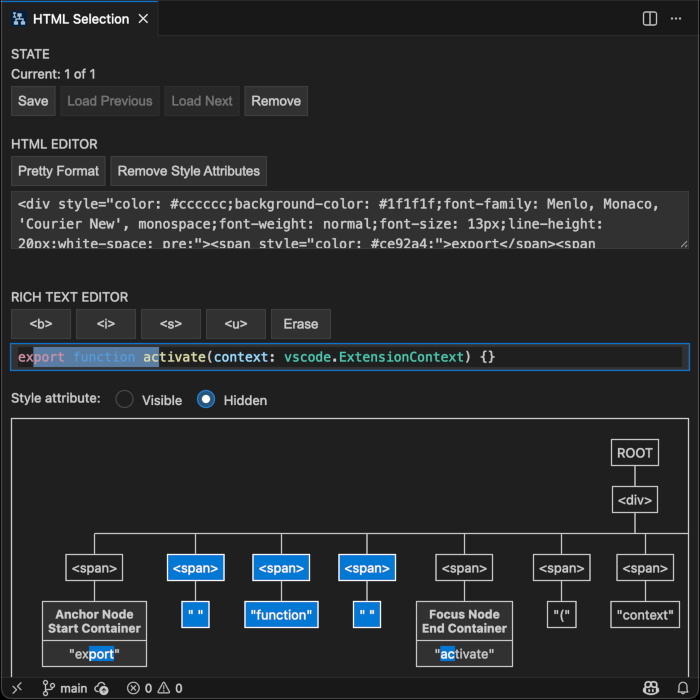
HTML SelectionTool to examine an HTML selection. This tool was built with the purpose of helping with the development of rich text editors that use the Selection API and Range interface. It does that by showing the content of a Additionally it supports saving the current state of the editors in the workspace and pasting rich text content.
Once installed, execute the HTML Selection: Open panel command from the Command Pallete to open the panel. SupportTo make suggestions or report problems with the extension, create an issue at https://github.com/AndresMunozDeveloper/vsce-html-selection/issues For other things, send an email with the subject "VSCE-HTML-SELECTION" (without double quotes) at andres.munoz.developer@gmail.com. Emails without that subject will be sent to trash. SponsorI created this project because I needed a tool like this. Later I decided to publish it because I spent a considerable amount of time working on it so I wanted to have something to show for that time. Also because I thought that other people may find it useful. So, if you found it useful and would like to see new features often, consider donating/sponsoring this project using the following payment method: You can also recommend it to your coworkers and friends. Possible new features
|