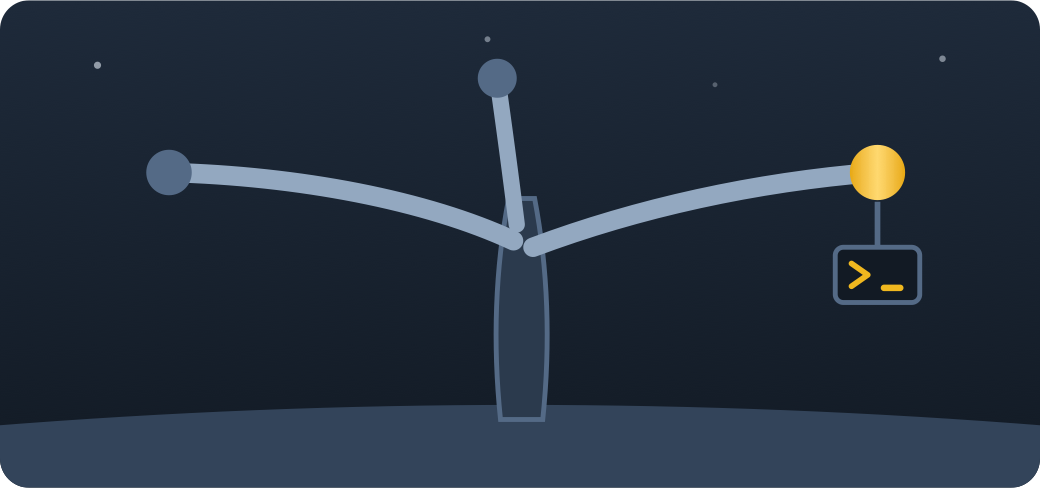
In a multi-root workspace you click between terminals all day — and the
Explorer stays wherever it was last left, still showing the previous
project's files while you work in the next one.
Explorer Follows Terminal reveals the workspace folder of the focused
terminal's working directory in the Explorer — click a terminal, get that
project's file tree. No manual navigation, no second click.
Needs shell integration reporting the terminal's cwd (on by default for
PowerShell, bash, zsh, fish and others; the signal also survives
multiplexers such as tmux when the inner shell reports its cwd). Terminals
whose working directory is outside every workspace folder are skipped
silently.
Install
VS Code — install from the
VS Code Marketplace,
or code --install-extension alkisyuv.explorer-follows-terminal
Cursor / VSCodium — served from
Open VSX,
or cursor --install-extension alkisyuv.explorer-follows-terminal
How it works
When the active terminal changes (you click into another pane), the
extension reads the terminal's current working directory and reveals the
containing workspace folder in the Explorer.
When the focused terminal changes directory into a different root
(cd ../other-project), the Explorer follows again.
Reveal is not focus: the tree moves, your keyboard stays where it was.
Settings
Setting
Default
Description
explorerFollowsTerminal.enabled
true
Reveal the focused terminal's workspace folder in the Explorer.