SpecKit Companion: review AI specs before they ship as broken code




The spec workspace for developers running AI agents through Spec-Driven Development. Catch bad specs before they become bad code.
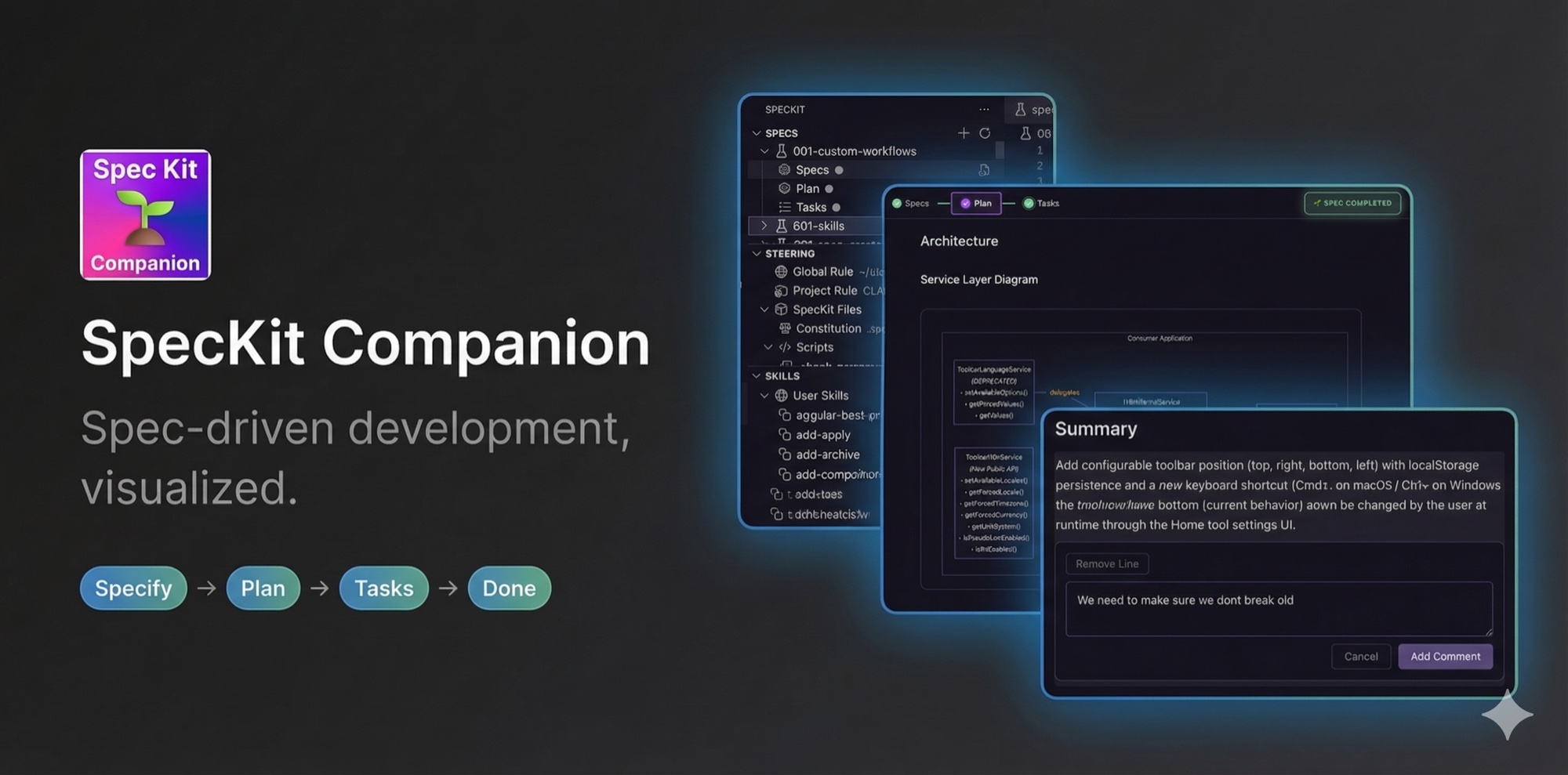
Recently Shipped
- v0.21.0 Spec-context
history[] schema migration with explicit kind field, end-to-end state-machine correctness fixes (15 findings, F1–F16), brand-name provider labels, wrapping task-line rendering polish, inline-comment persistence across all docs, install-pipeline reliability (tsc chained in prepublish)
- v0.20.0 Marketplace screenshot fix (stable-filename policy), heading/caption correction, Marketplace-safe anchor links
- v0.19.0 Claude in VS Code provider (drive specs from the Claude Code panel), provider-aware workflow filtering, refreshed README screenshots
- Full changelog →
Why it exists
Review AI-generated specs the way you review code. Add inline comments on specific lines, refine requirements, and catch a vague requirement before the AI turns it into 200 lines of wrong code. Every comment persists to the spec's .spec-context.json the moment you add it, so an in-progress review is durable across sessions and committable to source control.
Plug any AI assistant into any spec-driven workflow. Eight providers ship today (Claude Code, Gemini, GitHub Copilot, Codex, Qwen, OpenCode, IDE Chat, Claude in VS Code), and the workflow engine accepts custom phases, commands, and sub-documents. Drop in Agent Teams Lite, your own SDD process, or anything that takes commands and produces markdown.
Spec-driven phases without leaving VS Code. Each feature flows through Specify, Plan, Tasks, Done, with progress tracking, sticky headers, and a structured viewer built for long specs.
Features
Visual Spec Viewer
Guide your features through structured phases with a dedicated viewer that renders markdown specs, shows phase progress, and provides one-click actions for each step. Mermaid diagrams render inline with zoom controls for navigating complex diagrams. After each action, a toast confirms the result and the viewer auto-advances to the next phase.
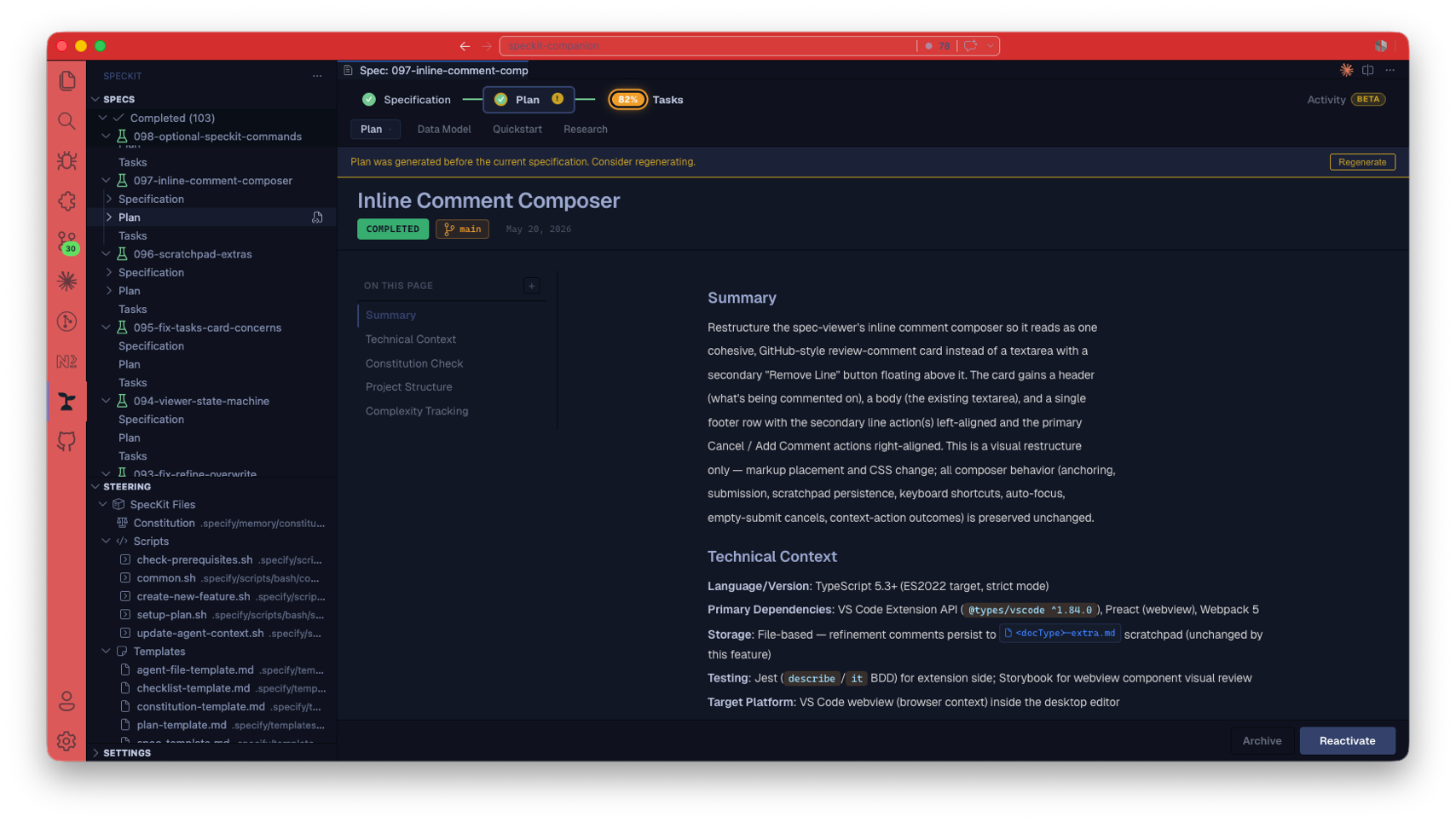 The spec viewer. Step tabs, sub-document chips, an inline diagram, and a footer button that advances Specify → Plan → Tasks → Done. Markdown stays in your repo, never on a server.
Review spec documents with inline comments. Add feedback directly on specific lines, refine requirements, and collaborate on specs before implementation begins. Each comment is persisted to the spec's .spec-context.json the moment you add or remove it — not only when you refine — so an in-progress review survives closing the tab, is committable, and can be picked up later (next session, another machine, or another reviewer after a pull). When you click the Refine button, that document's pending comments are dispatched to the AI for a direct, in-place edit of the source and then marked applied (kept as history — no separate files).
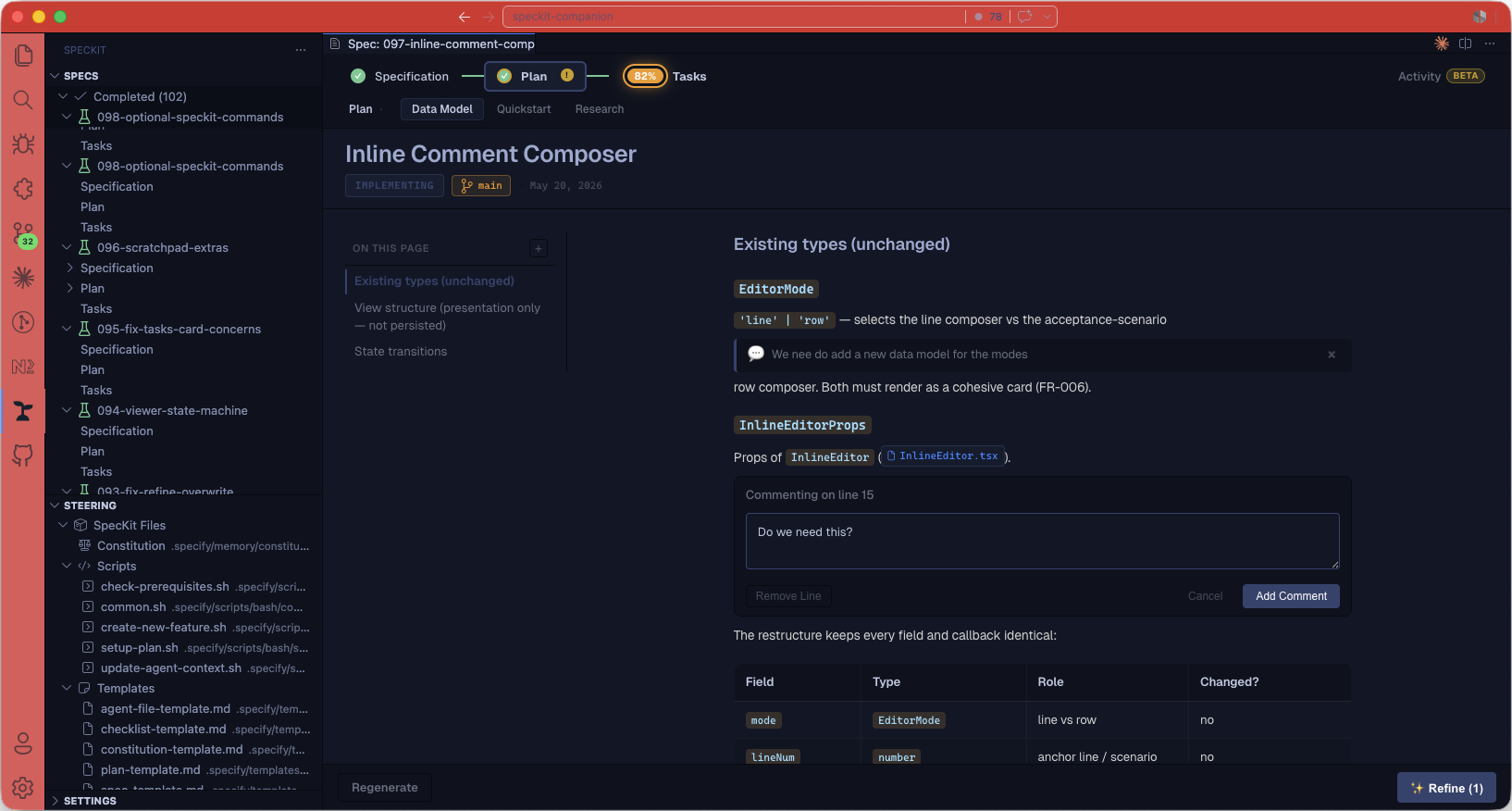 Inline review comments. Catch a vague requirement on line 12 before the AI turns it into 200 lines of wrong code.
Reopen a spec and every pending comment is restored inline, anchored to its source location. Restore is resilient: a comment remembers its nearest heading and surrounding block, so if the source drifted (a line moved or was edited) it best-effort re-anchors to the nearest matching heading rather than being dropped — a comment is never silently lost.
Comments live entirely in .spec-context.json; the old per-document <doc>-extra.md scratchpad files and the read-only "Notes" sub-tab have been removed. There is one storage surface (the committed context file) and one overview surface (the Activity panel's Review comments card — a consolidated list across spec/plan/tasks with per-comment status, jump-to-line, and a per-document Run refinement action). The inline surface stays the always-on primary path; the Activity list is the power-user overview (when the Activity panel is toggled off, inline comments still work and still persist).
Create Specs Visually
Create new specs with a dedicated dialog. Write a detailed description, select your workflow, and attach screenshots or mockups for context.
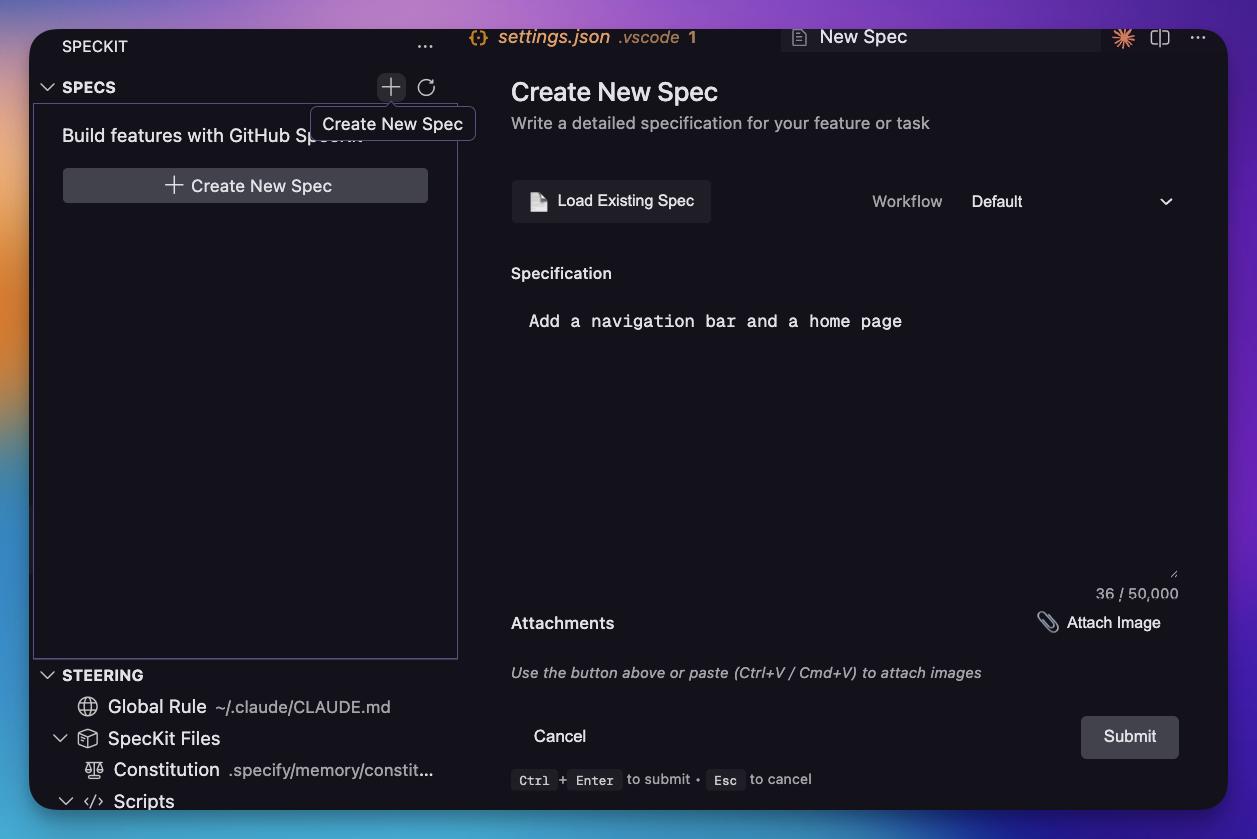 Create-spec dialog. Write a detailed description, pick a workflow, attach a screenshot. The AI never sees a one-liner.
Spec-Driven Phases
Each feature flows through four phases, each a one-click footer action in the viewer above:
- Specify — define requirements with user stories and acceptance scenarios before any code is written.
- Plan — create the technical design: architecture, data models, and research, grouped under one step with sub-document chips.
- Tasks — generate an implementation checklist with parallel-execution markers and live progress.
- Done — mark the spec complete (or archive it) once implementation lands.
Reading Specs
The spec viewer is built for fast scanning of long-form specs:
- Title-leading header: the spec name dominates above a compact
[STATUS] [⌥ branch] · date cluster, so the page anchor is the first thing your eye lands on.
- Sticky chrome: step tabs (Specification / Plan / Tasks) and header stay pinned at the top while you scroll.
- Children rail: when a step has sub-files (e.g., Plan's
data-model.md, quickstart.md, research.md), they render as chips directly under the active step tab, with the parent step itself as the first chip so any sub-doc has a one-click path back to the overview.
- Persistent inline comments: review comments persist to
.spec-context.json as you make them and restore inline when the spec reopens (best-effort re-anchoring if the source drifted). The old per-document … Notes scratchpad sub-tabs are gone — the consolidated cross-document list now lives in the Activity panel's Review comments card.
- Table of contents: sticky outline column on the left of the content area. Defaults to h2-only (so phase-heavy
tasks.md reads as a clean ~7-entry list); a small + toggle expands h3 subsections when needed. Auto-hides on narrow panes.
- Quiet content: when the structured header has the metadata, in-content duplicates (the
Input: block, repeated branch chips, literal Slug:/Date: paragraphs) are suppressed so the body is just the spec content.
- Diagrams: wide mermaid diagrams scroll horizontally inside the prose column instead of bleeding past it. Each diagram has its own
− / Reset / + zoom controls.
- Activity panel: an
Activity toggle swaps the markdown pane for a card-stack overview of everything .spec-context.json carries. See Activity Panel below.
- Quiet, intentional footer: the footer surfaces only what fits the moment —
Regenerate plus a forward button labelled with the next phase (Plan / Tasks / Implement / Complete). While a step generates, that button is disabled and reads Generating <step>… until the artifact actually lands on disk, so the footer never advances ahead of the work. Archive and Mark Completed appear only once the spec is closure-eligible (ready-to-implement and beyond). See docs/viewer-states.md for the full footer state matrix.
- Optional SpecKit commands per tab: SpecKit's three refinement commands surface as one-click footer buttons where each is most useful — Clarify on Spec, Checklist on Plan, Analyze on Tasks. No configuration required; a custom command with the same id wins. They disappear once the spec reaches the closure gate.
Activity Panel
Toggle Activity in the viewer's nav bar to swap the markdown pane for a card-stack overview of everything .spec-context.json carries:
- Approach — one-line strategy, status pill, PR link, and commit/PR checkpoints.
- Phases — a horizontal timeline reporting active time per step and substep (idle gaps are capped, so an overnight pause doesn't inflate a step); the in-flight step pulses and the terminal phase finalizes.
- Tasks — per-
T### status, summary, file chips, and inline concerns.
- Decisions, Concerns, Review comments (every persisted comment grouped by document, with jump-to-line and a per-document Run refinement button), and Files touched (clickable).
Each card hides itself when its data is missing, so a lean speckit-style spec collapses to just Phases. Visibility is gated by speckit.viewer.activityPanel — "off", "beta" (default; toggle shows a beta pill), or "on".
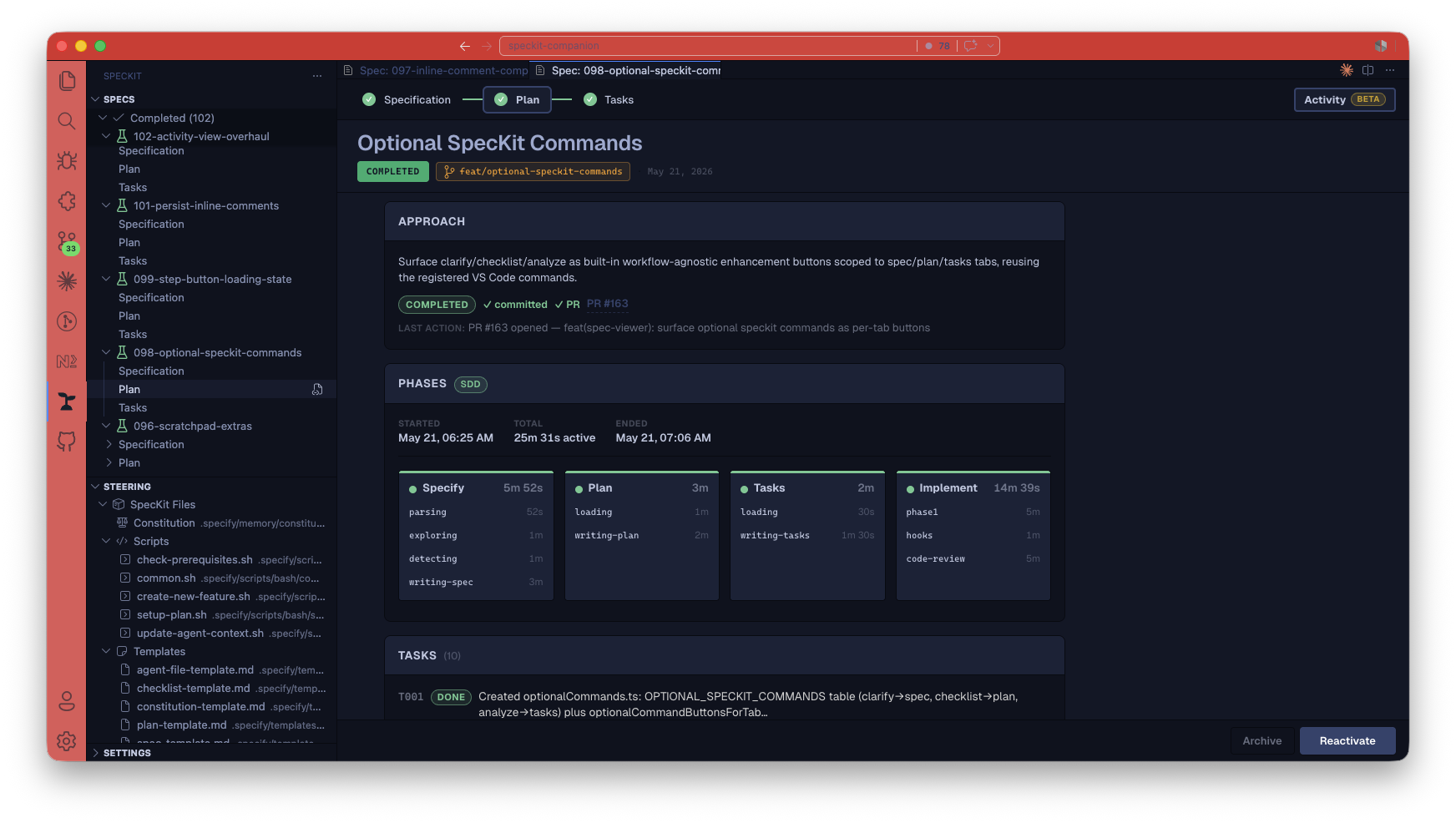 Activity panel. The Phases timeline plus Approach, Tasks, and Review-comments cards — one overview of everything the spec's context file tracks.
Custom Workflows & Commands
SpecKit Companion isn't tied to a single methodology. Swap out the default phases for any SDD workflow such as Agent Teams Lite, your own team's process, or anything that uses commands and produces markdown files. Define custom steps, labels, output files, and sub-documents. Add custom commands that appear as action buttons in specific phases (e.g., Verify, Archive, Commit, Create PR).
The sidebar, progress tracking, and workflow editor all adapt automatically to your custom workflow. See Configuration below.
The sidebar organizes everything your AI assistant needs: Specs for feature development, Steering for AI guidance documents, Agents for custom agent definitions, Skills for reusable capabilities, and Hooks for automation triggers.
Specs are grouped into three collapsible sections, each with a count in the header: Active, Completed, Archived. Filter by name, sort by number/name/date/status, multi-select to bulk-archive or complete, and right-click for per-spec actions like Reveal in File Explorer. Right-click also offers Copy Path (workspace-relative path) and Copy Name (slug only) for referencing specs in PRs, chat, or external tools. Right-click a group header to apply lifecycle actions to every spec in the group at once (e.g., Archive all, Reactivate all) — each gated by a confirmation dialog. Header badges and tree icons are color-coded by status so progress reads at a glance.
When a step command is running, the spec shows a spinner and a live elapsed timer; a step-complete notification fires when it finishes (toggle via speckit.notifications.stepComplete).
The sidebar is visible alongside the viewer in the screenshot above. For the full reference (lifecycle button matrix, badge tier mapping, transition logging, all icon meanings), see docs/sidebar.md.
Offline-First UI
Fonts (Geist Variable) and icons (codicons) ship bundled inside the extension .vsix. The spec viewer, spec editor, and workflow editor all render identically on a plane with no internet connection. No runtime requests to CDNs for fonts or icon glyphs.
Safety Affordances for Destructive Actions
Actions that change the spec's lifecycle are protected so a misfired click is easy to walk back:
- Regenerate queues behind a 5-second undo toast. Clicking Undo or pressing Esc cancels the regeneration; otherwise the backend fires when the timer elapses.
- Archive, Complete, and Reactivate each require two clicks. The first click swaps the button label to "Confirm?" for 3 seconds; a second click within that window confirms. Otherwise the label reverts silently and nothing happens.
- Locked future steps: while a step is running, downstream step tabs lock and surface a tooltip explaining why, so dispatched work cannot be interrupted by an out-of-order click.
- The OS-level Reduce Motion preference is honored globally. In-flight step pulses and other infinite animations stop when it's enabled.
Getting Started
- Install the extension from a
.vsix file or the VS Code marketplace
- Open the sidebar: the SpecKit icon is always visible in the activity bar; with no folder open, clicking it shows an empty-state panel with an Open Folder action
- Create a spec: once a folder is open, click the
+ button in the Specs view to start your first feature
Sample Specs
Looking for "what does good look like?" The repo's own specs/ directory is the answer. Every feature ships with the spec that drove it. A few worth opening:
Compare the file lists side by side to see the contrast between the full and minimal flows.
Supported AI Providers
| Feature |
Claude Code |
GitHub Copilot CLI |
Gemini CLI |
Codex CLI |
Qwen Code |
OpenCode |
IDE Chat |
Claude in VS Code |
| Steering File |
CLAUDE.md |
.github/copilot-instructions.md |
GEMINI.md |
AGENTS.md |
QWEN.md |
AGENTS.md |
Not supported |
CLAUDE.md |
| Steering Path |
.claude/steering/ |
.github/instructions/*.instructions.md |
Hierarchical GEMINI.md |
Hierarchical AGENTS.md |
.qwen/steering/ |
Hierarchical AGENTS.md |
Not supported |
.claude/steering/ |
| Agents |
.claude/agents/*.md |
.github/agents/*.agent.md |
Limited support |
Hierarchical AGENTS.md |
Not supported |
.opencode/agent/*.md |
Not supported |
.claude/agents/*.md |
| Hooks |
.claude/settings.json |
Not supported |
Not supported |
Not supported |
Not supported |
Not supported |
Not supported |
.claude/settings.json |
| MCP Servers |
.claude/settings.json |
~/.copilot/mcp-config.json |
~/.gemini/settings.json |
~/.codex/config.toml |
~/.qwen/settings.json |
~/.opencode/opencode.jsonc |
Not supported |
.claude/settings.json |
| CLI Command |
claude |
ghcs / gh copilot |
gemini |
codex |
qwen |
opencode |
Built-in editor chat (Copilot / Composer / Cascade) |
Claude Code GUI panel (no terminal) |
Configure your preferred provider: Settings > speckit.aiProvider
IDE Chat
IDE Chat is not a CLI — instead of spawning a terminal, it routes the assembled
prompt to your editor's built-in AI chat (GitHub Copilot in VS Code, Composer in
Cursor, Cascade in Windsurf), detected automatically. Because the chat must
recognize the /speckit.* commands, spec-kit must be initialized for the host
editor (run SpecKit: Initialize Workspace, i.e. specify init). When the
workspace is initialized, IDE Chat auto-submits the prompt; when it isn't, it
prefills the chat and shows a warning instead of sending a command the chat can't
run. This is one-way dispatch — it does not read responses back or sync status.
Claude in VS Code
Claude in VS Code dispatches to the Claude Code GUI panel instead of
spawning the claude CLI in a terminal — for users who live in the panel rather
than a terminal. It shares the same .claude/ setup as the terminal claude
provider (steering, agents, hooks, MCP). The extension opens the panel via Claude
Code's URI handler and prefills the command; the Claude Code panel exposes no
programmatic submit, so you press Enter to run it.
Requires the Claude Code extension;
if it isn't installed, the provider suggests switching to terminal claude.
Configuration
Permission Mode
Controls whether AI CLIs run with permission prompts (safe) or bypass them (YOLO):
{
  "speckit.permissionMode": "interactive"
}
| Value |
Behavior |
"interactive" |
The CLI prompts before taking actions (recommended) |
"auto-approve" |
(YOLO) Skip all permission prompts. Faster but no review of tool calls. |
This applies to all providers that support it: Claude (--permission-mode bypassPermissions), Copilot (--yolo), and Qwen (--yolo). Gemini and Codex ignore this setting.
Copilot exception: GitHub Copilot CLI cannot surface permission prompts in -p mode. Even with permissionMode: "interactive", the extension auto-switches Copilot to auto-approve at dispatch time — otherwise the terminal would silently hang waiting for a prompt that never appears. This is enforced at runtime; dismissing the startup warning toast does not re-enable interactive mode for Copilot.
Controls how speckit commands are formatted when sent to AI providers:
{
  "speckit.commandFormat": "auto"
}
| Value |
Behavior |
"auto" |
Let the AI provider decide the format (default) |
"dot" |
Always use dot notation (e.g., speckit.plan) |
"dash" |
Always use dash notation (e.g., speckit-plan) |
Use auto unless your speckit version requires a specific command format. Override with dot or dash when the provider's default doesn't match what your setup expects.
AI Context Instructions
Controls whether the extension prepends a short context-update preamble to every SpecKit step prompt sent to the AI CLI:
{
  "speckit.aiContextInstructions": true
}
| Value |
Behavior |
true (default) |
Prepend a marker-wrapped preamble that instructs the AI to keep .spec-context.json current, including canonical substeps (e.g., plan.research, plan.design, implement.run-tests). |
false |
Send the raw /speckit.<step> command with no preamble. Useful if your AI ignores it or you're debugging raw prompts. |
The preamble adds ~200–300 tokens per dispatch and is identical across all providers (Claude, Gemini, Copilot, Codex, Qwen). Extension-side step-boundary writes remain the hard guarantee for startedAt / completedAt: this preamble unlocks finer-grained substep tracking.
Step-Complete Notifications
When a dispatched spec step finishes, the extension shows a VS Code information message naming the spec and step (e.g. Spec 074 · Plan complete). The message includes an Open spec action that focuses the viewer for that spec. VS Code routes info messages to the native OS notification surface when the window is unfocused, so you can tab away during long runs.
{
  "speckit.notifications.stepComplete": true
}
Set to false to silence the message while keeping the in-viewer elapsed timer.
Spec Directories
By default, specs live in specs/. You can configure multiple directories or use glob patterns:
{
  "speckit.specDirectories": ["specs", "openspec/changes/*"]
}
Simple names (e.g., specs) list their children as specs. Patterns with wildcards treat each match as a spec folder.
SDD Branch Auto-Creation
When you use SDD-style workflows, the extension can auto-create a feature branch at a chosen phase. Configure via .sdd.json at the workspace root:
{
  "branchStage": "implement",
  "branchNameFormat": "{type}/{slug}"
}
| Field |
Values |
Description |
branchStage |
"specify" | "implement" |
Phase at which the feature branch is created. Use specify to branch as soon as the spec exists; use implement to branch only when implementation begins. |
branchNameFormat |
template string |
Pattern for the branch name. Supported placeholders: {type} (workflow step name), {slug} (spec slug). Example: feat/{slug} or {type}/{slug}. |
The active feature branch is recorded in .spec-context.json as workingBranch; the original branch field stays as the immutable audit value.
Custom Workflows
Define alternative workflows with custom steps, output files, and sub-documents. Any SDD methodology that uses commands and produces markdown files can be plugged into SpecKit Companion.
Real-world example: Agent Teams Lite
Here's a full configuration using Agent Teams Lite, a multi-agent SDD framework:
{
  "speckit.customWorkflows": [
    {
      "name": "agent-teams-lite",
      "displayName": "Agent Teams Lite (SDD)",
      "description": "Multi-agent SDD workflow",
      "steps": [
        { "name": "specify", "label": "Spec",   "command": "sdd-spec",   "file": "spec.md", "subDir": "specs" },
        { "name": "plan",    "label": "Design", "command": "sdd-design", "file": "design.md", "includeRelatedDocs": true },
        { "name": "tasks",   "label": "Tasks",  "command": "sdd-tasks",  "file": "tasks.md" }
      ]
    }
  ],
  "speckit.specDirectories": ["specs", "openspec/changes/*", "openspec/changes/archive/*"],
  "speckit.customCommands": [
    { "name": "verify",  "title": "Verify",  "command": "/sdd-verify",  "step": "tasks", "tooltip": "Validate implementation matches specs" },
    { "name": "archive", "title": "Archive", "command": "/sdd-archive", "step": "tasks", "tooltip": "Archive completed change" }
  ]
}
Notice how custom workflows, spec directories, and custom commands work together:
- The workflow defines Spec → Design → Tasks phases with custom labels and commands
specDirectories tells the sidebar where to find specs (including archived ones)- Custom commands add Verify and Archive buttons to the Tasks phase
Basic example: remap default steps
{
  "speckit.customWorkflows": [
    {
      "name": "sdd",
      "displayName": "SDD Workflow",
      "steps": [
        { "name": "specify",   "label": "Specify",   "command": "sdd.specify",   "file": "spec.md" },
        { "name": "plan",      "label": "Plan",      "command": "sdd.plan",      "file": "plan.md" },
        { "name": "tasks",     "label": "Tasks",     "command": "sdd.tasks",     "file": "tasks.md" },
        { "name": "implement", "label": "Implement", "command": "sdd.implement", "actionOnly": true }
      ],
      "commands": [
        {
          "name": "auto",
          "title": "Auto Mode",
          "command": "sdd:auto",
          "step": "specify",
          "tooltip": "Goes through the whole specification in auto mode"
        }
      ]
    }
  ]
}
Workflow Commands
Workflows can define commands: extra action buttons that appear next to the primary action for a given step. For example, a command with "step": "specify" renders as a button next to Submit in the spec editor.
{
  "commands": [
    {
      "name": "auto",
      "title": "Auto Mode",
      "command": "sdd:auto",
      "step": "specify",
      "tooltip": "Runs the full pipeline automatically"
    }
  ]
}
| Property |
Required |
Description |
name |
Yes |
Unique command identifier |
command |
Yes |
Command to execute (e.g., "sdd:auto": no leading slash needed) |
step |
Yes |
Which workflow step to show this button on (e.g., "specify") |
title |
No |
Button label (defaults to name) |
tooltip |
No |
Hover text for the button |
Commands with step: "specify" appear as secondary buttons next to Submit in the spec creation dialog. Multiple commands per step are supported.
Provider Compatibility
A workflow can declare which AI providers it supports with supportedAiProviders. When set, the workflow is hidden entirely unless the active speckit.aiProvider is in the list — it disappears from the workflow picker, the spec editor, and every step/footer action. Omit the field (or use an empty array) to support all providers.
{
  "speckit.customWorkflows": [
    {
      "name": "sdd",
      "displayName": "SDD Workflow",
      "supportedAiProviders": ["claude"],
      "steps": [
        { "name": "specify", "label": "Specify", "command": "sdd.specify", "file": "spec.md" }
      ]
    }
  ]
}
The SDD workflow is implemented as Claude Code skills (/sdd:*), so declaring it ["claude"] keeps it from appearing — as a dead, unrunnable path — under GitHub Copilot, Gemini, Qwen, or Codex.
| Property |
Required |
Description |
supportedAiProviders |
No |
Array of provider ids the workflow supports: claude, gemini, copilot, codex, qwen, opencode, ide-chat, claude-vscode. Omit or leave empty for all providers. An unknown id matches no real provider, hiding the workflow everywhere. |
The built-in default workflow has no declaration and is always available, so at least one workflow is always selectable regardless of provider.
Steps with sub-files
Steps can declare child documents that appear as expandable items in the sidebar:
{
  "steps": [
    {
      "name": "plan",
      "label": "Plan",
      "command": "speckit.plan",
      "file": "plan.md",
      "subDir": "plan"
    }
  ]
}
This scans plan/ for .md files and shows them as children of the Plan step. You can also use an explicit list:
{
  "subFiles": ["plan/architecture.md", "plan/api-design.md"]
}
Step Properties
| Property |
Required |
Description |
name |
Yes |
Step identifier (e.g., "specify", "design") |
command |
Yes |
Slash command to execute (e.g., "sdd.specify") |
label |
No |
Display name in sidebar (defaults to capitalized name) |
file |
No |
Output file for this step (defaults to {name}.md) |
actionOnly |
No |
When true, the step has no output file and is hidden from the document tree (e.g., an "Implement" step that just runs a command) |
subFiles |
No |
Array of child file paths shown under this step |
subDir |
No |
Directory to scan for child .md files (non-recursive) |
includeRelatedDocs |
No |
When true, unassigned .md files in the spec folder are grouped under this step. Only one step should have this flag. |
Behavior
- The sidebar shows only the steps declared by the active workflow
- Steps with missing output files appear as "not started"
- Steps with
actionOnly: true are action-only. They appear in the workflow editor but not in the file tree
- When a spec is created via the editor, the selected workflow is automatically persisted to
.spec-context.json in the spec directory
- If no workflow is selected, the
speckit.defaultWorkflow setting is used (falls back to the built-in default)
- Once persisted, all subsequent operations (viewer, step execution, command palette) use the same workflow consistently
- The default workflow (
spec.md → plan.md → tasks.md → implement) is always available
Custom Commands
Add custom slash commands that appear in the workflow editor and the SpecKit: Run Custom Command picker.
{
  "speckit.customCommands": [
    "review",
    {
      "name": "commit",
      "title": "Commit Changes",
      "command": "/speckit.commit",
      "step": "tasks",
      "tooltip": "Generate a commit for completed work",
      "requiresSpecDir": false
    },
    {
      "name": "pr",
      "title": "Create PR",
      "command": "/speckit.pr",
      "step": "tasks",
      "tooltip": "Create a pull request for the feature"
    }
  ]
}
Properties:
name: Command identifiertitle: Display name in pickercommand: Slash command to executestep: Phase to show in: spec, plan, tasks, or all (default)tooltip: Description shown on hoverautoExecute: Auto-run in terminal (default: true)requiresSpecDir: Inject spec directory (default: true)
Spec Context (.spec-context.json)
Every spec directory holds a .spec-context.json file that is the single
source of truth for lifecycle state. The viewer derives badges, pulse,
highlight, and footer button visibility from this file only. File
existence is never used to infer step completion.
Canonical schema
{
  "workflow": "speckit-companion | sdd | sdd-fast | speckit-terminal",
  "specName": "060-spec-context-tracking",
  "branch": "060-spec-context-tracking",
  "currentStep": "specify | clarify | plan | tasks | analyze | implement",
  "status": "draft | specifying | specified | planning | planned | tasking | ready-to-implement | implementing | completed | archived",
  "history": [
    { "step": "specify", "substep": null, "from": { "step": null, "substep": null }, "by": "extension", "at": "ISO" }
  ]
}
history[] is the single append-only source of truth for step
boundaries. Per-step timing (start / completion / substeps) is derived
in-memory by the viewer; it is not persisted. Files written by older
versions that still carry stepHistory or transitions are accepted on
read and migrated on the next write.
The full JSON Schema lives at
src/core/types/spec-context.schema.json and
specs/060-spec-context-tracking/contracts/spec-context.schema.json.
Extension-side lifecycle writes
The extension appends a history[] entry — start or completion — and
flips the canonical status whenever a step is dispatched (via the
SpecKit commands or the viewer's next-step / Regenerate buttons — the
next-step button is labelled with the upcoming phase name, e.g. Plan,
Tasks, Implement, or Complete on the final step), and when a
spawned terminal closes, independent of AI cooperation. Spec status
changes (Mark as Completed, Archive, Reactivate) write the
canonical status and append a history entry. Write failures log to the
SpecKit output channel without blocking dispatch.
Advancing currentStep is atomic: setting it to a new step always
appends the matching start-entry in the same write. currentStep ahead
of history[] is the failure mode that makes the viewer show a fake
"Generating …" with no actual progress.
Invariants
- Unknown top-level fields are preserved across writes.
history is append-only. Never rewrite prior entries.- The last
history[] entry's step matches currentStep.
- When the viewer opens a spec with no context file, it writes a minimal
draft document; no step is marked completed from file presence alone.
Status vocabulary
draft → specifying → specified → planning → planned → tasking →
ready-to-implement → implementing → completed → archived.
Legacy shapes (status: "active", status: "tasks-done", or files that
only contain { status: "completed" }) are coerced by
normalizeSpecContext at read time.
Development
Setup
git clone https://github.com/alfredoperez/speckit-companion.git
cd speckit-companion
npm install
npm run compile
Running
- Open the project in VS Code
- Press
F5 to launch Extension Development Host
Building
npm run package
# Output: speckit-companion-{version}.vsix
| Platform |
Support |
Notes |
| macOS |
Yes |
Fully supported |
| Linux |
Yes |
Fully supported |
| Windows WSL |
Yes |
Supported |
| Windows |
Yes |
All bash-only providers (Copilot, Claude, OpenCode, Qwen) auto-detect PowerShell and use the equivalent Get-Content -Raw substitution; cmd.exe is supported on a best-effort basis (long prompts may exceed cmd's 8191-char line limit — switch to PowerShell or Git Bash if you hit it). |
Contributing
PRs welcome. See CONTRIBUTING.md for local setup, the F5 dev-host loop, test conventions, the Conventional Commit style this repo uses, and the README docs map you should follow before opening a PR.
Acknowledgments
This project started from the amazing work at https://github.com/notdp/kiro-for-cc
License
MIT License