MD2Docx Converter
Export Markdown files to DOCX from VS Code with:
- Pandoc-based DOCX generation
- Mermaid code fence rendering
- Built-in English and Chinese reference DOCX files for academic, technical, and business exports
- Optional custom
reference.docx template support
- Helpful diagnostics in the output panel
Features
- Right-click any
.md file and export it to .docx
- Choose an export submenu type: academic paper, technical document, or business report
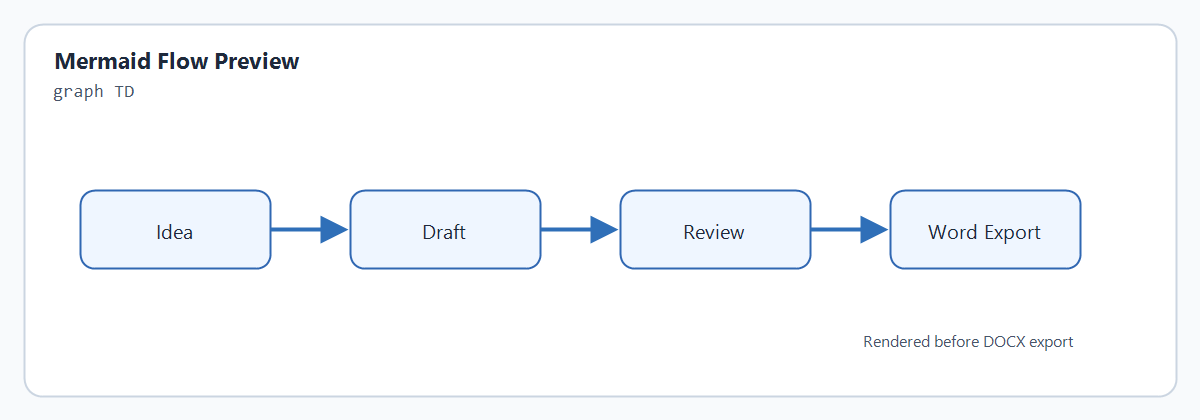
- Render fenced mermaid diagrams such as:
graph TD
    A[Idea] --> B[Draft]
    B --> C[Review]
    C --> D[Word Export]
- Use bundled English and Chinese reference DOCX files matched to document type
- Technical and business templates are standards-derived / guidance-derived reference files, not official template attachments
- Override with a custom Word template via
reference.docx
- Keep temporary files when debugging conversion problems
Requirements
Required
Install examples:
winget install --id JohnMacFarlane.Pandoc
brew install pandoc
The extension does not bundle Pandoc and does not block installation when Pandoc is missing. It checks for Pandoc when you run Check Export Environment or Export Markdown to DOCX.
Required only for Mermaid diagrams
Install:
npm install -g @mermaid-js/mermaid-cli
If Mermaid CLI is not found and the Markdown file contains ```mermaid code fences, the export will fail with a message asking you to install it or set mdocxConverter.mermaidCliPath.
Settings
mdocxConverter.pandocPathmdocxConverter.mermaidCliPathmdocxConverter.referenceDocxmdocxConverter.referenceLanguagemdocxConverter.outputDirectorymdocxConverter.mermaidOutputFormatmdocxConverter.openAfterExportmdocxConverter.keepIntermediateFilesmdocxConverter.styleProfilemdocxConverter.bodyFontmdocxConverter.bodySizePtmdocxConverter.heading1FontmdocxConverter.heading1SizePtmdocxConverter.heading2FontmdocxConverter.heading2SizePtmdocxConverter.heading3FontmdocxConverter.heading3SizePtmdocxConverter.lineSpacingmdocxConverter.marginTopMmmdocxConverter.marginBottomMmmdocxConverter.marginLeftMmmdocxConverter.marginRightMm
Older paperifyMd.* settings are still read as a fallback, but new configuration should use mdocxConverter.*.
Style presets
The converter keeps Pandoc and reference.docx as the primary DOCX path, then can apply FlexMD-style metadata and DOCX style overrides when you need quick style control.
template: use only the selected reference DOCXacademic: 12 pt body text, 1.5 line spacing, SimSun/SimHei-oriented paper defaultsbusiness: 11 pt body text, 1.25 line spacing, Microsoft YaHei/Arial-oriented report defaultstechnical: compact spacing, Arial body text, and Consolas-oriented code styles
Use the Export Markdown to DOCX (MDocx) submenu from a Markdown context menu to export as Academic Paper, Technical Document, or Business Report. These submenu exports force automatic English/Chinese template detection for the current Markdown file.
Use mdocxConverter.styleProfile when you want a persistent default:
{
  "mdocxConverter.styleProfile": "business"
}
Bundled template mapping follows both language and document type:
academic and template: reference_english_academic.docx / reference_chinese_academic.docxtechnical: reference_english_technical.docx / reference_chinese_technical.docxbusiness: reference_english_business.docx / reference_chinese_business.docx
Specialized templates do not fall back to the paper templates. If a required bundled template file is missing, export fails with a clear error.
The bundled academic templates are generic academic reference DOCX files written for this extension and are not redistributed journal or conference submission templates. The bundled technical templates are derived from current software and systems documentation guidance such as GB/T 8567-2006, GB/T 32424-2015, ISO/IEC/IEEE 26514:2022, ISO/IEC/IEEE 15289:2019, and ISO/IEC/IEEE 42010:2022. The bundled business templates are derived from current business-plan and project-case guidance such as the NDRC 2023 feasibility-study outline, U.S. SBA business-plan guidance, and HM Treasury Green Book / Five Case Model guidance. These files are practical reference DOCX templates; they are not official Word attachments published by those bodies.
You can still override individual values:
{
  "mdocxConverter.styleProfile": "academic",
  "mdocxConverter.bodyFont": "SimSun",
  "mdocxConverter.bodySizePt": 12,
  "mdocxConverter.heading1Font": "Microsoft YaHei",
  "mdocxConverter.heading1SizePt": 16,
  "mdocxConverter.lineSpacing": 1.5,
  "mdocxConverter.marginTopMm": 25,
  "mdocxConverter.marginBottomMm": 25,
  "mdocxConverter.marginLeftMm": 25,
  "mdocxConverter.marginRightMm": 25
}
Template behavior
mdocxConverter.referenceLanguage defaults to auto.
auto: detect Markdown content language automatically, choose Chinese template when Chinese is dominant, otherwise Englishenglish: force bundled English reference DOCXchinese: force bundled Chinese reference DOCX
Reference DOCX resolution order:
mdocxConverter.referenceDocx, when configuredreference.docx next to the Markdown file, when present- Bundled reference selected by
mdocxConverter.referenceLanguage and mdocxConverter.styleProfile
To force the bundled Chinese reference:
{
  "mdocxConverter.referenceLanguage": "chinese"
}
To force a specific template:
{
  "mdocxConverter.referenceDocx": "D:\\GitHub\\mdocx-converter\\multi-templates\\reference_chinese_academic.docx"
}
Open-after-export behavior
mdocxConverter.openAfterExport defaults to false.
When enabled:
- On Windows, the extension reveals the exported file in Explorer instead of forcing a shell-open, which avoids frequent "Failed to open: The system cannot find the file (0x2)" pop-up issues.
- On non-Windows systems, it uses the normal external open behavior.
Development
npm install
npm run compile
Then press F5 in VS Code to launch an Extension Development Host.
Quick test
- Open this folder in VS Code
- Press
F5
- In the Extension Development Host, create or open any
.md file
- Run
Export Markdown to DOCX (MDocx)

