Apex Diagram
Apex Diagram is a Visual Studio Code extension for exploring Apex class dependencies as a UML-style class diagram.
The extension connects to the Salesforce org configured for the current workspace, loads Apex classes through the Tooling API, and lets you build an interactive diagram from selected classes.
Workspace detection: Apex Diagram is shown and activated only when the opened workspace contains sfdx-project.json. In regular non-Salesforce folders, the extension stays hidden and does not try to connect to Salesforce.
Features
- Browse Apex classes from a dedicated Apex Diagram activity bar view.
- Browse likely test classes in Apex Tests, below Apex Classes and collapsed by default. Add tests to the diagram or inspect their dependencies using the same actions.
- Add one or more Apex classes to a diagram workspace.
- Right-click an Apex class and choose Apex Diagram: Show Dependencies to add its direct dependencies to the editable workspace diagram.
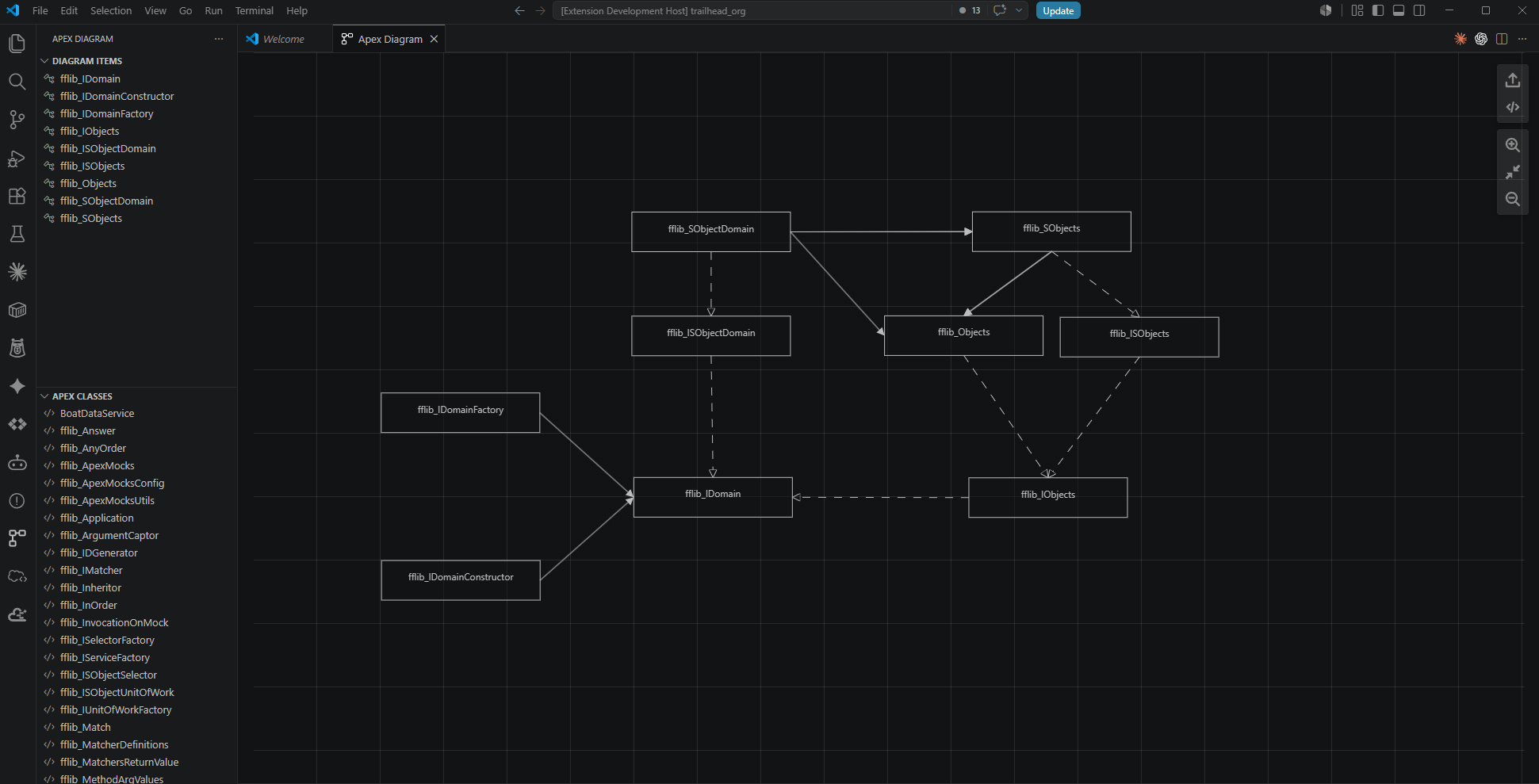
- Visualize class relationships detected from Apex symbol tables:
- inheritance from parent classes;
- interface realization;
- directed associations from external class references.
- Keep selected diagram items in a separate view so they can be removed or reopened quickly.
- Highlight newly added classes and relationships, or select one or more classes in Diagram Items to highlight them with their incident links.
- Click classes and relationships in the diagram to highlight them; use Shift+click to build a multi-selection and click empty canvas to clear it.
- Align nodes to nearby edges and centers while dragging, with temporary alignment guides.
- Open the local
.cls file for a diagram item when it exists in the workspace.
- Preserve diagram state and node positions between webview sessions.
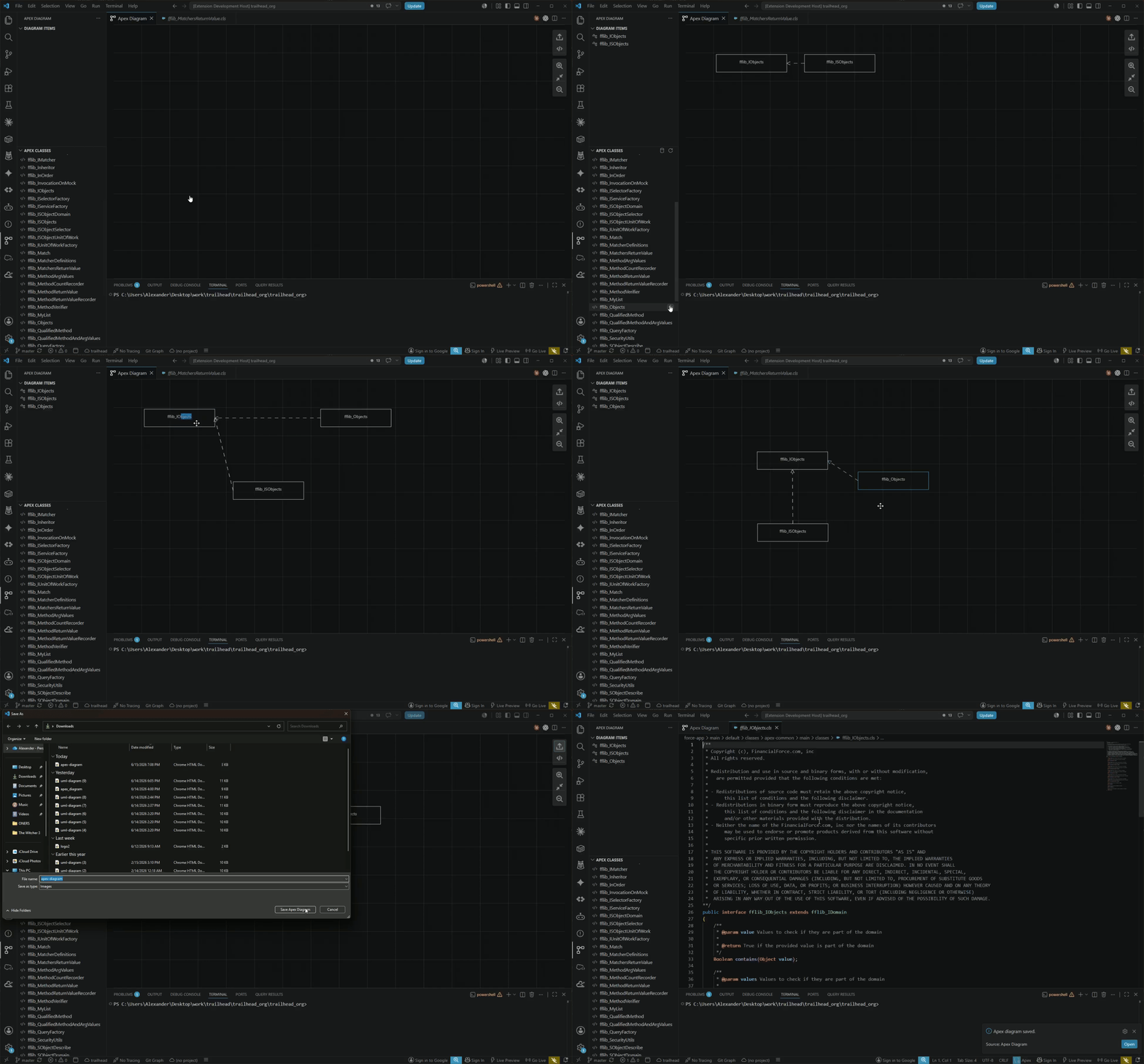
- Export the current diagram as SVG.
- Clear the local Apex symbol table cache when Salesforce metadata changes or cached data looks stale.
Preview
Diagram Workspace
Add Classes And Export
Requirements
- Desktop Visual Studio Code. Apex Diagram does not support VS Code for the Web, including
vscode.dev and github.dev.
- Visual Studio Code
1.96.0 or newer.
- Salesforce CLI installed and available from your terminal.
- A Salesforce project opened as the active VS Code workspace.
- An authorized Salesforce org for that workspace. The extension uses Salesforce CLI user info to connect to the org.
- Access to the Salesforce Tooling API for the target org.
The extension reads Apex class metadata from Salesforce. It does not require Apex source files to build the dependency diagram, but opening a class file from the diagram requires the matching .cls file to exist in the local workspace.
Getting Started
- Open a Salesforce project in VS Code.
- Make sure the project is authorized against the Salesforce org you want to inspect.
- Open the Apex Diagram activity bar item.
- Use Apex Classes to find classes available in the org.
- Click Add on a class, or select multiple classes and add them together.
- Click Show Diagram from Diagram Items to open the diagram workspace.
- Use the diagram toolbar to zoom, reset zoom, inspect source, or export SVG.
Commands
To inspect one class, right-click inside its .cls editor, on the file in Explorer, then choose Apex Diagram: Show Dependencies. In Diagram Items, use the dependencies icon after Open File. On a diagram node, use Apex Diagram: Show Dependencies after Open File. These actions add dependencies to the existing diagram. The command is also available in the Command Palette for the active .cls file.
The workspace diagram shows the selected class, its parent class, implemented interfaces, and direct Apex class references, including references from inner classes. Dependencies of neighboring nodes can be added to the same diagram with the same action. All entry points add to the same saved workspace diagram, preserving existing nodes and positions. If no diagram is open, the workspace diagram is opened.
Dependency analysis uses the deployed class in the current Salesforce org; save and deploy local edits first. Built-in Salesforce types are omitted. A class without known Apex dependencies is shown on its own.
This extension contributes the following commands:
- Apex Diagram: Open Apex Diagram Workspace opens the diagram webview.
- Apex Diagram: Show Diagram opens the current diagram from the Diagram Items view.
- Apex Diagram: Show Dependencies adds the direct dependencies of the selected Apex class to the workspace diagram.
- Apex Diagram: Refresh reloads the Apex class list from Salesforce.
- Apex Diagram: Clear Cache clears cached Apex symbol table data.
- Apex Diagram: Clear Diagram removes all current diagram items.
- Add adds selected Apex classes to the diagram.
- Remove removes selected classes from the diagram.
- Open File opens a local
.cls file for a diagram item when found in the workspace.
Extension Settings
Apex Diagram does not currently contribute VS Code settings.
How Dependency Detection Works
Dependency information is generated from Salesforce Apex symbol tables. Links are created only when both sides of the relationship are included in the selected diagram data.
- Parent classes become Inheritance links.
- Implemented interfaces become Realization links.
- External references become directed association links.
Namespaced classes are matched by namespace.name. Non-namespaced classes are matched by name.
References declared inside Apex inner classes are analyzed as dependencies of the top-level Apex class. If another selected class references an inner class, the relationship is shown against the owning top-level class node.
Known Limitations
- Desktop VS Code is required. The extension uses the Node.js extension host, Salesforce CLI, and local workspace APIs that are not available in VS Code for the Web.
- Classes matching the test-name pattern are placed in Apex Tests. This is a performance-oriented heuristic and not a guaranteed
@IsTest detector.
- Relationships are shown only between classes included in the diagram input set.
- Opening a class file depends on finding a matching local
.cls file in the workspace.
- The extension requires a Salesforce workspace and an authorized org during activation.
Troubleshooting
- If no classes appear, verify that the workspace is a Salesforce project and that Salesforce CLI can resolve the authorized org.
- If dependencies look outdated, run Apex Diagram: Clear Cache and add the classes again.
- If Open File cannot find a class, confirm that the class source exists locally as
<ClassName>.cls.
Release Notes
0.1.5
Republishes the README preview image restoration after version 0.1.4 was already used.
0.1.4
Restores the README preview images while keeping the extension out of Marketplace preview.
0.1.3
Removes the Visual Studio Marketplace preview flag.
0.1.2
Fixes dependency detection for references declared inside Apex inner classes.

