Inky - experimental
Per-workspace color themes stored outside your repo or global user settings, synced across devices using Settings Sync and globalState.
Why
Because .vscode/settings.json gets committed and shared with everyone else working in the repo.
All the other extensions that try to solve this problem do the same thing — they write theme colors into the workspace/user settings.
Inky keeps mappings and theme definitions in globalState, synced across devices via Settings Sync.
No theme data is ever committed to your repository. Colors are applied to your profile's settings on open and removed cleanly when cleared.
Commands
| Command |
What it does |
Inky: Set theme for this workspace |
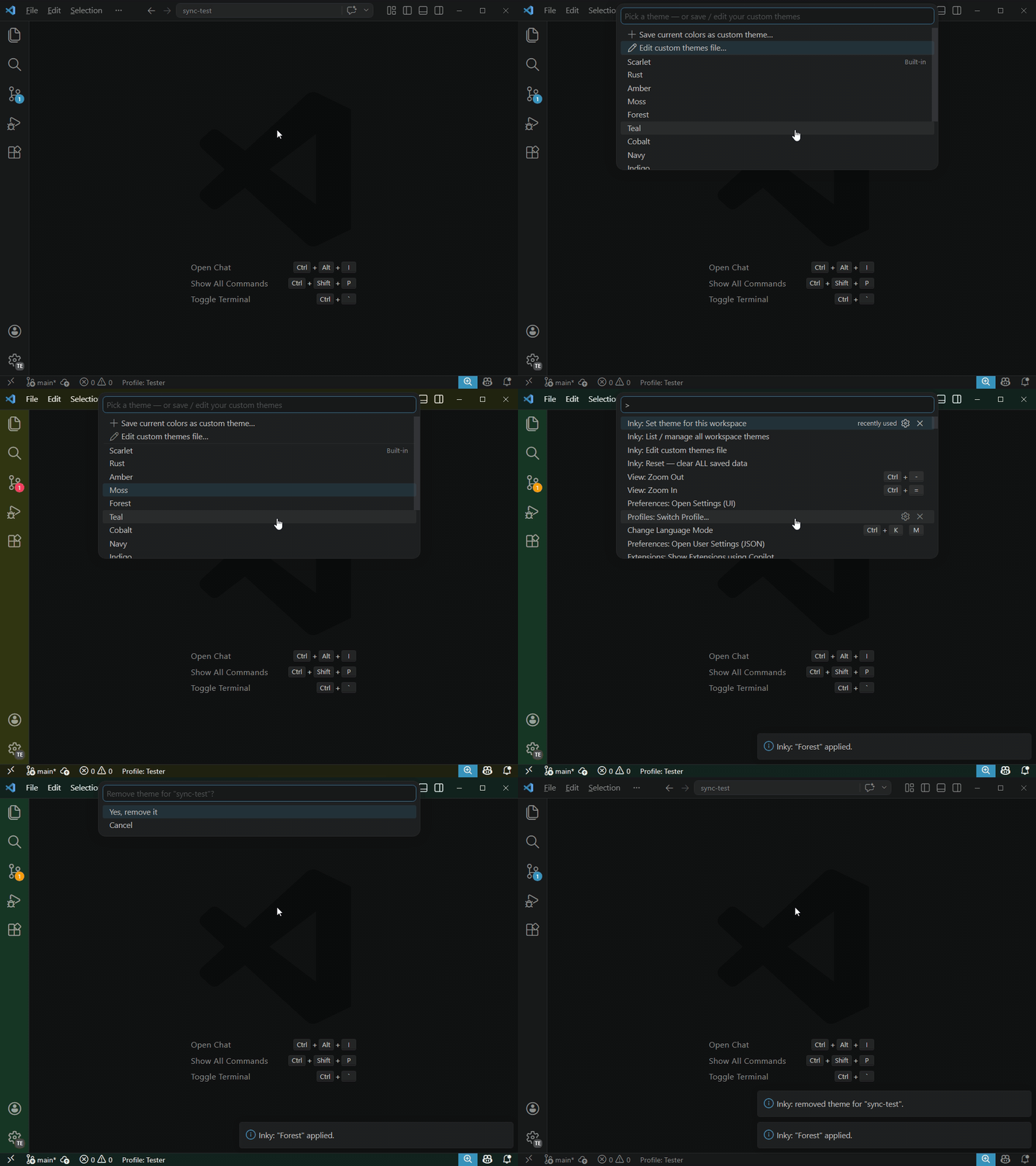
Pick a built-in or custom theme (with live preview), or save current colors as a new custom theme |
Inky: Edit custom themes file |
Open themes.json directly in the editor for manual editing |
Inky: Clear theme for this workspace |
Remove the theme mapping and clear Inky-applied colors |
Inky: List / manage all workspace themes |
See every saved mapping, remove any entry |
Inky: Debug — dump global state to console |
Print mappings, custom themes, and file path to Developer Tools console |
Inky: Reset — clear ALL saved data |
Wipe all mappings, custom themes file, and applied colors (with confirmation) |
Open the command palette (Ctrl+Shift+P / Cmd+Shift+P) and type Inky.
Configuration
Configure under Settings → Inky:
| Setting |
Type |
Default |
Description |
inky.logging |
boolean |
false |
Enable the Inky output channel for diagnostics. When disabled, no channel is created and nothing is logged. Takes effect immediately. |
inky.syncPolling.enabled |
boolean |
true |
Poll globalState for Settings Sync changes from other machines. Disable if you only use one machine or prefer restart-based sync. |
inky.syncPolling.intervalSeconds |
number |
60 |
How often (in seconds) to check for Settings Sync updates from other machines. Only applies when polling is enabled. Range: 5–3600. |
Themes
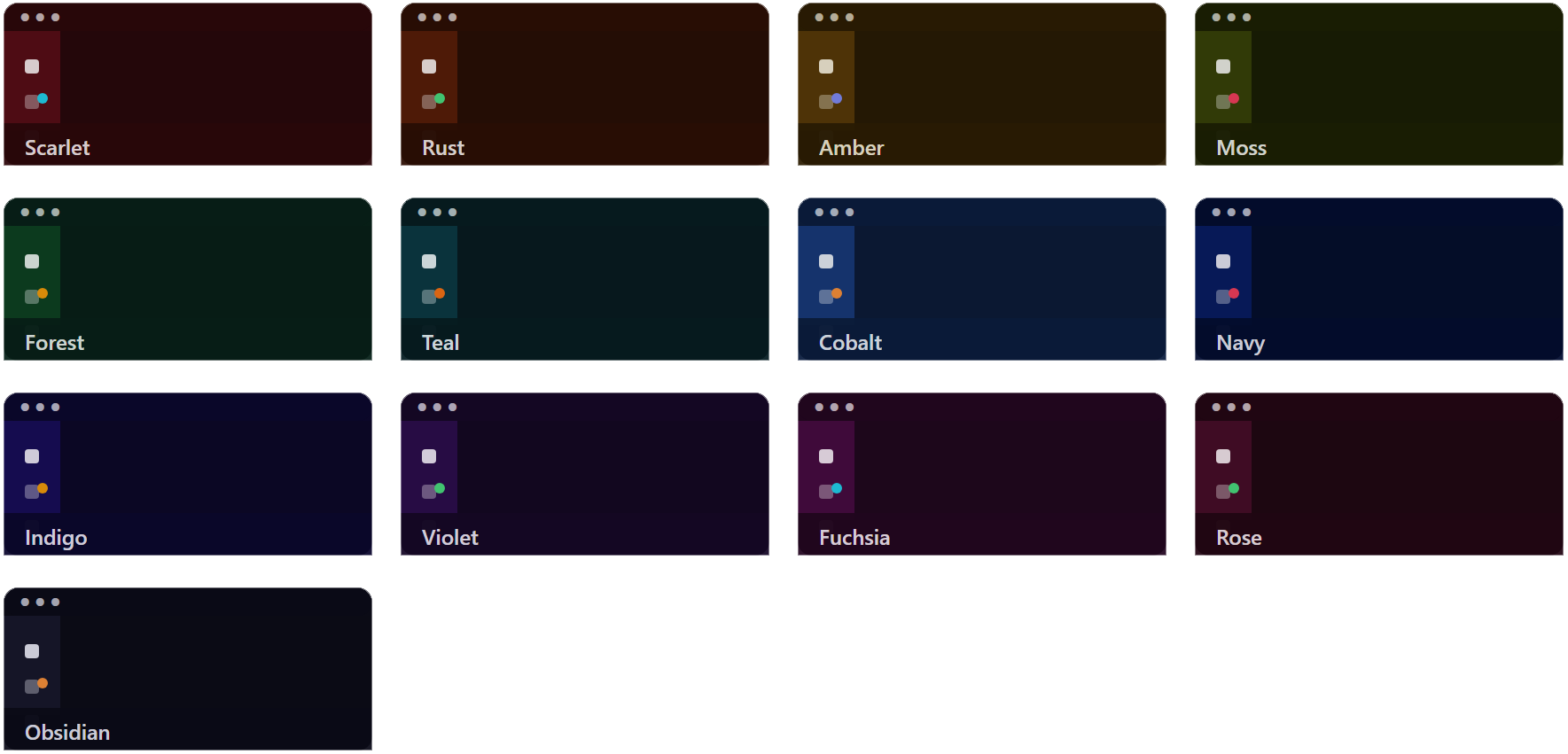
Built-in themes
Custom themes
Custom themes live in a JSON file at globalStorageUri/themes.json — profile-independent and editable:
- Save from current colors: Use
Inky: Set theme → Save current colors as custom theme…
- Edit manually: Use
Inky: Edit custom themes file (or the edit option in the picker). The file opens in VS Code — edit hex values, add entries, save. Changes to the active theme are applied live via a file watcher.
How it works
- Workspace→theme mappings are stored as
folder name → theme ID references (e.g. builtin:Plum, custom:My Navy) — not color copies. The folder name (not full path) is used as the key so mappings are stable across machines with different directory layouts.
- Editing a custom theme propagates to every workspace that uses it.
- On activation, Inky looks up the current workspace folder name in its store and applies the referenced theme's colors.
- Applying a theme merges its colors into
workbench.colorCustomizations via ConfigurationTarget.Global — other color customizations you have set are preserved.
- Clearing a theme removes only the keys Inky wrote, leaving any other customizations intact.
Architecture
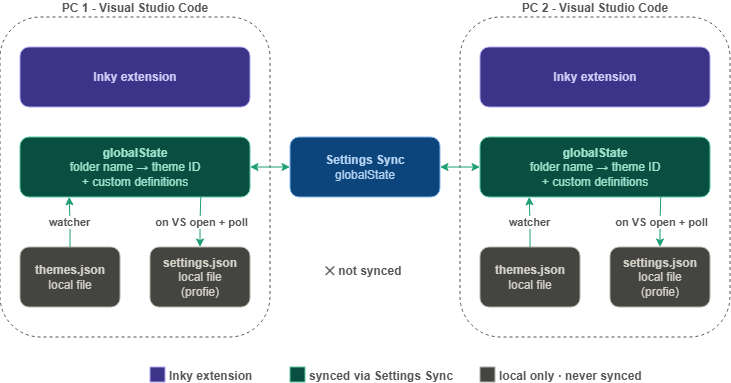
Both workspace→theme mappings and custom theme definitions are stored in globalState and registered with setKeysForSync, so Settings Sync carries them to all your machines automatically.
themes.json is a local editing proxy — it is written from globalState on activation and pushed back to globalState whenever you save it. Synced data from another machine is materialised into your local themes.json on next activation (or sooner, via polling).
Limitations
Multi-root workspaces: keyed on the first folder only.
Folder name collisions: if two unrelated projects share the same folder name (e.g. two different api folders), they share the same theme mapping.
Profile-scoped color settings: workbench.colorCustomizations is written to the profile-scoped settings.json (ConfigurationTarget.Global).
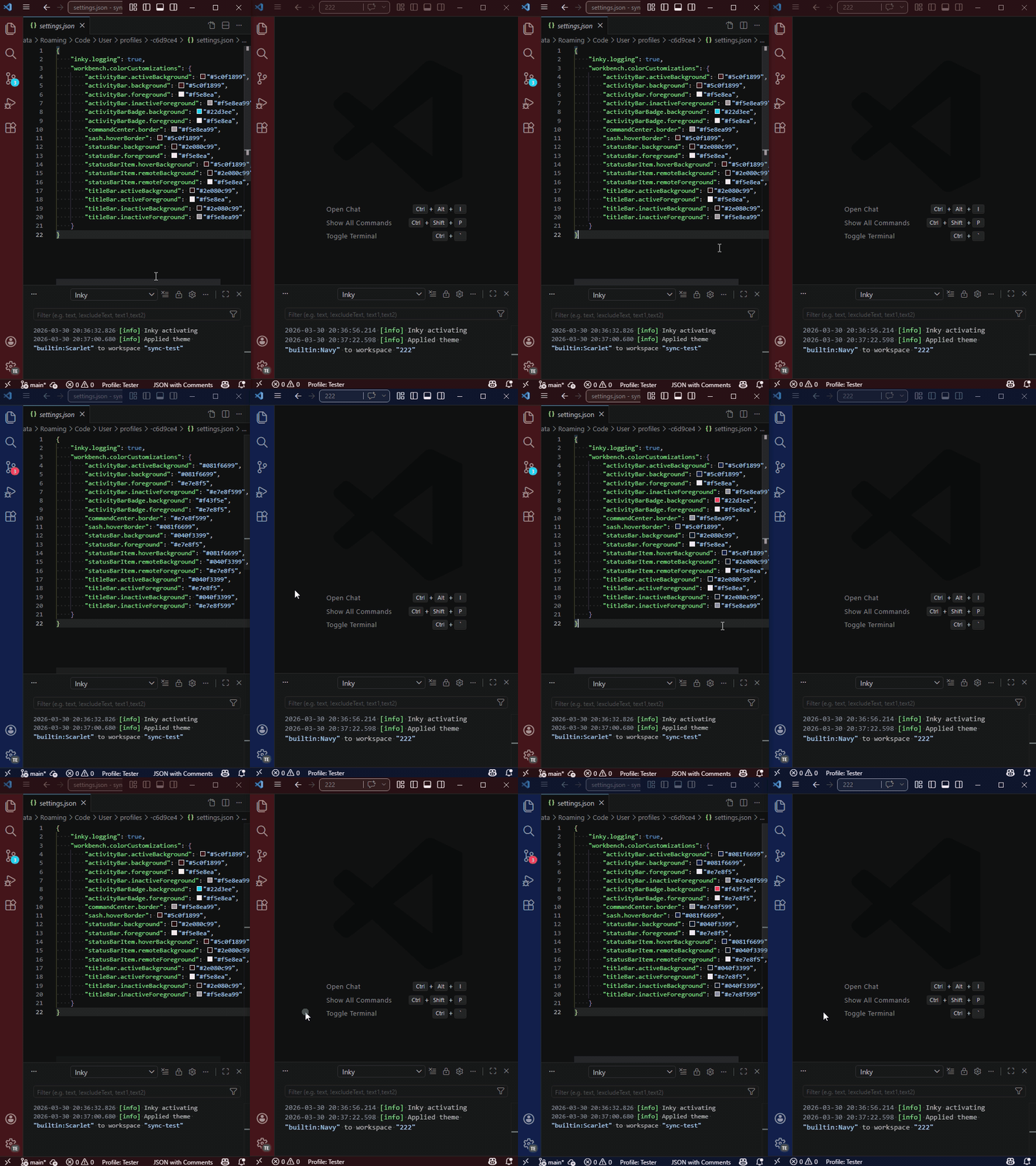
That settings.json is shared across all VS Code windows using the same profile, so different windows cannot simultaneously display different Inky-applied themes under a single profile. Workarounds:
use separate VS Code profiles, or
rely on Inky's focus-based re-apply behavior (it re-applies the workspace theme when a window gains focus). Using workspace settings would allow per-workspace themes but stores them in .vscode/settings.json, which Inky intentionally avoids.