Skip to content
| Marketplace
Sign in
Visual Studio Code>Programming Languages>CodeSense: Codebase ExplorerNew to Visual Studio Code? Get it now.
CodeSense: Codebase Explorer

CodeSense: Codebase Explorer

MD DILSHAD ALAM

|
2 installs
| (0) | Free
Understand any codebase: interactive dependency map, circular dependency detection, and explanations for files and code.
Installation
Launch VS Code Quick Open (Ctrl+P), paste the following command, and press enter.
Copied to clipboard
More Info

CodeSense: Codebase Explorer

Understand any codebase, not just the file you're staring at.

CodeSense helps you get up to speed on unfamiliar code. It explains what a piece of code does, why a file exists, and how the whole project fits together. It uses static analysis of your code, with optional AI explanations.

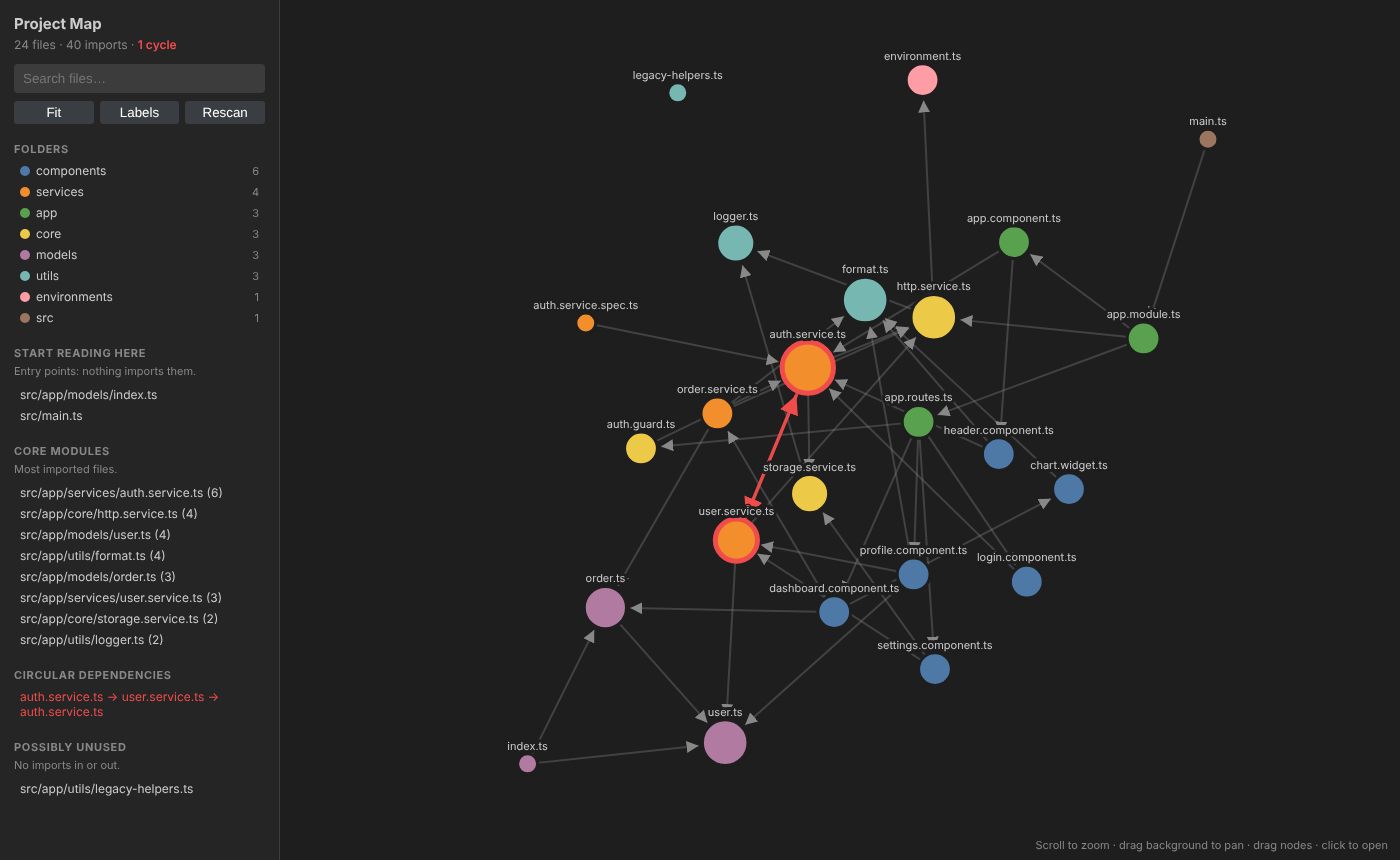
Project Map

Features

🗺️ Project Map

An interactive dependency graph of your whole project.

  • Files are grouped and colored by folder and sized by how many other files import them
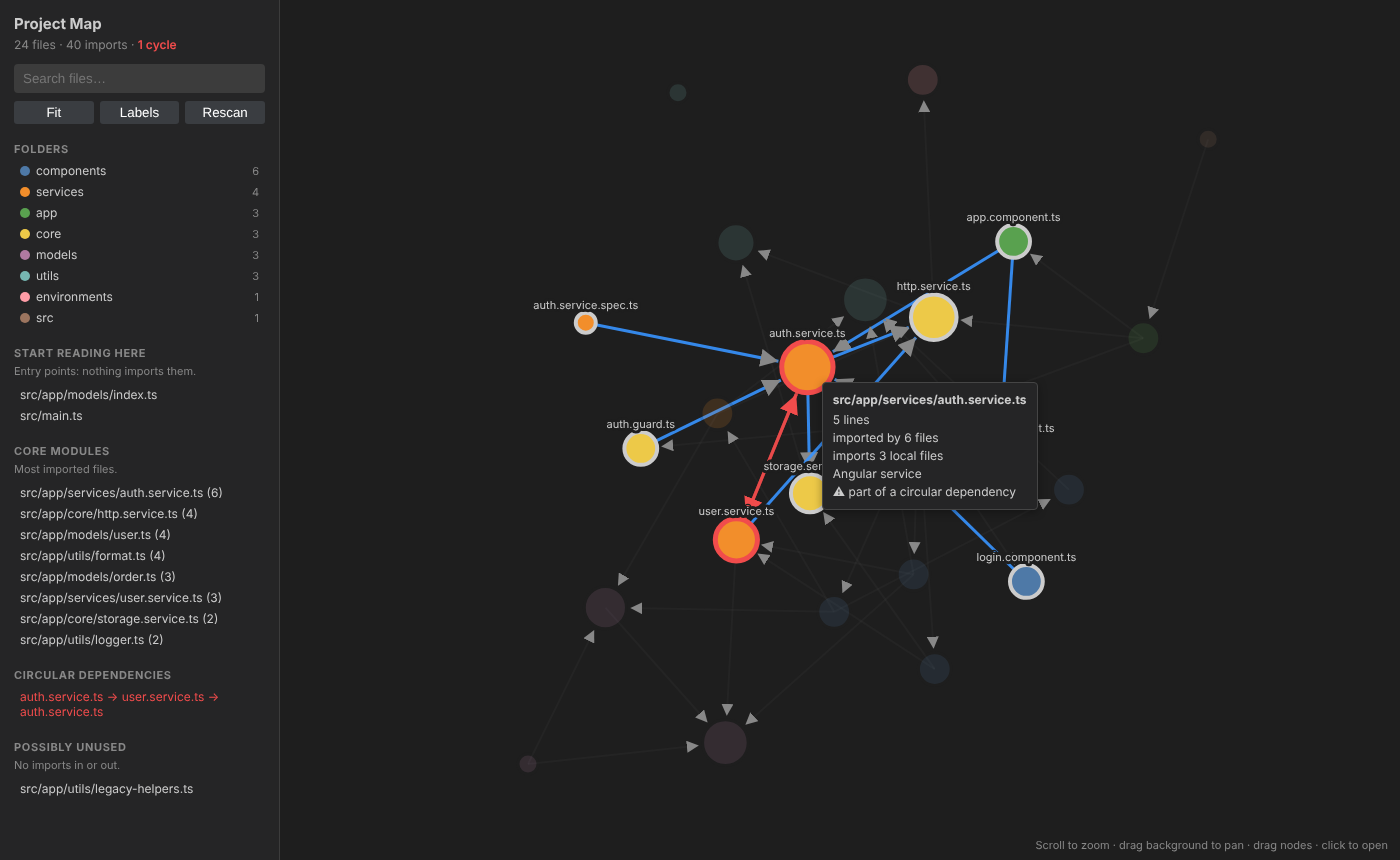
  • Hover a file to highlight what it imports and what imports it
  • Click a file to open it, drag to rearrange, scroll to zoom
  • Start reading here: the project's entry points
  • Core modules: the most-imported files, worth understanding first
  • Circular dependencies: highlighted in red
  • Possibly unused: files nothing imports
  • Updates automatically when you save

Hovering a file

📄 Explain This File

See what a file is for: its likely role (Angular component or service, React component, test, config, etc.), its exports, what it depends on, and which files use it.

🔍 Explain Selection

Select some code to see what it declares, what it calls, and which imports it relies on. With AI enabled, you also get a plain-English explanation: summary, step by step, inputs and outputs, and gotchas.

Usage

Command Where to find it
CodeSense: Show Project Map Command Palette, the graph icon in the editor title bar, or right-click a folder
CodeSense: Explain This File Right-click in the editor or on a file in the Explorer
CodeSense: Explain Selection Select code, then right-click

Supports TypeScript and JavaScript (.ts, .tsx, .js, .jsx, .mjs, .cjs).

AI Explanations (optional)

CodeSense works fully offline by default. To add AI explanations, enable them in Settings. The default points at a local Ollama model, so your code stays on your machine. You can also use any OpenAI-compatible API.

Setting Default Description
codesense.llm.enabled false Turn on AI explanations
codesense.llm.baseUrl http://localhost:11434/v1 OpenAI-compatible endpoint
codesense.llm.model llama3.1 Model name
codesense.llm.apiKey "" API key (leave empty for Ollama)

Feedback

Found a bug or have an idea? Open an issue.

License

MIT

  • Contact us
  • Jobs
  • Privacy
  • Manage cookies
  • Terms of use
  • Trademarks
  • Your Privacy Choices
  • Consumer Health Privacy
© 2026 Microsoft