AutoForge
AutoForge generates meaningful commit messages and branch names using either AI-powered analysis or built-in smart generation — depending on your selected provider.
Features
🤖 AI-Powered Commit Messages
Automatically generate commit messages by analyzing your staged changes. The extension uses AI to understand your code changes and suggests appropriate commit messages.
🌿 AI-Powered Branch Names
Create new branches with AI-generated names that reflect the purpose of your changes. No more thinking about branch naming conventions!
🔄 Source Control Integration
Seamlessly integrated with VS Code's Source Control view, similar to GitHub Copilot's "Generate Commit" feature. Access auto-commit and auto-branch functionality directly from the Source Control panel.
⚡ Quick Actions
- Auto Commit: Generate and commit with an AI-generated message
- Auto Branch: Create a new branch with an AI-generated name
- Auto Branch & Commit: Create a branch and commit in one action
🆕 What's New
v0.0.4 — Branch & Commit Engine Overhaul (Custom)
- Smarter commit messages — descriptions are now fluent and semantic, built from code intent rather than keyword matching
- Before:
feat(src/cart): add ui components, add add-to-cart function
- After:
feat(cart): implement addToCart and calculateTotal, and create ProductPage component
- Dedicated branch name engine — branch names are generated from their own pipeline, no longer derived from the commit message
- Before:
feat/cart-create-productpage-and-im (truncated, broken)
- After:
feat/cart-add-to-cart-calculate-total (clean, readable)
- Semantic scope detection — scope is inferred from domain context (
src/cart/... → cart, src/auth/... → auth) instead of raw folder paths
- Accurate commit types — type is inferred from code intent, not surface keywords (a bug fix inside a function named
createUser correctly produces fix, not feat)
🚀 Usage
🧭 Command Palette
You can access AutoForge commands from the Command Palette (Ctrl+Shift+P / Cmd+Shift+P):
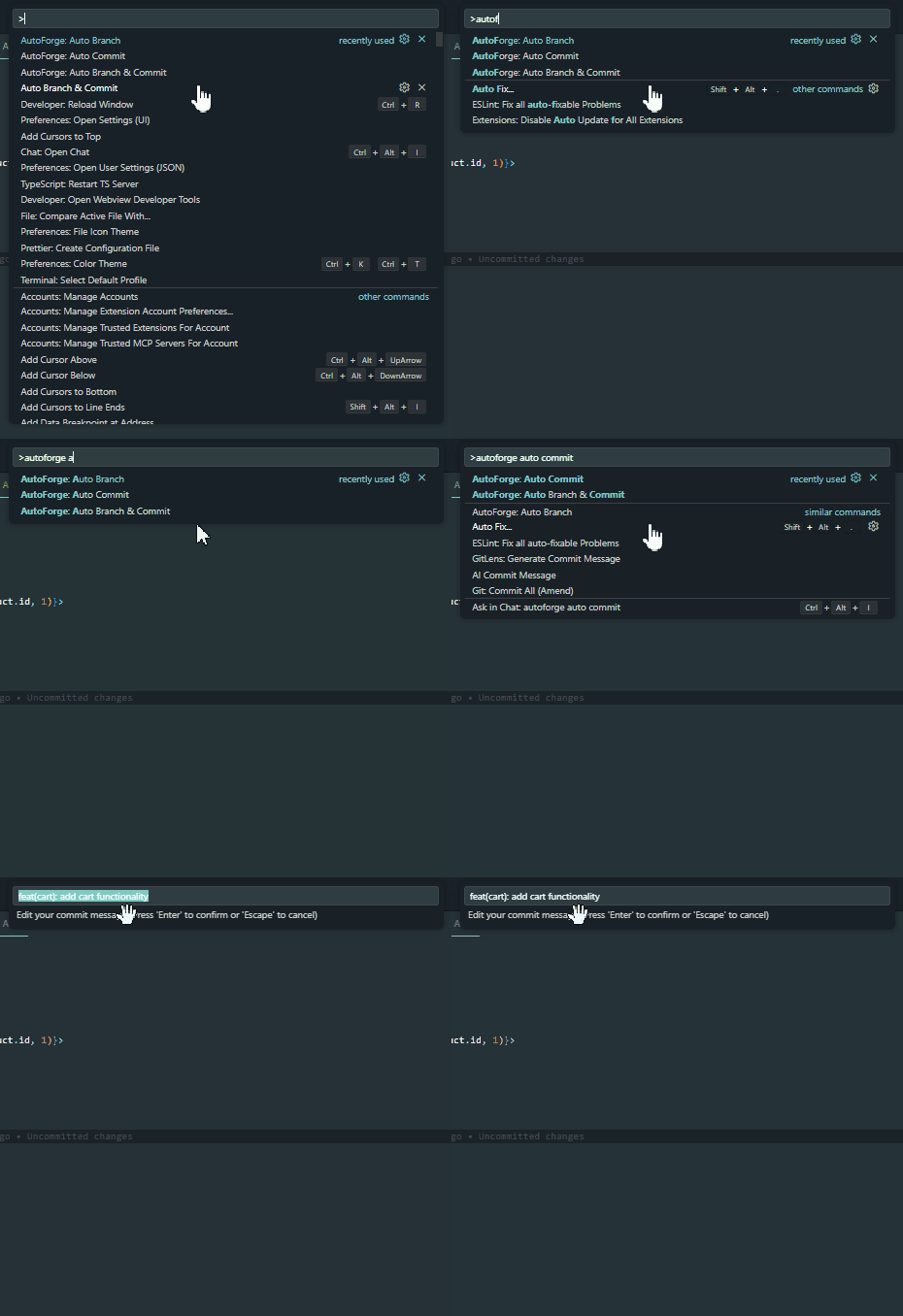
- AutoForge: Auto Commit - Generate and commit with Custom/AI-generated message
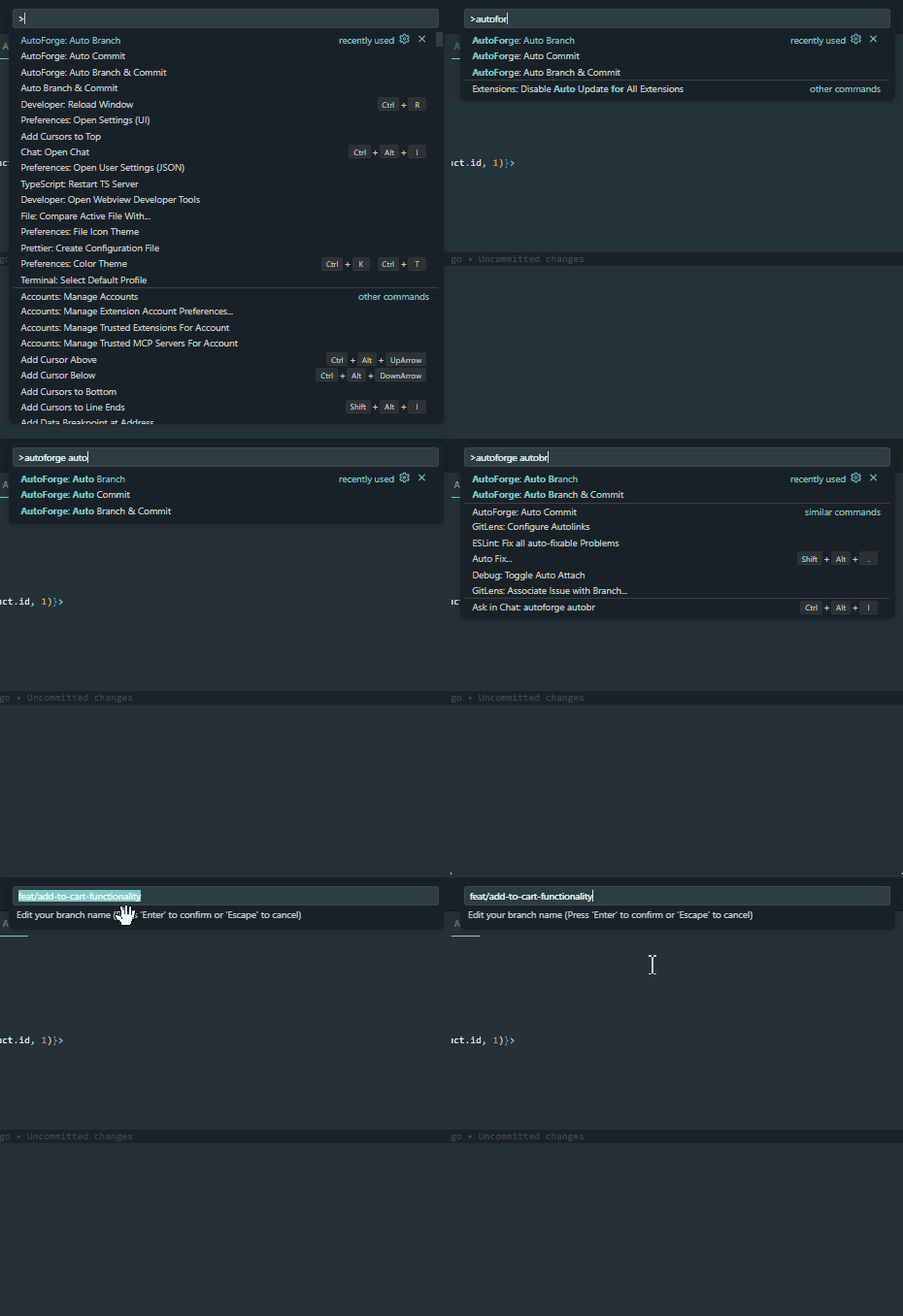
- AutoForge: Auto Branch - Create a new branch with Custom/AI-generated name
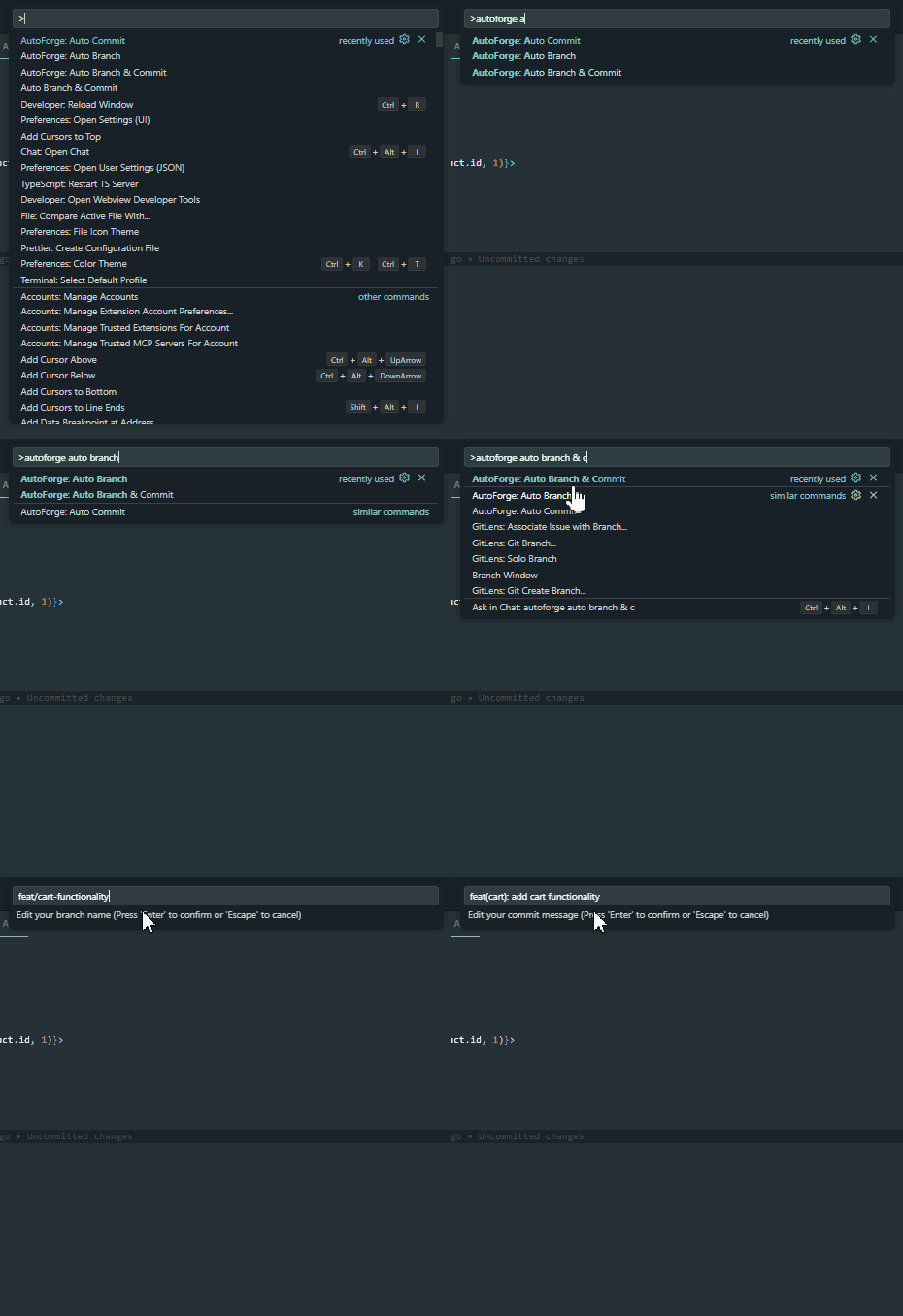
- AutoForge: Auto Branch & Commit - Create a new branch & commit with Custom/AI-generated name & message
🎬 Demo — Command Palette
Auto Commit
Auto Branch
Auto Branch & Commit
🌿 Source Control View (Git Integration)
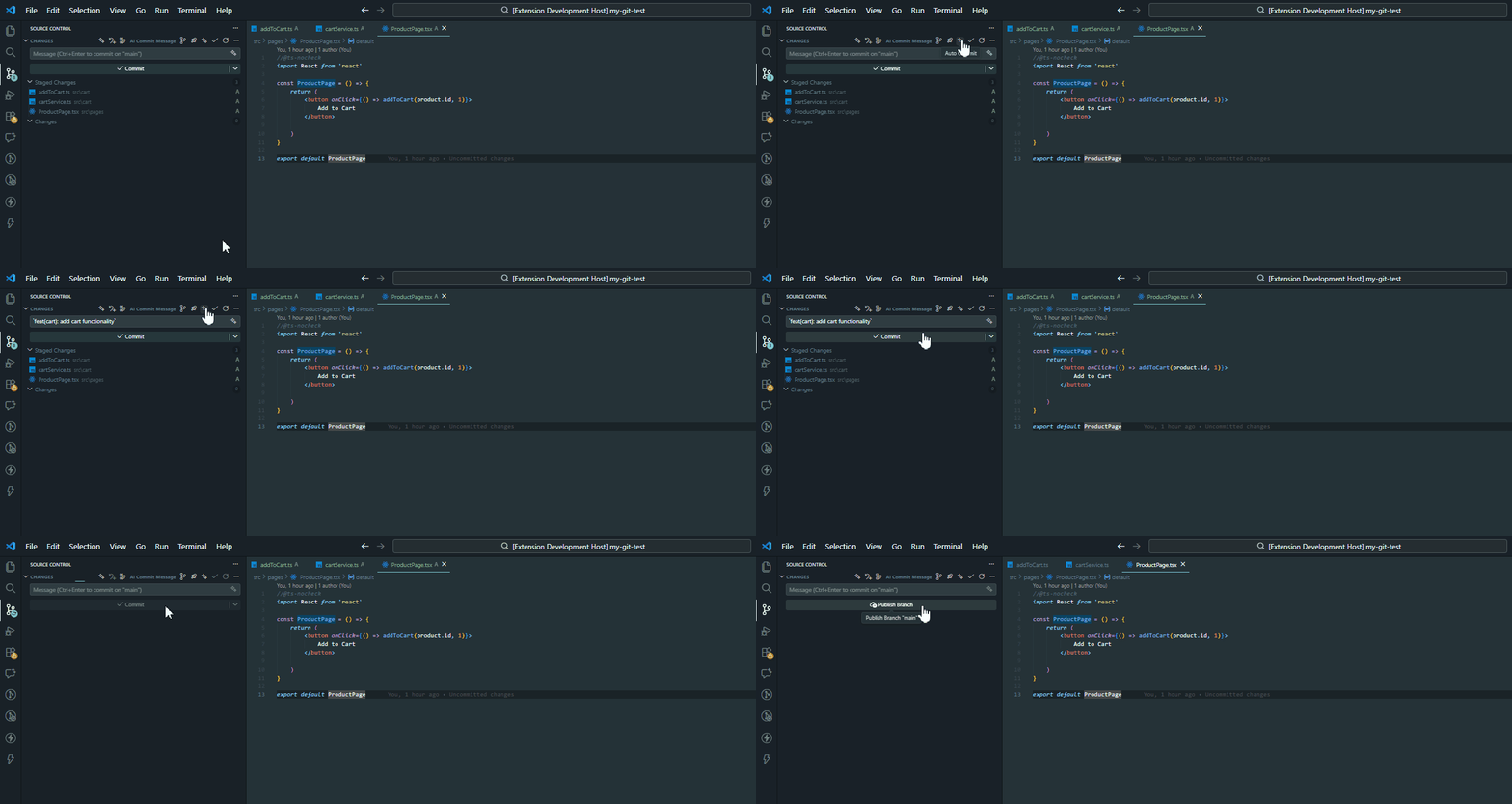
When working with a Git repository, you'll see AutoForge buttons in the Source Control view:
- Auto Commit button (✨) - Appears in the Source Control title bar and as an inline action
- Auto Branch button (🌿) - Appears in the Source Control title bar and as an inline action
- Auto Branch & Commit button (🚀) - Appears in the Source Control title bar
These buttons are only visible when the Git SCM provider is active.
🎬 Demo — Source Control View
Auto Commit
Auto Branch
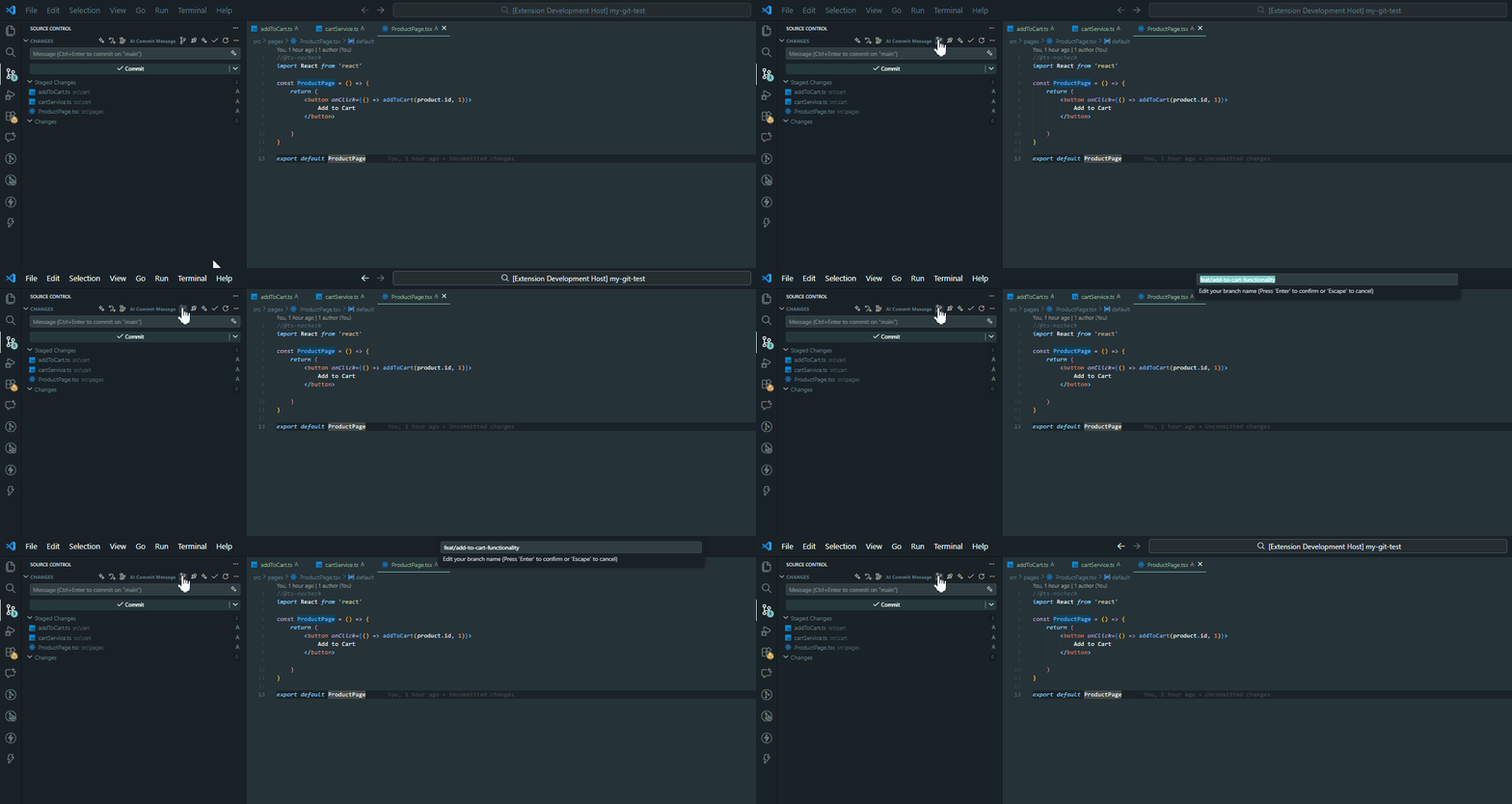
Auto Branch & Commit
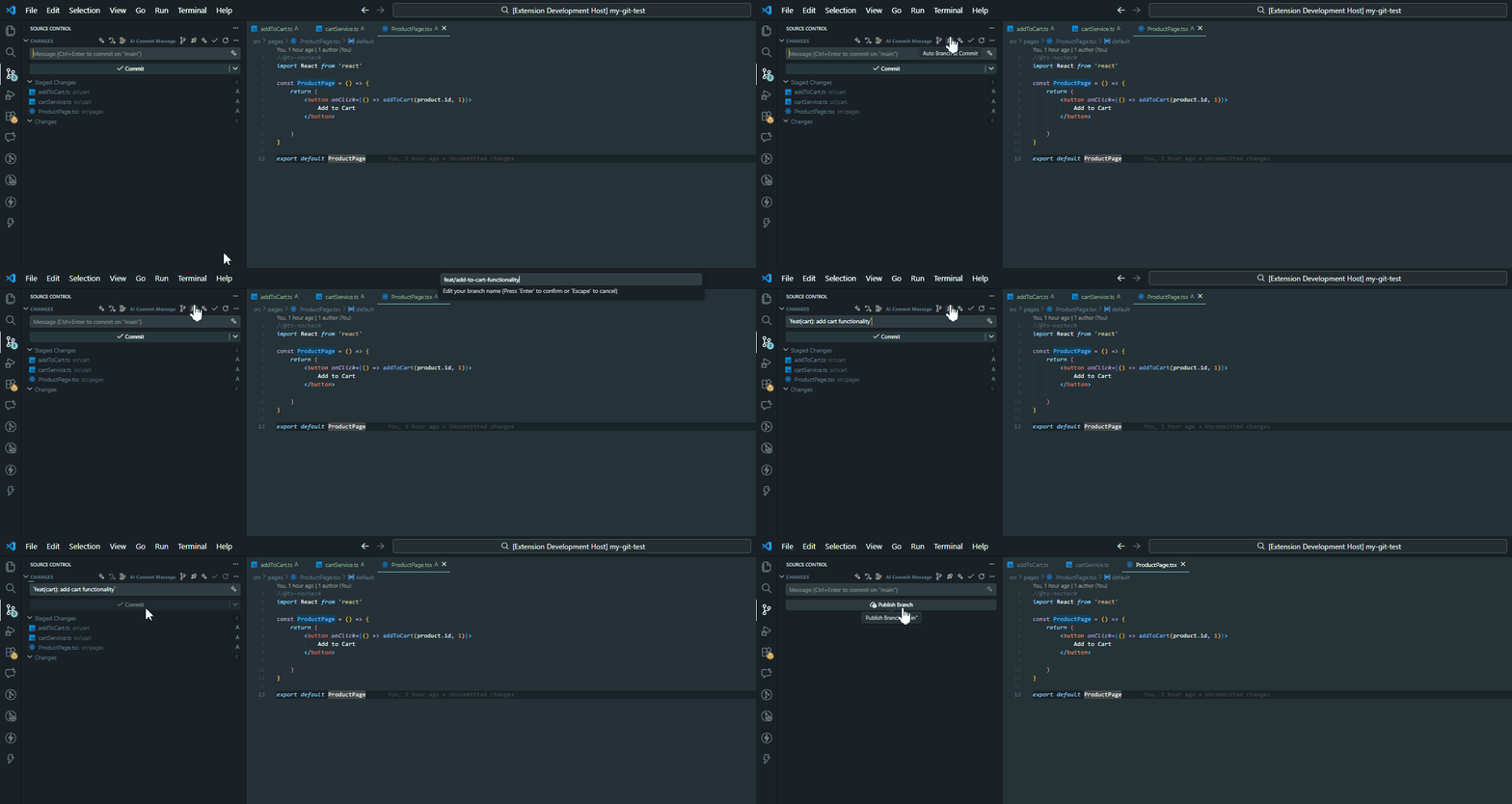
Workflow
For Auto Commit:
- Stage your changes using Git
- Click the "Auto Commit" button in the Source Control view, or use the Command Palette
- Review and edit the Custom/AI-generated commit message if needed
- Confirm to commit
For Auto Branch:
- Click the "Auto Branch" button in the Source Control view, or use the Command Palette
- Review and edit the Custom/AI-generated branch name if needed
- Confirm to create and checkout the new branch
For Auto Branch & Commit:
- Stage your changes using Git
- Click the "Auto Branch & Commit" button in the Source Control view,, or use the Command Palette
- First, a new branch will be created with Custom/AI-generated name
- Then, your changes will be committed with Custom/AI-generated message
Extension Settings
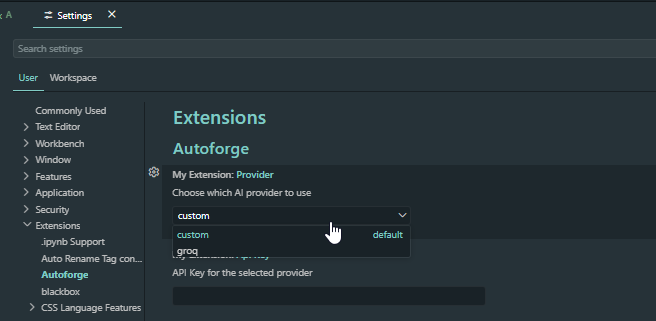
AutoForge supports multiple generation providers depending on your workflow and privacy preference.
Available Providers
🔹 custom (Default — No API Key Required)
- Uses AutoForge's built-in generation logic
- Does not call any external AI service
- No API key required
- All message and branch generation happens locally using customized functions
This mode is ideal if you prefer:
- ✅ Offline-friendly behavior
- ✅ Faster generation
- ✅ No external data sharing
Note: In custom mode, generated messages are rule-based, not AI-generated.
🤖 groq (AI-Powered)
- Uses an external AI provider to analyze your staged changes
- Generates smarter, context-aware commit messages and branch names
- Requires an API key
This mode is recommended if you want:
- ✅ More intelligent commit summaries
- ✅ Better contextual naming
- ✅ AI-assisted workflows
Settings
This extension contributes the following settings:
myExtension.provider
- Choose which generation provider to use
- Options:
custom, groq
- Default:
custom
myExtension.apiKey
- API key for AI providers (required only when using
groq)
- Default:
""
📸 Snap
Requirements
- VS Code version 1.106.0 or higher
- A Git repository initialized in your workspace
- An API key for the selected AI provider (configured in settings)
Configuration
- Open VS Code Settings (
Ctrl+, / Cmd+,)
- Search for "AutoForge" or navigate to the extension settings
- Configure your AI provider and API key:
- Set
myExtension.provider to your preferred provider (custom or groq)
- Set
myExtension.apiKey to your API key
Known Issues
None at the moment. If you encounter any issues, please report them on the extension's GitHub repository.
Release Notes
0.0.1
Initial release of AutoForge with the following features:
- ✅ AI-powered commit message generation
- ✅ AI-powered branch name generation
- ✅ Command Palette integration
- ✅ Source Control view integration
- ✅ Auto Branch & Commit combined action
- ✅ Support for multiple AI providers (Custom, Groq)
🔒 Privacy & Security
Diff Sanitization
Before sending any data to external AI providers, AutoForge automatically sanitizes
your staged diff to protect sensitive information.
What gets removed before sending:
.env files and variants (.env.local, .env.production, etc.)- Private key files (
.pem, .key, id_rsa, id_ed25519, etc.)
- Credential and secret files (
*secret*, *credential*, *password*, .npmrc, .netrc)
- Lines containing sensitive values like
API_KEY=, SECRET=, PASSWORD=, bearer tokens, AWS keys
What this means for you:
- Sensitive files are never forwarded to any AI provider
- Only sanitized diff content leaves your machine
- If your entire staged diff consists of sensitive files, AutoForge will return a
safe fallback message without making any external request
⚠️ Heads up: If your staged changes are mostly credential or config file updates,
the AI-generated message may be generic (e.g., chore(config): update sensitive configuration)
because those file contents are intentionally excluded from analysis.
This is expected behavior — your secrets stay on your machine.
For full privacy with no external requests at all, switch to the custom provider in settings.
Privacy
AutoForge respects your workflow and privacy preferences.
Contributing
Contributions are welcome! Please read CONTRIBUTING.md before submitting a PR.
License
MIT
Enjoy automated Git workflows with AutoForge! 🚀

