Yet Another Markdown Editor
Edit rendered Markdown directly in Visual Studio Code while keeping the underlying file portable, reviewable plain text.
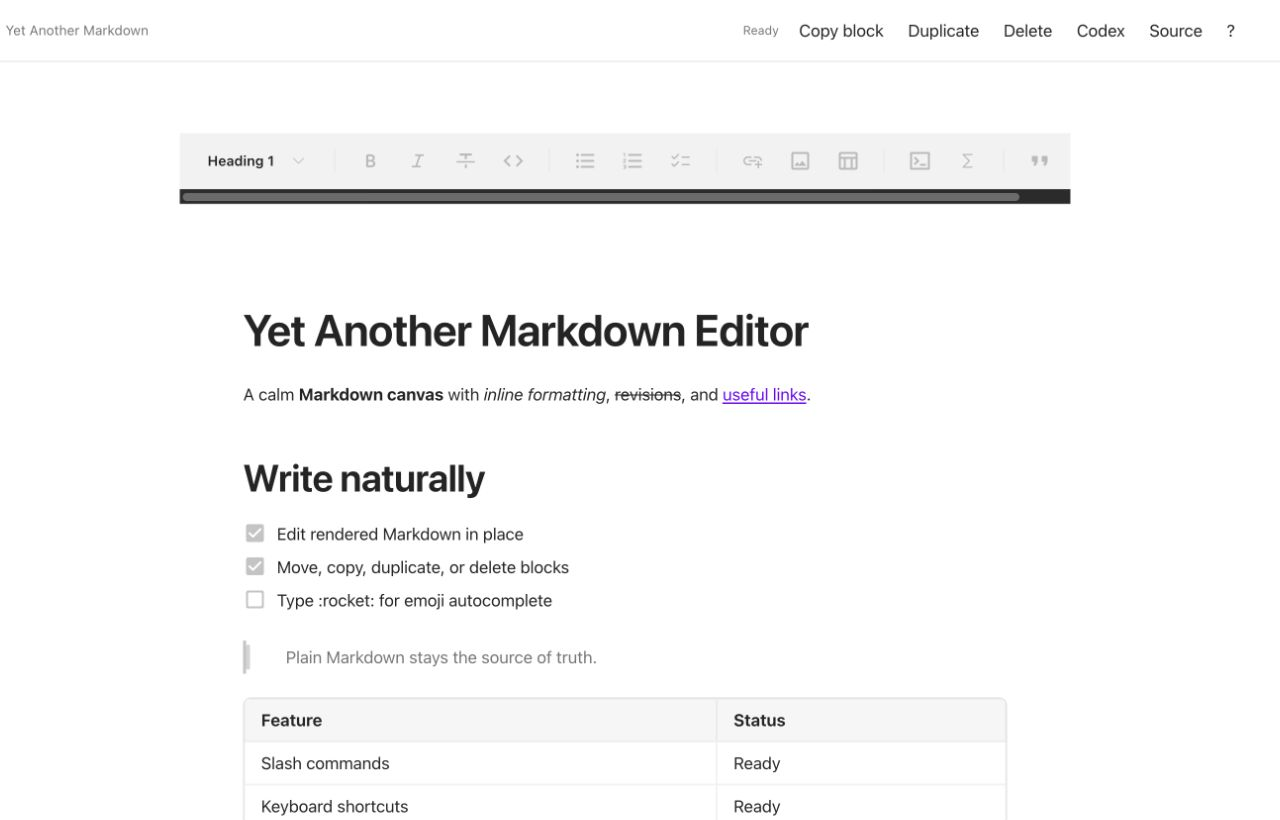
Edit the document, not the syntax
Open a .md or .markdown file and work in a spacious rendered canvas. Use the formatting toolbar, / insertion menu, and block handles without giving up normal VS Code save, undo, and source-editing workflows.
- Headings, emphasis, links, images, quotes, dividers, lists, tasks, tables, code, math, and GFM content
- Whole-block copy as Markdown, duplicate, delete, and reorder actions
- Selection-aware Add Rendered Selection to Codex Thread support (rendered selections use this action because the official Codex command only sees native text editors)
- VS Code light, dark, and high-contrast colors
- Responsive layout, keyboard focus, and reduced-motion support
- A one-command escape hatch to the underlying Markdown source
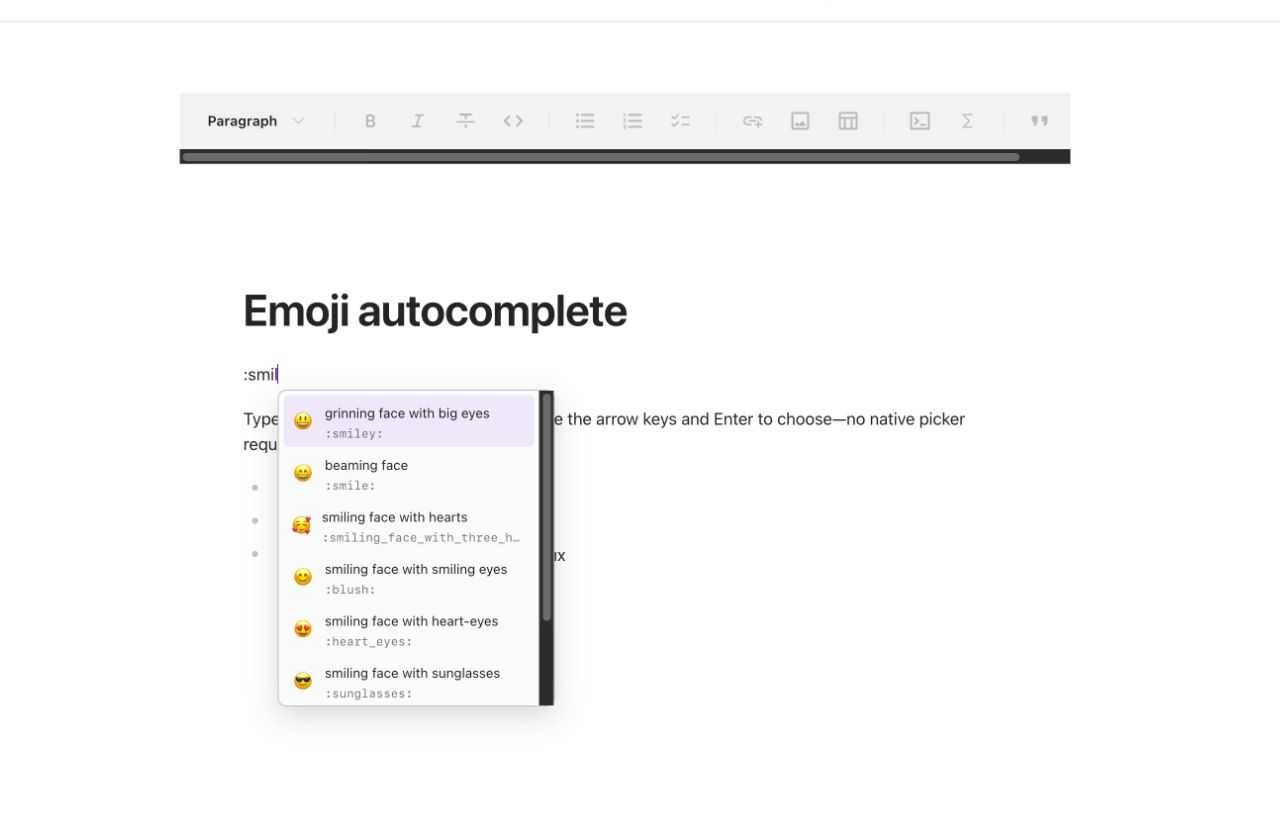
Type a shortcode such as :smil and choose from a fast local candidate menu. Navigate with the arrow keys and confirm with Enter or Tab. The same interface works on macOS, Windows, and Linux.
Get started
- Install the extension.
- Open a Markdown file.
- If another editor opens, choose Reopen Editor With → Yet Another Markdown Editor.
Run Yet Another Markdown Editor: Open Source from the Command Palette whenever you want the normal text editor. Set yetAnotherMarkdownEditor.showSourceOnOpen if source should remain the default.
Shortcuts
| Action |
macOS |
Windows / Linux |
| Bold |
⌘ B |
Ctrl B |
| Italic |
⌘ I |
Ctrl I |
| Strikethrough |
⌘ Shift X |
Ctrl Shift X |
| Copy active block as Markdown |
⌘ Shift C |
Ctrl Shift C |
| Duplicate active block |
⌘ Shift D |
Ctrl Shift D |
| Delete active block |
⌘ Shift Backspace |
Ctrl Shift Backspace |
| Insert a block |
Type / |
Type / |
| Complete an emoji |
Type :name, then arrows + Enter / Tab |
Type :name, then arrows + Enter / Tab |
Normal ⌘/Ctrl+C remains selection copy.
Settings
yetAnotherMarkdownEditor.autoSave — save visual edits automatically. Default: true.yetAnotherMarkdownEditor.showSourceOnOpen — prefer the source editor. Default: false.yetAnotherMarkdownEditor.debounceMs — delay before visual changes update the document. Default: 150 ms.
Markdown compatibility
Markdown is always the source of truth. Rendering and serialization can normalize whitespace, list markers, table alignment, or fence styles. Use the source editor for unusual front matter, raw HTML, custom directives, or parser-specific syntax.
Report problems in the issue tracker.

