AI Switcher for Coding AgentsSwitch Claude Code, Codex CLI, Gemini CLI, and Antigravity accounts for work, personal, and client projects in VS Code and Cursor. Installation Launch VS Code Quick Open ( Ctrl+P), paste the following command, and press enter.Copied to clipboard |

AI Switcher for Coding AgentsSwitch the account behind Claude Code, Codex CLI, Gemini CLI, and Antigravity from VS Code or Cursor. Keep work, personal, and client profiles separate without copying credential files or editing hidden configuration. AI Switcher is a thin editor client for the local Learn more about account switching and workspace guardrails at aiswitcher.dev. Install and start switching
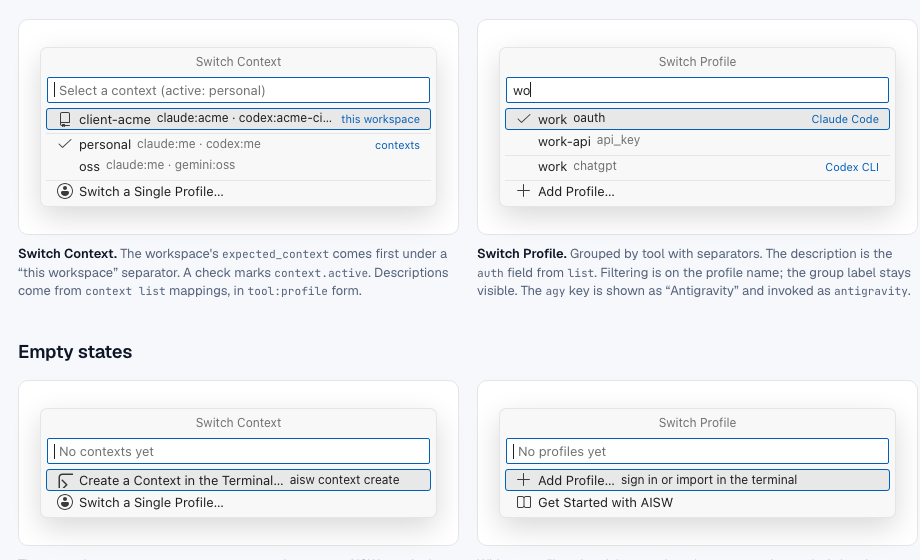
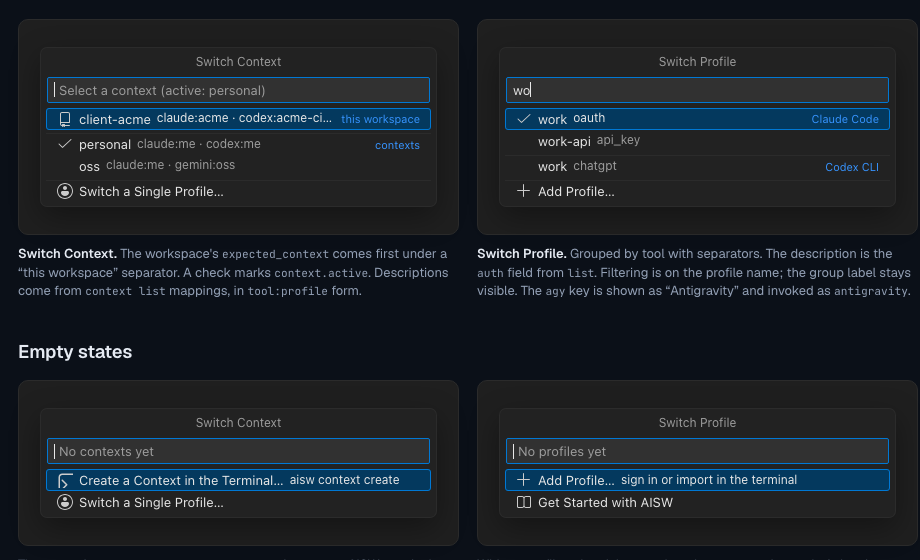
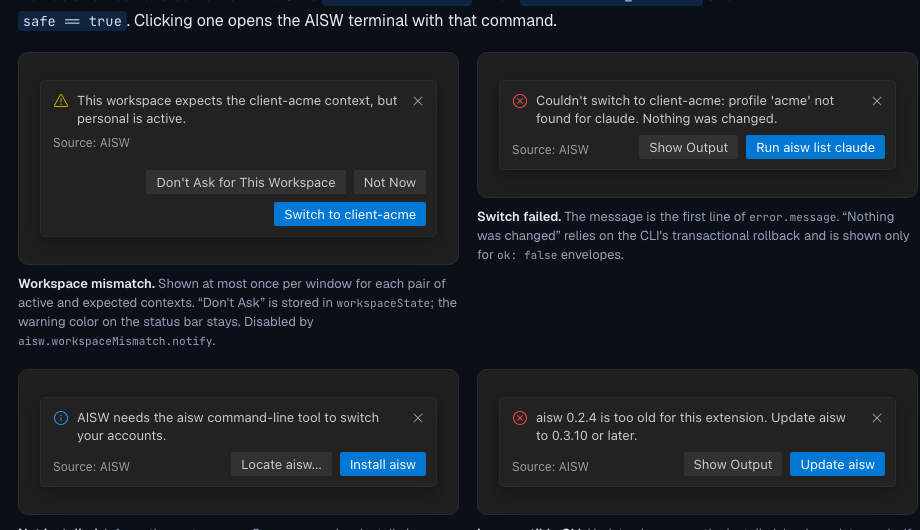
If See the active account at a glanceThe status bar shows the context or profiles that are active in the current editor window. Hover for the per-tool details. A workspace mismatch is called out before you launch an agent, with a one-click option to switch to the expected context.
Common workflowsWork and personal accountsKeep separate accounts for work and personal repositories, then switch from the status bar or Command Palette instead of manually logging out or editing provider configuration. See the work and personal account workflow. Client-specific coding contextsA context groups the right Claude Code, Codex CLI, Gemini CLI, and Antigravity profiles for one client or project. Profile names can differ between tools; the context gives the workspace one clear name to activate. See common switching situations. The right account for the right repositoryBind a repository or Git remote to an expected context. AI Switcher warns when the active account does not match that workspace, reducing the risk of using personal credentials in a client project. Read the workspace guardrails guide for path, repository, and Git remote bindings.
Useful commandsOpen the Command Palette and search for See the complete AISW command reference for every command and setting.
All mutations run through the local CLI. The extension does not rewrite provider credential files directly. Requirements
See the supported tools and platform matrix for CLI-specific behavior. Remote extension hosts, VS Code Web, Codespaces, and remote workspaces are not supported in the current release. Privacy and securityCredentials never pass through the extension or a remote service. AI Switcher
communicates with the local Learn more and get help |