

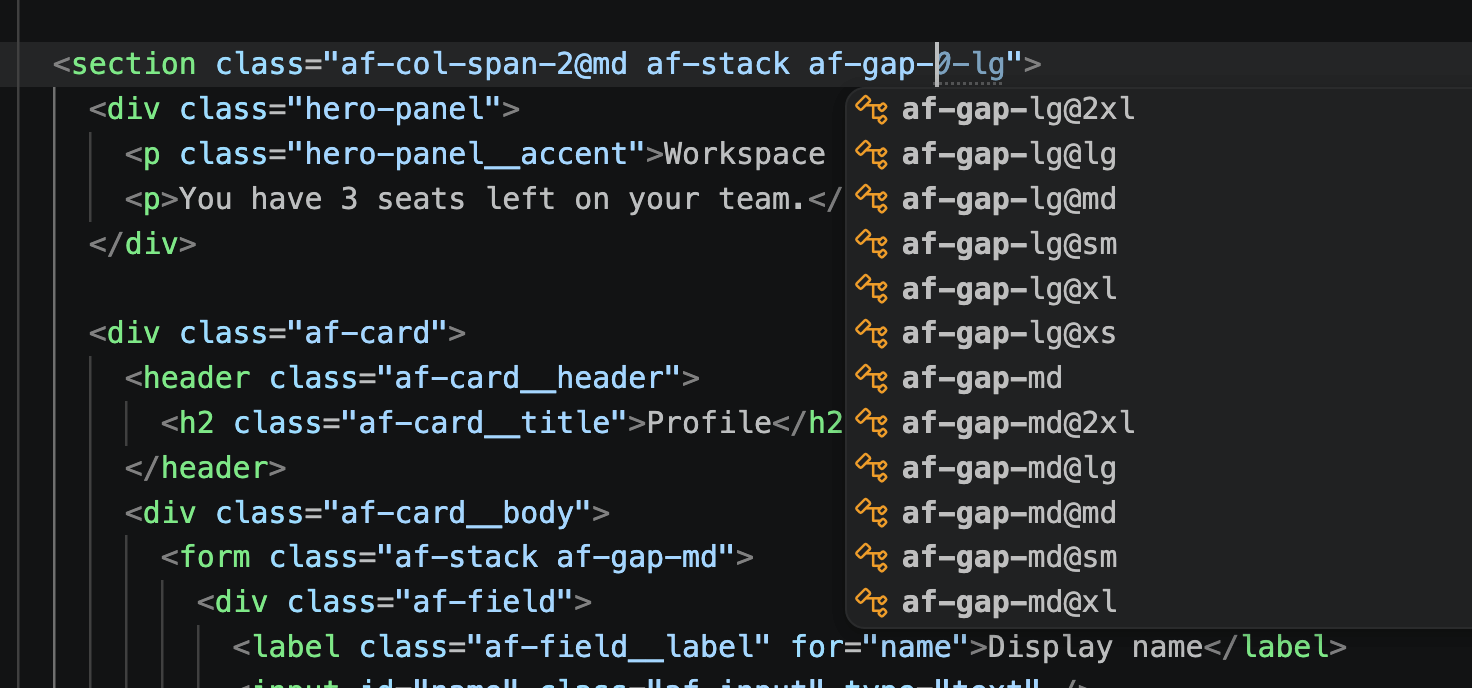
IntelliSense for AirframeAutocomplete for Token names and descriptions come from
Install via the Visual StudioCode Marketplace → Docs: airframeui.com/docs/vscode-extension FeaturesAutocompleteIntelligent suggestions for:
Hover PreviewHover any Supported languagesCSS · SCSS · Less · HTML · JavaScript / JSX · TypeScript / TSX · Astro Recommended VS Code settings
|
| Setting | Default | Description |
|---|---|---|
airframeui.enable |
true |
Enable or disable Airframe IntelliSense |
Troubleshooting
- Confirm the extension is installed and enabled.
- Check the language mode in the status bar (HTML, CSS, Astro, …).
- Ensure
airframeui.enableis notfalse. - For completions inside
class="…", enableeditor.quickSuggestions.stringsor useCtrl+Space/Cmd+Space. - Reload the window after installing or updating.
Related
@airframeui/core— CSS system@airframeui/mcp— coding agents (npx -y @airframeui/mcp)- Packages
Development
For contributors working in this monorepo. End users should install from the Marketplace.
Build
# From monorepo root (builds core, then the extension)
pnpm exec turbo build --filter=airframe-intellisense
Or from this package (core must already be built):
cd packages/vscode-extension
npm run generate-data
npm run compile
Test in Extension Development Host
- Open the monorepo (or this folder) in VS Code / Cursor
- Press
F5— launch config runs generate-data + compile first - In the host window, open
demo.htmlor any CSS/HTML/JSX/Astro file and try--af-/af-
Package & install a local VSIX
cd packages/vscode-extension
npm run package

# Cursor
cursor --install-extension ./airframe-intellisense-$(node -p "require('./package.json').version").vsix

# VS Code
code --install-extension ./airframe-intellisense-$(node -p "require('./package.json').version").vsix
Then Developer: Reload Window.
Publish (VS Marketplace)
See PUBLISHING.md — usually pnpm release from the repo root (VSCE_PAT).
Demo GIF
Record / update the Marketplace + docs demo: media/CAPTURE.md
More internals: DEVELOPMENT.md
License
MIT