SDLC Pipeline
Track SDLC pipeline progress for software epics directly in VS Code. Visualize every phase — from planning to release — with agent ownership and real-time status.
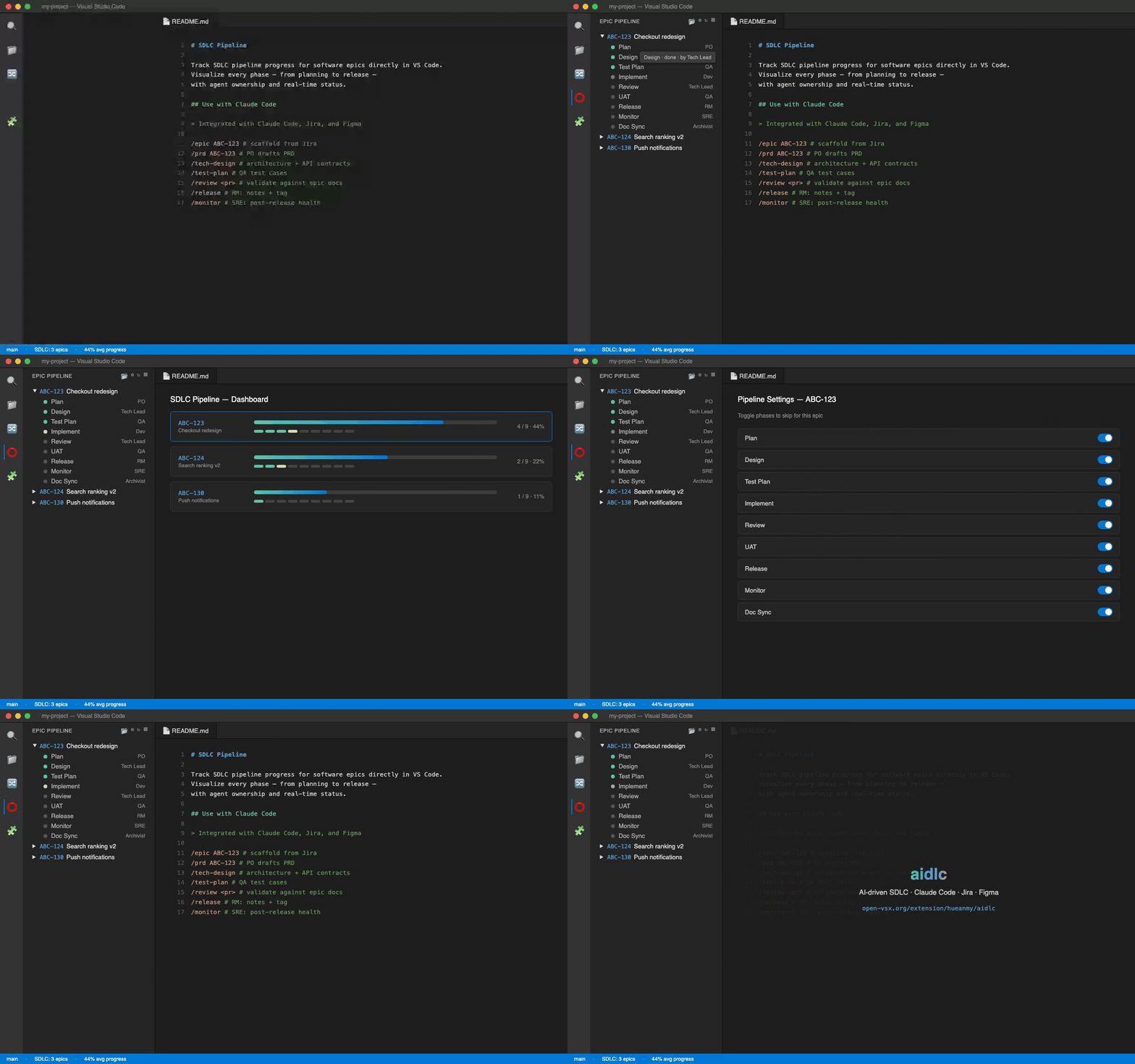
Features
- Epic Tree View — sidebar panel showing all epics and their pipeline phases
- Pipeline Dashboard — visual dashboard with progress bars, phase dots, and hover details
- Phase Status — each phase shows: pending, in-progress, done, awaiting review, rejected, or stale
- Agent Ownership — see which agent (PO, Tech Lead, QA, Dev, RM, SRE, Archivist) owns each phase
- Pipeline Settings — enable/disable phases per epic via a settings panel
- Isolated Phase Sessions — open a dedicated editor session scoped to a single phase
- Inline Run / Re-run / Review actions — drive each phase from the tree without leaving the sidebar
- Example Project loader — bootstrap a fully-wired demo workspace (sample epic + agents + skills + schemas) in one click
How It Works
The extension scans your docs/sdlc/epics/ folder for epic artifacts (PRD, Tech Design, Test Plan, etc.) and determines pipeline status from per-phase status.json files written by the orchestrator (or from file presence for legacy epics).
Pipeline Phases
| Phase |
Agent |
Artifact |
| Plan |
Product Owner |
Epic doc + PRD |
| Design |
Tech Lead |
Tech Design |
| Test Plan |
QA Engineer |
Test Plan |
| Implement |
Developer |
Feature branch |
| Review |
Tech Lead |
Approval |
| Execute Test |
QA Engineer |
Test Script |
| Release |
Release Manager |
Git tag |
| Monitor |
SRE |
Health report |
| Doc Sync |
Archivist |
Reverse-sync doc |
Getting Started
- Install the extension (VS Code Marketplace or Open VSX).
- Open a workspace folder.
- Click the SDLC Pipeline icon in the activity bar.
- The sidebar tree opens. From here:
- Workspace already has
docs/sdlc/epics/<KEY>/ folders → epics show up immediately.
- Empty workspace → the tree shows a welcome card with three options:
- Load Example Project (🚀 also pinned to the navbar) — clones a demo workspace at
~/aidlc-example, wires the MCP server, and opens it in a new window. A confirm dialog runs first so you can cancel an accidental click.
- Open Pipeline Settings — point at an MCP package + platform (the extension never auto-installs anything).
- Select Epics Folder — pick an existing folder elsewhere on disk.
The extension never seeds sample epics into your workspace automatically. If you want a starter epic, click Load Example Project.
Configuration
| Setting |
Default |
Description |
cfPipeline.epicsPath |
docs/sdlc/epics |
Relative path to the SDLC epics folder |
cfPipeline.platform |
generic |
One of mobile, web, backend, desktop, generic — passed to the MCP server as SDLC_PLATFORM env var |
cfPipeline.mcpPackage |
(empty) |
MCP package spec — npm name or github:owner/repo. Leave empty to skip auto-config |
cfPipeline.mcpServerName |
sdlc |
Key written under mcpServers.<name> in .claude/settings.json |
cfPipeline.mcpCommand |
npx |
Command used by Claude Code to launch the MCP server |
cfPipeline.autoConfigureMcp |
false |
When true, extension appends the MCP entry into .claude/settings.json on activation. Off by default — flip to true only after setting mcpPackage |
Use your own pipeline
If you have a private fork (e.g. company-specific SDLC with core-business docs), point the extension at it:
- Open the Pipeline Settings panel (sidebar →
… → Pipeline Settings, or Command Palette → SDLC: Pipeline Settings).
- Scroll to MCP Pipeline Source at the top.
- Enter your package spec — e.g.:
github:yourcompany/cf-sdlc-pipeline (GitHub repo, public or private with SSH auth)@yourcompany/sdlc-pipeline (once published to npm)
- Pick the platform that matches your project.
- Click Apply & Reload MCP — the extension appends
mcpServers.<name> to .claude/settings.json (never overwrites an existing entry) and Claude Code loads your pipeline on the next tool call.
To clear it, click Clear & Disable Auto-Configure.
How Sync Works (MCP Server)
When Claude Code boots the MCP server (triggered on the first MCP tool invocation per session), it runs syncWorkspace() against your project root. The reference server is published from hueanmy/aidlc-pipeline — pulled via npx -y github:hueanmy/aidlc-pipeline (or the npm package when available).
What gets synced on every boot
Into your project (cwd = workspace root):
<workspace>/
├── .claude/
│   ├── settings.json            # appended by extension when autoConfigureMcp=true
│   ├── skills/
│   │   ├── _gate-check.md
│   │   ├── prd/SKILL.md         # merged: generic + platform overlay
│   │   ├── tech-design/SKILL.md
│   │   ├── test-plan/SKILL.md
│   │   └── ... (19 skills total)
│   └── agents/
│       ├── po.md                 # merged: generic + platform overlay
│       ├── tech-lead.md
│       ├── qa.md
│       └── ... (7 agents total)
└── docs/
    └── sdlc/
        ├── workflow/README.md    # scaffold (only if missing)
        └── epics/                # your real epics live here
The extension itself does not create any epic folders. The MCP package may scaffold a workflow/README.md on first run; epics are yours to author (or fetched from the example project).
Content is merged at boot using a simple overlay:
- Generic — from the pipeline package root (
skills/, agents/, templates/)
- Platform — from
platforms/<SDLC_PLATFORM>/<kind>/ (e.g., platforms/mobile/agents/po.md)
- Project (optional) — from
projects/<SDLC_PROJECT>/<kind>/
Later layers override sections of the earlier ones by matching ## headings. {{PLACEHOLDER}} tokens get substituted from the project's config.json if provided.
Timing
Claude Code boots MCP servers lazily — the server does not start until a slash command triggers an MCP tool call. Practical implications:
- First Claude Code session in a fresh workspace: slash commands may not appear immediately. Fire any
/ command (e.g. /dashboard) once to trigger boot → reload or reopen the prompt → commands appear.
- Subsequent sessions: sync runs again at first tool call, refreshing any out-of-date content.
If you want slash commands to work immediately without waiting for lazy boot, run once manually in the workspace:
npx -y github:hueanmy/aidlc-pipeline
# Ctrl+C after a second — sync has already run during startup.
Use with Claude Code
Once you've set cfPipeline.mcpPackage and enabled autoConfigureMcp (or written .claude/settings.json by hand), drive each phase with slash commands. Pass the Jira epic key (e.g. ABC-123) and the pipeline pulls context from Jira automatically (requires the Atlassian MCP):
| Step |
Slash command |
Agent |
What it does |
| 1 |
/epic EPIC-KEY-123 |
— |
Scaffold epic folder from Jira issue |
| 2 |
/prd EPIC-KEY-123 |
PO |
Draft PRD (user flows, acceptance criteria) |
| 3 |
/tech-design EPIC-KEY-123 |
Tech Lead |
Architecture + API contracts |
| 4 |
/test-plan EPIC-KEY-123 |
QA |
Unit/UI/integration test cases |
| 5 |
/coding-rules |
— |
Show project coding standards |
| 6 |
/review <pr> |
Tech Lead |
Validate PR against epic docs |
| 7 |
/execute-test EPIC-KEY-123 |
QA |
Test script for stakeholders |
| 8 |
/release |
RM |
Release notes + tag |
| 9 |
/deploy |
RM |
Build & deploy to target env |
| 10 |
/monitor |
SRE |
Post-release health report |
| 11 |
/hotfix |
SRE |
Emergency fix workflow |
| 12 |
/doc-sync EPIC-KEY-123 |
Archivist |
Reverse-sync docs from shipped code |
Use /dashboard to see pipeline status across all epics, or /pipeline EPIC-KEY-123 to run the full SDLC sequentially.
You can also drive phases without leaving the tree view — every phase row exposes inline actions (▶ Run / 🔄 Re-run / 💬 Update Feedback / 🔔 Review Gate) that copy the right slash command to your clipboard and focus the Claude Code chat panel.
Walkthrough — start an epic from scratch
Assume your team created a new Jira epic ABC-123 with a linked Figma frame.
1. Scaffold the epic
/epic ABC-123
- Claude calls the Jira MCP to fetch the epic's title, description, children, document links, and Figma to pull design context.
- Claude creates
docs/sdlc/epics/ABC-123/ with the epic template pre-filled (title, scope, acceptance criteria skeleton).
- The VS Code sidebar refreshes —
ABC-123 appears with all phases in pending.
2. Draft the PRD
/prd ABC-123
- The Product Owner agent reads the Jira issue + any Figma link attached to it (via the Figma MCP) to extract screens, user flows, and design tokens.
- Writes
docs/sdlc/epics/ABC-123/PRD.md with user stories, acceptance criteria, and analytics events.
Plan phase flips to done; Design becomes in-progress.
3. Technical design
/tech-design ABC-123
- The Tech Lead agent reads the PRD + explores the current codebase to propose architecture, API contracts, file impact, and DI plan.
- Writes
TECH-DESIGN.md.
4. Test plan
/test-plan ABC-123
- The QA Engineer agent maps PRD acceptance criteria to unit/UI/integration test cases.
- Writes
TEST-PLAN.md.
5. Implement on a feature branch
Out of band — developer cuts feature/ABC-123-... and builds the code. Claude can assist as the Developer agent, constrained to the design + test plan.
6. Review the PR
/review <pr-url>
- Validates the PR diff against PRD + Tech Design + Test Plan and flags gaps.
7. Execute test → Release → Monitor
/execute-test ABC-123  # QA generates test script
/release               # RM prepares release notes + git tag
/deploy                # RM deploys to test/prod
/monitor               # SRE pulls crash + analytics for the first 24–48h
8. Close the loop
/doc-sync ABC-123
- The Archivist agent diffs planned docs vs shipped code and reverse-syncs the PRD/Tech Design so they reflect what actually shipped.
At any point, /dashboard shows the pipeline status for every epic, or you can run /pipeline ABC-123 to walk through phases 1 → 8 sequentially without invoking each skill by hand.
Commands
All commands are available via Cmd+Shift+P (or Ctrl+Shift+P):
| Command |
Description |
SDLC: Open Pipeline Dashboard |
Open the visual pipeline dashboard |
SDLC: Pipeline Settings |
Open the pipeline settings panel (MCP source, per-epic phases, example loader) |
SDLC: Refresh Pipeline Status |
Re-scan epics and update status |
SDLC: Select Epics Folder |
Change the epics folder location |
SDLC: Load Example Project |
Clone the demo workspace into ~/aidlc-example and open it in a new window |
SDLC: Clear Example Project |
Delete an example project (with confirmation) |
SDLC: Run Step / Re-run Step |
Run or re-run a single phase from the tree |
SDLC: Update Feedback + Re-run |
Add reviewer feedback to a rejected phase and re-trigger it |
SDLC: Review Gate / Open Review Panel |
Approve / reject an awaiting_human_review phase |
SDLC: Add Feedback Note |
Attach a note to any phase's status.json without re-running |
SDLC: Advance Epic |
Copy /advance-epic <KEY> to the clipboard and focus Claude Code chat |
SDLC: Open Isolated Phase Session |
Open a fresh editor brief scoped to a single phase |
Troubleshooting
Slash commands don't appear in Claude Code
Cause: the MCP server hasn't booted yet. Claude Code starts MCP servers lazily — only on the first MCP tool call.
Fix:
- Type any
/ command (e.g. /list-skills) to trigger an MCP tool call. The server will boot and sync in the background.
- Reload the Claude Code prompt / start a new chat → slash commands now discoverable.
- Alternatively, warm up manually in your workspace root:
npx -y github:hueanmy/aidlc-pipeline (kill after 1–2 seconds; the sync runs during startup).
.claude/skills/ or .claude/agents/ is empty after activation
Cause: the MCP server either hasn't run yet, or npx failed silently — or cfPipeline.autoConfigureMcp is false (the default), so no MCP entry was written at all.
Fix:
- Set
cfPipeline.mcpPackage to your package spec, then flip cfPipeline.autoConfigureMcp to true.
- Reload the window — extension appends
mcpServers.<name> to .claude/settings.json.
- Verify the entry has
command: "npx" and args: ["-y", "<your package>"].
- If the MCP entry exists but skills/agents are still empty, run it manually:
cd /path/to/your/project
npx -y github:hueanmy/aidlc-pipeline
If this works, .claude/skills/ and .claude/agents/ will populate. Kill with Ctrl+C.
- If npx errors:
rm -rf ~/.npm/_npx to clear the package cache, retry.
Extension didn't write .claude/settings.json on activation
Cause: by design — cfPipeline.autoConfigureMcp defaults to false. The extension only writes the file when you explicitly enable auto-config (or click Apply & Reload MCP in Pipeline Settings).
Fix:
- Open Pipeline Settings → MCP Pipeline Source.
- Enter your
mcpPackage, pick your platform, and click Apply & Reload MCP.
- The extension appends the MCP entry without touching any other server already in
settings.json.
Slash commands use old or outdated content
Cause: npx caches the GitHub tarball; new commits to your pipeline package aren't picked up automatically.
Fix:
rm -rf ~/.npm/_npx
Then reload Claude Code. The next MCP boot will re-download the latest main from GitHub.
This is expected — the extension is append-only and never overwrites an existing mcpServers.<name> entry. To replace it:
- Open
.claude/settings.json.
- Delete the
mcpServers.<name> entry.
- Reload VS Code window — extension re-appends with current settings.
Cause: the extension only treats folders matching [A-Z][A-Z0-9]*-\d+ (e.g. ABC-123, EPIC-2100) as epics.
Fix: rename the folder to match the pattern. Folders like my-feature/ or abc-123/ (lowercase) are ignored.
Tree view stays empty after I add an epic folder
The file watcher updates on *.md, pipeline.json, and status.json changes. If you add only an empty folder (no files), the tree won't refresh. Either:
- Add at least one
.md, pipeline.json, or status.json to the new epic folder, or
- Click the Refresh button in the tree's title bar.
Cause: only platforms/mobile/ has overrides shipped today in the reference pipeline. Other platforms (web, backend, desktop, generic) fall back to generic content — this is normal.
Fix: if you need platform-specific overlays, contribute them upstream to hueanmy/aidlc-pipeline under platforms/<name>/.
Extension activates but no tree view appears
Cause: a workspace folder must be open (file-only mode is not enough).
Fix: File → Open Folder → select your project root → reload.
Tree view is empty and I don't want to start from scratch
Click Load Example Project in the welcome card or the rocket icon in the tree's title bar. The extension confirms before cloning, then opens the demo at ~/aidlc-example in a new window.
Where to find logs
- Extension side: View → Output → "SDLC Pipeline" channel
- Claude Code / MCP side: Claude Code output panel, or run the MCP manually with
npx -y github:hueanmy/aidlc-pipeline in a terminal — all server logs go to stderr.
Requirements
- VS Code 1.85.0+ (or compatible: VSCodium, Cursor, Windsurf)
- A workspace folder (not single-file mode)
- Claude Code extension/app for slash command support
- Network access for
npx to fetch the MCP server from GitHub
- Optional: Atlassian MCP for Jira integration, Figma MCP for design context
License
MIT

