Agent ExplorerBuild and run local A2A and MCP mocks with response rules and a visual flow builder. Installation Launch VS Code Quick Open ( Ctrl+P), paste the following command, and press enter.Copied to clipboard |

Agent ExplorerBuild the agents your orchestration needs—even before those agents exist. Create mock A2A agents and MCP servers, give them predictable responses, and run them locally from VS Code. Test your orchestration offline without signing in or starting a separate backend. What you can do
Get started
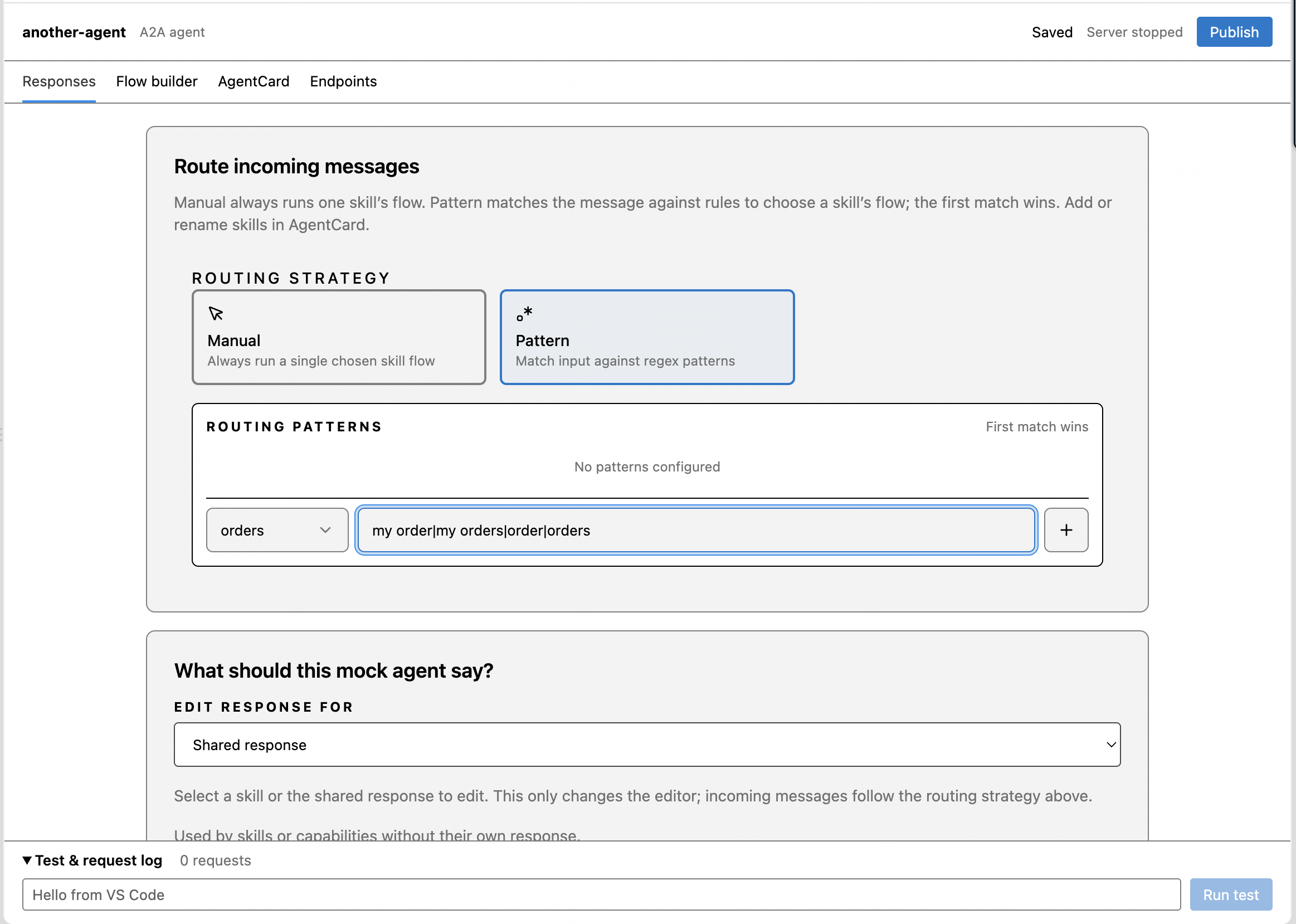
The installed extension bundles its runtime. Local mocks need no separate Node.js installation, database, cloud account, or internet connection. Define responses and routingFor A2A mocks, Route incoming messages determines which skill receives a request. Manual always chooses one skill; Pattern checks regex rules in order, with the first match winning. Below the routing controls, Edit response for selects the response you are editing. Changing this selector does not change runtime routing. Conditional replies check rules from top to bottom. Combine ALL or ANY conditions, set a reply for each rule, and provide an Otherwise fallback. Agent rules include Try a message for an offline preview. Use Run test to exercise the running mock, including routing and simulations.
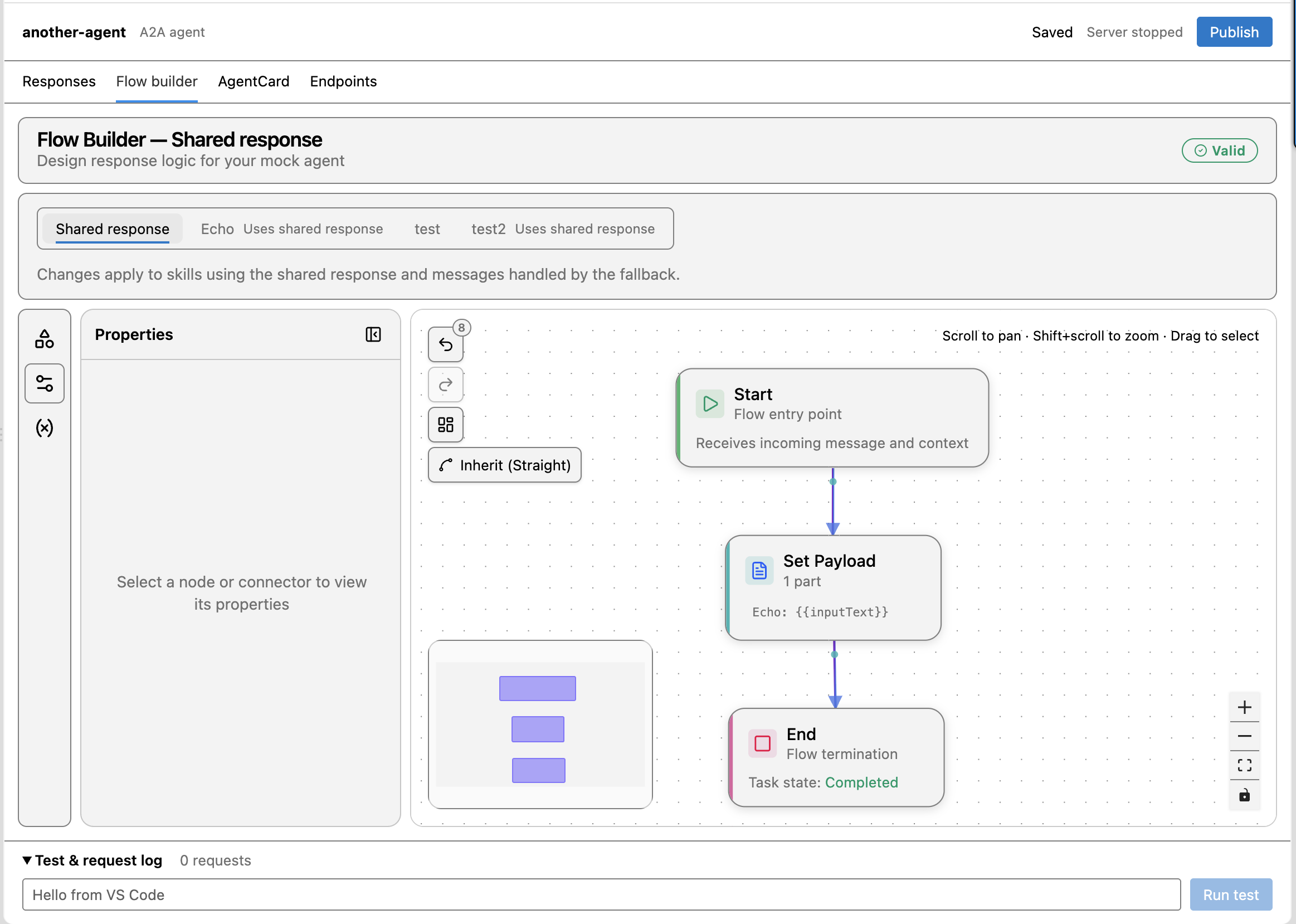
Configure pattern-based routing and choose which response to edit in the Responses tab. Design flows visuallyUse the flow builder to connect response steps, branch on input, set variables, introduce delays, and simulate failures. Each skill or MCP capability can have its own flow, with a shared fallback for targets without an override.
A shared echo response in the Flow Builder: Start → Set Payload → End. Set a fixed portSelect the Settings gear in the Agent Explorer sidebar, or run Agent Explorer: Settings from the Command Palette. Set Port to a fixed value, such as 4310, for URLs starting with
All enabled mocks share the port:
Keep mocks with your projectDefinitions are stored in Valid changes save automatically. The header shows Saving… and Saved after VS Code confirms the write. Cmd/Ctrl+S saves pending edits immediately. Invalid input remains editable; a running mock keeps its last valid definition until you correct and save the file. Editor tabs show mock names. Renaming a mock preserves its ID, filename, and endpoint path. To edit JSON directly, use Reopen Editor With → Text Editor. Optional cloud publishingRun Agent Explorer: Connect Cloud Account and enter a management key from Agent Explorer under Settings → MCP access. Grant View mocks, Create mocks, and Edit mocks. The cloud URL is configured automatically, and the key is stored in VS Code SecretStorage. Publish Mock creates a hosted copy with the local mock’s ID. Later publications update that same copy. Download Cloud Mock, Compare With Cloud, and Pull Cloud Changes let you bring hosted definitions into your workspace and review differences. Revision conflicts stop publication rather than overwriting newer cloud edits. Publishing is explicit. Local definitions are not automatically synchronized to the cloud. New hosted mock endpoints are public by default; publishing asks for confirmation. Disconnecting leaves your local mocks available. Requirements and current limits
DocumentationExtension guide · Cloud management access · Agent Explorer SupportAsk a question or report a reproducible problem through Agent Explorer Community. Include your extension version, VS Code version, operating system, and the steps that reproduce the issue. Remove credentials and private payloads from logs or example mock definitions before sharing them. LicenseCopyright © 2026 Nico Balestra. Agent Explorer is proprietary software, licensed under the terms included in LICENSE.txt. Third-party components remain subject to their respective licenses, included in the extension’s third-party notices. |