MD Visual Editor
A visual Markdown editor with offline Mermaid previews. Open an ordinary .md or .markdown file, edit its rendered content, and save back to the same file.
This early release is a separate TypeScript/Milkdown application in the tpreview repository; it does not require or launch the Rust CLI. The CLI remains available for terminal reading.
Watch it in action
A 44-second walkthrough recorded in VS Code: edit text, format a paragraph, update tasks and table cells, change a Mermaid diagram, save, and switch to Markdown source. Korean captions are included; the video has no audio.
Watch / download the MP4 · 한국어 사용 가이드
Screenshots
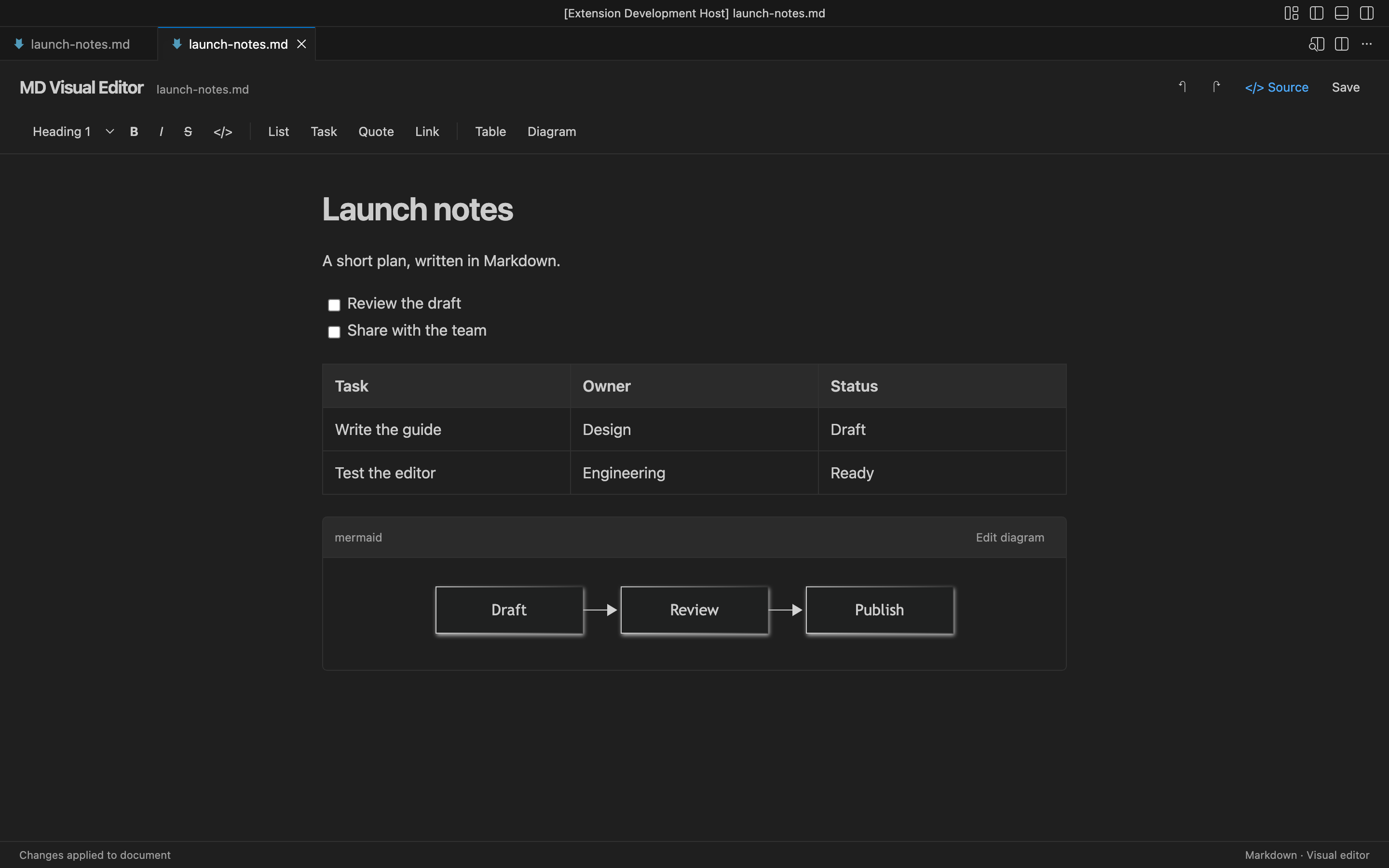
Edit Markdown visually
Work directly with headings, formatted text, task lists and tables in the same document.
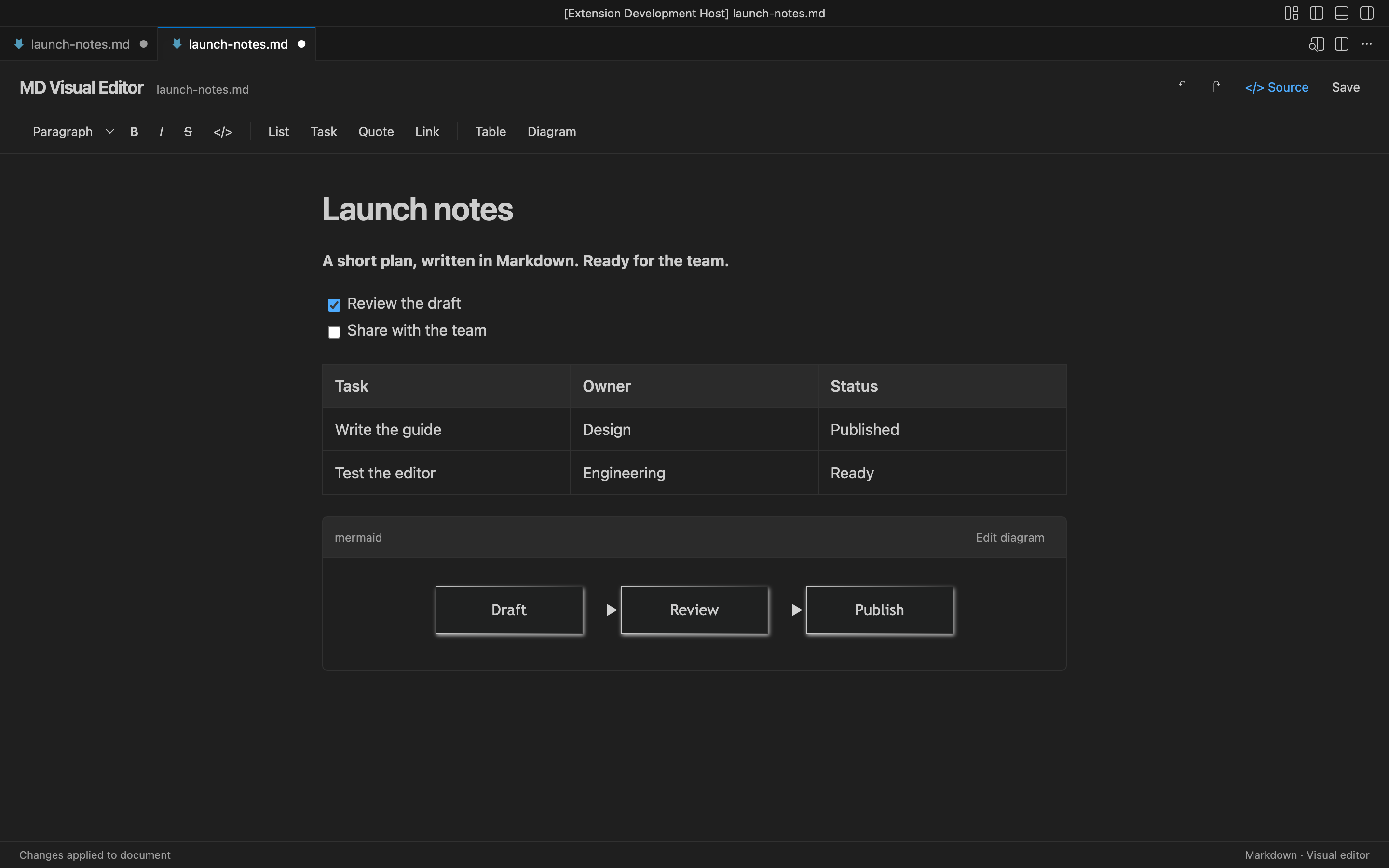
Update tasks and tables
Click a checkbox to complete a task, or edit a table cell without writing Markdown syntax.
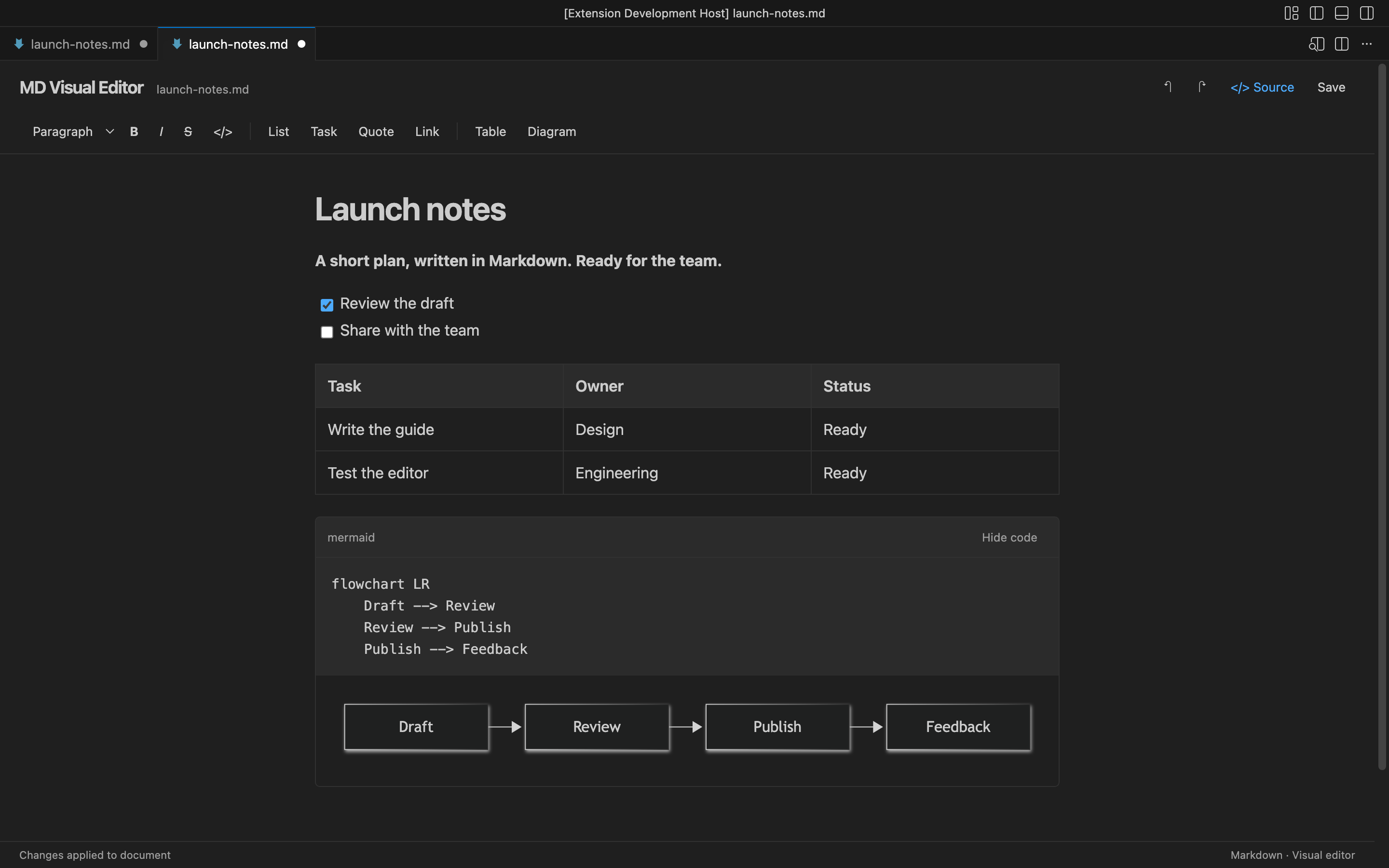
Edit Mermaid and see the result
Choose Edit diagram to change the source alongside its rendered preview. Rendering works offline.
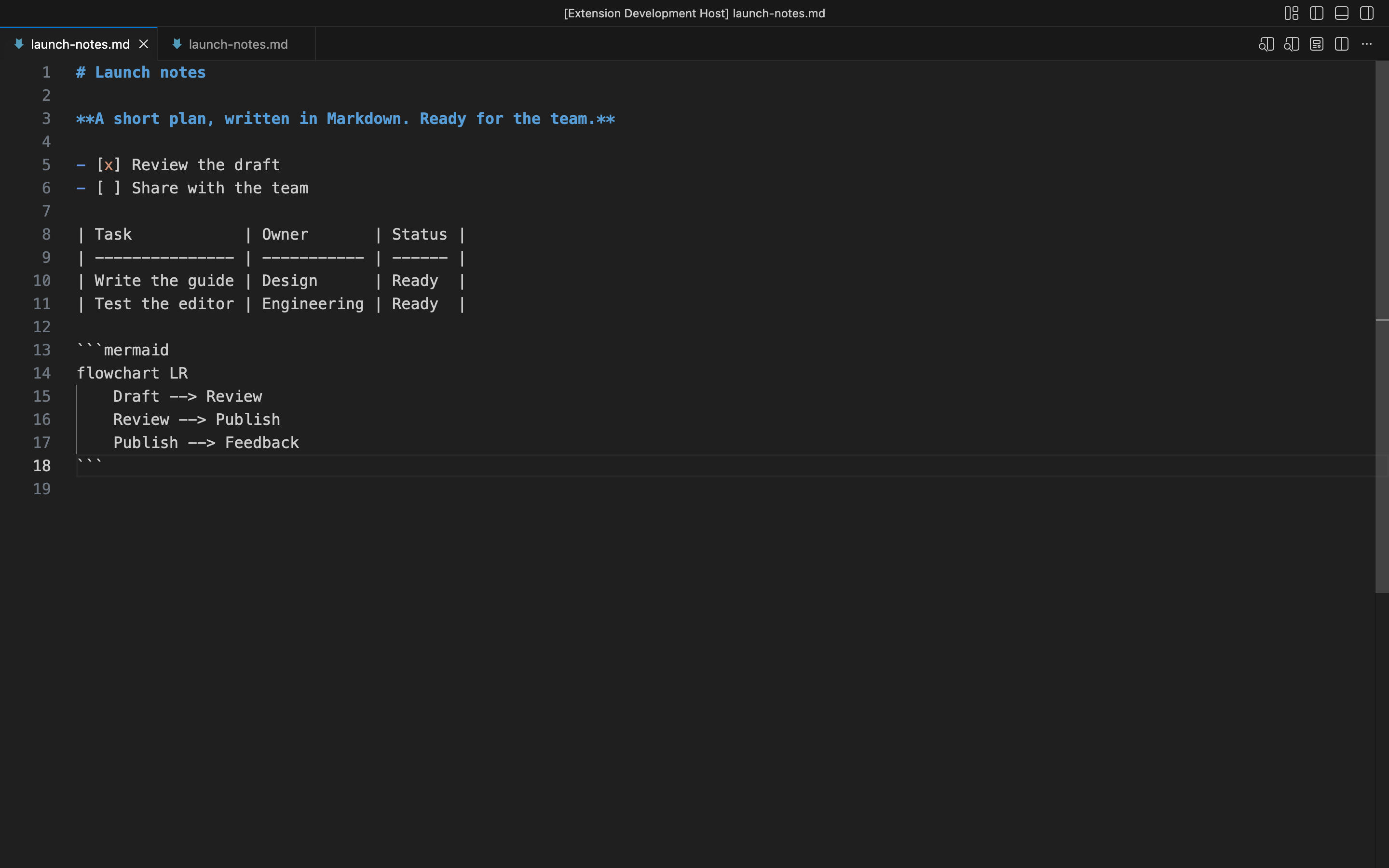
Keep your Markdown source
Choose Source to return to the normal VS Code text editor. Save writes back to the original .md file.
Install on another computer
Download MD Visual Editor 0.1.2, then choose Extensions → … → Install from VSIX… in VS Code. Select the downloaded file. VS Code 1.96 or later is required; Node.js and Rust are not needed to install or use the package.
Or, from the folder containing the download:
code --install-extension tpreview-markdown-0.1.2.vsix
See the release page for the checksum and release notes. For manual installations, install a newer VSIX to update the extension.
Build locally
Requires Node.js 22 for development and VS Code 1.96 or later to run.
cd extensions/vscode
npm ci
npm run package
code --install-extension ../../dist/tpreview-markdown-0.1.2.vsix
The build writes the VSIX and its SHA-256 checksum to the repository's dist directory.
Open a Markdown file and run MD Visual Editor: Open Visual Markdown Editor from the Command Palette. You can also right-click the editor tab → Reopen Editor With… → MD Visual Editor. The extension is optional by default; Configure default editor can make it your Markdown default.
Editing
- Edit headings, paragraphs, bold/italic/strikethrough text, links, lists, quotes, code, task checkboxes and GFM table cells directly.
- Use the formatting bar, or standard Markdown typing shortcuts. Table inserts a 3×3 table; Tab moves between cells. Task inserts a task item.
- Diagram inserts a Mermaid block. Edit diagram reveals its source; the preview updates as you type. Invalid syntax retains the last valid preview and displays an error.
- Source opens the same file in VS Code's text editor. Run the MD Visual Editor command to return to visual editing.
- Save, ⌘/Ctrl S, and VS Code's normal file saving write the Markdown document. The status bar says when changes have reached the document, not when they have been saved to disk.
- Undo/redo use the VS Code document history, including the toolbar and ⌘/Ctrl Z / Shift Z. Ctrl Y also requests redo.
- ⌘/Ctrl-click a link to open an HTTPS/HTTP URL or a relative Markdown file. Anchor navigation within the visual editor is not implemented yet.
Source preservation and conflicts
Opening or selecting content never rewrites the file. Unchanged top-level blocks retain their original Markdown spelling. Edited blocks use the editor's Markdown serializer, so editing one list or table can normalize that entire block. CRLF and the existing final-newline convention are preserved. This is not a byte-preserving editor for changed blocks.
Front matter, raw HTML, reference links/images, footnotes, code fence metadata, and documents that fail a semantic round-trip check open in a source-only fallback. The original text is shown inertly and stays unchanged. Files over 1 MB also use this fallback.
The underlying VS Code TextDocument is authoritative. Each visual edit is version checked and sent as a minimal text replacement. Clean external changes update the view. If another editor changes a file while a visual edit is pending, the extension stops editing and preserves the local draft. Copy it before choosing Use file version. Pending drafts are also stored in the webview state for recovery when VS Code restores that view.
Local operation
All scripts, editor dependencies and Mermaid rendering are bundled. No CDN, server, Rust binary, or API key is needed at runtime. Document HTML is never executed, Mermaid uses strict security mode, and diagrams are limited to 50,000 characters. Local images inside the document's directory are supported. External images are shown as placeholders rather than fetched automatically. Remote links open only on an explicit ⌘/Ctrl-click. VS Code Remote can run the extension on its extension host; vscode.dev/browser-only hosting is not included in this version.
Development and verification
Open this directory in VS Code and press F5 to launch an isolated Extension Development Host. Or run:
npm run check
npm test
npm run build
npx playwright install chromium
npm run test:ui
npm run test:host
npm run package
test:ui uses the production webview bundle and CSP with a document bridge harness. It covers text/task/table editing, save/source actions, Mermaid rendering and errors, external edits, conflicts, undo/redo, synthetic Korean composition events, and narrow editor panes. Real OS IME candidate-window behavior still requires a manual check.
test:host launches an isolated VS Code profile, drives the actual extension with Playwright over a temporary local debugging port, and verifies the file on disk. It checks opening without writes, Mermaid, editing, save, undo/redo, tasks, external file updates, and source switching. On macOS it uses an installed VS Code; otherwise it downloads the stable test build. Set VSCODE_EXECUTABLE to choose another build. Linux CI needs xvfb-run -a npm run test:host. The test closes its process and removes its temporary profile. A screenshot is written to ../../dist/vscode-editor-preview.png.
Manual follow-ups: real Korean IME composition, accessibility with a screen reader, very large documents, and remote extension hosts.
Capture the usage guide
With FFmpeg available, run npm run build && npm run capture. This opens an isolated VS Code profile with demo/launch-notes.md and records only that editor window through the Chrome DevTools screencast API. It creates seven PNG screenshots, an MP4 with Korean captions, a separate SRT subtitle file, the edited example, and capture metadata in ../../dist/md-visual-editor-media/. The recording is silent. The capture script currently uses the macOS Apple SD Gothic Neo font for Korean captions; another OS needs that font or a suitable local Korean font substitution.
Structure
src/extension.ts: custom text editor, VS Code document edits, links and resource scope.src/webview/main.ts: Milkdown editor and interaction wiring.src/webview/sync.ts: serialized edits, version handling and draft conflicts.src/webview/markdown.ts: semantic checks and unchanged-block preservation.src/webview/views.ts: Mermaid, task and image node views.
MIT. Bundled dependency license notices are included alongside the distribution assets.