B1 DevKit for SAP Business One
Build, run and debug SAP Business One add-ons (C# and VB.NET, .NET Framework) from VS Code, with the F5 workflow you know from other IDEs.
Preview. B1 DevKit is in preview: please report problems and ideas in the Q & A tab of the Marketplace page.
SAP and SAP Business One are trademarks of SAP SE. This extension is an independent project and is not affiliated with, endorsed by or sponsored by SAP.
Features
- Add-on detection. Projects (
.csproj, .vbproj, old-style or SDK-style) that reference the SAP Business One SDK/UI API and produce an executable are recognised as add-ons. With several add-ons in the workspace, pick the active one from the status bar.
- Build and rebuild through MSBuild, solution-aware, with errors reported in the Problems panel. Available as commands and as
sapb1 tasks usable from tasks.json (see below).
- Debug (F5) and Run without debugging (Ctrl+F5): checks the SAP Business One client, offers to terminate a copy of the add-on that is still running (its executable is locked, so it could not be rebuilt), builds the add-on, then starts it with the SAP development connection string under the .NET Framework debugger.
- Attach to an add-on that is already running.
- Client helper. Detects whether the SAP Business One client is installed, 64-bit and running, and can start it for you.
- New add-on project command that scaffolds an SDK-style project, a menu example and a
launch.json.
- Forms. Edit SAP Business One form files (
.b1f, .srf) with a visual designer, a forms tree, a live preview in the SAP client and .b1s generation (see Forms).
- Italian and English user interface.
Requirements
- Windows x64: the extension is published for Windows x64 only. A Windows workspace (local, or VS Code connected to a Windows machine). In other workspaces the commands are hidden and, if run anyway, explain that Windows is required.
- MSBuild 17.8 or later, from Visual Studio 2022 17.8+ or the Visual Studio Build Tools (or set
sapb1.msbuildPath). If neither is found, dotnet msbuild is used with a warning: it cannot build projects with COMReference and some Visual Studio targets.
- The C# extension (
ms-dotnettools.csharp), installed automatically as a dependency. It provides the .NET Framework debugger.
- The 64-bit SAP Business One client.
- Add-ons must be 64-bit (
PlatformTarget x64, or AnyCPU without Prefer32Bit) to be debugged.
Getting started
- Open the folder that contains your add-on (or its solution) in VS Code.
- Log in to a company in the SAP Business One client, or let the extension start it for you.
- Press F5. The extension builds the add-on and starts it under the debugger. Without a
launch.json, a default configuration for the active add-on is used.
To start from scratch, run SAP B1: New add-on project from the Command Palette: the commands are available in any Windows workspace, even an empty folder. The project gets a launch.json entry named Debug SAP B1 add-on (<name>). To create the debug configurations in an existing workspace, run SAP B1: Create launch.json.
Form commands are described in Forms. Other commands (Command Palette, category "SAP B1"): Select active add-on, Build add-on, Rebuild add-on, Start debugging, Run without debugging, Attach to running add-on, Start SAP Business One client, Show log.
This walkthrough goes from an empty folder to a running add-on with its own form. It takes about ten minutes.
1. Create the add-on
- Open an empty folder in VS Code.
- Run SAP B1: New add-on project from the Command Palette (
Ctrl+Shift+P) and enter a name, for example MyAddon. You get an SDK-style C# project with a Program.cs, a Menu.cs that adds a menu under Modules and a launch.json.
- Log in to a company in the SAP Business One client and press F5. The add-on is built and started under the debugger: its menu appears under Modules → MyAddon, and breakpoints in
Menu.cs are hit.
- Run SAP B1: New form (also in the title bar of the SAP B1 Forms view in the Explorer), choose UserForm and enter a name, for example
CustomerCard.
- You get
CustomerCard.b1f, its code-behind CustomerCard.b1f.cs (nested under the form in the Explorer) and the two entries in the .csproj. The form opens in the designer.
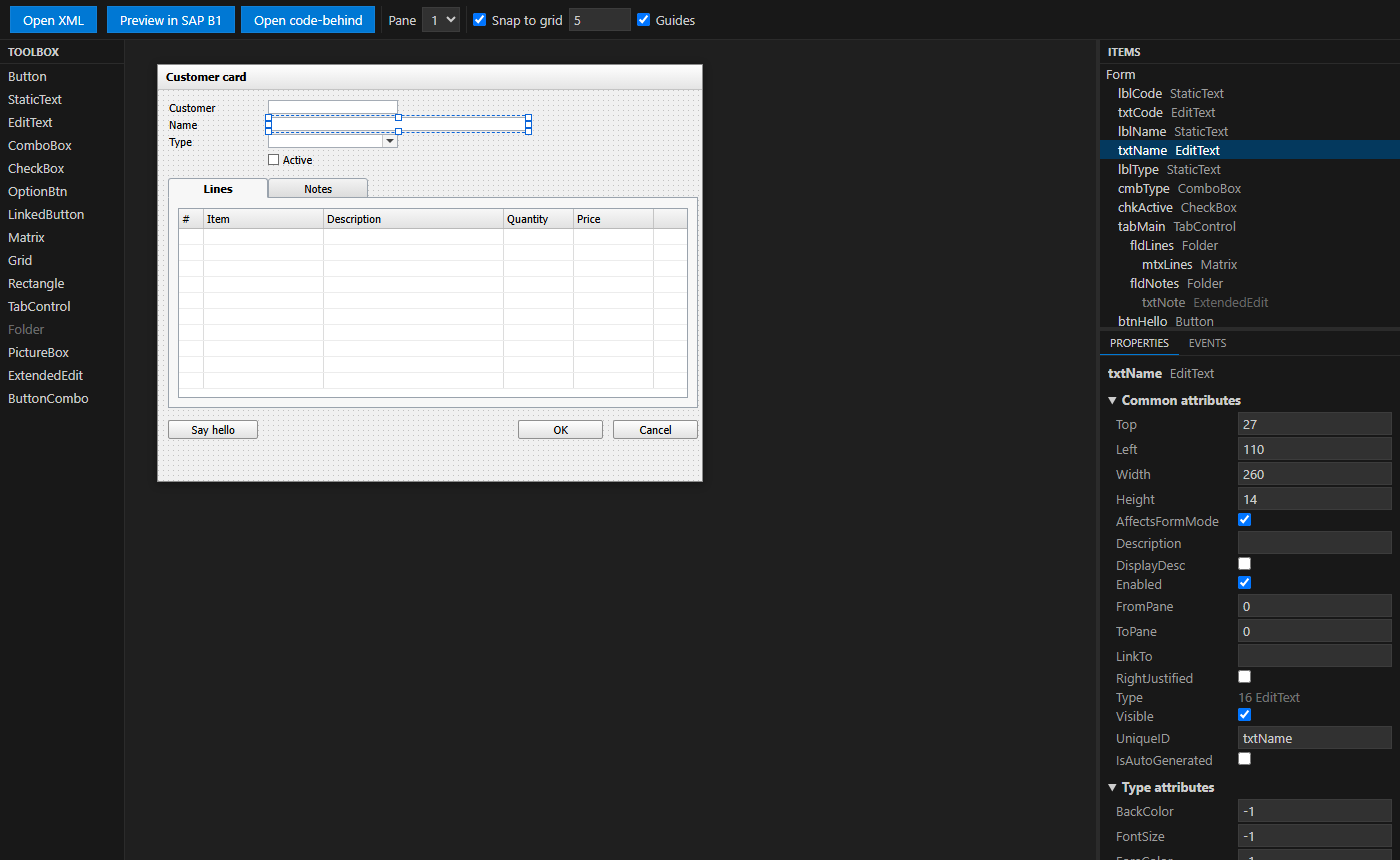
- Drag items from the toolbox onto the form, or double-click them. Select them with a click, Ctrl+click or a rubber band, move them with the mouse or the arrow keys and resize them with the handles.
- Set the attributes in the Properties panel: position and size, caption, data binding (DB table, user data source or DataTable column), the values of a combo box. With several items selected, a change applies to all of them.
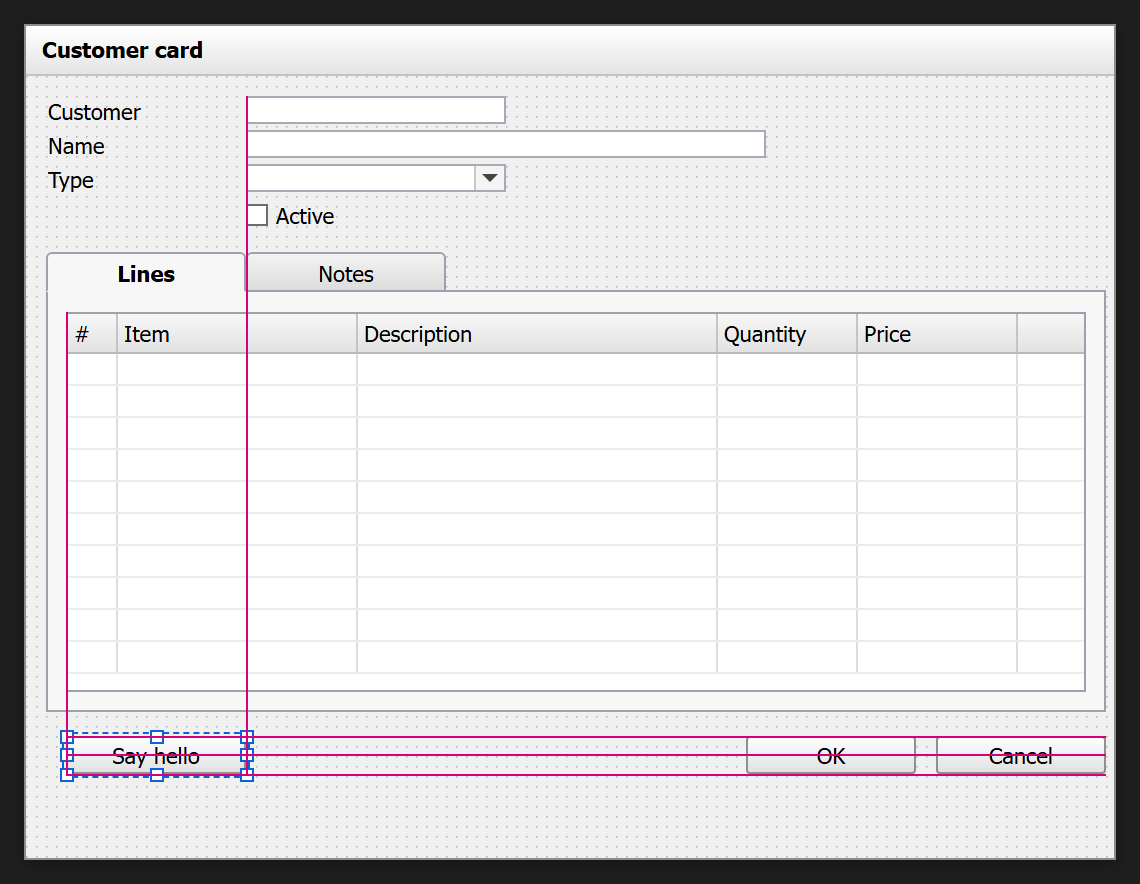
- While you drag, alignment guides snap the item to the edges and centers of the other items; hold Alt to place it freely.
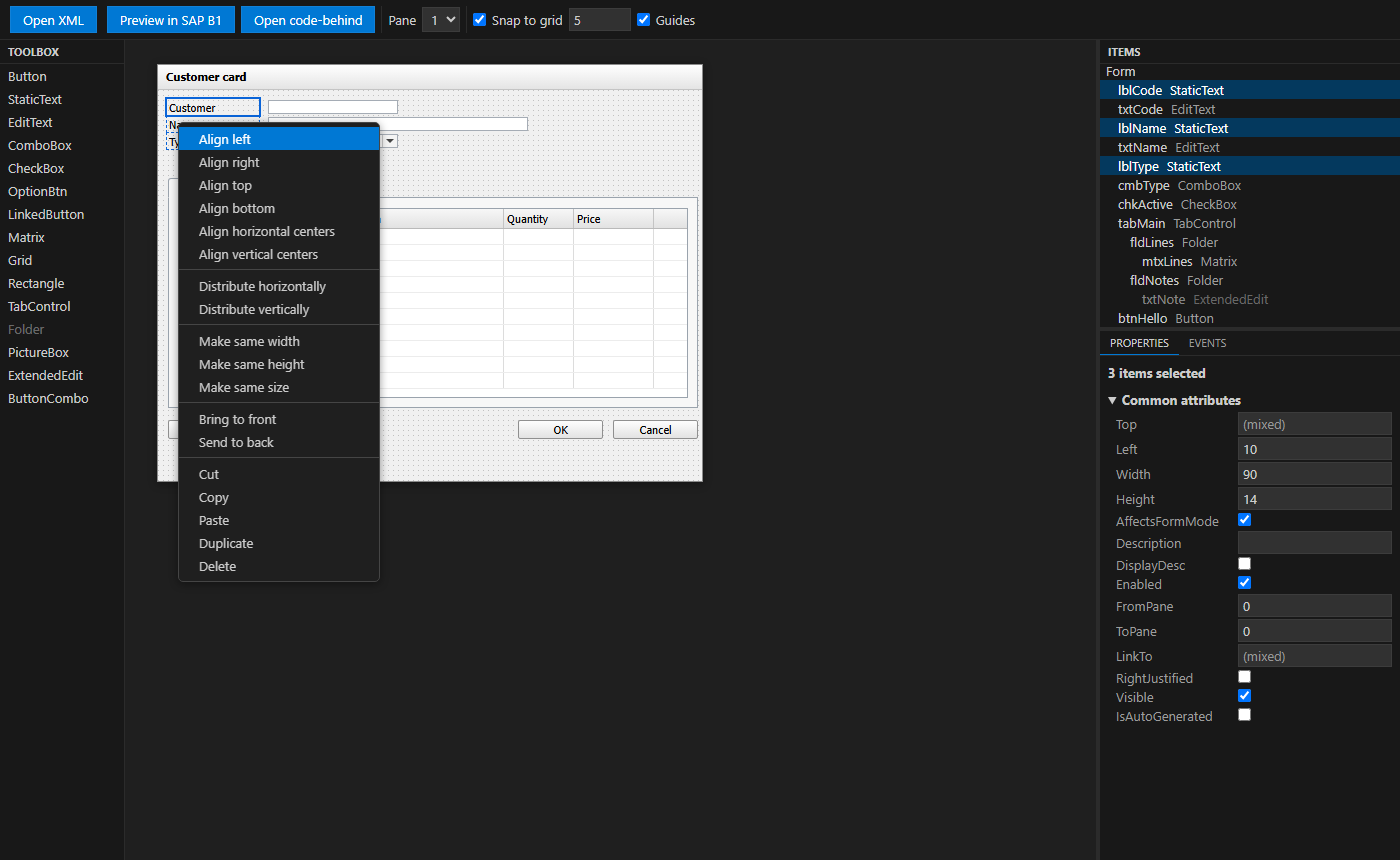
- Right-click a selection to align the items, make them the same size, or distribute three or more items at equal distances.
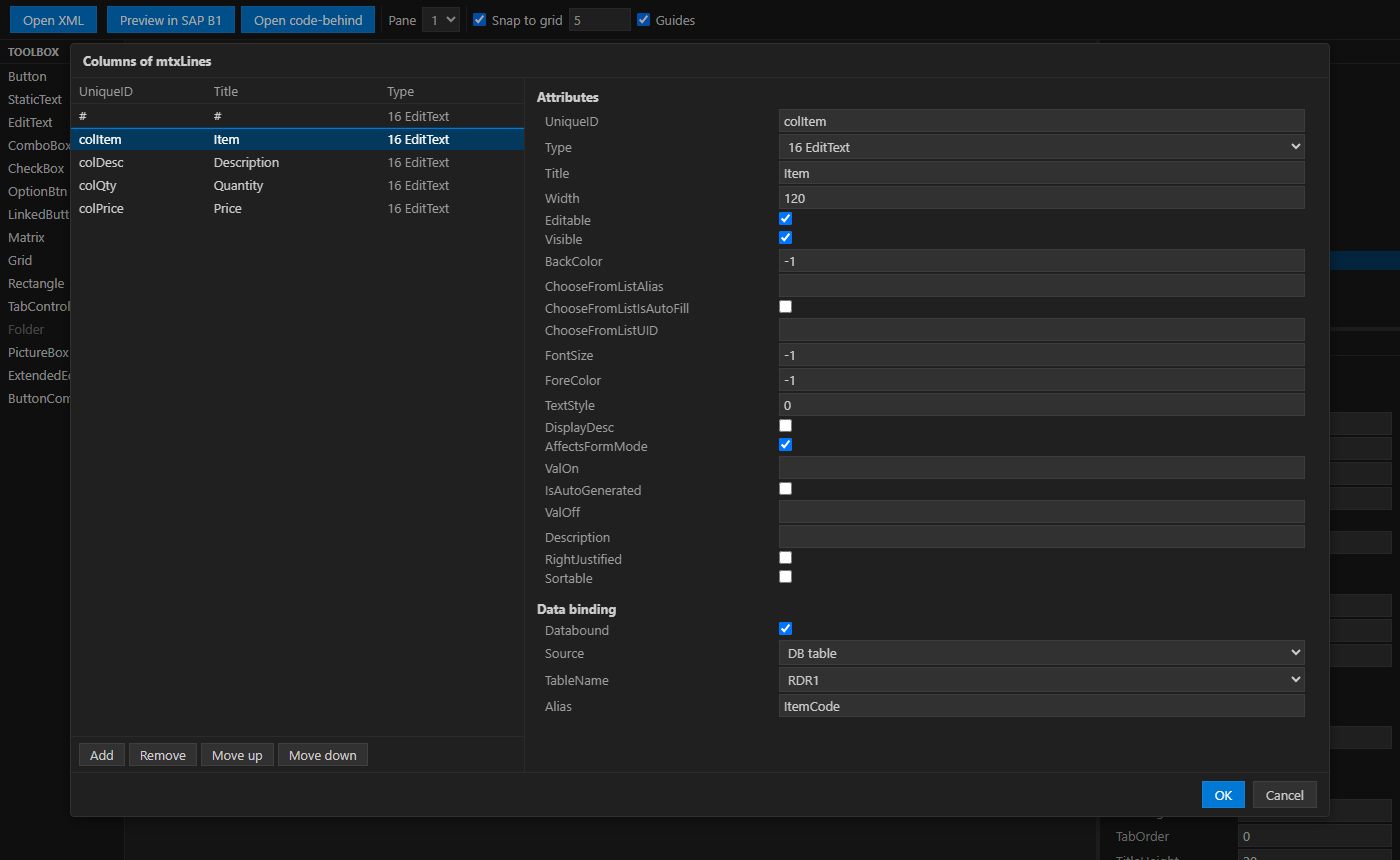
- For a matrix or a grid, Edit columns… opens the columns dialog: the column list on the left, the attributes and the data binding of the selected column on the right. OK applies everything as one undo step.
4. Handle the events in C#
Select an item and open the Events tab: tick an event to create its handler in the code-behind, Open handler jumps to the method. Double-clicking an item on the form creates the handler of its default event (for a button, the click). Write your code in the handler, for example:
private void Button0_PressedAfter(object sboObject, SAPbouiCOM.SBOItemEventArg pVal)
{
    Application.SBO_Application.MessageBox("Hello " + this.EditText1.Value);
}
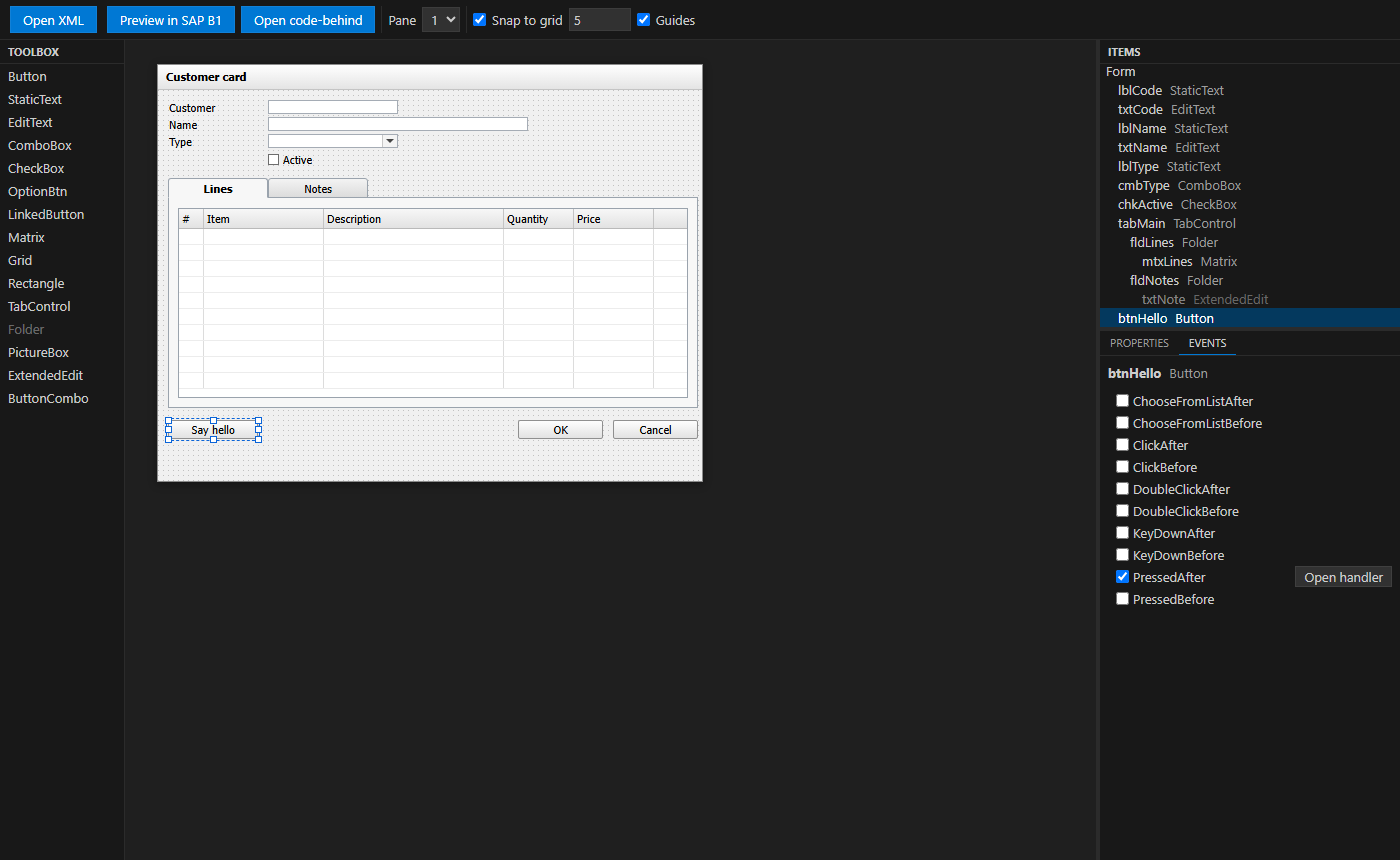
5. See it in SAP Business One
- Preview in SAP B1 (designer toolbar) loads the form in the running client with the real controls, and reloads it after each change. You can check the result without starting the add-on.
- To open the form from the add-on, call
new CustomerCard().Show();, for example in the handler of a menu in Menu.cs. Press F5: the add-on is built, the .b1s with the form is generated next to the executable, and the menu opens your form.
The rest of the features (system forms and UDO forms, capture from the client, legacy .srf files, .b1s generation) are described below.
B1 DevKit edits the form files of a SAP Business One add-on and keeps them in step with the C# code.
.b1f (the form files of B1 Studio: UserForm, SystemForm and UDOForm) and .srf (the XML format of the SAP client) are recognised, with syntax highlighting, an outline (form, data sources, items, columns), hover on the item type, completion of types, booleans and item uids, and validation in the Problems panel. Open form XML opens the file as text.- A
.b1f is written in the format of B1 Studio (UTF-16 LE with BOM, CRLF, two-space indent), so that a file saved by B1 DevKit opens in B1 Studio and the other way round. A .b1f that you open and save without changes is byte-identical.
- In the C# files of an add-on, item uids are completed and checked inside
GetItem("…") and GetSpecificItem("…"), Go to definition jumps to the item in the .b1f, and a [Form(…)] resource that does not match the path of the .b1f is reported with a quick fix (Fix form resources does the whole add-on).
- Convert to .b1f turns a legacy
.srf into a .b1f with code-behind. The .srf and the code that loads it are not touched.
The SAP B1 Forms view (Explorer) lists the add-ons and their forms, with an icon per category. From it: open the XML, the designer or the code-behind, preview, reveal in Explorer, convert a .srf, capture the original of a SystemForm, save a UDOForm to the database. The view title has New form and Capture form from SAP Business One client.
In the Explorer, the code-behind (<name>.b1f.cs) and the original of a SystemForm (<name>.b1f__orig_srf) are nested under their .b1f, as in Visual Studio. The extension turns on explorer.fileNesting.enabled by default for this; set it to false to turn nesting off.
Designer
A .b1f opens in the designer by default; Open XML (or Reopen Editor With… → Text Editor) shows its XML. A legacy .srf opens as XML; Open form in designer opens it in the designer. The form is drawn in the style of SAP Business One:
- a toolbox with the item types (button, static text, edit text, combo box, check box, option button, linked button, matrix, grid, rectangle, folder/tab control, picture box, extended edit, button combo). Drag an item onto the form or double-click it in the toolbox; it gets the first free uid
Item_<n>;
- a properties panel for the form (attributes, user data sources and DataTables) and for the selected item (common and type-specific attributes, data binding to a DB table, a user data source or a DataTable column, ValidValues, and the columns of matrices and grids);
- an events panel with the UI API events of the form and of the selected item; double-clicking an item creates the handler of its default event;
- selection with click, Ctrl+click or rubber band; move with the mouse or the arrow keys (1 px, 10 px with Shift); resize with 8 handles; alignment, equal size, z-order, cut, copy, paste, duplicate and delete; undo and redo of VS Code. The grid is set by
sapb1.forms.designer.snap (also in the designer toolbar);
- a pane selector, to see the items of each pane of a form with folders.
Alignment guides and distribution. While you drag or resize an item with the mouse, its edges and centers snap to those of the other items of the pane and to the edges of the form when they are within 4 px, as the snaplines of the Visual Studio designer: left with left, right with right, center with center, and an edge against the opposite one to put two fields side by side. Pink guide lines show the alignment while you drag. Where no guide is near, the grid applies as before. Hold Alt to place the item freely, without guides or grid; the arrow keys always move by 1 px (10 px with Shift). The guides are set by sapb1.forms.designer.guides (also the Guides check box in the designer toolbar). With three or more items selected, Distribute horizontally and Distribute vertically in the context menu make the spaces between them equal: the first and the last item stay where they are, and a tab control carries the items of its panes.
Columns of matrices and grids. Edit columns… in the properties panel opens a dialog with the columns on the left and the selected column on the right: its attributes, its data binding (matrix columns: DB table, user data source or DataTable column) and, for combo-box columns, its ValidValues. OK applies all the changes as one undo step; Cancel or Esc discards them.
Code-behind sync. When the .b1f has a code-behind class (<name>.b1f.cs), the changes made in the designer update the C# in the same edit, so one undo reverts both: adding an item adds the SAPbouiCOM field and its GetItem assignment in OnInitializeComponent, changing a uid rewrites the GetItem calls, removing an item removes the field, the assignment and the event hooks. Choosing an event adds the hook and a private handler with the right signature; removing the event from the panel removes the hook but keeps the method. Only the recognised areas are modified: if the class does not have the expected shape, the sync stops with a warning and writes nothing. Saving the form also saves the code-behind changes made by the designer; if the form is closed or reverted without saving, the code-behind is opened with a warning, and left for you to save or revert.
A .b1f that is not UTF-16 (the B1 Studio wizards write UTF-8) gives a warning when it is opened in the designer, with Convert to UTF-16.
The designer and the XML editor work on the same document: a change in one is shown in the other.
Live preview
Preview form in SAP Business One loads the form in the running client, so you see it with the real controls:
- UserForms and
.srf files open as a temporary form with uid and FormType B1DK_P<n>, replacing the previous preview;
- a SystemForm applies its changes to an open instance of the form (you are asked to open it if there is none);
- a UDOForm is previewed as a UserForm, without its business object: Add in the preview writes no record.
Errors reported by the client are shown as diagnostics on the file. With sapb1.forms.previewOnSave (default true) the preview is reloaded when the file is saved and 500 ms after each change made in the designer.
Capture and wizards
- Capture form from SAP Business One client reads a form that is open in the client and saves it as a new UserForm (
.b1f), as a .srf, or as a new SystemForm. A new UserForm does not keep the uid of the captured window, its business object (ObjectType), data browser and mode: the final message lists what was reset.
- New form creates the
.b1f, the code-behind class and the .csproj entries (old-style and SDK-style projects, with targeted edits that keep encoding and formatting) for a UserForm, a SystemForm or a UDOForm. The SystemForm wizard starts from a form open in the client (or opens a system form from a menu you choose) and keeps its complete XML as <Name>.b1f__orig_srf. The UDO wizard lists the UDOs of the company and starts from the default form of the one you choose.
- Capture original (SystemForm) replaces the
__orig_srf of an existing SystemForm with the current form of the client. The .b1s carries the difference between the .b1f and this original.
- Save UDO form to DB writes the form of a UDOForm in the
FormSRF field of its UDO. This is the only write to the database that the extension makes. Before writing, a confirmation names the company and the database the client is connected to and the UDO that will be changed; nothing is written if you cancel.
.b1s generation
After each successful build done by B1 DevKit (build, rebuild, F5, sapb1 tasks; not when build is false), the extension writes <AssemblyName>.b1s in the folder of the output file: the package that the SAP runtime loads, with the complete form of each UserForm and the delta of each SystemForm. UDOForms are not included, they are saved to the database. The forms come from the .csproj entries and, in SDK-style projects, from every .b1f of the folder. A form that cannot be converted is reported in the build output and left out; the others are written and the build does not fail. The read-only attribute of an existing .b1s is cleared before writing.
Settings
| Setting |
Default |
Description |
sapb1.forms.generateB1s |
auto |
auto generates the .b1s unless the project has its own generator (a Target or Exec naming .b1s or B1SGenerator); always generates it anyway; never does not generate it. |
sapb1.forms.previewOnSave |
true |
Reload the live preview when the file is saved and 500 ms after each change in the designer. |
sapb1.forms.designer.snap |
5 |
Grid of the designer in pixels (0 to 50). 0 turns snapping off. |
sapb1.forms.designer.guides |
true |
Alignment guides while dragging and resizing with the mouse (hold Alt to place freely). |
Limits
- VB.NET code-behind is not supported: a form of a VB.NET add-on can be edited, but no VB class is generated or synchronised.
- Menus with attributes (
MenuItemAttribute) are not supported: the SAP runtime does not load them from the .b1s.
- Edit Active Form (sending the form open in the client to the editor) is not supported; use Capture form from SAP Business One client instead.
- The fidelity of the designer is approximate, not pixel-perfect: check the result with the live preview.
- The live preview, the capture and the wizards need the 64-bit SAP Business One client, running and logged in to a company. With a 32-bit client they are disabled, with a message.
- A command-line MSBuild target that generates the
.b1s is not available: the file is written by the extension after its own builds.
Launch configuration reference
Debugger type: sapb1.
{
  "type": "sapb1",
  "request": "launch",
  "name": "Debug SAP B1 add-on"
}
launch
| Property |
Type |
Default |
Description |
project |
string |
active add-on |
Add-on project (.csproj or .vbproj). Relative paths start from the workspace folder. A project that is not detected as an add-on (for example one that reaches SAP only through a referenced library) is accepted if it builds an executable (OutputType Exe or WinExe). |
solution |
string |
sapb1.solution or auto-detect |
Solution used to build the add-on. |
configuration |
string |
sapb1.configuration (Debug) |
Build configuration. |
platform |
string |
sapb1.platform (auto) |
Build platform. |
connectionString |
string |
sapb1.connectionString |
Connection string passed to the add-on as its first argument. |
args |
string[] |
[] |
Arguments passed after the connection string. |
build |
boolean |
true |
Build before launching. |
checkClient |
boolean |
sapb1.clientCheck (true) |
Check that the SAP Business One client is running. |
justMyCode |
boolean |
true |
Debug only user code. |
env |
object |
{} |
Environment variables for the add-on. |
cwd |
string |
folder of the executable |
Working directory. |
Any other property is passed unchanged to the .NET Framework debugger, so its options can be set here.
attach
| Property |
Type |
Default |
Description |
processId |
string or integer |
${command:sapb1.pickAddonProcess} |
Process ID of the add-on. The default shows a list of running add-ons. |
Settings
| Setting |
Default |
Description |
sapb1.msbuildPath |
"" (auto) |
Full path to MSBuild.exe. |
sapb1.clientPath |
"" (auto) |
Full path to SAP Business One.exe. |
sapb1.connectionString |
SAP development string |
Connection string passed to the add-on. |
sapb1.solution |
"" (auto) |
Solution (.sln or .slnx) used to build the add-on, relative to the workspace folder. |
sapb1.configuration |
Debug |
Build configuration. |
sapb1.platform |
auto |
Build platform. auto prefers the solution's x64 platform, then Any CPU. |
sapb1.build.forcePortablePdb |
true |
Force DebugType=portable so the debugger can load symbols. |
sapb1.build.extraArgs |
[] |
Extra arguments appended to the MSBuild command line. |
sapb1.clientCheck |
true |
Check that the SAP Business One client is running before debugging. |
sapb1.forms.generateB1s |
auto |
Generate the .b1s form package after a build (see Forms). |
sapb1.forms.previewOnSave |
true |
Reload the live preview on save (see Forms). |
sapb1.forms.designer.snap |
5 |
Grid of the form designer in pixels (see Forms). |
sapb1.forms.designer.guides |
true |
Alignment guides in the form designer (see Forms). |
How building works
The extension finds the solution (.sln or .slnx) that contains the add-on and builds the add-on's target inside it with MSBuild, so referenced projects are built with the configuration and platform the solution maps for them. Without a solution, the project is built directly. Packages are restored (-restore, including packages.config).
The Build add-on and Rebuild add-on commands check MSBuild and the solution configuration first, so that problems such as a missing MSBuild are reported with their actions (Configure path, Download Build Tools).
Debug symbols are forced to portable PDBs (-p:DebugType=portable) without touching your project files, because the debugger cannot read full PDBs. The command line, the chosen solution and platform, and the reason for any block are written to the SAP B1 output channel (SAP B1: Show log).
Build tasks in tasks.json
{
  "type": "sapb1",
  "action": "build",              // or "rebuild"
  "project": "${workspaceFolder}/Addon/Addon.csproj", // optional: the active add-on otherwise
  "solution": "…",                 // optional
  "configuration": "Debug",        // optional
  "platform": "x64"                // optional
}
Variables are substituted, and relative project and solution paths start from the folder of the task. A project that does not exist makes the build fail with an error naming the path: the task never falls back to another add-on.
Limitations
- 32-bit add-ons cannot be debugged: the .NET Framework debugger in VS Code supports 64-bit processes only. The extension explains the cause and offers to open the project file.
- The
csharp.debug.* settings are not applied. Put debugger options in the sapb1 launch configuration.
- T4 templates are not regenerated.
- Restart rebuilds the add-on only when it is a detected add-on and the launch configuration has no
solution, configuration or platform overrides (and no preLaunchTask of its own); otherwise it relaunches the existing executable.
- If
launch.json has an entry with the same name as the running session but different content (for example after editing it), Restart prepares the launch again before stopping the session, so it asks to terminate the add-on that is still running.
- In
.slnx solutions, managed projects (.csproj/.vbproj) without an explicit <Platform> override build as AnyCPU whatever the solution platform, as MSBuild does.
License
MIT (see the LICENSE file included in the extension). Copyright (c) 2026 Adriano D'Addiego.
| |

