Image Studio
An image editor + AI converter for VSCode. Crop, resize, and compress PNG, JPG, WebP, or AVIF with live Before/After preview and a bulk converter — or let an AI assistant (Claude Code, Cursor, Claude Desktop) do the conversions for you over MCP.
Two ways to use it
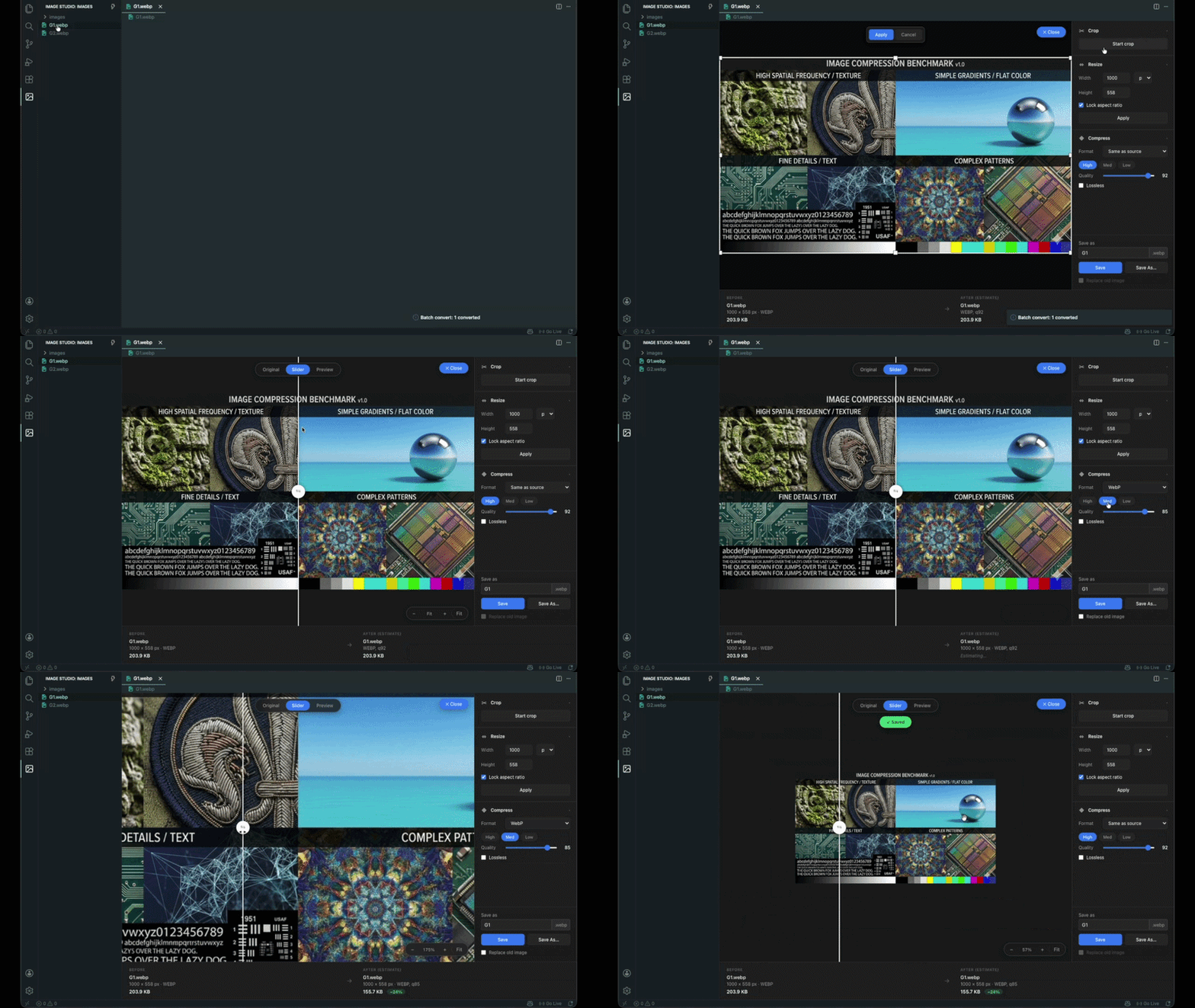
- GUI — click an image in the Explorer, edit in the custom editor, save. See What it does below.
- AI / MCP — tell Claude "convert all PNGs in /icons to webp quality 80" and the bundled
image-studio-mcp server runs the job on your disk. Same sharp engine, same local-only privacy.
What it does
- Opens image files as a custom editor — PNG / JPG / WebP / AVIF. Right-click any supported file → it opens in Image Studio instead of the generic viewer.
- Crop with 8-handle overlay. Drag, press Enter to apply or Esc to cancel.
- Resize with aspect ratio lock, width/height in
px or %.
- Compress — change format or dial in quality with presets (High 92 / Med 85 / Low 75) or a custom slider. Lossless toggle for WebP / AVIF.
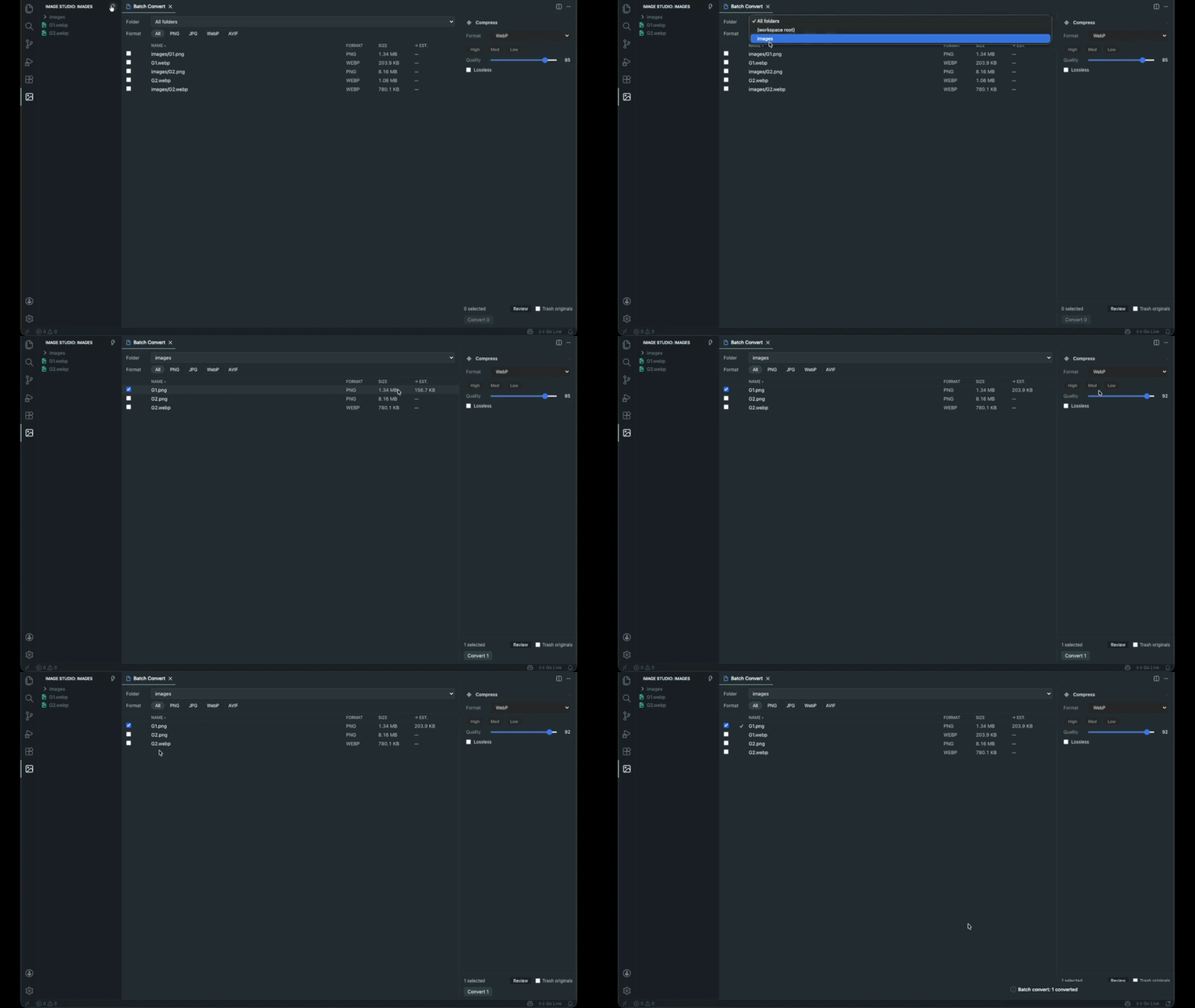
- Batch Convert — convert dozens of images in one go. Click the ⚡ icon in the sidebar header, multi-select across folders, pick a format + quality, run.
- Compare modes — see the effect of your changes before saving:
- Original — just the source file.
- Slider — draggable reveal handle, split the view live.
- Preview — only the compressed output, full-screen, to inspect artifacts.
- Zoom & pan —
Ctrl+scroll (or pinch) to zoom, drag to pan, double-click to reset.
- Before/After info panel — filename, dimensions, format, file size, and a
−87% green reduction badge when the new file is smaller.
- Save & Replace — change format to WebP and tick "Replace old image" → the original is moved to the system Trash after save. Reversible via the OS.
- Activity Bar sidebar — browse every image in your workspace in a tree, click to open. Respects
.gitignore-style excludes.
Batch Convert
Click the ⚡ icon in the "Images" sidebar header to open a bulk converter view. Pick a folder from the dropdown, filter by source format (PNG / JPG / WebP / AVIF), multi-select images by checkbox, set the target Compress settings on the right, and hit Convert.
- Estimated post-compression size for each selected row, recomputed live as you change format / quality.
- Conflict pre-flight — if a target like
foo.webp already exists for a source foo.png, you get a Skip these / Overwrite all / Cancel modal before any file is touched.
- Per-row status — ⏳ pending → 🔄 in-progress → ✓ done / ✗ failed. Errors don't abort the batch; failed rows show the reason in the tooltip.
- Cancel mid-run — finishes the in-flight file then stops, no half-written outputs.
- Trash originals — toggle in the footer; cross-extension conversions move the source to the system Trash on success.
How it works
- Open a folder containing images.
- Click the Image Studio icon in the Activity Bar (or press
Cmd+Shift+\ on Mac / Ctrl+Shift+\ elsewhere).
- Pick an image from the tree — it opens in a custom editor tab.
- By default you see a clean view (image + file info). Click ✏ Edit top-right to reveal the edit panel.
- Change Format / Quality / Resize / Crop. The extension re-encodes via sharp in the background (debounced ~300 ms) and shows:
- The estimated output size with reduction % badge.
- A live preview image in Slider / Preview mode.
- Press Save. If you changed the format, a modal confirms whether to save as the new extension alongside the original, or choose Save As…
- Optionally check Replace old image to move the original to Trash on save.
All image operations run through sharp inside VSCode's extension host — no cloud, no uploads, no data leaves your machine.
Keyboard shortcuts
| Shortcut |
Action |
Cmd+Shift+\\ / Ctrl+Shift+\\ |
Open Image Studio sidebar |
Cmd+S |
Save current image |
Cmd+Backspace / Ctrl+Delete |
Move the open image to Trash |
Enter (in sidebar) |
Rename the focused image |
F2 (in sidebar) |
Rename the focused image |
Cmd+Backspace (in sidebar) |
Move the focused image to Trash |
Enter (in crop) |
Apply crop |
Esc (in crop) |
Cancel crop |
Ctrl+scroll |
Zoom in/out on the canvas |
Drag when zoomed |
Pan |
Double-click |
Reset zoom to Fit |
Rebind anything in Preferences → Keyboard Shortcuts — search "Image Studio".
Settings
Search "Image Studio" in Settings (Cmd+,):
| Setting |
Default |
Description |
imageStudio.defaultCompareMode |
off |
Default compare mode when opening a new image (Off / Slider / Preview). |
imageStudio.defaultQuality |
92 |
Quality preset for lossy formats (75 / 85 / 92). |
imageStudio.excludeFolders |
["node_modules", ".git", "dist", "out", "build", ".next", ".vscode", ".idea"] |
Folder names skipped in the sidebar tree. |
Read & write: PNG, JPEG, WebP, AVIF.
Lossless encoding is available for WebP and AVIF — note that quality 100 is not the same as lossless: quality 100 is the max-quality lossy encoder, while lossless uses a different codec (VP8L for WebP, AV1 lossless for AVIF) that guarantees pixel-identical output.
Privacy
Nothing leaves your machine. All encoding runs locally through sharp's native libvips binary bundled in the extension.
AI counterpart — image-studio-mcp
Image Studio ships with a companion MCP server so Claude Code, Cursor, or Claude Desktop can convert images on your disk via natural language ("convert all PNGs in /icons to webp quality 80"). It's independent from this extension — install it separately with one command:
claude mcp add --transport stdio --scope user image-studio -- npx -y image-studio-mcp
Five tools: get_image_info, convert_image, resize_image, crop_image, batch_convert. Same sharp-based engine, same privacy model (everything local, no uploads).
Full docs: image-studio-mcp on npm.

