PUNCHCARD - Work Time Statistics
Track active coding time, keystrokes, and code metrics across projects with automatic AFK detection.


Features
🕐 Time Tracking
- Per-Project Tracking: Track time spent on each workspace/project individually
- Global Statistics: View combined statistics across all your projects
- Automatic AFK Detection: Pauses tracking when you're away (configurable threshold)
- Session Management: Automatically starts new sessions when you return from AFK
📊 Metrics Tracked
- Total active coding time
- Lines added and deleted (typed vs bulk/paste operations)
- Characters added and deleted
- Total keystrokes (actual key presses, not pasted characters)
- Number of sessions
- Last active timestamp
📈 Visualization
- Interactive charts powered by Chart.js
- Daily, weekly, and monthly trends
- Keystrokes distribution by project
- Lines changed comparison (typed vs bulk operations)
- Period-based views: Switch between Today, This Week, This Month, and All Time
- All summary cards and project stats update dynamically per selected period
- Real-time session timer in status bar
- Individual stat reset buttons for fine-grained control
🔄 Data Sync & Management
- Uses VS Code's built-in globalState sync
- Your statistics sync automatically across machines
- Robust sync merge logic: Sessions are the source of truth, preventing time data loss
- Intelligent conflict resolution: keeps most complete session data when merging
- Export/import data via JSON for manual backup
- Reset individual stats or entire projects
- Sync & Debug Log panel: collapsible log viewer with category/level filtering
- Force sync check and clear logs from within the statistics panel
Installation
- Open VS Code
- Go to Extensions (
Ctrl+Shift+X)
- Search for "PUNCHCARD - Work Time Statistics"
- Click Install
Or install from command line:
code --install-extension punchcard.punchcard-work-time-statistics
Usage
Status Bar
The extension shows your current session time and today's total time in the status bar. Click it to open the full statistics panel.

Commands
Open the Command Palette (Ctrl+Shift+P) and type:
| Command |
Description |
PUNCHCARD: Show Statistics |
Open the statistics WebView panel |
PUNCHCARD: Reset Current Project Statistics |
Reset stats for current workspace |
PUNCHCARD: Reset All Statistics |
Reset all tracked statistics |
PUNCHCARD: Export Data to JSON |
Export all data to a JSON file |
PUNCHCARD: Import Data from JSON |
Import and merge data from a JSON file |
PUNCHCARD: Check Sync Status |
Check sync requirements and current data summary |
PUNCHCARD: Force Sync Check |
Force an immediate sync data check |
PUNCHCARD: Clear Sync Log |
Clear the sync debug log entries |
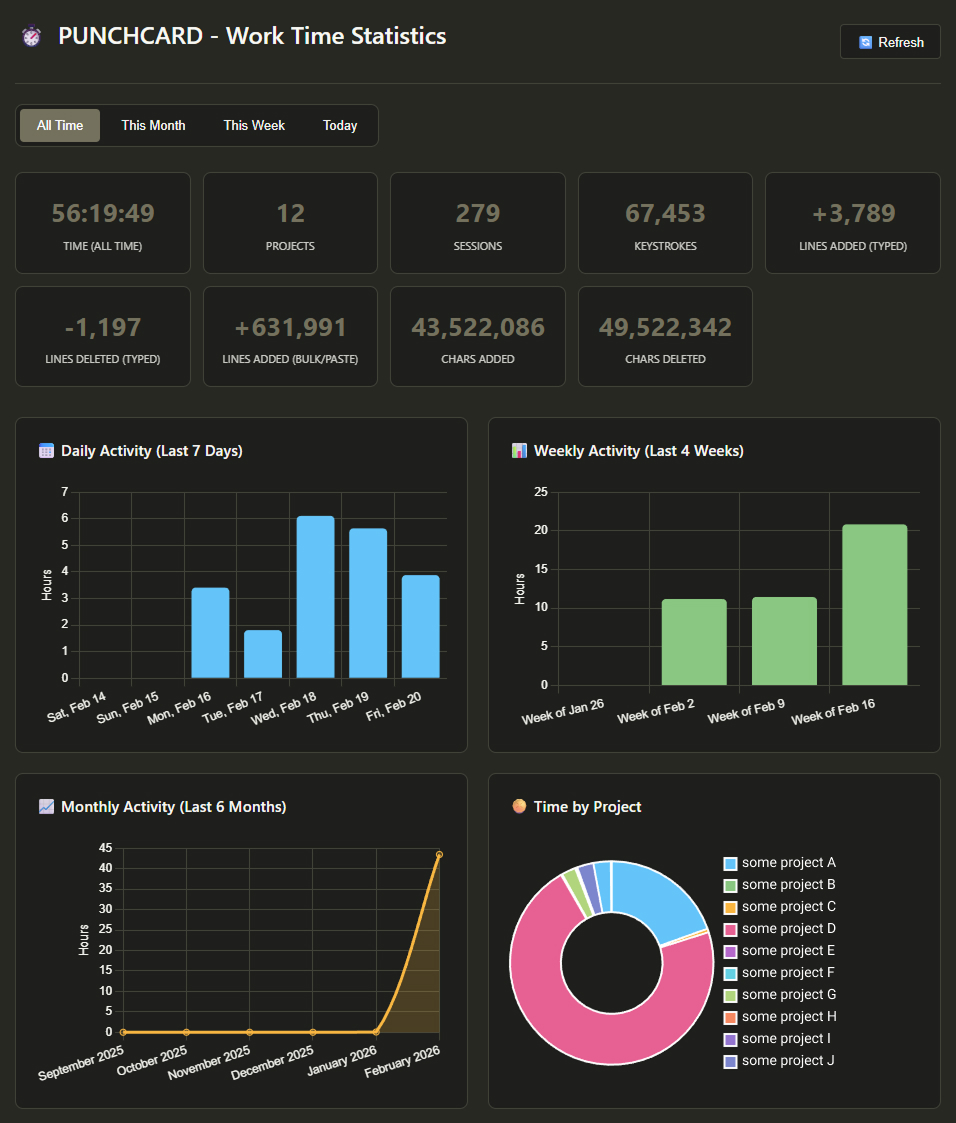
Statistics Panel
The statistics panel shows:
- Period Tabs: Switch between Today, This Week, This Month, and All Time views
- Summary Cards: Total time, projects, sessions, keystrokes, lines added/deleted, characters — all filtered by selected period
- Charts: Daily, weekly, and monthly activity trends + time by project doughnut chart
- Projects: Per-project detailed metrics for the selected period
- Sync & Debug Log: Expandable section with machine info, sync events, and filterable log entries
Configuration
Configure the extension in your settings.json:
{
  "punchcardWorkTimer.afkThreshold": 300000,
  "punchcardWorkTimer.trackOnStartup": true
}
Settings
| Setting |
Type |
Default |
Description |
punchcardWorkTimer.afkThreshold |
number |
300000 |
Time in milliseconds before user is considered AFK (default: 5 minutes) |
punchcardWorkTimer.trackOnStartup |
boolean |
true |
Start tracking time automatically when VS Code opens |
How AFK Detection Works
The extension monitors your activity through:
- Text editing (typing)
- Cursor movement
- Scrolling
- File switching
When no activity is detected for the configured threshold (default 5 minutes), tracking pauses automatically. When you resume activity, a new session begins.
Sync Across Devices
For statistics to sync across your devices:
- Settings Sync must be enabled in VS Code (
Ctrl+Shift+P → "Settings Sync: Turn On")
- "UI State" must be checked in sync preferences (globalState syncs under UI State)
- Use the same Microsoft/GitHub account on all devices
- Run "Settings Sync: Sync Now" to force immediate sync
- Reload VS Code on other devices after syncing
Troubleshooting Sync:
- Use
PUNCHCARD: Check Sync Status command to verify setup
- Export/import data manually if needed using the JSON commands
- The extension uses session-based merging to ensure no time data is lost
- Sessions are automatically deduplicated by start time across devices
- When sessions conflict, the one with longer duration (more complete) is kept
Data Structure
Your statistics are stored in VS Code's globalState and synced via Settings Sync:
{
  "projects": {
    "project-name": {
      "totalTime": 0,
      "linesAdded": 0,
      "linesDeleted": 0,
      "linesAddedBulk": 0,
      "linesDeletedBulk": 0,
      "charactersAdded": 0,
      "charactersDeleted": 0,
      "keystrokes": 0,
      "sessions": [],
      "dailyMetrics": {
        "2026-02-17": {
          "time": 0,
          "keystrokes": 0,
          "linesAdded": 0,
          "linesDeleted": 0,
          "linesAddedBulk": 0,
          "linesDeletedBulk": 0,
          "charactersAdded": 0,
          "charactersDeleted": 0
        }
      },
      "lastActive": 0
    }
  },
  "totalTimeAllProjects": 0,
  "totalKeystrokes": 0
}
Privacy
- No external services: All data stays within VS Code
- No tracking: We don't collect any personal information
- Local storage: Data is stored in VS Code's globalState
- Settings Sync: If enabled, data syncs through Microsoft's Settings Sync
Development
Building from Source
# Clone the repository
git clone https://github.com/zakladwebdeweloperski/punchcard-work-time-statistics-release.git
cd punchcard-work-time-statistics

# Install dependencies
npm install

# Compile
npm run compile

# Package extension
npm run vsce:package
Running Tests
# Compile tests
npm run compile-tests

# Run tests
npm test
Contributing
Contributions are welcome! Please feel free to submit a Pull Request.
- Fork the repository
- Create your feature branch (
git checkout -b feature/amazing-feature)
- Commit your changes (
git commit -m 'Add amazing feature')
- Push to the branch (
git push origin feature/amazing-feature)
- Open a Pull Request
License
MIT License - see LICENSE file for details.
Changelog
See CHANGELOG.md for release history.
Support
If you encounter any issues or have feature requests, please open an issue on GitHub.
Made with ❤️ for developers who want to track their coding time

