Kanban Bowl
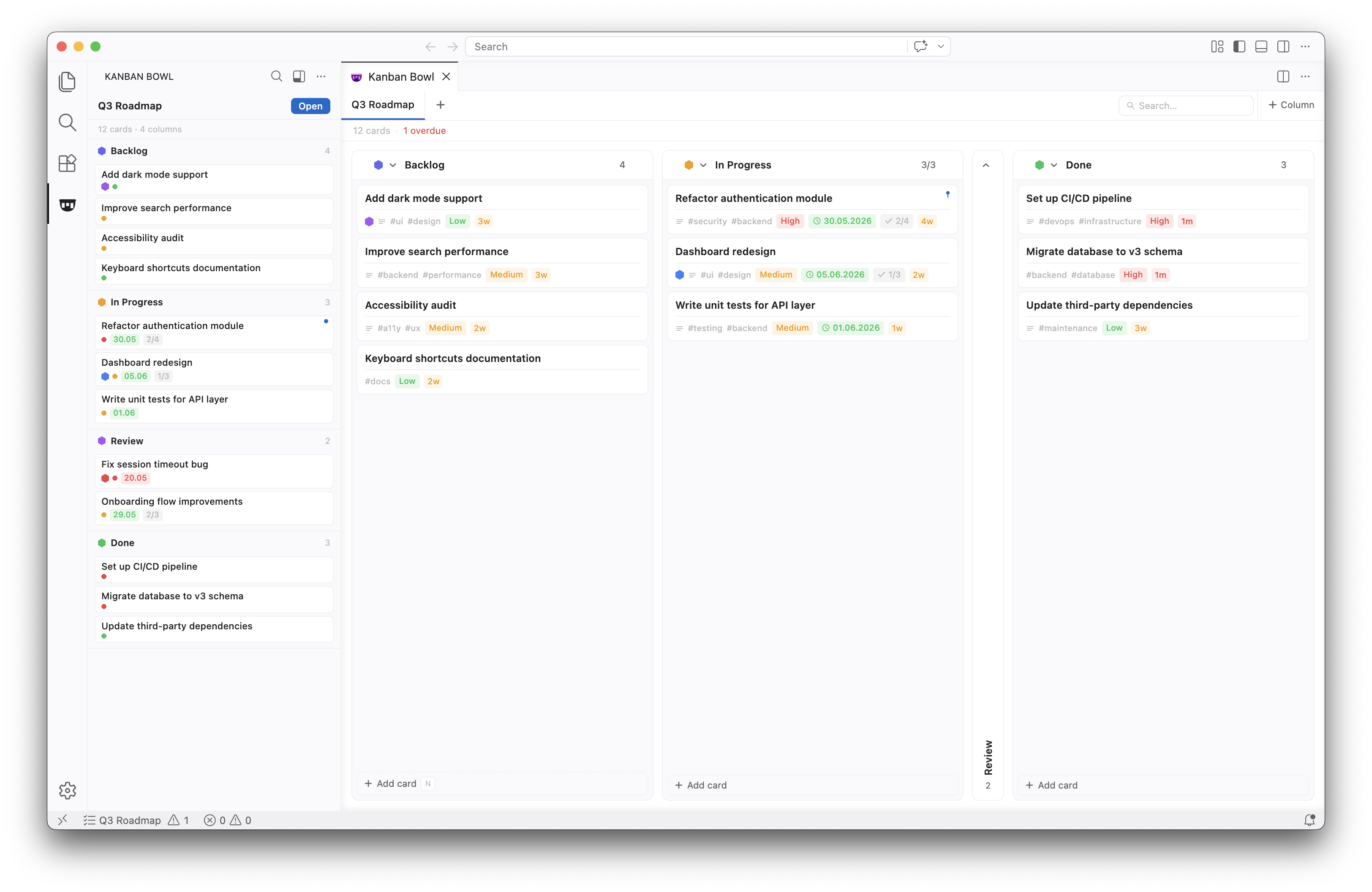
A lightweight Kanban board inside VS Code — no account, no cloud, no tracking.
Open the panel via the activity bar icon or press Cmd+Shift+K (Mac) / Ctrl+Shift+K (Windows/Linux).
Keyboard Shortcuts
| Shortcut |
Action |
Cmd+Shift+K / Ctrl+Shift+K |
Open Kanban Board |
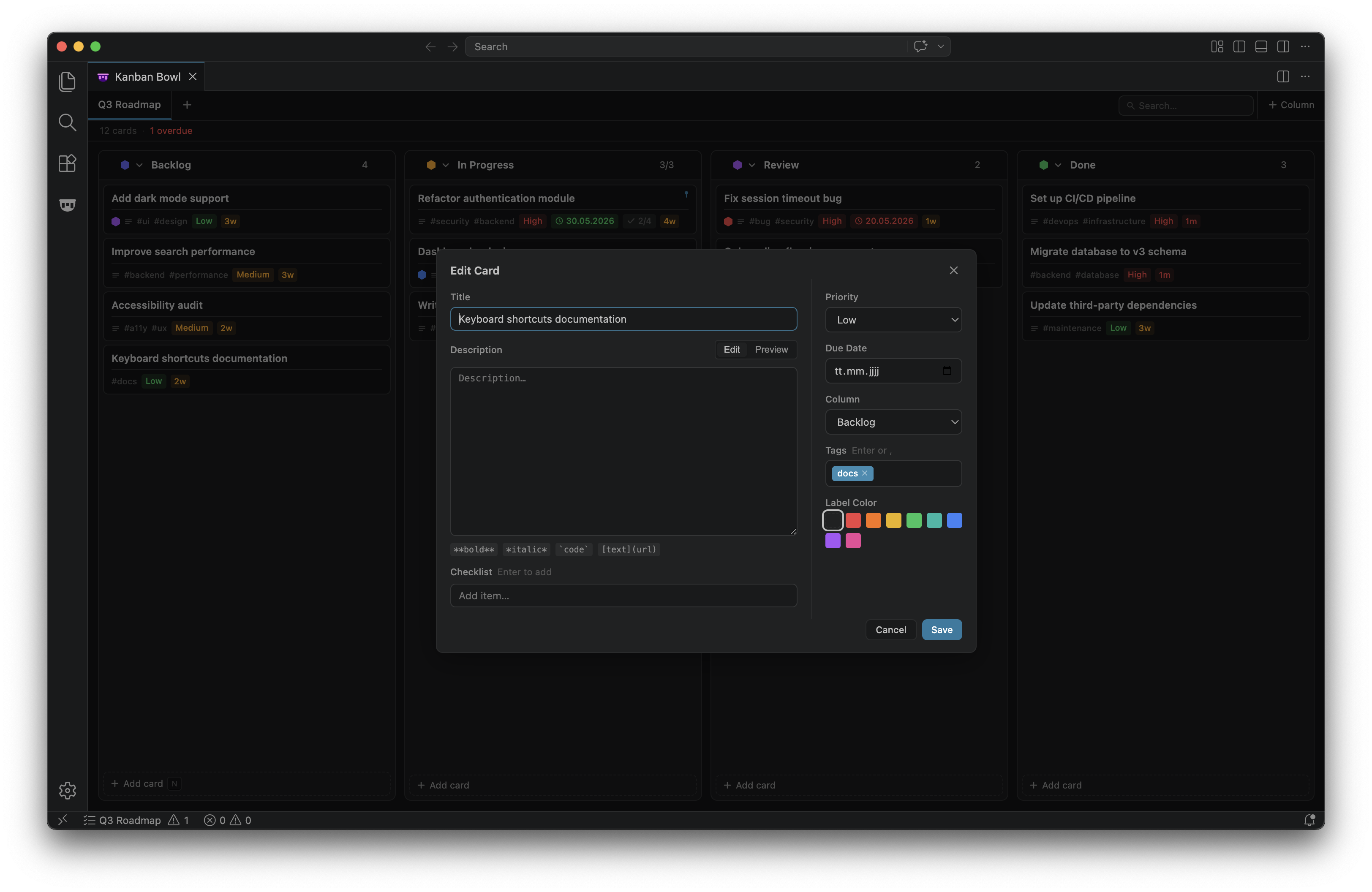
N |
Add new card (when no modal is open) |
Enter |
Submit modal form |
Escape |
Close modal / context menu / clear search |
Configuration
Settings are available under Extensions → Kanban Bowl in VS Code Settings.
kanban-bowl.workspaceBoards
Type: boolean — Default: true
When enabled, each workspace/project stores its own boards independently. Disable to use a single global board across all projects.
kanban-bowl.defaultColumns
Type: array — Default: To Do, Doing, Done
Defines the columns created automatically when adding a new board.
"kanban-bowl.defaultColumns": [
  { "name": "Backlog", "color": "#6366F1" },
  { "name": "In Progress", "color": "#F59E0B" },
  { "name": "Review", "color": "#3B82F6" },
  { "name": "Done", "color": "#22C55E" }
]
Data & Privacy
All data is stored locally in VS Code's built-in extension storage — nothing leaves your machine. No telemetry, no network requests, no third-party dependencies at runtime. VS Code Settings Sync does not sync Kanban Bowl data.
Security notice: Board data is stored as plain text on disk (VS Code does not encrypt extension storage). Do not store passwords, secret keys, or similarly critical credentials in Kanban Bowl.
Building from source
npm install
npm run build
Running in debug mode
- Open the project in VS Code
- Press
F5 — VS Code opens a new Extension Development Host window with the extension loaded
- In the new window, click the Kanban Bowl icon in the Activity Bar or press
Cmd+Shift+K
Installing as VSIX
npm install -g @vscode/vsce
vsce package
code --install-extension kanban-bowl-1.0.0.vsix
License
Apache License 2.0 — © 2026 Yannick Boog

