NodeSwitcher
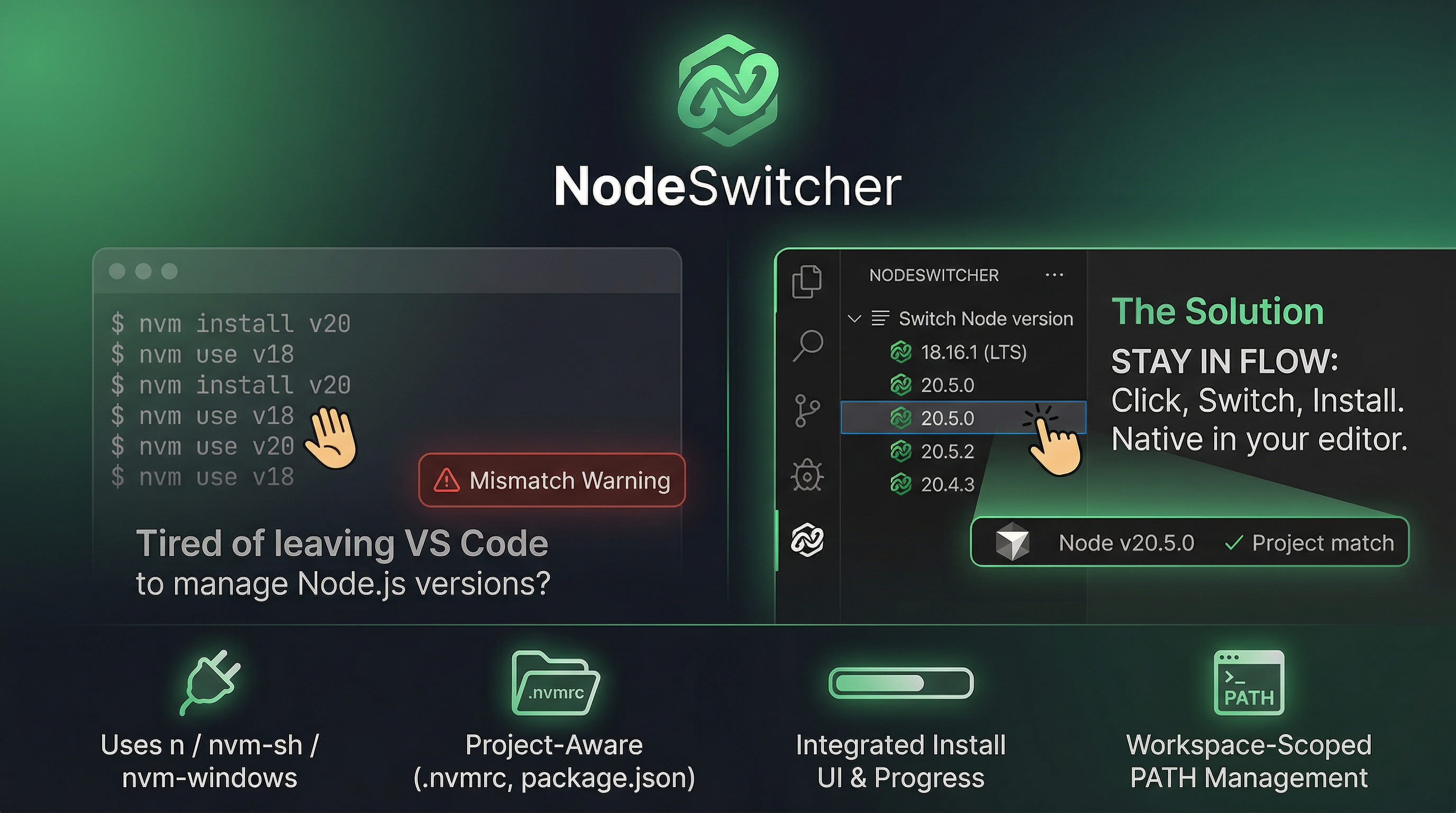
NodeSwitcher is a node version manager for Visual Studio Code: switch and install Node.js from the status bar and sidebar using nvm (nvm-sh / nvm-windows) or n — the same CLIs you use in the terminal.
| Platform |
Supported managers |
| macOS / Linux / Unix |
n (preferred when both are installed) or nvm-sh |
| Windows |
nvm-windows only (not n or nvm-sh) |
The extension detects what is available on your PATH, runs the right CLI in a login shell, and applies the chosen Node to integrated terminals via VS Code’s environment API (PATH, and N_PREFIX when using n)—including already-open terminals when shell integration is enabled (default for supported shells).
Table of contents
Screenshots
Version picker (Quick Pick)
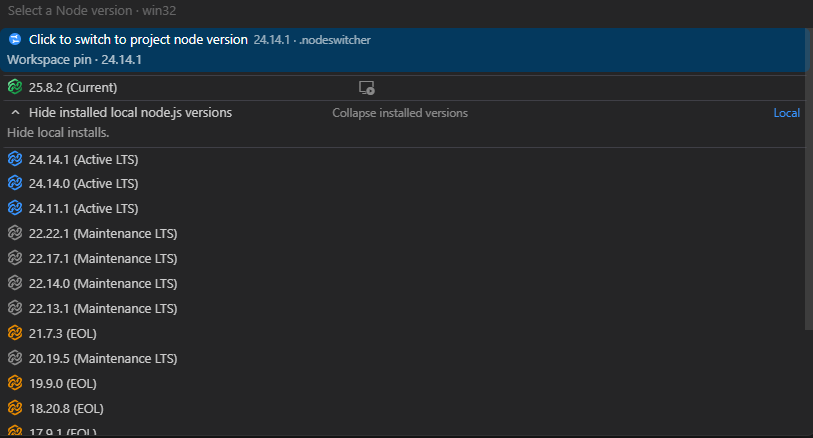
Click the Node item in the status bar to open the picker: installed versions, optional remote list, and project pin when applicable.
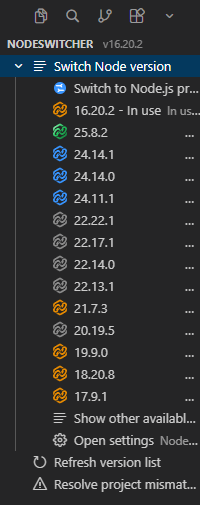
Use the NODESWITCHER activity bar view to browse versions, refresh, and apply without opening the picker.
Project declaration scan
While scanning the workspace, NodeSwitcher shows progress for .nodeswitcher, package.json, .npmrc, .nvmrc, and related sources.

Project version mismatch
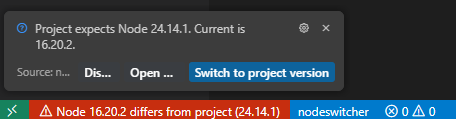
When the active Node does not match the project’s declared or pinned version, the status bar warns you and you can resolve it from notifications or commands.
Why NodeSwitcher
- Stay in the editor — pick a version from the status bar or the NODESWITCHER activity bar view without memorizing CLI flags.
- Install missing versions — when a version is not installed locally, NodeSwitcher can drive
n / nvm install flows (with progress in the UI where applicable).
- Project-aware — reads declared Node constraints from your repo and highlights when the active version does not satisfy them.
- Recovery built in — guided repair for permission and prefix issues, plus a dedicated flow when
n is installed but no default Node is active yet.
Requirements
Windows
- nvm-windows must be on your
PATH when VS Code starts.
- NodeSwitcher does not use WSL
nvm or the n binary on Windows.
macOS / Linux / Unix
n and/or nvm-sh available in the environment VS Code inherits (typically the same as your login shell).- If both are present, NodeSwitcher prefers
n.
- Homebrew-style nvm paths and common Linux layouts are accounted for when locating
nvm.sh.
General
- VS Code
^1.105.0 or newer (see engines in package.json; Cursor builds that match this API version are supported).
- A folder opened as a workspace is recommended so project detection (
.nodeswitcher, package.json, etc.) works as intended.
This section is the living status of validation and what we want to improve next. Reports from real setups (especially non-default shells and old OS releases) are welcome—see Contact or Marketplace Q&A.
| Platform |
Current status |
Planned / needed |
| macOS |
Day-to-day use and packaging have been exercised on macOS Sequoia (recent Apple Silicon / current-gen environment). |
Legacy macOS (older releases, Intel-only machines, unusual /usr/local or Homebrew layouts) needs more coverage. Path and shell resolution for n / nvm could be tightened based on that feedback. |
| Linux |
Code paths target common distros and typical nvm.sh locations. |
Broader manual testing on multiple distributions and login-shell configurations; automated smoke tests where feasible. |
| Windows |
nvm-windows integration is implemented per design. |
Further testing across installs (user vs system scope, PATH quirks, antivirus) and VS Code versions matching engines. |
Improvements we care about: clearer diagnostics when a manager is missing, more predictable behavior when PATH differs between GUI VS Code and a login terminal, and optional automated checks in CI for packaging and lint (full end-to-end n/nvm tests still require real OS environments).
Quick start
- Install n / nvm-sh (Unix) or nvm-windows (Windows).
- Install the NodeSwitcher extension from the Marketplace (or load the
.vsix from source).
- On first launch, review the NodeSwitcher — What you need webview (or run NodeSwitcher: Show install requirements from the Command Palette).
- Click the Node entry in the status bar (or open the NODESWITCHER sidebar) and choose a version.
- In integrated terminals, run a command or get a new prompt: with shell integration on, the updated
PATH applies to terminals that are already open; if node -v is still wrong, open a new terminal or check that shell integration is enabled for your shell.
Features
Status bar
- Shows the currently active Node version (as read from your manager, with sensible fallbacks).
- Click opens the version picker (Quick Pick).
- Optional minimal mode (icon-only) and configurable priority (see Settings).
- When the active version matches the project’s declared constraint, the status bar can use custom theme colors you control (see Theme colors).
Version picker (Quick Pick)
- Lists installed versions from
n or nvm.
- Optional section for other available versions (remote listing), capped by
nodeswitcher.maxOtherAvailableVersions.
- Supports install flows for versions not yet present locally.
- Reflects project pin / declared range when applicable.
- Activity bar: open the NODESWITCHER view (same logo as branding).
- Tree shows current, installed, togglable available versions, and actions to apply or open path & uninstall details for a version.
- Refresh and flows to resolve project mismatch when the workspace expects a different Node.
Project Node version
NodeSwitcher determines a “project” Node expectation by consulting sources in order (first match wins):
.nodeswitcher in the workspace root — JSON with a current field (and optional backend, history).package.json engines.node (semver range)..npmrc (node-version / related) in the project, then user home..nvmrc, .node-version, and similar files in the workspace.
Selecting a version from the picker can persist the choice into .nodeswitcher so the team shares the same pin.

contact@wideshot.dev
For any issue or bug, send a message any time. Reports are read and fixes are prioritized so NodeSwitcher stays simple to use and distribution-agnostic across Windows, Linux, and macOS.
Feel free to use Q&A on the Visual Studio Code Marketplace listing, and to leave ratings and reviews. Every review is read and taken into account to keep improving NodeSwitcher.
Settings
| ID |
Description |
nodeswitcher.showInStatusBar |
Show or hide the status bar entry (default: true). |
nodeswitcher.minimalStatusBar |
Compact icon-only status bar (default: false). |
nodeswitcher.statusBarPriority |
Left status bar sort order; reload after change. |
nodeswitcher.maxOtherAvailableVersions |
Cap for “other available” versions (default 200, max 2000). |
nodeswitcher.nPrefix |
Directory used as N_PREFIX when NodeSwitcher runs n (subprocesses and scoped integrated terminals). Use a user-writable path (e.g. under your home directory) if /usr/local/n is not writable. Align with your shell profile if you set N_PREFIX there; reload after change. |
Theme colors
You can override these in Settings (JSON) under workbench.colorCustomizations:
| Color ID |
Meaning |
nodeswitcher.statusBarMatchBackground |
Status bar background when active Node matches the project constraint. |
nodeswitcher.statusBarMatchForeground |
Foreground for the same “match” state. |
Defaults are green-tinted for dark, light, and high-contrast themes.
First-run “install requirements” panel
The first time the extension activates on your machine, it may open NodeSwitcher — What you need, summarizing:
- Windows: nvm-windows only; link to releases.
- macOS / Linux:
n (brew / npm global) or nvm-sh; note that n wins when both exist; short note on nodeswitcher.nPrefix for permission issues.
Closing the panel (or Got it) records that you saw it. Use NodeSwitcher: Show install requirements to open it again without resetting that flag.
Installer repair panel
A webview (not static HTML only) drives repair by posting messages to the extension host, which can:
- Run a chained sequence of remediation steps until
n ls or nvm probes succeed (with cancel support).
- Run individual steps (user prefix /
N_PREFIX in settings, ownership hints, Homebrew n, nvm install script, sudo npm global install — as applicable to your OS).
- Open the NodeSwitcher install terminal, settings (
nPrefix), external docs, retry last switch, and version picker.
- Show tailored UI for
n_no_active (e.g. send n lts to the install terminal, poll until an active Node is detected).
Limits (by design): sudo passwords and interactive installer prompts still happen in the real integrated terminal; the webview orchestrates and reflects polling results.
How switching works (technical)
- Detection: The extension probes for
n and nvm with timeouts and caches a backend choice (with invalidation when things break).
- Apply: For
n, it runs n <version> (or equivalent) then resolves the node binary (with retries when n bin reports version required). For nvm, it uses a bash login wrapper with nvm use. On Windows, PowerShell + nvm-windows.
- Environment:
vscode.EnvironmentVariableCollection prepends the Node bin directory to PATH for integrated terminals (workspace-scoped when a folder is open), using both process creation and shell integration mutators so open terminals can pick up changes when the shell supports it. For n, optional N_PREFIX is applied from nodeswitcher.nPrefix when set.
- Errors: Failures can open the error webview, notifications, and/or the repair webview depending on error class (e.g. Unix permission vs “no active Node” for
n).
Troubleshooting
| Symptom |
What to try |
n bin / “version required” |
In a terminal run n lts or pick a version again; use the first-time setup / n_no_active section in the repair panel; ensure N_PREFIX / nodeswitcher.nPrefix is consistent. |
mkdir / permission denied under /usr/local/n |
Set nodeswitcher.nPrefix to e.g. ~/.n (expanded to your home directory), reload; or fix ownership; use Installer repair for guided steps. |
| Windows: nvm not found |
Install nvm-windows and restart VS Code so PATH is picked up. |
| Old PATH in terminal |
Ensure shell integration is enabled for your shell; run a new command or prompt cycle. If it still shows the old Node, open a new terminal. |
| Picker empty or wrong |
Refresh versions; check that your shell initializes n / nvm for non-interactive login shells if you rely on profile-only setup. |
Development
cd nodeswitcher
npm install
npm run compile    # webpack dev build
npm run lint       # eslint
npm run package    # production webpack only
npm run build:release   # readme:logo → icons:build → package (same as vscode:prepublish)
One-shot release (e.g. manual Marketplace upload): from nodeswitcher/, run npm run release -- patch (or minor / major). That runs lint → npm version bump → inserts a CHANGELOG.md section (Release X.Y.Z., edit later if you want) → publish:vsix → git add -A at repository root (every tracked change is included—clean up or commit beforehand) → commit chore(release): nodeswitcher vX.Y.Z → annotated tag vX.Y.Z → git push branch and tag. Append --no-push to stop before push. Then upload the VSIX from publishBuild/ (filename = name + version from package.json).
Branding assets: media/logo.svg is the green gradient mark (activity bar / views). media/logo-status-glyph.svg is a currentColor shape for the status bar font (tints with STATUS_BAR_FOREGROUND, usually white). Run npm run readme:logo to regenerate media/readme-logo.png and media/extension-icon.png (128px store icon from logo.svg; both run in vscode:prepublish).
Icons: npm run icons:build regenerates the status bar font from SVG (see scripts/build-status-font.mjs).
VSIX: @vscode/vsce names the artifact {name}-{version}.vsix using package.json name and version only (no separate “build version”). Run npm run publish:vsix to produce publishBuild/nodeswitcher-<version>.vsix after prepublish. Plain npx @vscode/vsce package writes the same filename to the current directory.
License
See the repository’s license file (if present) or publisher terms on the Marketplace listing.
Links

