DeepSeek Harness
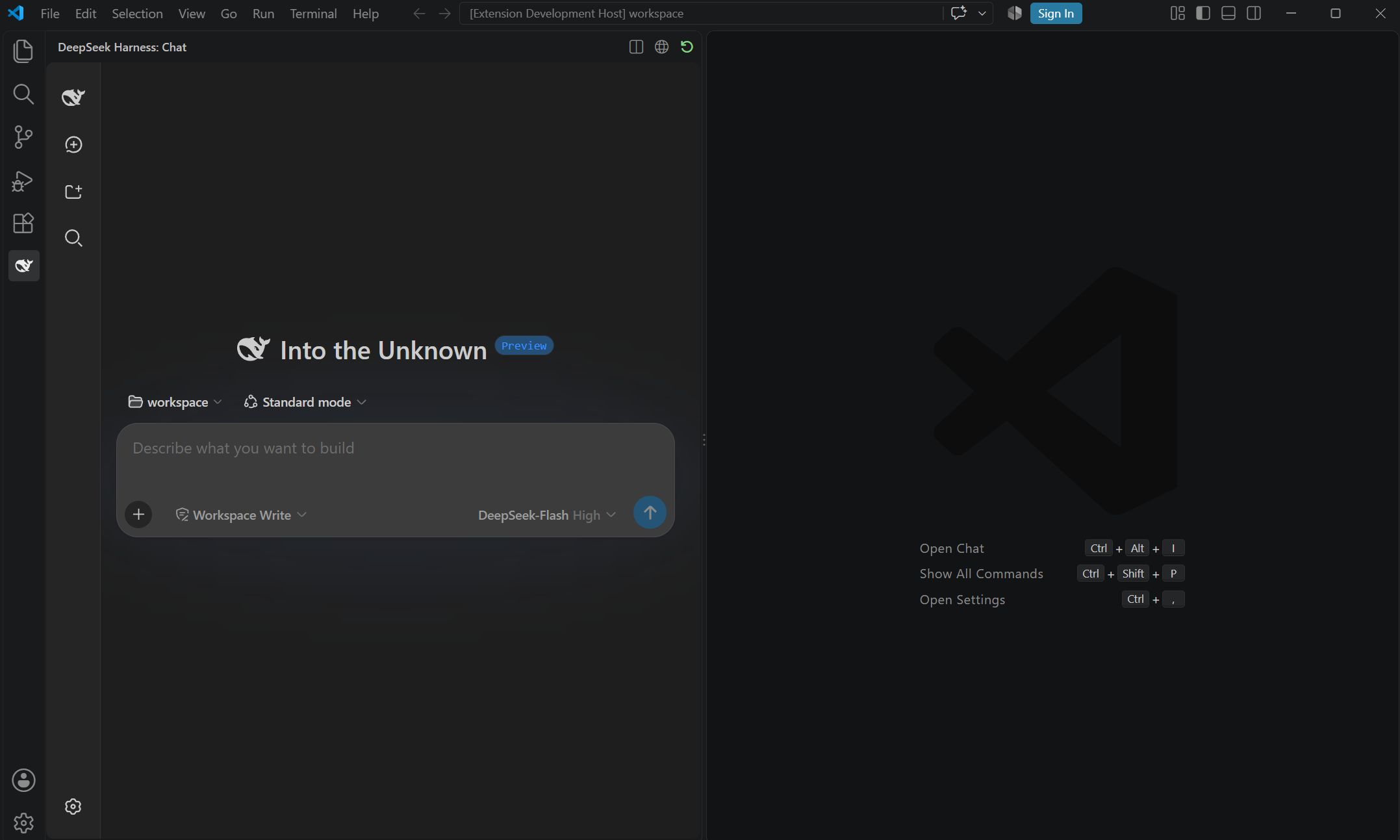
Agentic coding, natively in VS Code. This extension runs the full
DeepSeek Harness web surface
inside a VS Code sidebar — chat with your codebase, let the agent plan and edit,
review its changes, and roll back safely. Same engine, same data as the CLI and
desktop editions.
Features
- Sidebar chat, one click away — a persistent activity-bar panel that opens
into the current project automatically; switch to a full-width editor tab when
you need more room.
- Workspace-aware by default — the backend adopts the folder you have open
(the folder of the file you're currently editing, in multi-root workspaces)
and re-attaches when you switch projects. Each project gets an isolated data
root, so multiple VS Code windows on different projects never cross-contaminate.
- Native VS Code theming — Dark+ / Light+ / High Contrast palettes mapped
onto the harness design tokens, live-switching with your theme. Editor code
font is inherited via
editor.fontFamily.
- Editor ↔ chat integration — right-click to Explain selection, Review
selection, or Add selection to prompt (context, diagnostics, and git status
are attached automatically). File paths in chat open in the editor at the
right line.
- Safe undo — file changes made during a task are tracked; Undo last
changes restores them without touching uncommitted work that predates the task.
- Permission modes — flip between read-only, workspace-write, and full-access
from the status bar or command palette.
- Live activity — the status bar, sidebar badge, and native notifications
keep you informed while the agent works.
Getting Started
- Install the extension (
.vsix or Marketplace) and reload VS Code.
- Open the DeepSeek Harness icon in the activity bar.
- Configure a model and API key in the panel settings on first run. If you have
used the CLI or desktop edition before, run
DeepSeek Harness: Import configuration and keys from
~/.dsh.
Commands
| Command |
Description |
DeepSeek Harness: Open chat |
Focus the sidebar chat (Ctrl+Alt+D / Cmd+Alt+D) |
DeepSeek Harness: Open in editor tab |
Move the app to a full-width editor tab |
DeepSeek Harness: Open in browser |
Open the backend in your system browser |
DeepSeek Harness: Undo last changes |
Roll back the previous task's file edits |
DeepSeek Harness: Explain selection |
Send the selection plus context to the composer |
DeepSeek Harness: Review selection |
Ask the agent to review the selection |
DeepSeek Harness: Add selection to prompt |
Insert the selection into the composer |
DeepSeek Harness: Switch permission mode |
Read-only / workspace-write / full-access |
DeepSeek Harness: Restart backend |
Restart dsh web (after changing workspace/home) |
DeepSeek Harness: Show logs |
Open the output channel |
DeepSeek Harness: Import config and keys from ~/.dsh |
One-time credential/settings migration |
Settings
| Setting |
Default |
Description |
deepseekHarness.openOnStartup |
true |
Open the sidebar panel on startup |
deepseekHarness.workspace |
"" |
Agent working directory. Empty = the open folder (fallback ~/DeepSeek Harness) |
deepseekHarness.home |
"" |
DSH_HOME root. Empty = per-project isolation (each project gets its own data root under VS Code global storage; sessions, recents and credentials never leak across windows or projects). Set ~/.dsh to share data with the desktop edition (multi-window sharing may cause cross-project jumps — expected) |
deepseekHarness.themeMode |
auto |
auto (follow VS Code) / dark / light |
deepseekHarness.autoContext |
standard |
Context attached to prompts: standard (file, selection, diagnostics) / full (+ git status, open editors) / none |
deepseekHarness.port |
0 |
Backend port; 0 = auto-assign |
deepseekHarness.restartOnCrash |
true |
Auto-restart the backend on failure (exponential backoff) |
deepseekHarness.revealLogOnError |
true |
Reveal logs when the backend fails to start |
How It Works
The extension boots the bundled dsh web backend as a child process (Electron's
Node via ELECTRON_RUN_AS_NODE + --expose-internals, identical to the desktop
edition), then serves the web UI in a webview through a localhost reverse proxy
that injects a small bridge for theming, title sync, link handling, and composer
injection. Tool subprocesses are spawned with hidden console windows.
Workspace auto-detection. The harness GUI restores the "most recent
workspace / last session" stored in DSH_HOME on startup — if every VS Code
window shared one DSH_HOME, a second window would boot into the first
window's project. To prevent this, when deepseekHarness.home is unset the
extension derives a per-project DSH_HOME from the resolved working folder
(…/dsh-home/<name>-<hash>); the same project always maps to the same root
(sessions survive restarts), while different projects never share recency
state. The working folder itself is resolved from the currently active editor:
its containing workspace root in multi-root workspaces, the file's directory in
single-file windows, then the first workspace root. The backend follows when
you switch projects or active editors (paused while the agent is running,
caught up when the turn finishes). Credentials and settings are seeded into a
new project root once from ~/.dsh and from the legacy shared root, so you
don't reconfigure keys per project.
Notes
- Third-party extensions cannot register native sidebar views; this extension
uses a
WebviewView in the activity bar, which behaves identically.
- The backend runs for the lifetime of the VS Code window; closing the window
stops it. Sessions and settings persist independently.
Author
Wentao Jiang · The Chinese University of Hong Kong, Shenzhen
License
MIT
| |