FileBridgeYour server files, right in your editor. Browse, search, and edit FTP/FTPS files with changes saved directly to your server. Installation Launch VS Code Quick Open ( Ctrl+P), paste the following command, and press enter.Copied to clipboard |

FileBridgeSource · Report a bug · Builds and checks Upgrade guide · Known limitations · Support Your server files, right in your editor. Browse remote folders, open files, and save changes directly to your FTP or FTPS server from VS Code or Cursor. Connect once and work with remote files using the editor's familiar Explorer and Save command. Inspired by Remote FS by liximomo, FileBridge brings the same direct editing workflow to a modern FTP/FTPS implementation.
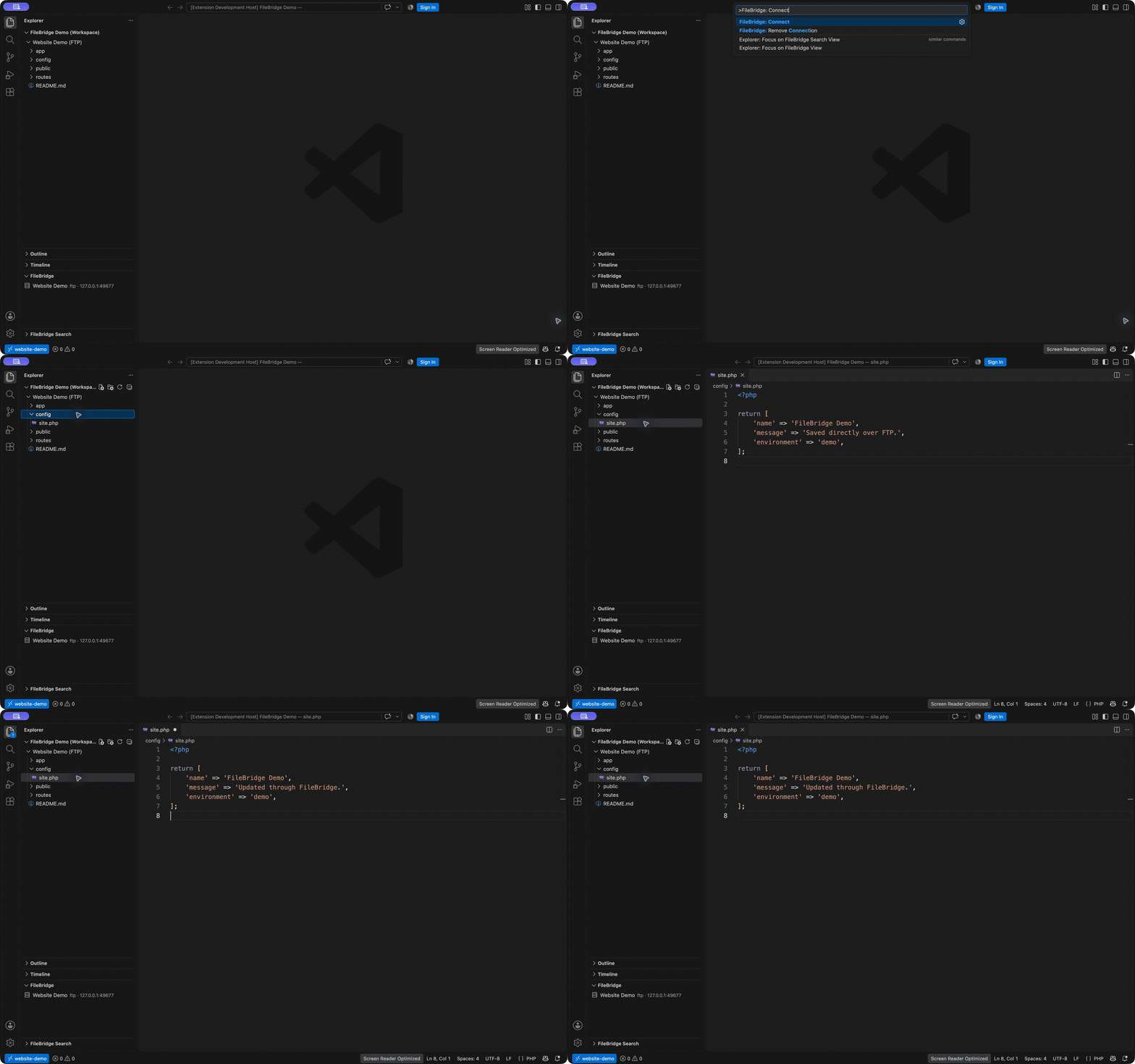
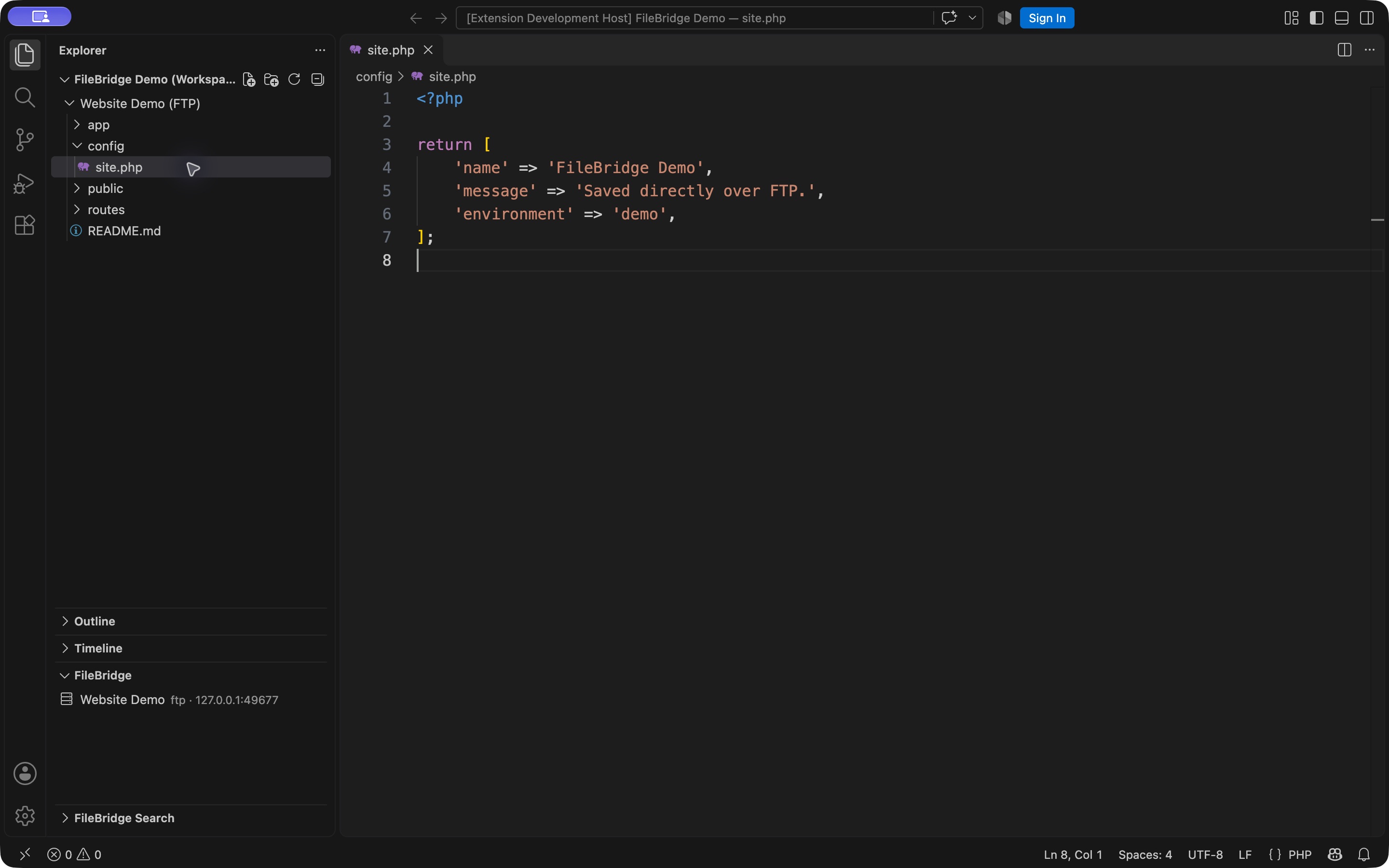
Watch the 15-second demo. Recorded in a separate VS Code window against a disposable local FTP server. The saved file contents were verified on that server. Before installing: desktop VS Code API 1.90+ or compatible Cursor is required. SFTP/SSH and browser editors are unsupported. Remote search uses FileBridge's own command, with default limits of 10 MiB per file and 1,000 matches. Remote folders are virtual workspaces, without full local project synchronization. The separate PhpStorm plugin is experimental and targets build 262 only. Features
Install
FileBridge is published on Open VSX. Availability in Cursor can lag behind the registry. VSIX downloads are also available from GitHub Releases. It requires a desktop editor supporting VS Code API 1.90 or later. The extension details page should show FileBridge, publisher
Webobscure, and identifier Upgrade from an earlier publisherFor a publisher-by-publisher checklist, including the original
Version 0.5.0 uses publisher Webobscure. It installs as a separate extension from
both previous identities: If all your connections and passwords are in To also keep wizard-created connections and passwords saved in secure storage:
The helper transfers data directly between extension contexts. It does not write passwords to files or send them over a network. Imports keep existing connections and passwords in FileBridge and can be retried. The helper retains the legacy data until you choose to uninstall it; it does not provide a remote filesystem. Do not enable the original pre-helper extension alongside the new FileBridge. For later updates under the Webobscure identifier, install the newer VSIX and click Restart Extensions or Reload Window if prompted. Connect with settings.jsonRun FileBridge: Open Settings (JSON) and add your connections under
Save your settings, then select the server in the FileBridge section of Explorer. Its remote folder opens as a workspace folder. You can also run FileBridge: Connect from the Command Palette. Add more entries to connect to multiple servers. Custom ports, such as Connection options
Settings are supported at user and workspace level. This setting is excluded from automatic Settings Sync by default. JSON connections appear alongside connections created with the wizard; they are not copied into wizard storage. Edit or remove JSON connections in Settings. Remove Connection opens Settings for these entries. Changing a password reauthenticates the connection on the next operation. Changing the host, port, protocol, username, or root folder creates a new connection identity. Reconnect from the server list; existing tabs will not save to the new destination. Preserve any edits from those tabs before switching. Connect with the wizardRun FileBridge: Add Server. Enter a display name, protocol, hostname, port,
username, remote folder, save mode, and password. The remote folder must be an
absolute FTP path, such as Once connected, open a file in Explorer, edit it, and press Save. The editor waits for the server operation to finish. File and folder operations are available through the standard Explorer context menu. Commands
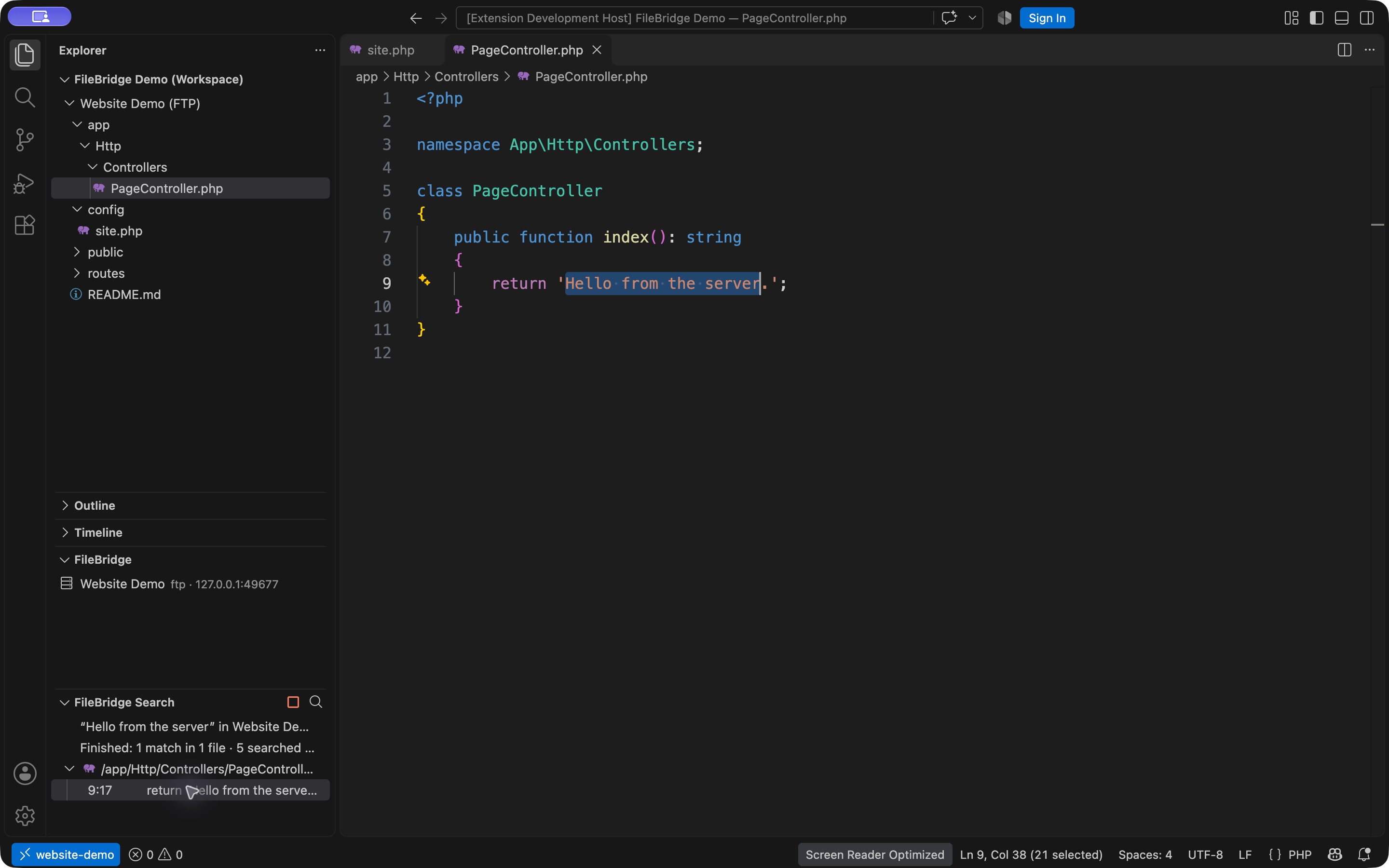
Disconnecting keeps the folder in Explorer so you can reconnect later. Removing a connection keeps files on the server. Wizard connection details can be changed by removing and recreating the connection. Search remote filesRun FileBridge: Search Remote Files from the Command Palette or use the search button in FileBridge. Select a server, enter the text, and choose Ignore case or Match case. To search a specific folder, right-click it in the remote Explorer and choose the same command. Selecting a file searches its parent folder. Results appear in FileBridge Search, grouped by remote path. Click a result to open that file at the matching line. Files do not need to have been opened before searching. Use Cancel in the progress notification or the stop button in the results panel to stop and retain partial results. FTP has no server-side content search: FileBridge downloads candidate files into memory using up to three separate search connections by default. Opening and saving files use their own connection. A large project or a slow connection takes longer. Unsaved editor changes are not included. Search does not upload files or create a persistent local project copy. The search is literal text on one line. It supports UTF-8, including UTF-8 BOM
and CRLF. Binary files, other encodings, symbolic links, and files above the size
limit are skipped and counted. Unreadable files/folders appear as warnings;
cancellation, errors, and reaching the result limit are explicitly indicated.
No folders are excluded by default, and the editor's Optional settings: Exclusions are exact file/folder names anywhere, or paths relative to the chosen search folder. Excluded folders are not traversed; wildcards are not supported. Clear the exclusions to visit all folders. The size limit accepts 1–128 MiB and the result limit accepts 1–50,000 matches. The defaults are 10 MiB and 1,000. Search connections accept 1–5; choose 1 if your hosting limits simultaneous logins. File extensions are case-insensitive suffixes, without wildcards. An empty extension list (the default) includes all file types. Search connections close when the search ends or is cancelled. Results arrive in download order. Use FileBridge's command for remote search. The editor's standard
Passwords and encryptionPasswords entered through the wizard or Change Password are stored in the
editor's encrypted SecretStorage. An explicit To use secure storage for a JSON connection, omit FTPS validates the server certificate. Certificate validation cannot be disabled. Plain FTP transfers both credentials and file contents without encryption. Save modes and recoveryTemporary upload and rename is the default. The upload goes to a temporary file beside the original, then replaces the original by renaming. A failed upload leaves the original in place. The server must allow temporary files and replacement by rename. The replacement may change permissions, ownership, or other attributes. Direct overwrite is available for servers where replacement by rename is
unsuitable. Set Failed saves are reported to the editor, where your edits remain unsaved. Writes are not retried automatically. Check the connection and save again manually. A closed connection is reopened on the next request, unless you explicitly used Disconnect, in which case you must use Connect first. Before saving, FileBridge compares the remote file's size and modification date with the version read when the file was opened. If they differ, saving is blocked so you can preserve your edits and compare them with the current server version. This is an additional check, not file locking: changes within the timestamp's resolution with the same size, and races immediately before rename, may go undetected. Current limitations
DevelopmentSee CONTRIBUTING.md for cross-platform tests and RELEASING.md for versioning, checksums, and automated GitHub releases. GitHub Actions tests actual VS Code instances on Windows and Linux with both 1.90.0 and current stable, and builds/verifies the native PhpStorm plugin. Hosted macOS Intel checks can be enabled in a manual CI run; the same suite also runs locally on macOS, including Apple Silicon. Release packages are assembled only after all checks pass. Reports include the actual tested editor versions and architectures; see the workflow run for results. A native FileBridge for PhpStorm build is available as
Use Node.js 22 or later: Build the one-time legacy migration helper with To debug, open this project in the editor and launch the FileBridge debug
configuration with Integration tests run isolated instances of VS Code and Cursor against local FTP/FTPS fixtures. They do not connect to your servers or alter your normal editor profiles: By default, the tests use editors installed in API references: VS Code API, virtual workspaces, and basic-ftp. Attribution and license notices are included as |