Hurl Client
This extension was developed to serve as the HTTP client for the WSO2 Integrator.
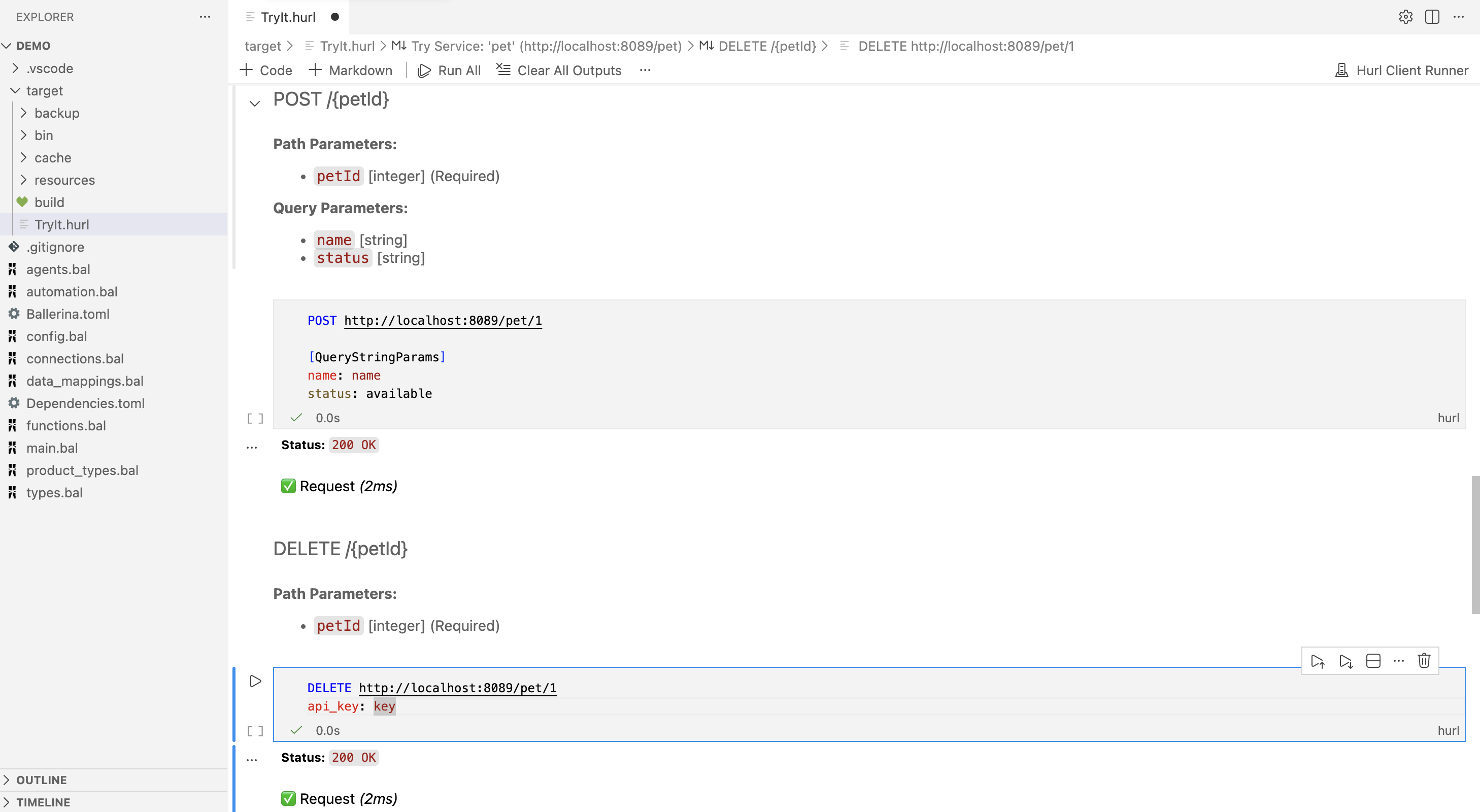
Open, edit, and execute .hurl files as interactive notebooks in VS Code.
Each HTTP request in a .hurl file becomes a runnable notebook cell. Responses are displayed inline as formatted Markdown — status code, response body (pretty-printed JSON), and assertion results. Markdown cells provide rich documentation between requests.
Getting Started
Right-click any .hurl file in the Explorer and choose Hurl Client: Open Hurl Notebook, or run the command from the Command Palette (Cmd/Ctrl+Shift+P).
Commands
| Command |
Description |
Hurl Client: Open Hurl Notebook |
Open a .hurl file as a notebook (also available via right-click in Explorer) |
Hurl Client: Install Hurl |
Manually trigger the managed hurl binary download |
Hurl Client: Import Hurl String |
Create a notebook from a pasted hurl string (prompts for input if called from the Command Palette) |
Hurl Client reads and writes standard .hurl files.
POST https://api.example.com/users
Content-Type: application/json
{
  "name": "Alice"
}
Chaining requests
Each request is its own notebook cell. Run a single cell by itself, and it runs on its own — with no access to variables captured by other cells.
To chain requests, so a variable captured in one is available to the next, run them together: select multiple cells (or use Run All) instead of running one at a time.
POST https://api.example.com/login
Content-Type: application/json
{
  "username": "alice",
  "password": "secret"
}
HTTP 200
[Captures]
token: jsonpath "$.token"

GET https://api.example.com/profile
Authorization: Bearer {{token}}
HTTP 200
Select both cells above and run them together — {{token}} only resolves because the cell that captures it ran in the same invocation.
Variables
To set your own variables (like a base URL or API key), create a file named hurl.vars:
base_url=https://api.example.com
api_key=your-api-key
Hurl Client looks for it in the folder set by hurl-client.fileRoot, which defaults to the notebook's own folder — so if you haven't changed that setting, put hurl.vars next to your .hurl files and it is picked up automatically. Reference the values as {{base_url}}, {{api_key}}, etc. in your requests.
Need a different value for just one file? Add <filename>.hurl.vars (e.g. requests.hurl.vars for requests.hurl) — it overrides the shared file for the values it defines.
Keep real secrets out of hurl.vars if you commit it to version control.
Settings
| Setting |
What it does |
hurl-client.fileRoot |
Folder used for file references and for the shared hurl.vars file. A relative path is resolved against the workspace folder containing the notebook |
hurl-client.insecure |
Skip TLS certificate checks |
hurl-client.followRedirects |
Follow HTTP redirects |
hurl-client.extraArgs |
Pass any other hurl command-line flag not listed above |


