ADO PDF Export
Export Azure DevOps work item hierarchies — or entire area paths — as beautifully formatted PDF documents. Includes full rich-text formatting, embedded images, comments, and change history.
Features
Work Item Export
Turn any work item hierarchy or area path into a professional PDF with a single click.
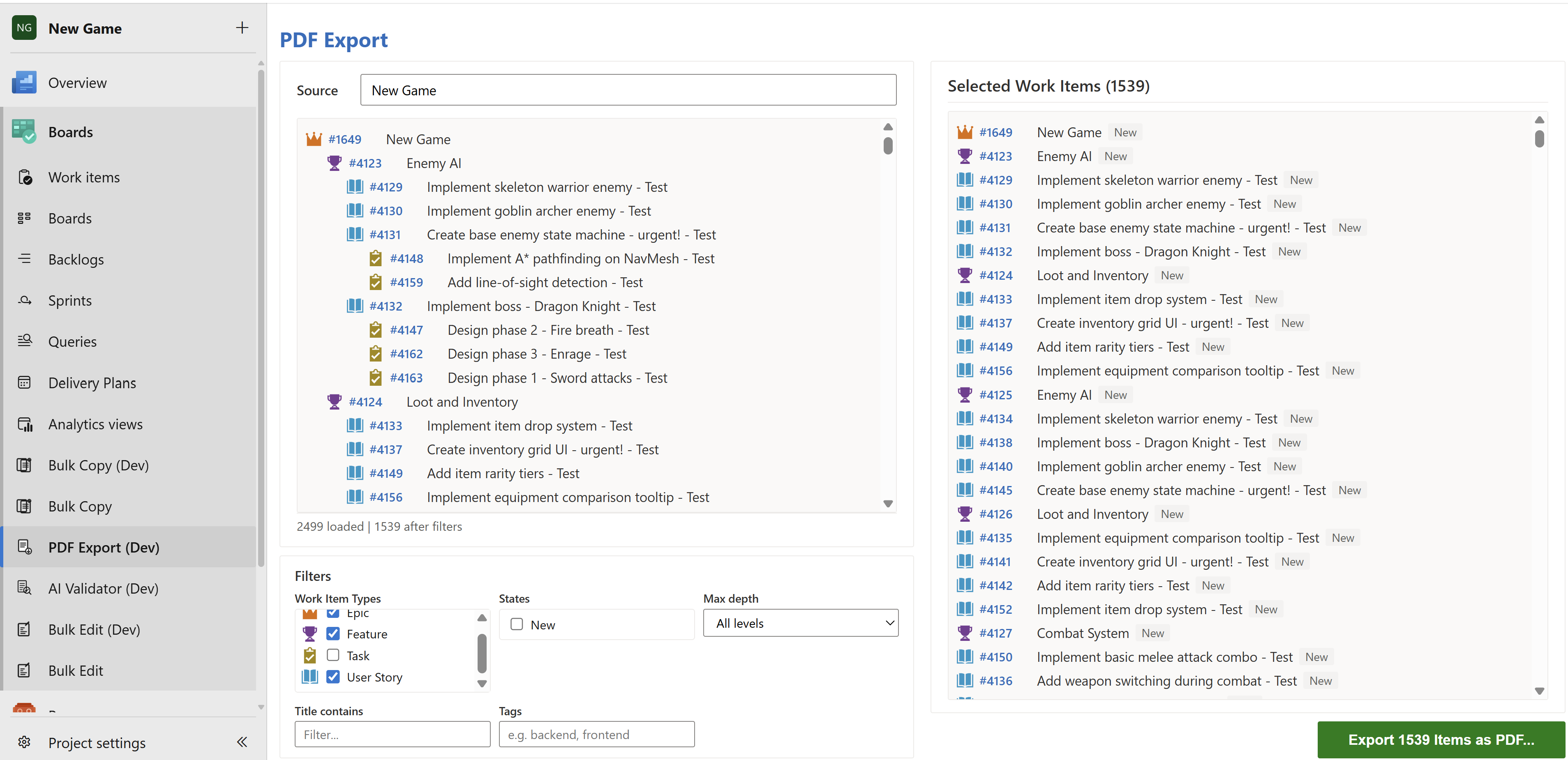
- Hierarchy export: Load any work item and export it together with its full tree of children
- Area path export: Enter an area path in the search box to export all work items under that area — no single root item required
- Filter before export: Narrow the selection by Work Item Type, State, Title, Tags, or hierarchy depth — only matching items land in the PDF
- Max depth filter: Limit the export to a specific number of hierarchy levels (e.g., export only Epics and Features, skip Stories and Tasks)
- Field selection: Choose exactly which fields appear in the PDF (State, Assigned To, Priority, Tags, Description, Acceptance Criteria, custom fields, and more)
- Rich-text rendering: Description and other HTML fields are rendered with full formatting — bold, italic, links, bullet lists, and embedded images
- Backlog order: Work items are sorted to match the backlog order (Stack Rank / Backlog Priority)
Cover Page & Table of Contents
Give your document a professional look for stakeholders and archiving.
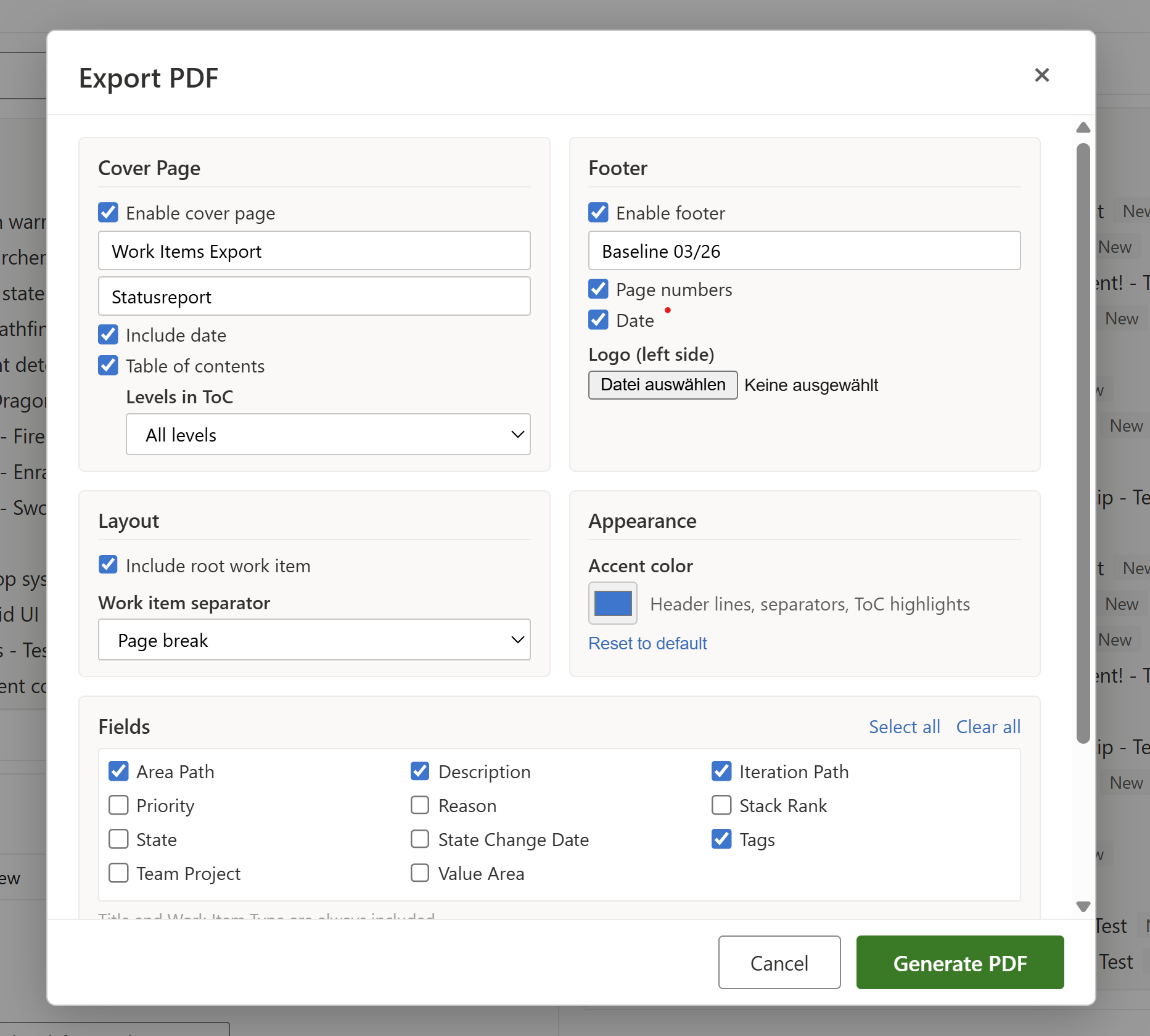
- Cover page: Add a title, subtitle, project name, and optional date
- Table of Contents: Auto-generated with clickable links to each work item and dot-leader page numbers
- ToC depth: Choose how many hierarchy levels appear in the Table of Contents — show only top-level items or include deeper levels
- Accent color: Customize the color of header lines, separators, and ToC highlights to match your brand or project color
Layout & Appearance
Control how work items are separated and displayed.
- Include root item: Choose whether to include the root work item itself or export only its children
- Separator styles: Page break, horizontal line, or no separator between work items
- Type-based page breaks: Optionally insert an additional page break after a specific work item type (e.g., after each Epic)
- Custom accent color: Applied to header lines, separators, and ToC highlights
Add consistent branding to every page.
- Custom text: Appears centered on every content page
- Page numbers: "Current / Total" format, right-aligned
- Date: Current export date, centered
- Logo: Upload a PNG, JPEG, or SVG logo — it appears left-aligned in the footer at a consistent height
Include work item discussions directly in the document.
- Full comment text: Rendered with rich-text formatting
- Author and date: Optionally show who wrote each comment and when
- Left-bar visual grouping per comment, spanning page breaks correctly
Change History
Capture the audit trail of each work item in the PDF.
- Field changes: Shows what changed (old value → new value) for each revision
- Author and date: Optionally show who made the change and when
- Smart filtering: Skips system noise (metadata-only revisions, unchanged fields) — only meaningful changes are shown
- Always rendered as the last section of each work item
Access Control
Restrict who can use ADO PDF Export by Azure DevOps group membership.
- Group-based access: Assign access to specific Azure DevOps groups
- Organization Administrators always have access
- Default: All users have access until groups are configured
- Configure via Organization Settings > PDF Export Settings (admin only)
Getting Started
Installation
- Install the extension from the Visual Studio Marketplace
- Navigate to Boards > PDF Export in any project
A valid license is required to generate PDFs. A free trial and paid plans are available — click the upgrade banner in the extension to get started.
Exporting Work Items
- Go to Boards > PDF Export
- Type a title, ID, or area path in the search box to load your source
- Work item: type a title or
#ID — the full hierarchy loads automatically
- Area path: type part of an area path name and select it from the dropdown — all work items under that area are loaded as a forest
- Use the filter panel to narrow the selection by type, state, title, tags, or hierarchy depth
- Click Export N Items as PDF... to open the export dialog
- Configure cover page, footer, fields, comments, and history options
- Click Generate PDF — the file downloads automatically
Exporting by Area Path
Instead of a single root work item, you can export all work items belonging to an area path:
- Go to Boards > PDF Export
- Type part of the area path name in the search box (e.g., "Backend")
- Select the matching area path from the Area Paths section of the dropdown
- All work items under that area load with their full hierarchy preserved
- Use the Max depth filter to limit how many levels are included
Configuring the Cover Page
- In the export dialog, enable Cover Page
- Enter a document title and optional subtitle
- Enable Table of Contents if you want clickable navigation links
- When the ToC is enabled, use Levels in ToC to control how many hierarchy levels appear in the table of contents
Adding a Custom Logo
- Enable the Footer in the export dialog
- Click the logo upload area and select a PNG, JPEG, or SVG file
- The logo is resized automatically and saved with your other settings
Configuring Access Control
- Go to Organization Settings > PDF Export Settings (requires Organization Admin)
- Search for Azure DevOps groups by name
- Add groups that should have access
- Click Save
When no groups are configured, all users have access. Once groups are added, only members of those groups (and Organization Administrators) can use the extension.
Permissions
The extension requires the following scopes:
| Scope |
Purpose |
vso.work |
Read work items, fields, comments, and change history |
vso.graph |
Read group memberships for access control |
vso.project |
Read project metadata (name, work item types) |
The extension is read-only with respect to work items — it never creates, updates, or deletes any data.
FAQ
Q: Does the extension modify any of my work items?
A: No. ADO PDF Export is completely read-only. It reads work item data to generate the PDF and does not write anything back to Azure DevOps.
Q: Can I export work items from multiple hierarchies at once?
A: You can load one root work item at a time, or load all work items under an area path. The area path option returns a forest (multiple root items) if the items have no common ancestor in the result set. Use the filter panel to narrow the selection further.
Q: Can I export only part of the hierarchy — for example, just Epics and Features?
A: Yes. Use the Max depth filter in the filter panel to limit the export to a specific number of levels. For example, setting Max depth to 2 includes only the root item and its direct children.
Q: Which fields can I include in the PDF?
A: All standard System fields (State, Assigned To, Tags, Area Path, Iteration Path, Priority, etc.) plus any custom fields in your project. Title and Work Item Type are always shown. HTML fields like Description and Acceptance Criteria are rendered with full formatting.
Q: Are embedded images in work item descriptions included?
A: Yes. Images from Description and other rich-text fields are fetched using your Azure DevOps credentials and embedded directly into the PDF.
Q: Is the backlog order preserved in the PDF?
A: Yes. Work items are sorted by Stack Rank (Agile/CMMI) or Backlog Priority (Scrum) to match the order shown in the Azure DevOps backlog view.
Q: My settings (cover page, fields, etc.) are lost after a refresh. What happened?
A: Settings are saved automatically in your browser's local storage. Clearing browser data or switching browsers will reset them to defaults.
Q: Does the extension work with Azure DevOps Server (on-premises)?
A: The extension is designed for Azure DevOps Services (cloud). On-premises compatibility has not been tested.
Q: Who can configure access control?
A: Only Organization Administrators (Project Collection Administrators) can access the settings page.
Data & Privacy
- ADO PDF Export requires a valid license. Trial and paid plans are available at checkout.
- The extension operates entirely within your Azure DevOps organization. Work item data is read using the standard Azure DevOps REST API with the permissions granted during installation.
- Access control settings are stored in the extension's own data storage within your organization.
- The PDF is generated in your browser — no work item data is sent to any external server for rendering.
- License validation contacts a backend service to verify your subscription status. Only your Azure DevOps organization ID and name are transmitted — no work item content.
Third-Party Notices
ADO PDF Export is built with the following open-source libraries:
All icons used in this extension are original works.
Disclaimer
THIS EXTENSION IS PROVIDED "AS IS", WITHOUT WARRANTY OF ANY KIND, EXPRESS OR IMPLIED, INCLUDING BUT NOT LIMITED TO THE WARRANTIES OF MERCHANTABILITY, FITNESS FOR A PARTICULAR PURPOSE, AND NONINFRINGEMENT. IN NO EVENT SHALL THE AUTHORS OR COPYRIGHT HOLDERS BE LIABLE FOR ANY CLAIM, DAMAGES, OR OTHER LIABILITY ARISING FROM, OUT OF, OR IN CONNECTION WITH THE EXTENSION OR ITS USE.
ADO PDF Export is not affiliated with, endorsed by, or sponsored by Microsoft Corporation. Azure DevOps is a trademark of Microsoft Corporation.
© 2025 Vyve. All rights reserved.

