FSM Editor — UML State Machines & Code Generation for Visual Studio

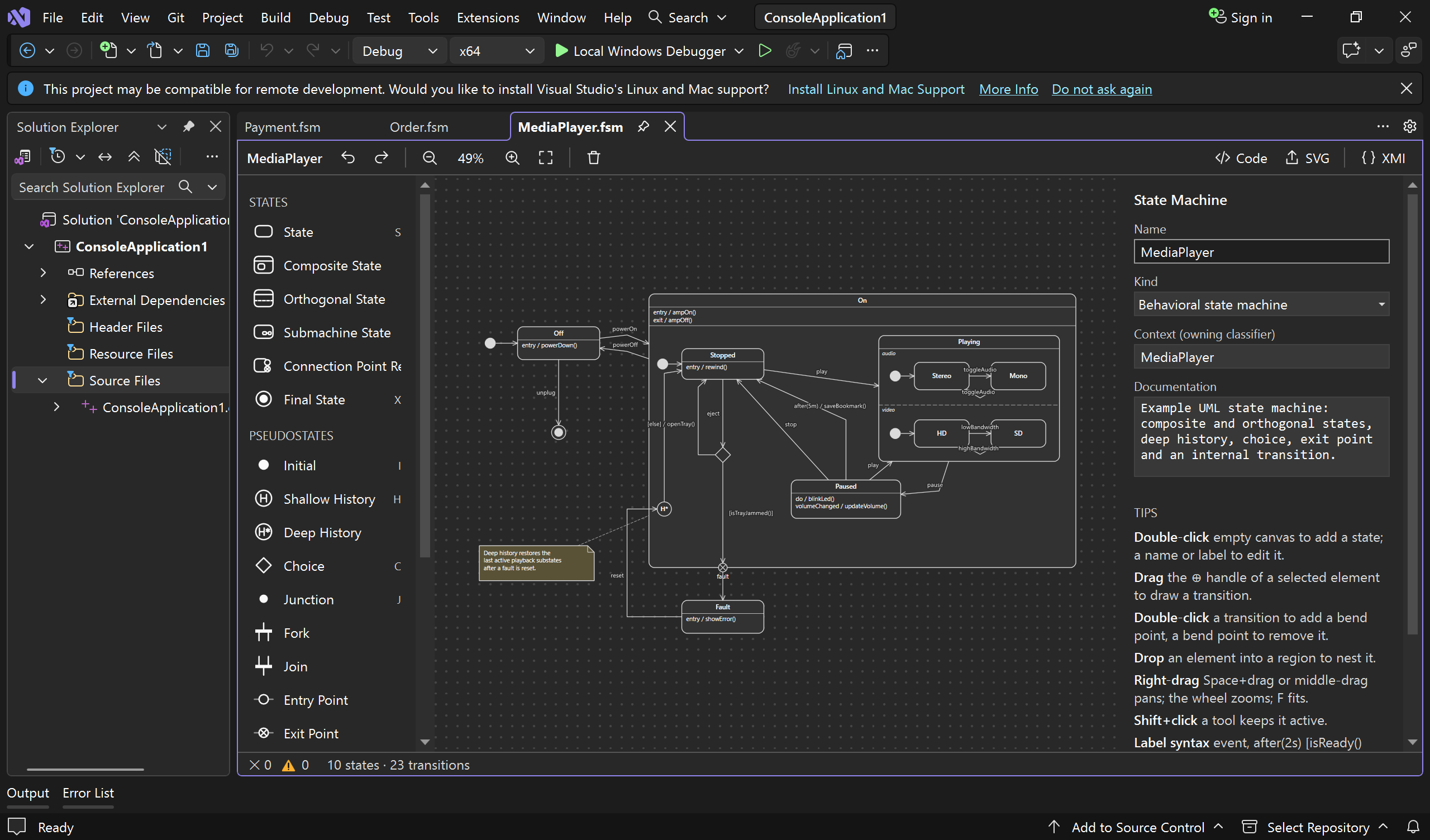
A visual editor and code generator for UML 2.5.1 state machines in Visual Studio 2022 and later. Draw a machine in any *.fsm file, with a toolbox, a properties panel, live validation in the Error List and SVG export, then generate its source code from templates, in Visual Studio or with the bundled fsm command-line generator. Files are standard XMI 2.5.1: the UML model plus its diagram layout in UML DI, in the same file.
This is the Visual Studio edition of FSM Editor for VS Code. Both editors use the same file format, rules and code generator, so a team can edit the same .fsm files in either, and copy and paste diagram elements between them.
Code generation
Generate Code... turns a machine into source code with a Handlebars template, running the fsm command-line generator of FSM Editor, which the extension bundles. One template can write several files per machine. A TypeScript template is bundled, and any *.hbs template of your solution can be used. The same generator runs from a terminal or a build:
fsm "models/**/*.fsm" --template ts --out src/generated
See docs/CODEGEN.md for the dialog, the Command Window arguments, builds, and where templates and the code model are documented.
UML support
The editor covers UML 2.5.1 state machines: composite, orthogonal and submachine states, all pseudostates, connection point references, entry/exit/do behaviors, deferrable events, the external, local and internal transition kinds, time triggers, and protocol state machines. A validator checks the well-formedness rules as you edit.
Behaviors and conditions are argument-less function calls (rewind(); showTime(), hasDisc() && !isJammed()), and triggers are event names or after(2s).
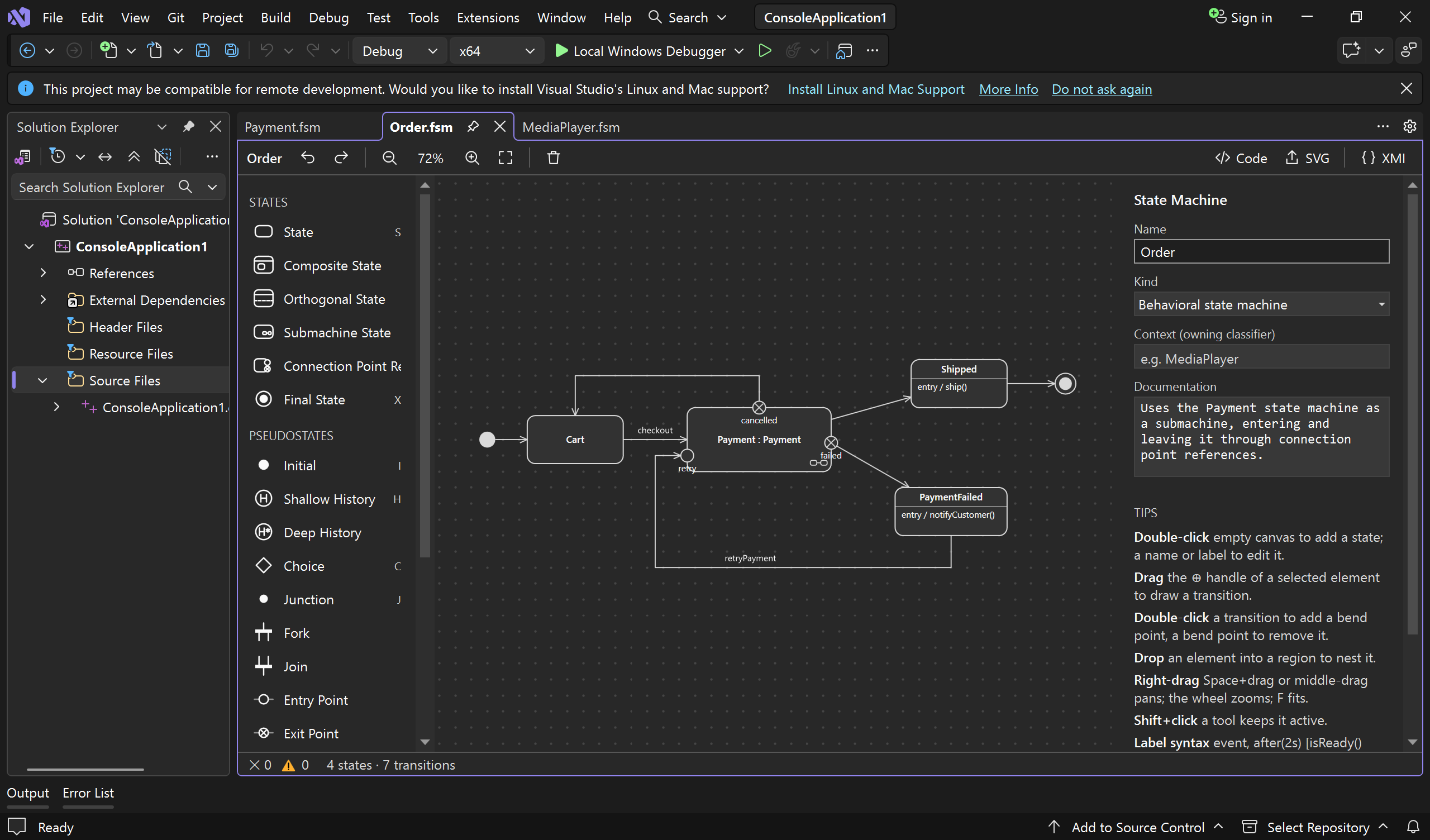
Submachine states reuse another state machine file. They're entered and left through connection point references bound to that machine's entry and exit points:
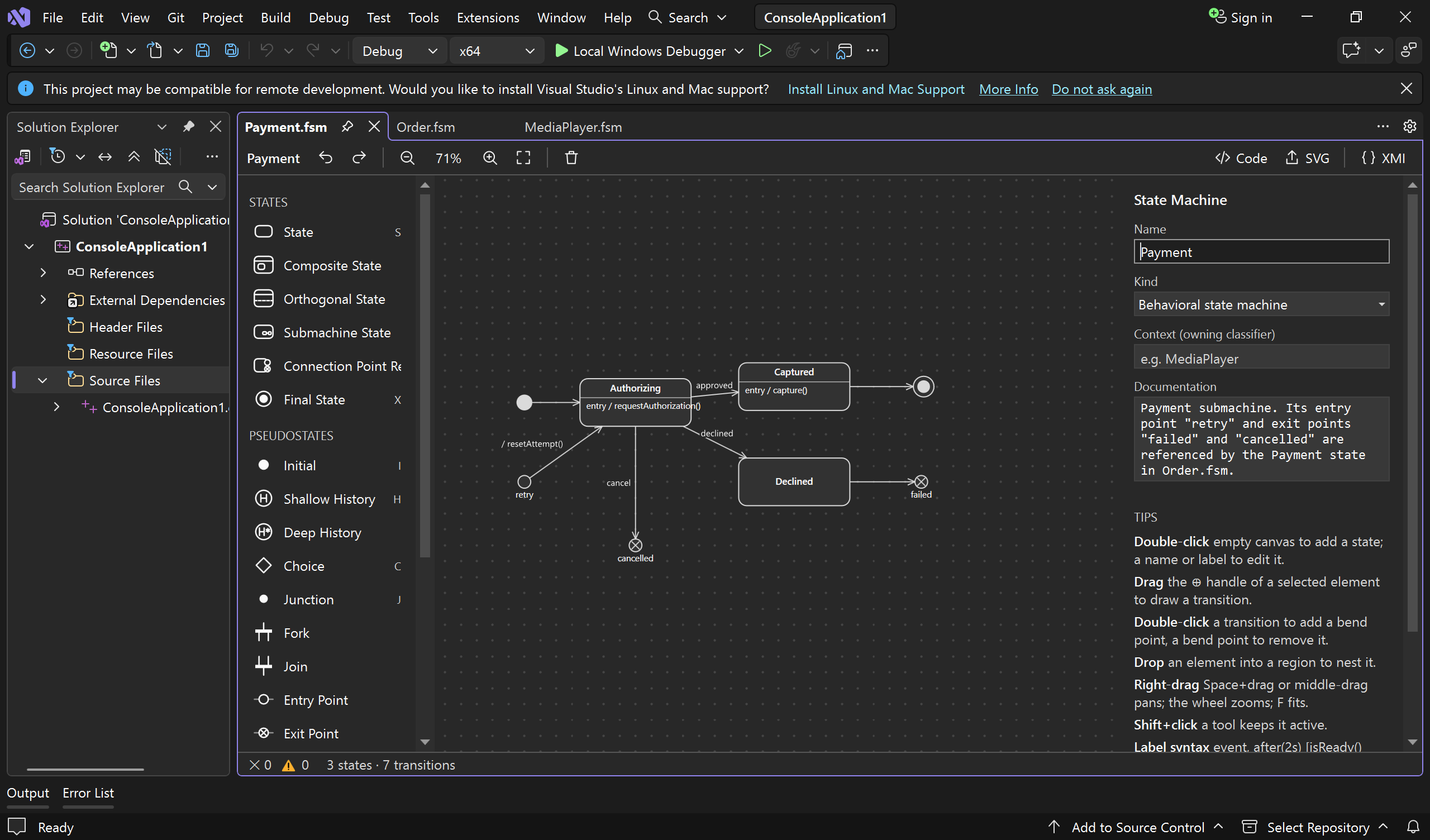
Text that breaks the rules is refused as you type, and the validator flags problems on the diagram, in the editor's status bar and in the Error List.
See docs/UML-CONFORMANCE.md for the supported features, the text syntax, submachines, the file format, the deviations from UML 2.5.1 and every validation rule.
Using the editor
- Add elements: click a toolbox item and then the canvas, or drag it onto the canvas. Drop inside a region to nest it. Double-click empty canvas to add a state.
- Transitions: select an element and drag its ⊕ handle to the target, or use the Transition tool (T). Drawing from a comment attaches the comment instead.
- Labels: double-click a name or transition label to edit it in place. The transition syntax is
event, after(2s) [isReady() && !isBusy()] / doIt(); log().
- Routing: double-click a transition to add a bend point, double-click a bend point to remove it, and drag labels to move them.
- Regions: use the Add Region tool (R) or the properties panel.
- View: right-drag, middle-drag or Space+drag pans, the mouse wheel zooms (Shift+wheel pans sideways), F fits the diagram.
- Editing: Delete removes the selection. Ctrl+C/X/V copies, cuts and pastes, including between diagrams and with VS Code. Ctrl+D duplicates. Arrow keys nudge (Shift for 10px). Undo and redo (Ctrl+Z, Ctrl+Y) are Visual Studio's own, shared with the XMI text.
- Shortcuts: S state, X final, I initial, H history, C choice, J junction, N comment, T transition, R region, V/Esc select. Shift+click a tool to keep it active.
- Submachines: Alt+double-click a submachine state, or use the button in its properties, to open the referenced machine.
Commands (Tools › FSM Editor, and the context menus of .fsm files in Solution Explorer and of the document tab): New State Machine..., Generate Code..., Export as SVG..., Open as XMI Text, Open in FSM Editor. New State Machine... is also on the context menu of projects and folders. The XMI text and the diagram can be open side by side: they edit the same document.
Development
Requirements: Windows with Visual Studio 2022 (17.0 or later) and the Visual Studio extension development workload.
scripts\fetch-cli.ps1        # copies fsm.exe and its templates from ..\fsm-editor-vscode\dist into src\FsmEditor.Vsix\cli
                             # (-Build builds them there first: npm run build:bin -- --target bun-windows-x64)
dotnet test                  # model, file format, validation and editing tests
Open FsmEditor.sln, set FsmEditor.Vsix as the startup project and press F5 to start the Visual Studio experimental instance, then open examples\MediaPlayer.fsm, or examples\Order.fsm for a submachine with connection point references (it uses examples\Payment.fsm). Building in Release produces src\FsmEditor.Vsix\bin\Release\net48\FsmEditor.vsix; double-click it to install it.
To publish, build in Release (it fails if fsm.exe hasn't been fetched), then upload the .vsix with vs-publish.json, which describes the Marketplace listing and uses this README as its page:
& "$env:VSINSTALLDIR\VSSDK\VisualStudioIntegration\Tools\Bin\VsixPublisher.exe" publish `
  -payload src\FsmEditor.Vsix\bin\Release\net48\FsmEditor.vsix -publishManifest vs-publish.json -personalAccessToken <token>
Bump the version in source.extension.vsixmanifest, FsmEditor.Vsix.csproj and InstalledProductRegistration in FsmEditorPackage.cs first.
Pushing a version tag (git tag v0.3.3 && git push origin v0.3.3) also builds the .vsix on GitHub Actions (.github/workflows/release.yml, which bundles the fsm generator of the FSM Editor for VS Code release set in FSM_CLI_VERSION) and attaches it to the GitHub Release of that tag. The tag must match the manifest version.
On macOS or Linux, dotnet build compiles every project (the VSIX packaging steps only run on Windows) and dotnet test runs the tests.
Layout
src/FsmEditor.Core/ (.NET Standard 2.0, no Visual Studio dependency): the model (Model.cs), the text grammar (Expressions.cs), the XMI/UML DI file format (Xmi.cs, XmlTree.cs), the validator (Validation.cs), diagram geometry (Geometry.cs, Labels.cs), every editing operation of the diagram (DiagramSession.cs, Tools.cs), SVG export, the clipboard format and submachine resolution (Workspace.cs)src/FsmEditor.Vsix/: the Visual Studio extension
FsmEditorPackage.cs: registration, the Error List providers, SVG export and the code generation flowEditor/FsmEditorFactory.cs, Editor/FsmEditorPane.cs: the document window; syncs the text buffer and the diagramEditor/EditorControl.cs, Editor/DiagramCanvas.cs, Editor/PropertiesPanel.cs: the WPF diagram editorServices/: open documents, the solution's machines, the Error List, dialogsCodeGen/: running the fsm generator and its dialogCommands/, VSCommandTable.vsct: menu commands
test/FsmEditor.Core.Tests/: tests, including parity tests against reference results of the VS Code extension (fixtures/)scripts/fetch-cli.*: copies the code generator into the VSIXvs-publish.json: the Marketplace listing; images/: the README's screenshotsdocs/: UML conformance and code generation

