MCP Server Authentication — VS Code Extension
A VS Code extension that authenticates against any OAuth 2.0 IDP using the Device Authorization Flow (RFC 8628) and automatically injects the resulting Bearer token into VS Code's MCP server configuration.
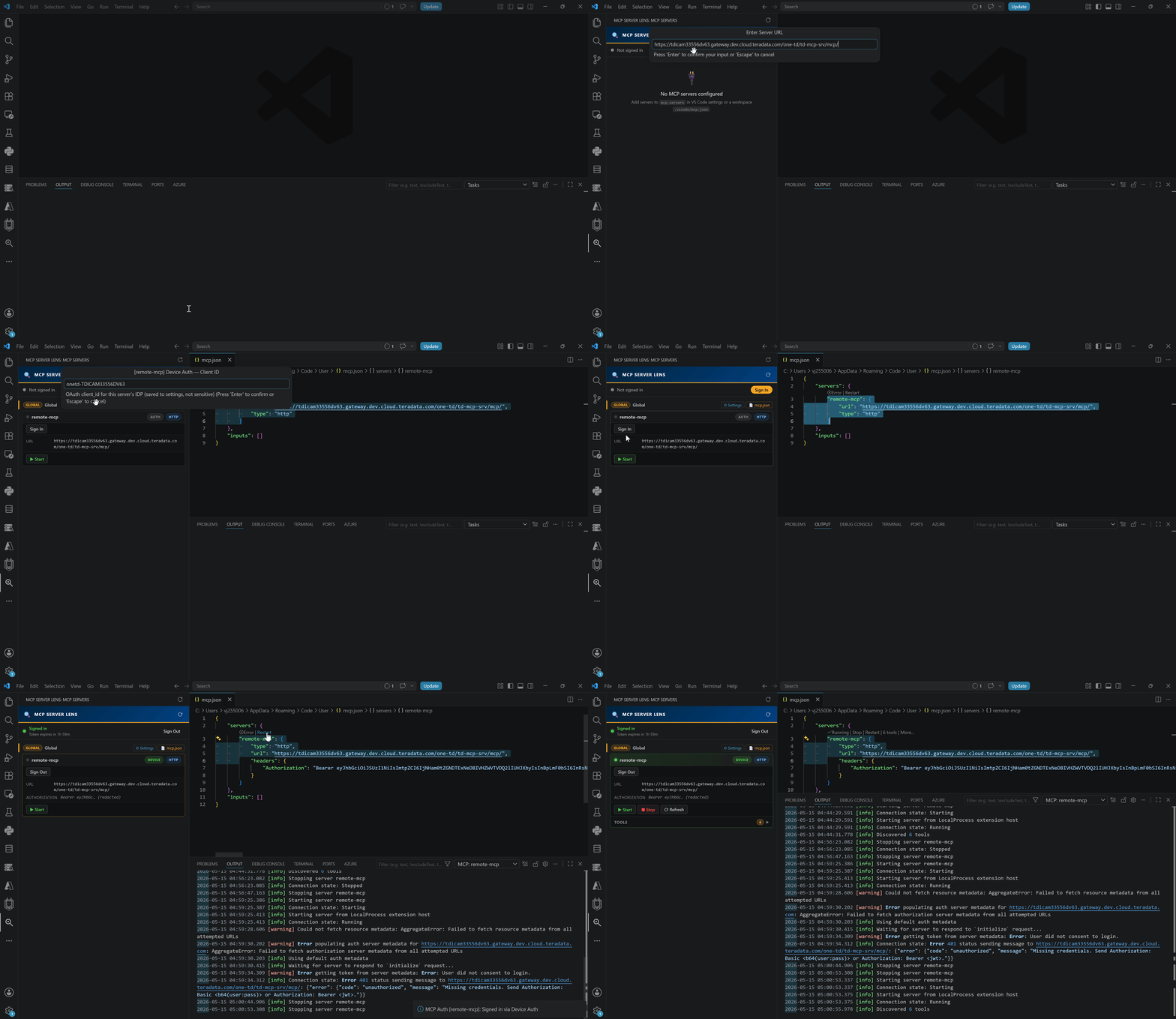
The MCP Server Lens sidebar panel shows all configured MCP servers, lets you connect to them, and lists every tool each server exposes.
Requirements
VS Code 1.85 or later.
Configuration
Open Settings (Ctrl+,) and search for MCP Auth.
Required
| Setting |
Description |
Example |
mcpAuth.clientId |
OAuth 2.0 Client ID |
your-client-id |
mcpAuth.deviceAuthEndpoint |
Device Authorization URL |
https://idp.example.com/as/device_authz.oauth2 |
mcpAuth.tokenEndpoint |
Token URL |
https://idp.example.com/as/token.oauth2 |
Optional
| Setting |
Default |
Description |
mcpAuth.mcpServers |
[] |
List of { name, url } entries — token is injected into all of them |
mcpAuth.scopes |
openid profile email |
Space-separated OAuth scopes |
mcpAuth.mcpServerName |
mcp-server |
Legacy single-server key under mcp.servers (ignored when mcpServers is set) |
mcpAuth.mcpServerUrl |
(empty) |
Legacy single-server URL (ignored when mcpServers is set) |
mcpAuth.tokenRefreshBuffer |
60 |
Seconds before expiry to silently refresh |
mcpAuth.allowInsecureTls |
false |
Skip TLS verification (corporate proxy) |
Example — multiple MCP servers
{
  "mcpAuth.clientId": "your-client-id",
  "mcpAuth.deviceAuthEndpoint": "https://idp.example.com/as/device_authz.oauth2",
  "mcpAuth.tokenEndpoint": "https://idp.example.com/as/token.oauth2",
  "mcpAuth.mcpServers": [
    { "name": "mcp-prod", "url": "https://mcp-prod.example.com/" },
    { "name": "mcp-dev",  "url": "https://mcp-dev.example.com/"  }
  ]
}
Example — single server
{
  "mcpAuth.clientId": "your-client-id",
  "mcpAuth.deviceAuthEndpoint": "https://idp.example.com/as/device_authz.oauth2",
  "mcpAuth.tokenEndpoint": "https://idp.example.com/as/token.oauth2",
  "mcpAuth.mcpServerUrl": "https://your-mcp-server/"
}
Sign-in flow
- Open the Command Palette (
Ctrl+Shift+P) → MCP Auth: Sign In
(or click the Sign In button in the MCP Server Lens sidebar)
- A notification shows a short user code (e.g.
BCDF-1234).
- Click Open Browser — the verification page opens with the code pre-filled.
- Complete login in the browser.
- The extension detects the completed login, stores the token in VS Code's encrypted SecretStorage (OS keychain on desktop), and writes:
// global settings.json — written automatically
{
  "mcp": {
    "servers": {
      "mcp-prod": {
        "type": "http",
        "url": "https://mcp-prod.example.com/",
        "headers": { "Authorization": "Bearer eyJ..." }
      }
    }
  }
}
- The status bar shows
✓ MCP Auth: Signed In.
- The extension silently refreshes the token
mcpAuth.tokenRefreshBuffer seconds before expiry.
Click the lens icon in the Activity Bar to open the MCP Server Lens panel.
What it shows
- Auth status and sign-in / sign-out button
- Every MCP server from global
settings.json and all workspace .vscode/mcp.json / .vscode/settings.json files
- Connection status dot: grey (idle), animated yellow (connecting), green (connected), red (error)
- Transport type pill (
http, stdio, sse, …)
- Server URL / command / headers (Authorization value is redacted)
- Tools list with name and description; hover over any tool to see its full parameter metadata
Server actions
| Button |
Action |
▶ Start |
Connect to the server, run initialize + tools/list |
■ Stop |
Kill the connection (terminates stdio process) |
⟳ Refresh |
Reconnect and re-fetch the tool list |
Each source section has two buttons:
- ⚙ Settings — opens VS Code Settings filtered to
mcpAuth
- 📄 mcp.json — opens the dedicated
mcp.json file for that source (creates an empty one if it does not exist yet)
Troubleshooting
HTTP 400 / non-JSON response on sign-in
The IDP returned an error page instead of JSON. Click Show Log in the error notification to open the MCP Auth Output Channel and read the full raw request/response.
Common causes:
| Symptom |
Fix |
| HTML error page mentioning "client" |
Client ID not enabled for Device Authorization Grant — ask your IDP admin |
| Login/SSO redirect page |
Corporate proxy intercepting TLS — try mcpAuth.allowInsecureTls: true or install the proxy CA cert |
| 404 HTML |
Wrong endpoint URL |
ECONNREFUSED / ENOTFOUND |
DNS or VPN issue — check network connectivity |
CERT_HAS_EXPIRED |
TLS cert issue — set mcpAuth.allowInsecureTls: true to confirm, then fix the cert trust |
The server connected successfully (tools/list returned an empty array). This is a server-side configuration — no action needed in the extension.
The MCP server rejected the connection. Check:
- The server URL is reachable from VS Code's Node.js process
- The Bearer token is valid (sign out and sign in again)
- The server log for detail
License
MIT — see LICENSE.

