ClaudeS - Accounts ManagerKeep several Claude Code accounts side by side and open a terminal on any of them with one click. Conversations, history and logins never cross between accounts; your settings, skills and MCP servers stay shared, and ClaudeS never writes to your Claude Code installation. Requires the Claude Code CLI Installation Launch VS Code Quick Open ( Ctrl+P), paste the following command, and press enter.Copied to clipboard |

ClaudeS — Accounts Manager
Keep several Claude Code accounts side by side, and open a terminal on any of them with one click. If you work for more than one client, each with their own Claude subscription, this stops one client's work from spending another's credits, and keeps each client's conversations in that client's account.
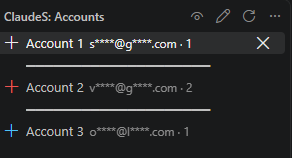
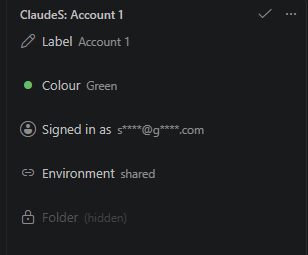
The first time you open itThe panel is empty and offers Add an account. Give the account a name — the client's, or "Personal" — and a terminal opens where you sign in to it, once. Add the other accounts the same way. ClaudeS never copies a login: each account is signed in by you, in its own folder. Your existing Claude Code keeps its own login, and ClaudeS never writes to it. What it doesAdd an account. Each one gets its own folder, its own login, and its own history. You sign in once per account; switching never asks again. Give it a colour. The colour goes on the terminal tab, next to the account's
name — so the terminal you are typing into always says whose credits it spends.
To keep that name there, ClaudeS asks Claude Code not to retitle its terminals
after the conversation ( See what is left, where you are working. The bottom line of each ClaudeS
terminal says which account it is and how much of that account's plan is used:
the 5-hour window and when it resets, the week, and how full the conversation's
context is — for example The usage figures are green, turn orange from 70% and red from 90%, so a limit
coming close is visible without reading the number. Change the two points with
Click + to open a terminal. Each click opens one more terminal on that
account and starts Several accounts can be open at once. Two terminals side by side, on two different accounts, in the same project is a normal way to work: each terminal keeps the account it was created with for its whole life.
Close VS Code, keep the conversationClose VS Code — or have it crash — and the next time you open the project, every ClaudeS terminal comes back: on the same account, in the same column, with its conversation where you left it. Each terminal is remembered for its project the moment it opens, so a crash
has nothing to lose. When the project opens again, ClaudeS resumes each
conversation with Closing a tab yourself is different: that terminal is forgotten and does not come back. Two limits. A reply Claude was in the middle of writing when VS Code went down
is lost — the conversation up to the last finished message comes back. And a
terminal where Hide who the accounts areSharing your screen with one client while another client's account is listed
beside theirs is awkward. The eye at the top of the panel (or ClaudeS: Hide or
Show Who the Accounts Belong To) lists them as The colours stay, so your own rows are still easy to tell apart. The eye acts on its own window only: other VS Code windows keep showing
what they showed, and their terminals are left alone. To hide the names in
every window at once, turn on the A terminal tab keeps the name it was opened with, so if terminals are already open in the window when you hide the names, ClaudeS asks whether to reopen them under the new ones. Reopening resumes each conversation on the same account.
Terminals, not the chat panelClaudeS sets the account for the This is a real limit, not an oversight. Claude Code has no multi-account login, and the only lever an extension has over the panel is machine-wide — one value for every window at once, which cannot be a per-project account and would misreport which one is live. When Anthropic supports signing into several accounts, it will come with its own way to manage it. How it worksClaude Code reads the ClaudeS gives each account its own folder under Your setup is shared; your logins and conversations are notYour settings, skills, plugins and MCP servers are shared across every account, by link rather than by copy. Configure them once and every account has them: if you have set Claude Code up for the work you do, that setup does not change depending on who is being billed. Because it is one copy, a change you make from any account — a permission you grant, a plugin you install — is made by Claude Code in that shared copy, and every account sees it. ClaudeS itself never writes there. To give an account a setup of its own instead, use ClaudeS: Share or Separate This Account's Setup. What is separate is the login, and the conversation history that belongs with it. That is the whole of what an account is here. What a new account asks once — expected, not a bugThe MCP servers are shared, but signing in to them is not. Claude Code stores an MCP server's sign-in together with the Claude login, in the same place, and ClaudeS never copies one account's login into another. So the first time each account uses an MCP server that needs you to sign in (Gmail, GitHub, Figma…), Claude Code asks you to authorise it — once per account, and never again for that account. The same goes for a few other answers Claude Code keeps per account:
This is how Claude Code keeps these answers, and ClaudeS cannot share them without sharing the login too — which would defeat the point of separate accounts. What never crosses from one account to anotherThe accounts are meant for different companies, so the rule is that nothing anyone said crosses over:
Your Claude Code installationClaudeS reads it and never writes to it, and never copies its login. Claude Code does write to the shared settings, skills and plugins in it when you change them from any account — they are the same files. Uninstall ClaudeS and your installation is still signed in, still yours. Requirements
Settings
What is stored, and what happens if you uninstallEverything ClaudeS keeps is in plain folders you can open, copy or delete yourself. There is no database and no cloud: nothing about your accounts leaves your machine.
To see the actual paths on this machine, with what is in each one, run ClaudeS: What Is Stored / Before Uninstalling from the Command Palette. Deleting an account from the panel is the one thing that does remove credentials, and it says so before it does it. HelpBefore asking, ask Claude: run ClaudeS: Copy the Documentation for Claude
(also in the AboutClaudeS is an independent open-source project. It is not made, endorsed or supported by Anthropic. Claude and Claude Code are trademarks of Anthropic, PBC, and are named here only to say what this extension works with. Built with Claude Code. Every behaviour described here was tried by hand on Windows before release; macOS and Linux have not been tested yet. LicenseMIT — provided as is, without warranty. |