
Hooman for VS Code
The full-stack Hooman agent — local-first, BYOK, Design mode — inside your editor.
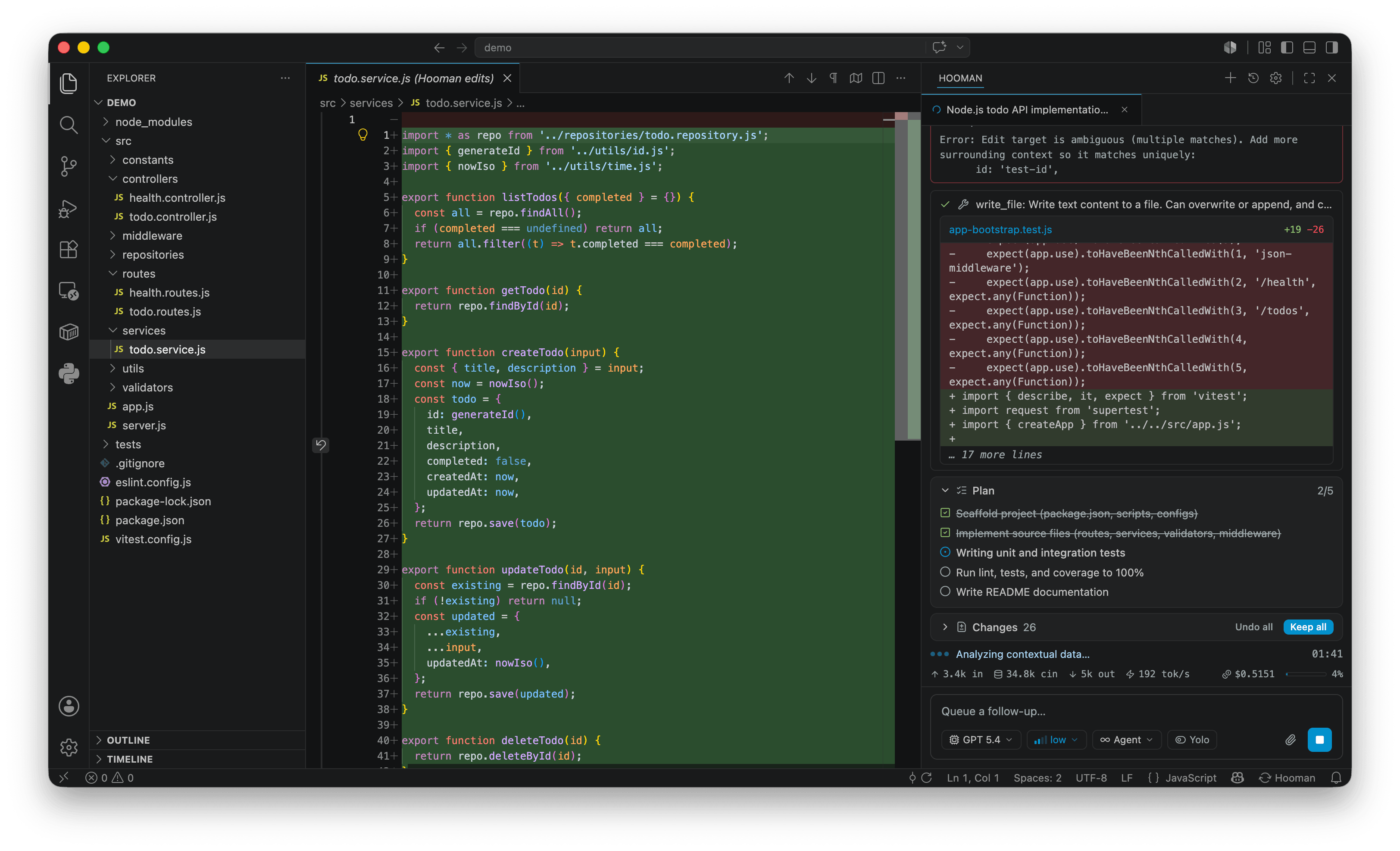
Hooman adds a native chat panel to your activity bar, powered by the Hooman CLI's Agent Client Protocol (ACP) agent. Same open-source runtime as the terminal: Agent / Plan / Ask / Design modes, MCP, skills, approvals, and local llama.cpp / MLX — or bring your own keys and inference endpoints.
- Works in stable VS Code, VS Code Insiders, and VS Code-compatible forks.
- No special subscription, no proposed APIs, no gating of any kind.
- Local-first & enterprise-friendly: configuration, API keys, and sessions live in
~/.hooman. No account, no telemetry. MIT licensed.
Features
- Streaming chat with full markdown rendering (including tables and live Mermaid diagrams) and collapsible thinking (with a "thought for Xs · ~N tokens" summary).
- Multi-tab sessions: work several chats side by side via a tab strip — open, switch, reorder, and close without losing an in-flight turn.
- Tool-call cards with live status — shell commands stream their output into the card as they run. Long-running commands can detach as background terminals; a strip above the composer lists them with status and a Stop control. Stopping a turn cancels pending permission prompts and marks unfinished tools as cancelled.
- Review every edit: files the agent writes appear in a pinned Changes panel. Click a file to open a native diff against its pre-edit baseline, then Keep or Undo each change (or all at once). Edits go through undo-able workspace edits, and the agent sees your unsaved buffers.
- Plan checklist pinned above the transcript, updated live as the agent works through it, with a dedicated plan editor for
*.plan.md files. switch_mode always requires explicit approval (including leaving plan), even with Yolo on.
- Message actions: copy any message, or fork the chat from each turn's final assistant reply. On a user message with an in-memory checkpoint, Revert restores files from that turn onward, rewinds agent history, and puts the prompt back in the composer.
- Queue and steer: follow-ups sent mid-turn don't interrupt — they land in a Queued panel where you can edit, remove, or Send now. Steer now injects the queue as guidance into the running turn instead of waiting for it to finish.
- Attachments: add files, folders, and images via the paperclip button, drag & drop (from the OS or the Explorer), or paste from the clipboard. Explorer and selection context-menu commands send files or selected text straight into the panel.
- Sessions persist: the history button in the panel's title bar opens a Sessions overlay — saved sessions grouped by day (Today / Yesterday / …) with search, the ongoing one marked (spinner while a turn runs), click-to-open, per-session delete, and a New Chat action.
- Composer controls for session mode (Agent / Plan / Ask / Design), model, reasoning effort, and a separate Yolo toggle (auto-approve tool calls), plus
/ slash-command autocomplete (/compact, /init). Design mode previews HTML via Simple Browser.
- Inline permission prompts: the agent asks before running destructive tools; approve or reject right in the panel (Yolo auto-approves — except
switch_mode, which always prompts).
- Status bar item showing the current model and mode, with a spinner while a turn runs and a quick menu for all session controls.
- Token-usage footer with the latest request's input / cached / output token counts, plus a context-window gauge and cumulative session cost when the agent can resolve the model's metadata (from the LLM config's
metadata block or the models.dev catalog).
- Model download strip: when a local llama.cpp model downloads its GGUF weights on first use, a progress strip above the composer shows percent, size, speed, and ETA.
- Native settings editors for
config.json and mcp.json, plus a Skills panel; instructions.md opens in the default Markdown editor.
- First-run setup: when
~/.hooman/config.json is missing, the panel runs the same setup wizard as hooman setup before chat starts.
Quick start
Install Node.js >= 24 (npx ships with it — that's all the extension needs).
Install this extension.
Click the Hooman icon in the activity bar. If ~/.hooman/config.json is missing, a setup wizard runs in the panel (same flow as hooman setup): pick inference + search, validate, write config. After that, chat opens and the extension launches the agent via npx hoomanjs acp (CLI downloaded on first use — no separate install).
Setup defaults to local llama.cpp (plus MLX on Apple Silicon if you choose it) — no server or API key needed. Hosted providers are in the same wizard. Later: Open Settings… (gear), npx hoomanjs config, or npx hoomanjs setup.
See the Hooman configuration docs for the full schema, supported providers, and MCP server setup.
Commands
- Hooman: New Chat — start a fresh session (new tab) in the chat panel.
- Hooman: Open Session… — opens the Sessions overlay in the chat panel: saved sessions grouped by day, searchable, with the ongoing one marked (spinner while busy), click-to-open, and per-session delete.
- Hooman: Open Settings… — opens the native Configuration editor for
config.json, scaffolding it first if needed.
- Add to Hooman Chat / Add to New Hooman Chat — Explorer context-menu commands that send the selected file(s) into the current or a new chat tab.
- Add Selection to Hooman Chat / Add Selection to New Hooman Chat — editor context-menu commands (shown when text is selected) that send the selection into the current or a new chat tab.
- Hooman: Show Output Channel — opens the "Hooman" output channel with the agent's logs.
- Hooman: Delete All Sessions — deletes every persisted session after a confirmation prompt.
Extension settings
The Marketplace installs a platform-specific VSIX containing a version-matched Hooman CLI, so the agent starts without downloading a runtime or requiring Node on PATH. To use a globally installed binary or a local build instead, set these overrides:
| Setting |
Default |
Purpose |
hooman.acp.command |
"" (bundled CLI) |
Optional executable override for the agent. |
hooman.acp.args |
["hoomanjs", "acp"] |
Arguments used only with a command override. |
Example using a globally installed or locally built CLI:
{
  "hooman.acp.command": "node",
  "hooman.acp.args": ["/absolute/path/to/hooman/dist/cli.js", "acp"]
}
Everything else — providers, models, API keys, MCP servers, skills — is Hooman's own configuration under ~/.hooman/, shared with the CLI.
Troubleshooting
- Nothing happens / the panel says the agent failed to start: run Hooman: Show Output Channel. It logs the spawned process's stderr and connection activity — check here first.
- Bundled CLI is missing: reinstall the Marketplace extension, or set
hooman.acp.command and hooman.acp.args to a local CLI while developing.
- Wrong or no model: the agent uses your
~/.hooman/config.json. Verify the same configuration with the standalone Hooman CLI.
Development
The extension lives in src/vscode/ of the Hooman repository as a self-contained sub-package (its own package.json and dependencies, excluded from the root build).
cd src/vscode
npm install
npm run compile    # typecheck + esbuild (extension host) + vite build (webview)
npm run watch      # rebuild all three on save
npm run stage:cli  # copy the built root CLI + installed runtime dependencies
npm run package    # package the extension after staging; CI adds --target <platform>
To debug the bundled default, build the root package, run npm run stage:cli in src/vscode/, then open the repository root in VS Code and press F5. Alternatively, set hooman.acp.command and hooman.acp.args in the Extension Development Host to launch a local CLI directly. The root .vscode/launch.json and .vscode/tasks.json point at src/vscode, so there is no need to open it as a separate workspace.
Architecture in brief: one hooman acp process serves the panel for the extension's lifetime, with every chat session multiplexed over it as an ACP session. The extension implements the client-side ACP fs/* capabilities against VS Code's workspace APIs (so the agent sees dirty buffers and edits are undo-able) and terminal/* via child processes (for byte-accurate output). The panel UI is a SolidJS + Tailwind webview bundled by Vite; the extension host is bundled by esbuild. See the full VS Code guide and AGENTS.md for the breakdown.
License
MIT © Vaibhav Pandey
| |

