Codexter: Codex chat for VS Code
An unofficial chat panel for OpenAI Codex with your ChatGPT subscription. Codexter runs the original Codex (codex app-server)
in VS Code's secondary side bar and adds what makes it fit daily work:
- every project and git branch reopens its own chat;
- several chats run at once, as tabs, with notifications even outside VS Code;
- the History finds old chats by meaning;
- commit messages, screenshots you can draw on,
#sym code references;
- MCP servers and instructions without editing TOML.
Codex itself is downloaded and kept up to date by the extension, from the official npm package @openai/codex
(registry.npmjs.org, integrity-checked); set Codexter > Codex Source to own to use a Codex you installed yourself.
You sign in with your ChatGPT account from the panel: Codex handles the sign-in itself, and no API key is needed.
Runs on Windows, macOS and Linux (x64 and arm64). It is developed and tested on Windows; the Codex download for macOS and Linux
is new in 0.9.0 and has not been tried on real machines yet, so please report what you see.
Codexter is a community project, not affiliated with or endorsed by OpenAI. Codex and ChatGPT are trademarks of OpenAI.
Highlights
Every project and git branch reopens its own chat
- Reopen VS Code and your chat is back. Each project reopens the chat that was open when you closed VS Code, with its model,
reasoning effort, plan mode and context usage. New chat starts a fresh one.
- Every git branch has its own chat.
- The chat you used on a branch (you sent a message while it was checked out) is remembered for 30 days.
- Check the branch out again, in VS Code or on the command line, and its chat opens by itself.
- A branch that has no chat yet keeps the open one; it joins the branch with your next message.
- A new branch takes your chat along. Started on
main and created the feature branch only at the end? The chat you were
working in moves to the new branch.
Several chats at once, as tabs
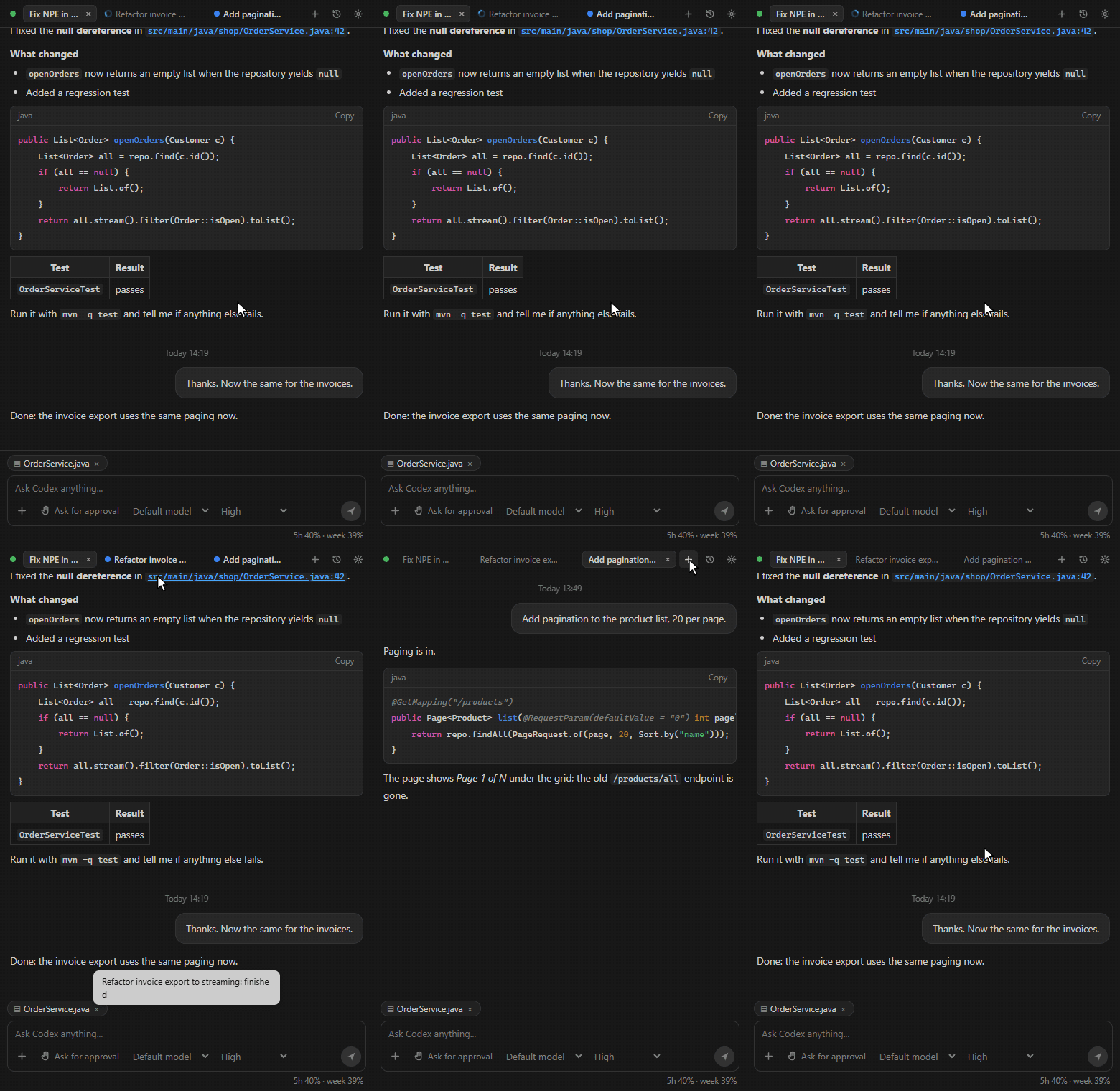
- Switching chats never stops a running reply. It goes on in the background.
- The chats you opened or used today in this project are tabs in the top bar. A tab shows a spinner while its chat works and a blue dot when it has news.
- When a background reply ends, or a chat needs an approval, you get a notification. Open jumps to the start of the last answer.
- Notifications work outside VS Code too: a Windows toast, a macOS or Linux notification. Click it to come back to that chat.
Find any chat by meaning
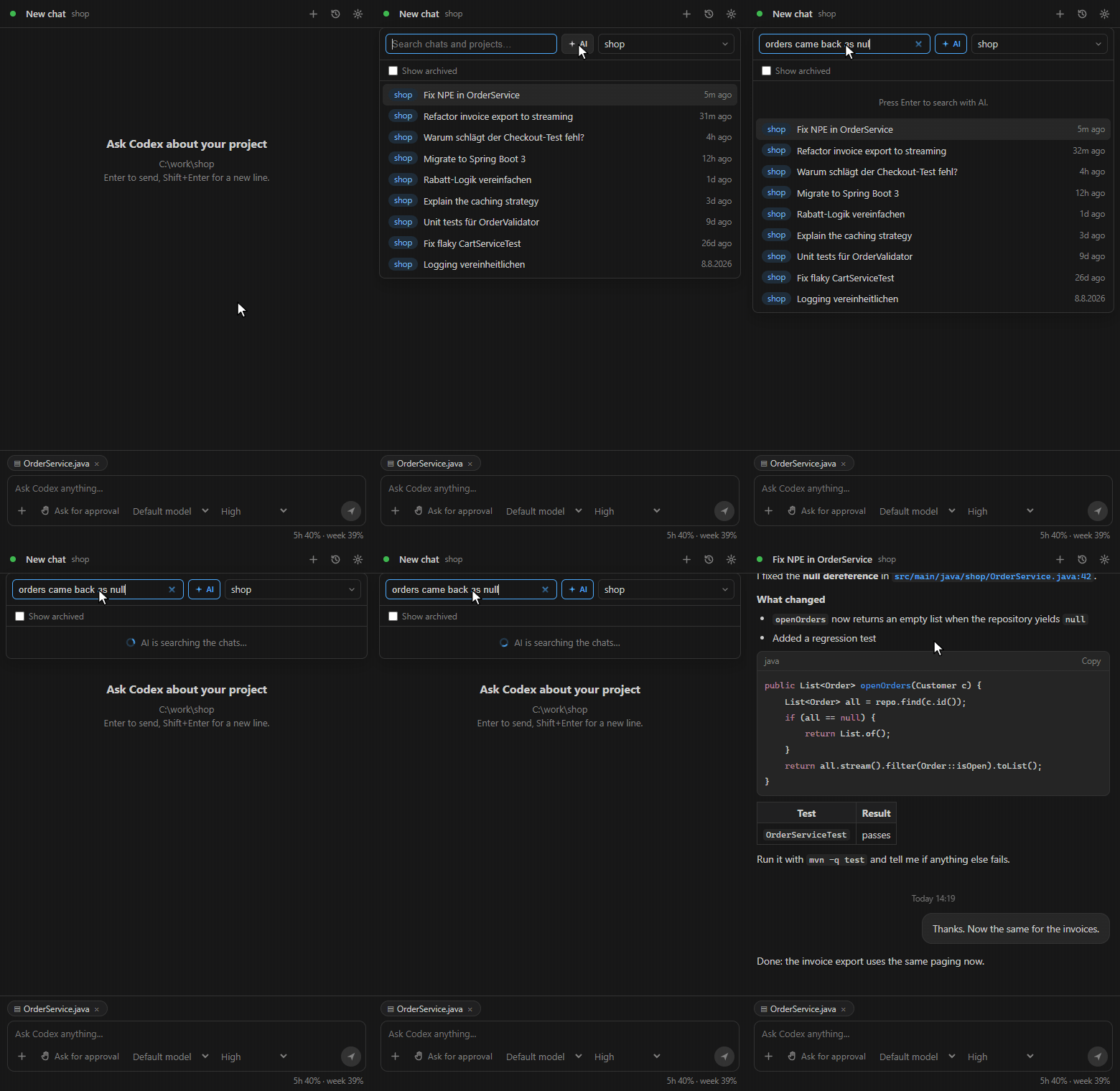
- The History lists the chats of all your projects in one place.
- Switch on AI and describe the chat in your own words, for example "orders came back as null". A quick read-only Codex run picks the matching chats, in any language.
Commit messages with Codex
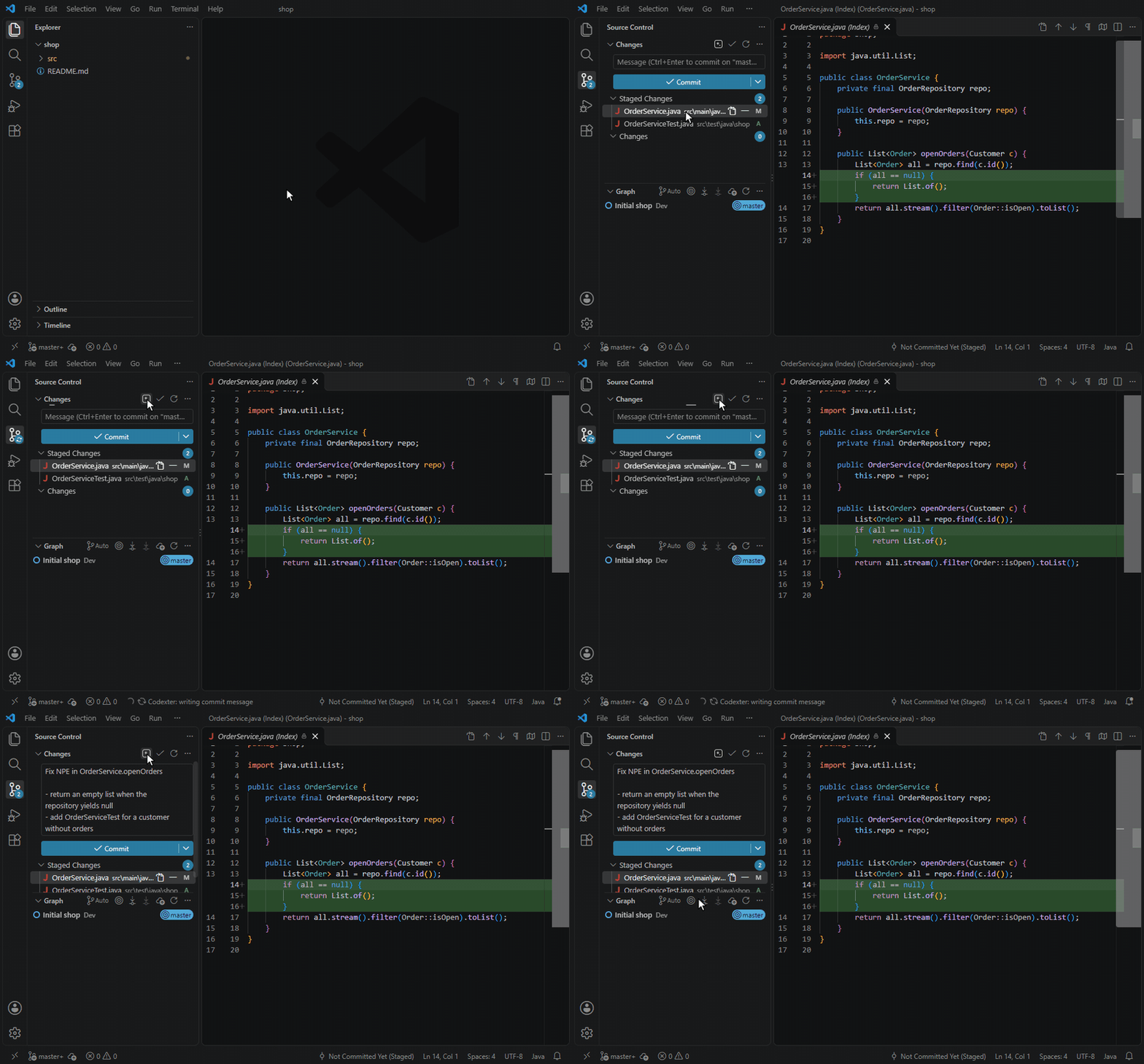
- The Codexter button in the Source Control view (or Codexter: Generate commit message) writes the message from the staged changes. With nothing staged, it uses all changes.
- It runs a fast model of its own (
commitMessageModel, GPT-6 Luna by default), separate from the chat.
- The run is read-only and stays out of your History.
Draw on a screenshot before you send it
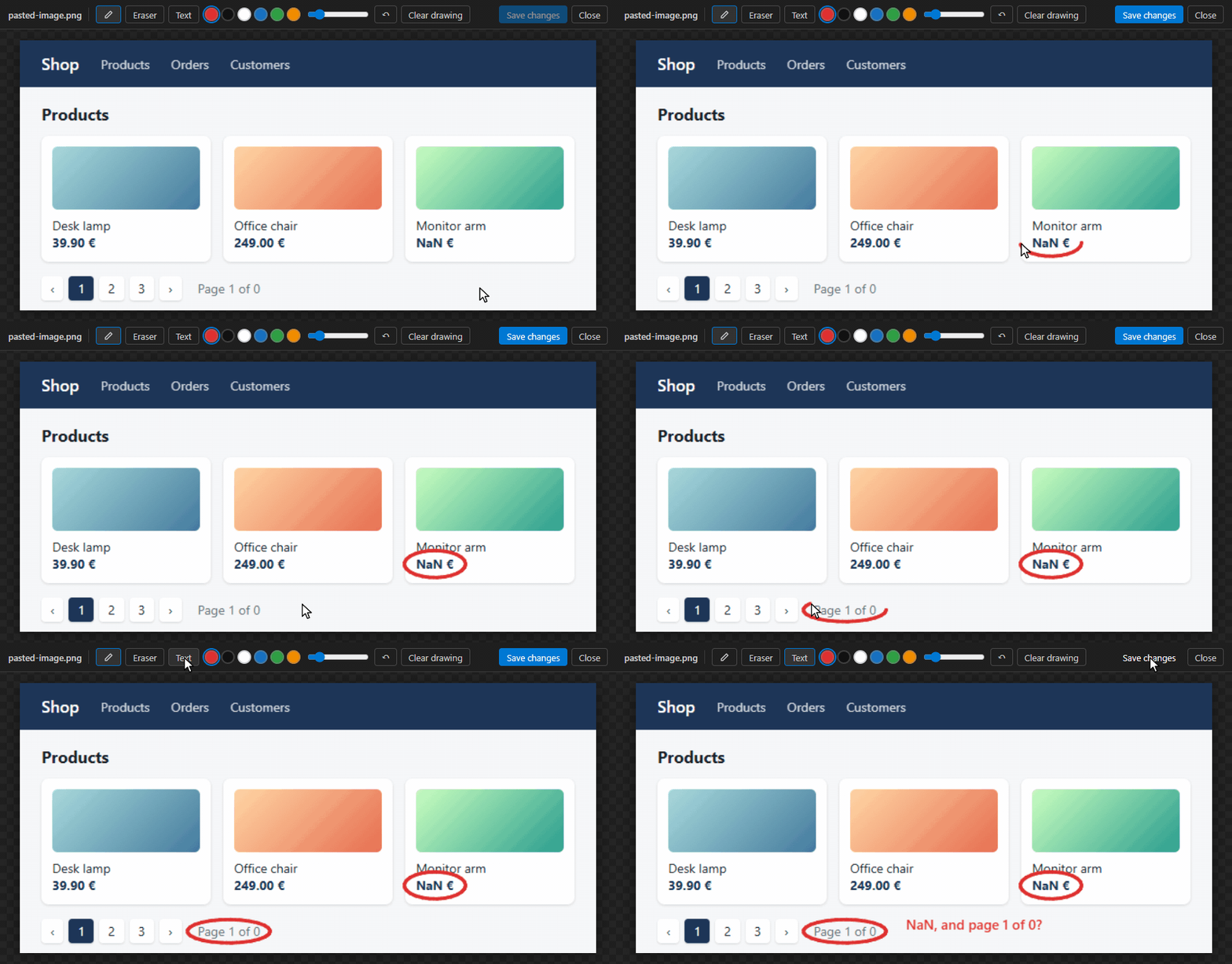
- A click on an attached picture opens it big, in an editor tab of its own.
- Mark it up with pen, eraser and text, in six colours, with undo.
- Save changes (Ctrl+S) replaces the attached picture, so Codex sees what you circled.
- Sketch (in the + menu) starts from a blank page.
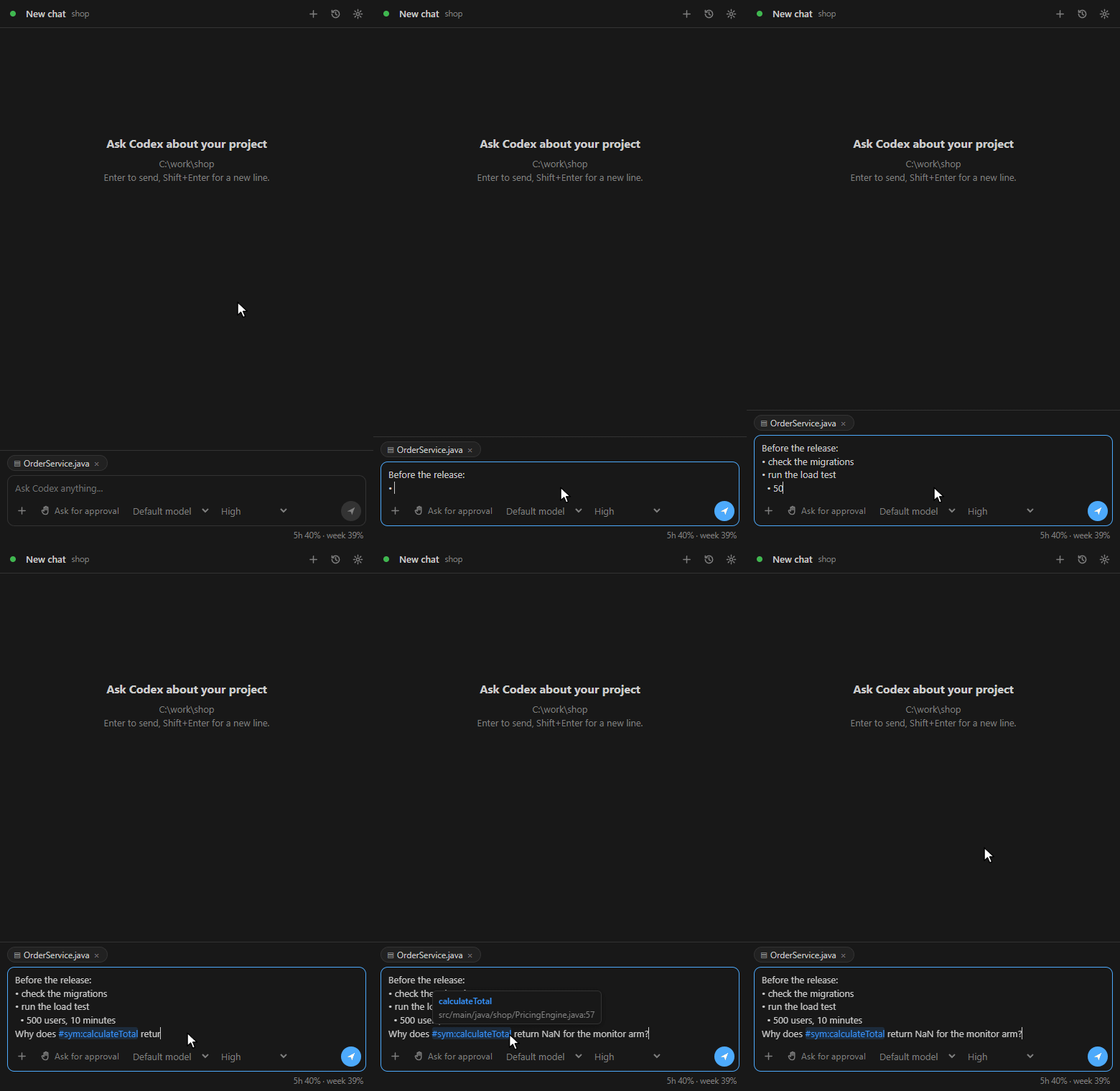
- Code references, like in Copilot: copy a symbol in an editor and paste it into the input. It becomes
#sym:calculateTotal, blue, with its file and line on hover.
- Codex gets the exact location.
- In the sent message, the name opens the file.
- Lists:
- or * at the start of a line becomes • , and 1. starts a numbered list.- Enter continues the list. Tab and Shift+Tab indent and outdent. Enter on an empty item ends the list.
- Ctrl+Enter sends from anywhere.
- Alt+Tab away and back, and the caret is where you left it.
Drag and drop files, folders and editor tabs
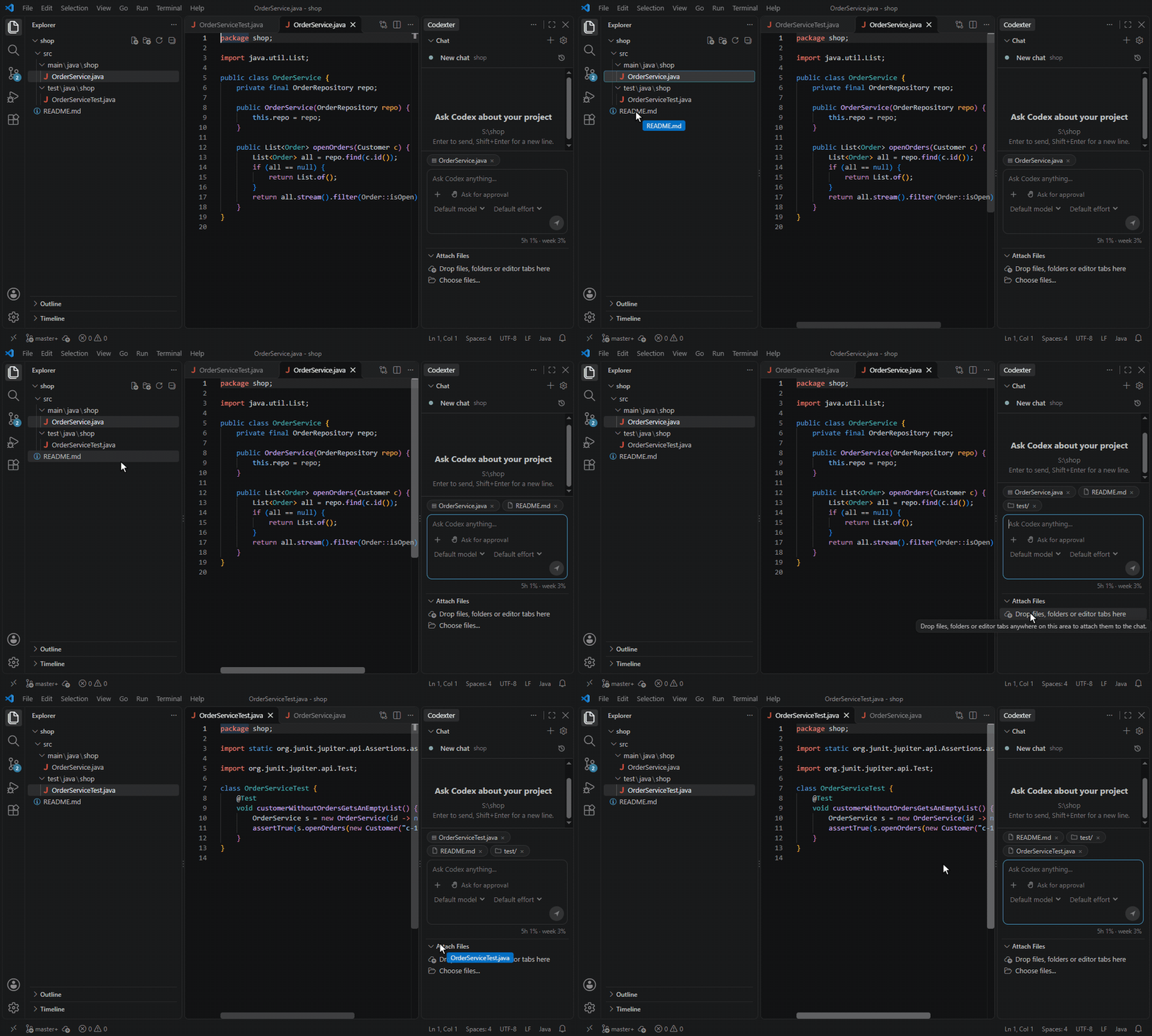
- From VS Code: drag files, folders or editor tabs onto Attach Files, the small area under the chat. Each one becomes a chip above the input, and Codex gets its path. VS Code does not hand its own drags to the chat itself, so this area is the drop target. Choose files... next to it opens a file dialog.
- From the Windows Explorer: drop files straight onto the chat.
- Paste paths: VS Code's Copy Path, Windows Explorer's Copy as path or
file: links pasted into the input also become chips.
- Right-click > Add to Codexter chat works in the Explorer (also several files and folders), in the editor and on an editor tab.
MCP servers without editing TOML
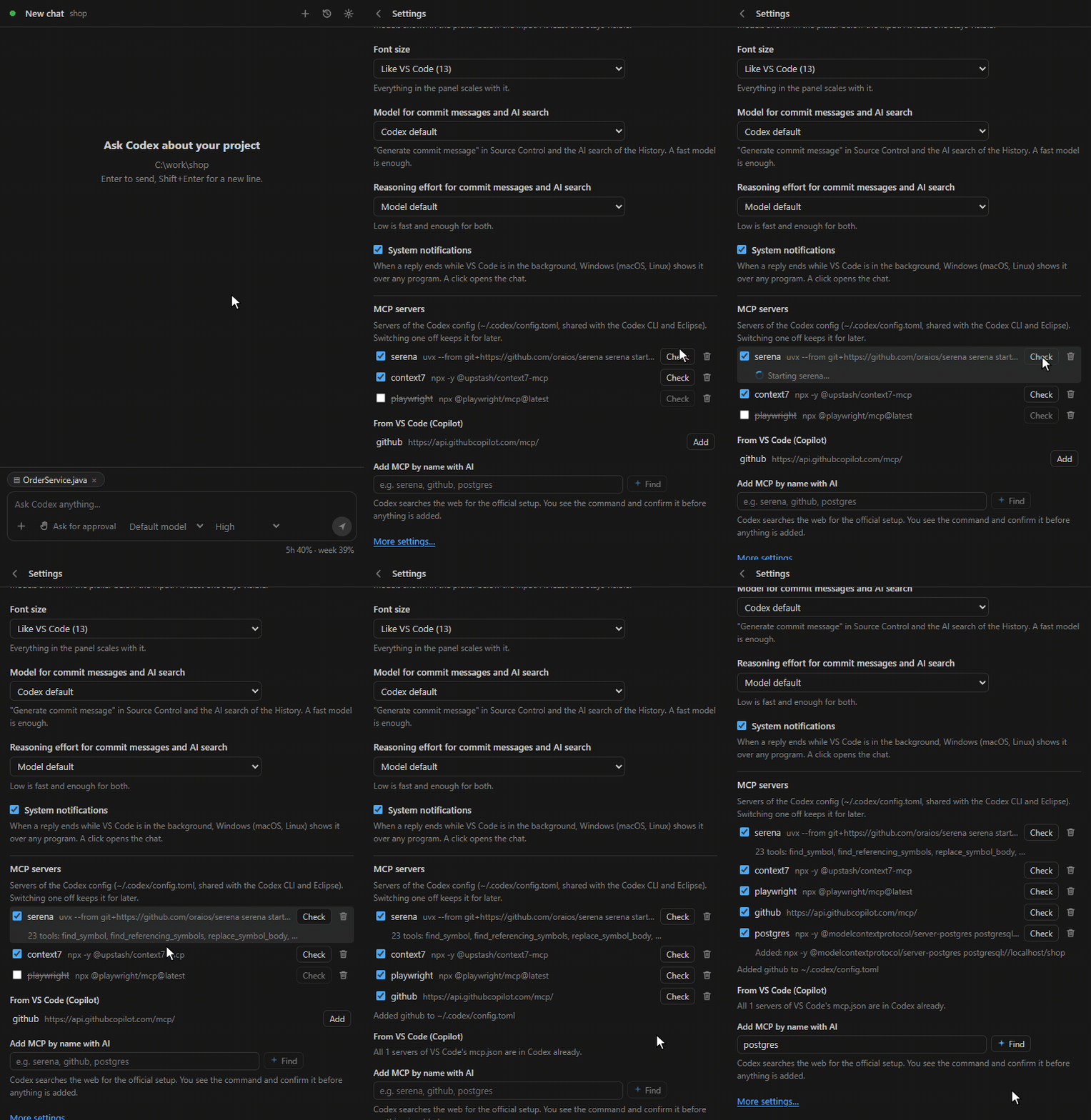
Find them under the gear > MCP servers. Codex uses the same servers in the CLI, in Codexter and in the Eclipse plugin.
- Switch the servers of your Codex config on and off.
- Check starts a server and lists its tools.
- Remove deletes a server from the config.
- Copy from VS Code: the servers of VS Code's
mcp.json (the ones Copilot uses) move to Codex with one click.
- Add MCP by name with AI: type a name such as
serena, github or postgres. Codex searches the web for the official setup, and you confirm the command before anything is written.
Tell Codex how to answer, and keep the context small
- Instructions (gear > Instructions) apply to every new chat, for example "answer briefly, in plain language". Ready-made lines are one click away.
- You choose where the instructions live:
- Codex's own are written to
developer_instructions in ~/.codex/config.toml, so the Codex CLI uses them too;
- Only in Codexter keeps them in VS Code.
- Open AGENTS.md opens Codex's global
AGENTS.md for longer rules.
- Compact next to the context usage in the footer makes Codex summarize the chat right away, and the chat goes on from the summary.
- Compact a chat at (gear > Context) sets when Codex compacts on its own:
- a smaller limit keeps replies faster and uses less of your limits;
- a bigger one keeps more details.
The chat itself
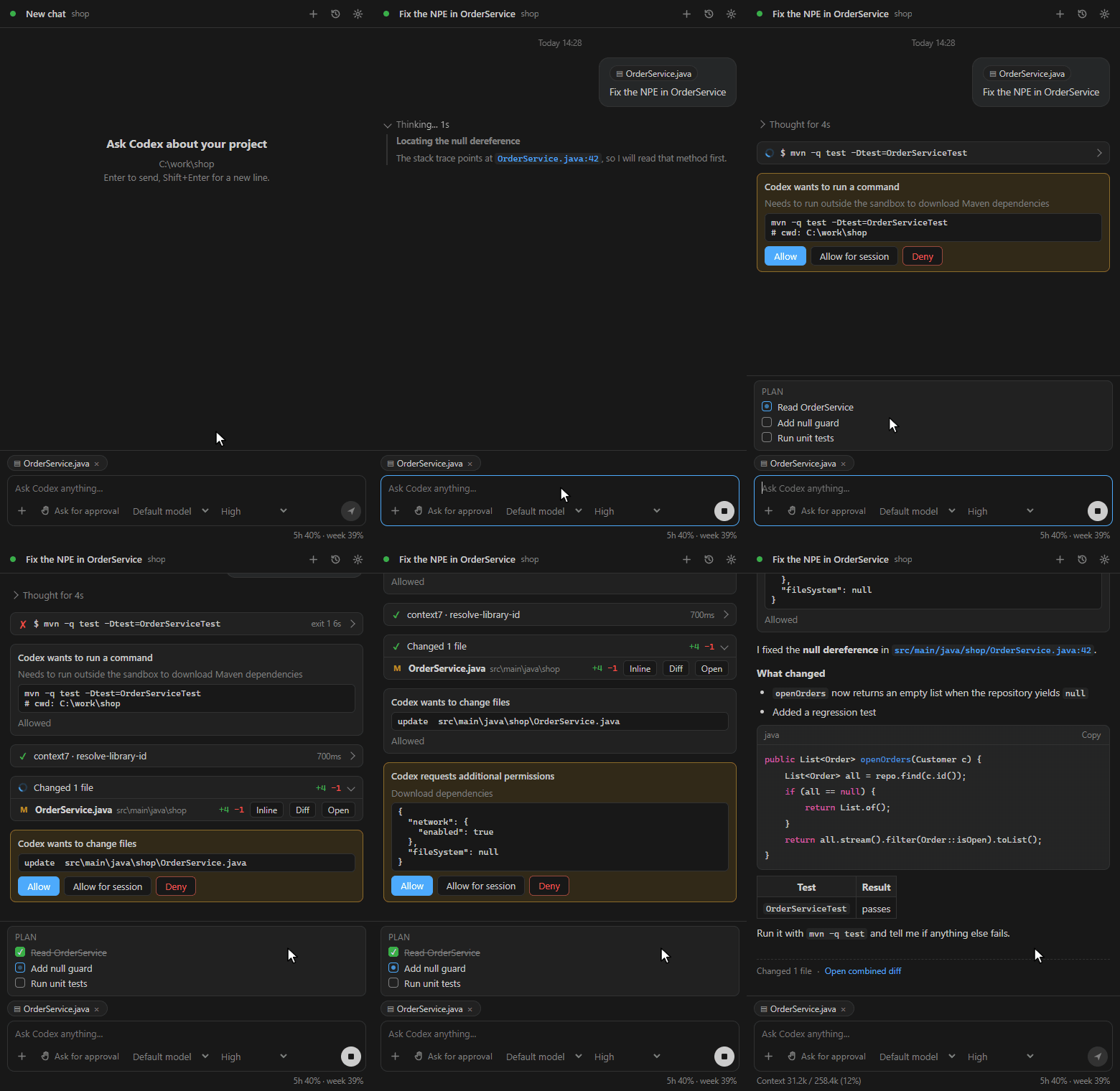
Everything you expect from a Codex chat is there too:
- streaming Markdown answers with clickable
file:line links;
- cards for reasoning, commands, MCP calls and file changes;
- Allow, Allow for session or Deny on approvals;
- the plan checklist and a combined diff of the turn;
- the context and limits in the footer;
- model, reasoning effort and permission pickers, plus plan mode, goals and plugins in the + menu;
@ file mentions, the active editor file and selected code (right-click > Codexter: Ask / Explain / Fix selection).
A few details:
- Diff on a changed file opens VS Code's own git changes view.
- Rename a chat: double-click its tab or title, press F2, or use the pencil in the History. The name is saved in Codex, so the CLI shows it too.
- Archive, unarchive and delete chats in the History.
- Colours and fonts follow the VS Code theme.
- Codex is downloaded from the npm registry and updated every 7 days. On Windows it lives in
%LOCALAPPDATA%\CodexPanel\codex and is shared with the Eclipse plugin; on macOS and Linux it lives in the extension's own storage. Proxies (http.proxy, HTTPS_PROXY) work.
Install
Install the .vsix with Extensions > ... > Install from VSIX..., then press Ctrl+Alt+C. Details: INSTALL.md (English),
INSTALL.de.md (German).
The panel opens in the secondary side bar (VS Code 1.106+; the activity bar before that). Enter sends, Shift+Enter adds a new line.
Commands
| Command |
|
| Codexter: Open panel |
Ctrl+Alt+C |
| Codexter: New chat |
also + in the view title |
| Codexter: Ask / Explain / Fix selection |
editor context menu |
| Add to Codexter chat |
Explorer, editor and editor tab context menus |
| Codexter: Attach files... |
|
| Codexter: Generate commit message |
Source Control view title |
| Codexter: Open settings |
also the gear in the view title |
| Codexter: Check for Codex updates |
|
Settings
| Setting |
Default |
|
codexPanel.defaultModel |
Codex default |
Model a new chat starts with |
codexPanel.defaultReasoningEffort |
model default |
Reasoning effort a new chat starts with |
codexPanel.defaultPermissions |
last used |
Permissions a new chat starts with |
codexPanel.hiddenModels |
none |
Models hidden from the picker |
codexPanel.commitMessageModel |
gpt-6-luna |
Model for commit messages and the AI search |
codexPanel.commitMessageEffort |
low |
Reasoning effort for both |
codexPanel.instructionsSource |
codex |
Whose instructions new chats get: Codex's own or codexter |
codexPanel.instructions |
empty |
Codexter's own instructions |
codexPanel.autoCompactTokens |
0 (Codex's) |
Compact a chat when its context reaches this many tokens |
codexPanel.systemNotifications |
on |
Notifications of the system while VS Code is in the background |
codexPanel.fontSize |
0 (like VS Code) |
Font size of the panel |
codexPanel.autosave |
on |
Save modified editors before a message is sent |
codexPanel.codexSource |
managed |
managed (downloaded and updated) or own |
codexPanel.codexPath |
empty |
Your own Codex (codex.exe, or codex on macOS and Linux) |
codexPanel.updateIntervalDays |
7 |
Days between Codex update checks (0 = never) |
The gear in the panel has the most used ones too. The log is in Output > Codexter.
Development
npm install
npm run compile     # copies web\ into media\web, then tsc -> out\
npm test            # node:test, no VS Code needed
npm run smoke       # real codex app-server, read-only (account/read, model/list, thread/list); creates, archives and deletes nothing
npm run package     # dist\codex-panel-<version>.vsix
Run it from source: open this folder in VS Code and press F5 (Extension Development Host). The page alone runs in a browser:
web/dev.html replays recorded Codex sessions (see the top of web/dev-bridge.js). Design notes are in CONCEPT.md, the history of
changes in HANDOFF.md.
src/core/ has no vscode imports: jsonrpc, appServer, locator, installer, tar, http (proxy tunnelling), fileLinks, fileIndex,
threadRows, droppedPaths, unifiedDiff, aiSearch, mcpServers, chatList, osNotify, rollout, instructions.src/session.ts, src/updater.ts (no vscode imports): the Codex session and the updater.src/extension.ts, panel.ts (webview view), chatActivity.ts, mcpSettings.ts, imageEditor.ts, dropTarget.ts, workspace.ts,
mentions.ts, diff.ts, proxy.ts: the VS Code glue.web/ is the page (app.js, app.css, imageEditor.js, ...); media/web/ is generated from it by scripts/sync-web.mjs (do not edit).media/readme/ holds the GIFs of this file (recorded from web/dev.html).
Codexter started as a port of the Codex Panel plugin for Eclipse; the two are separate projects now. The extension id is
UnrealDeveloper.codex-panel since 0.9.0 (before: codexpanel.codex-panel, installed from a vsix), the settings stay codexPanel.* and the vsix is named codex-panel-<version>.vsix.
| |

