Trident IoT Development Environment (TIDE)
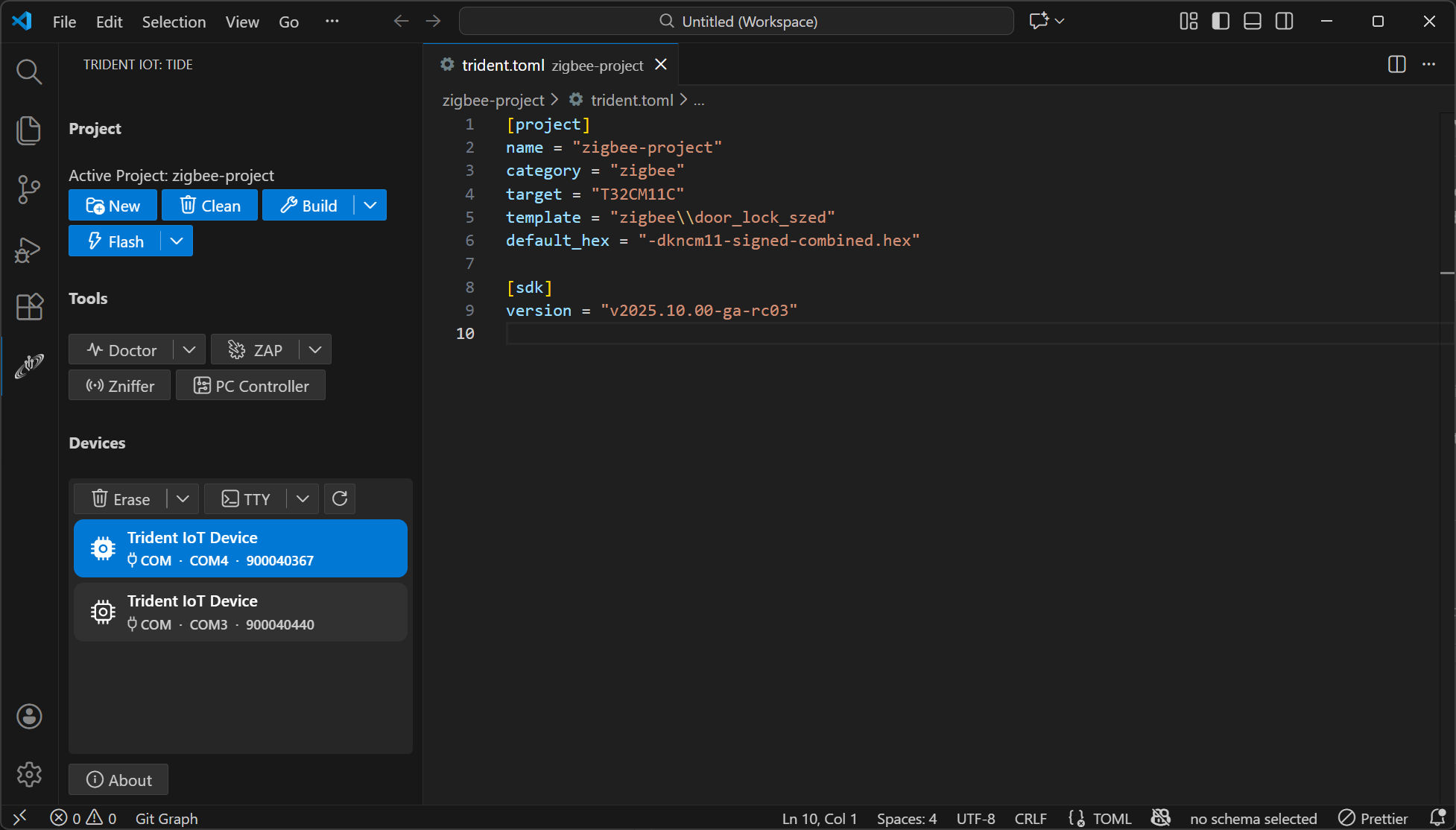
TIDE is a VS Code extension that provides an end-to-end development environment for developing Trident IoT SDK projects.
If you experience issues while using TIDE, please refer to the Troubleshooting section below.
Quick Start
Locating TIDE in VS Code
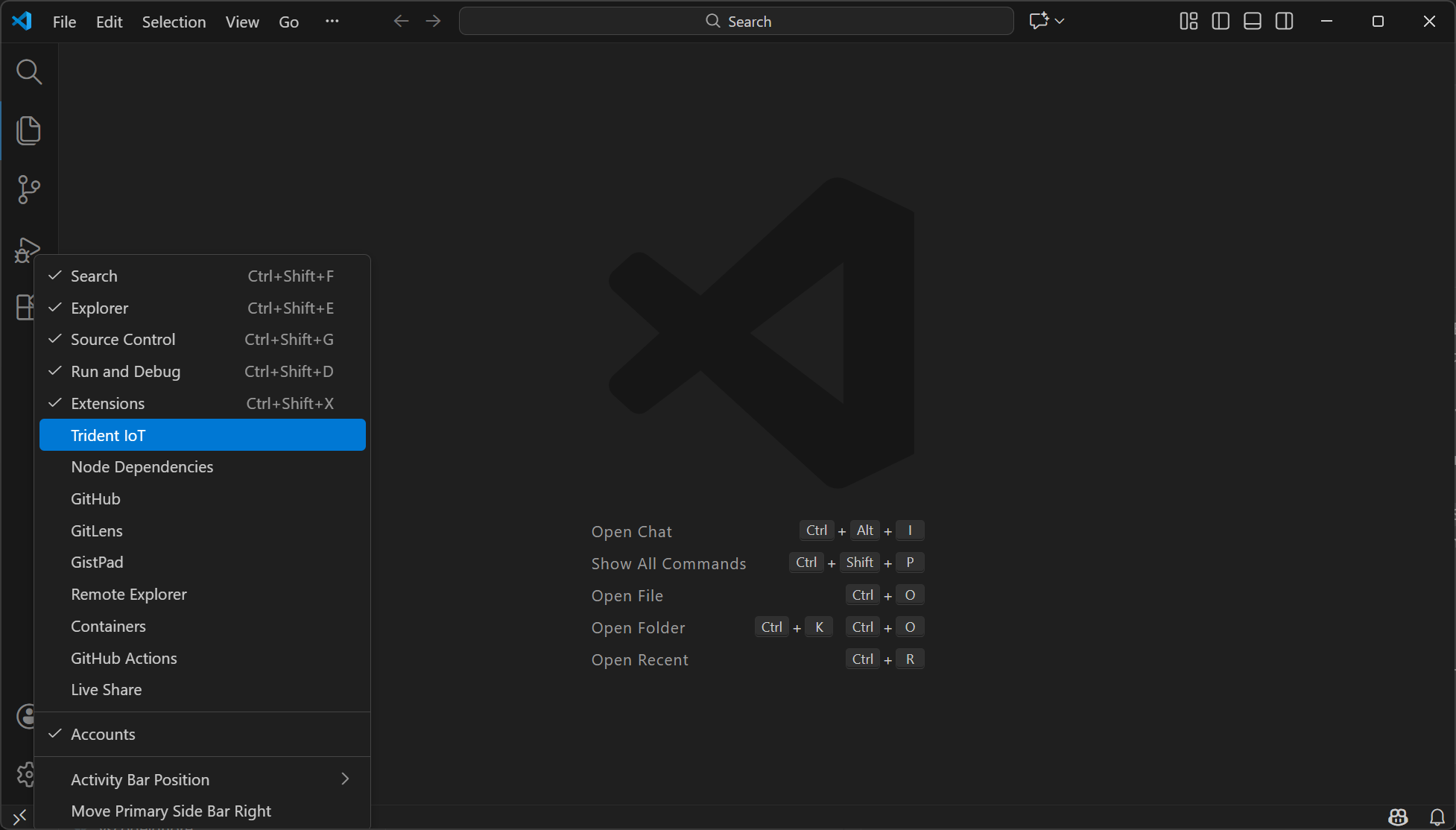
After installation, look for the TIDE icon in the Activity Bar on the left side of VS Code.
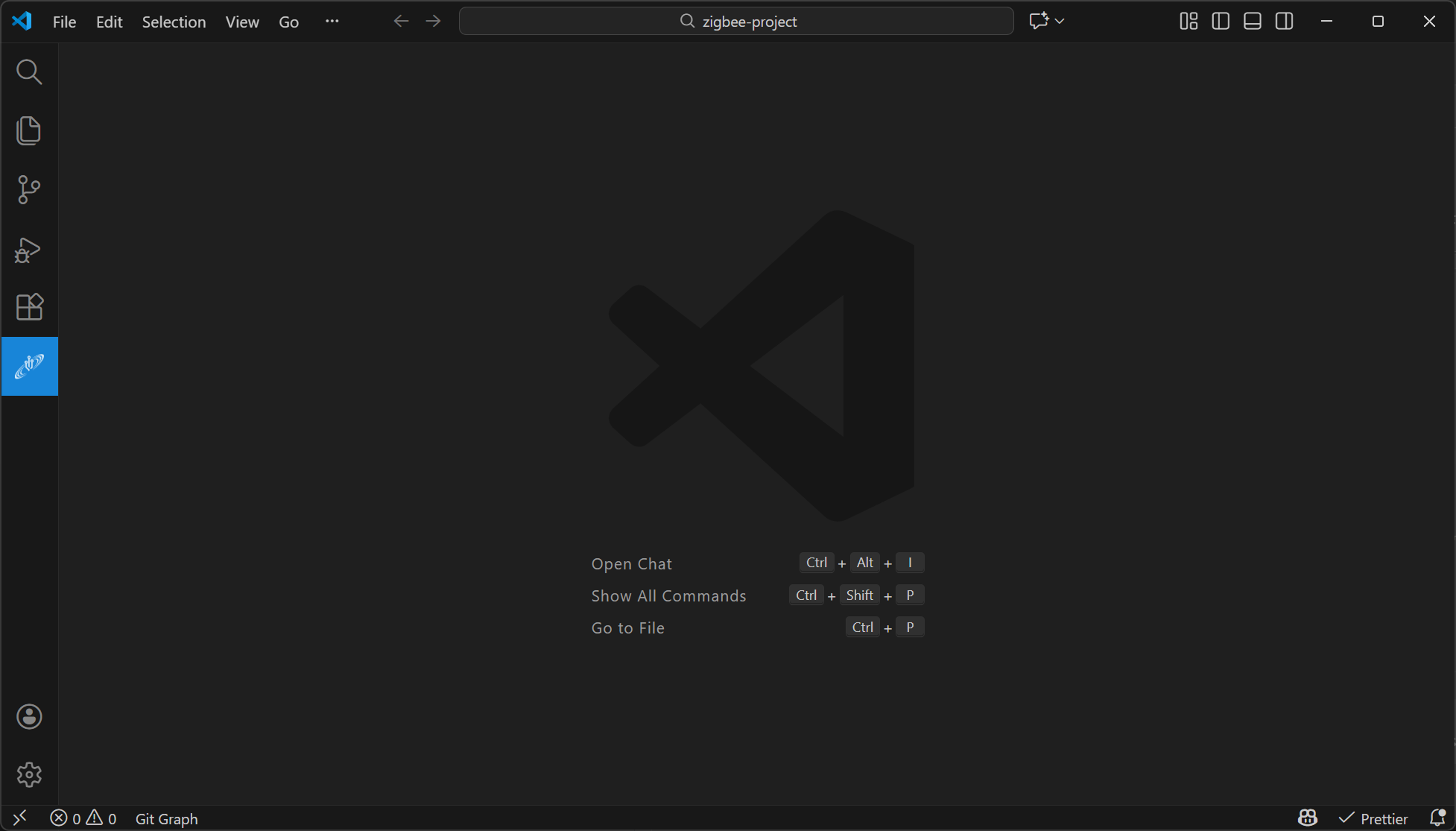
Note: If you don't see the TIDE extension icon in the Activity Bar, right-click anywhere in the Activity Bar to reveal a list of all extensions, then click on Trident IoT to reveal the extension's icon in the Activity Bar.
Installing ElCap
TIDE requires an installation of ElCap version v1.0.0 or newer. If you don't already have ElCap installed, TIDE will prompt you to do so. Clicking Install ElCap will seamlessly perform the installation in a few seconds.

You can also manually download ElCap from the Trident IoT Software page at https://tridentiot.com/technology/software/.
Signing into TIDE
TIDE requires the user to sign in before use. You will be prompted to do so if you haven't already.

Note: If you don't already have an account associated with Trident IoT, you can create one by following the link in the screenshot above.
After signing in, you will be redirected to TIDE's main user interface.
Creating a New Project
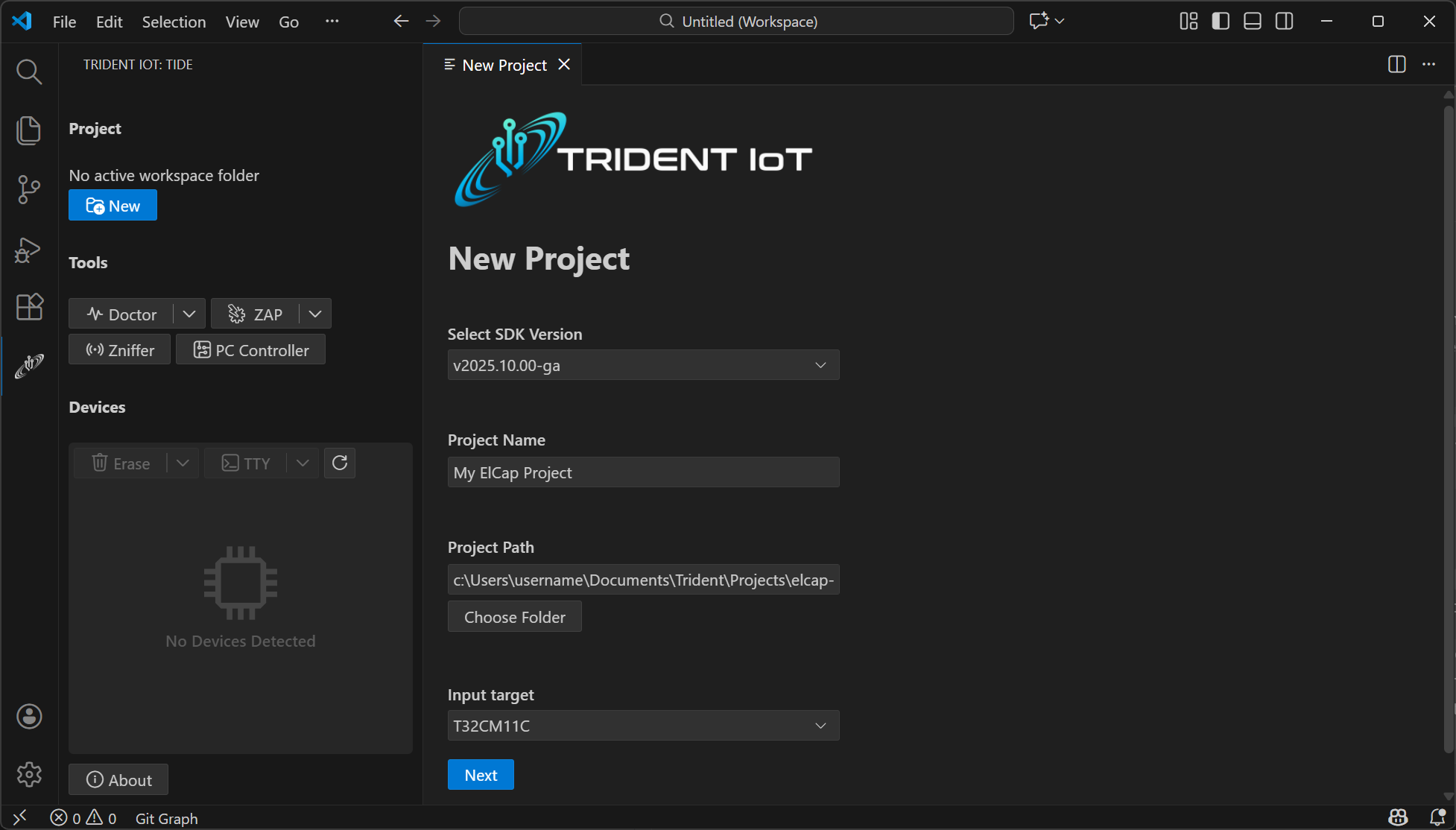
Click the New button, then follow the prompts in the New Project form. Once all prompts have been completed, click Create Project. The newly created project will automatically be set as the "active" project.
Note: If you already have any folder(s) opened in your VS Code workspace, TIDE will automatically open your new project in a new VS Code window (otherwise it'll open the new project in your current VS Code Window).
Opening an Existing Project
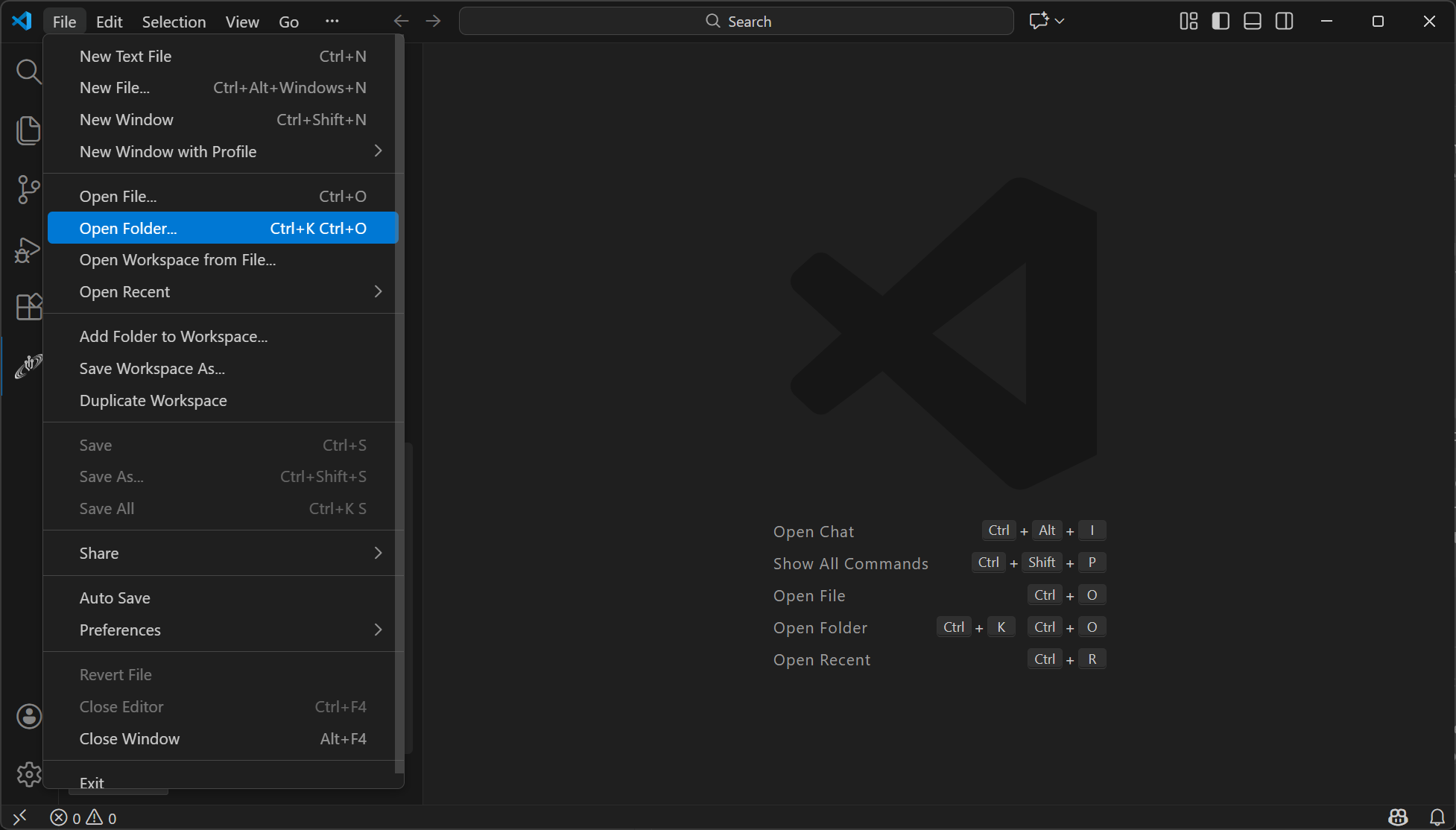
Existing projects can be opened from VS Code's File -> Open Folder... menu. Once the folder has been opened in VS Code, TIDE will automatically set it as the "active" project.
Note: If multiple folders are opened in VS Code at the same time, TIDE will not set any of them as the "active" project. To set one of them as "active", open any file from any projects, and TIDE will automatically detect the project that the file belongs to and set that project as "active".
Changing the Active Project
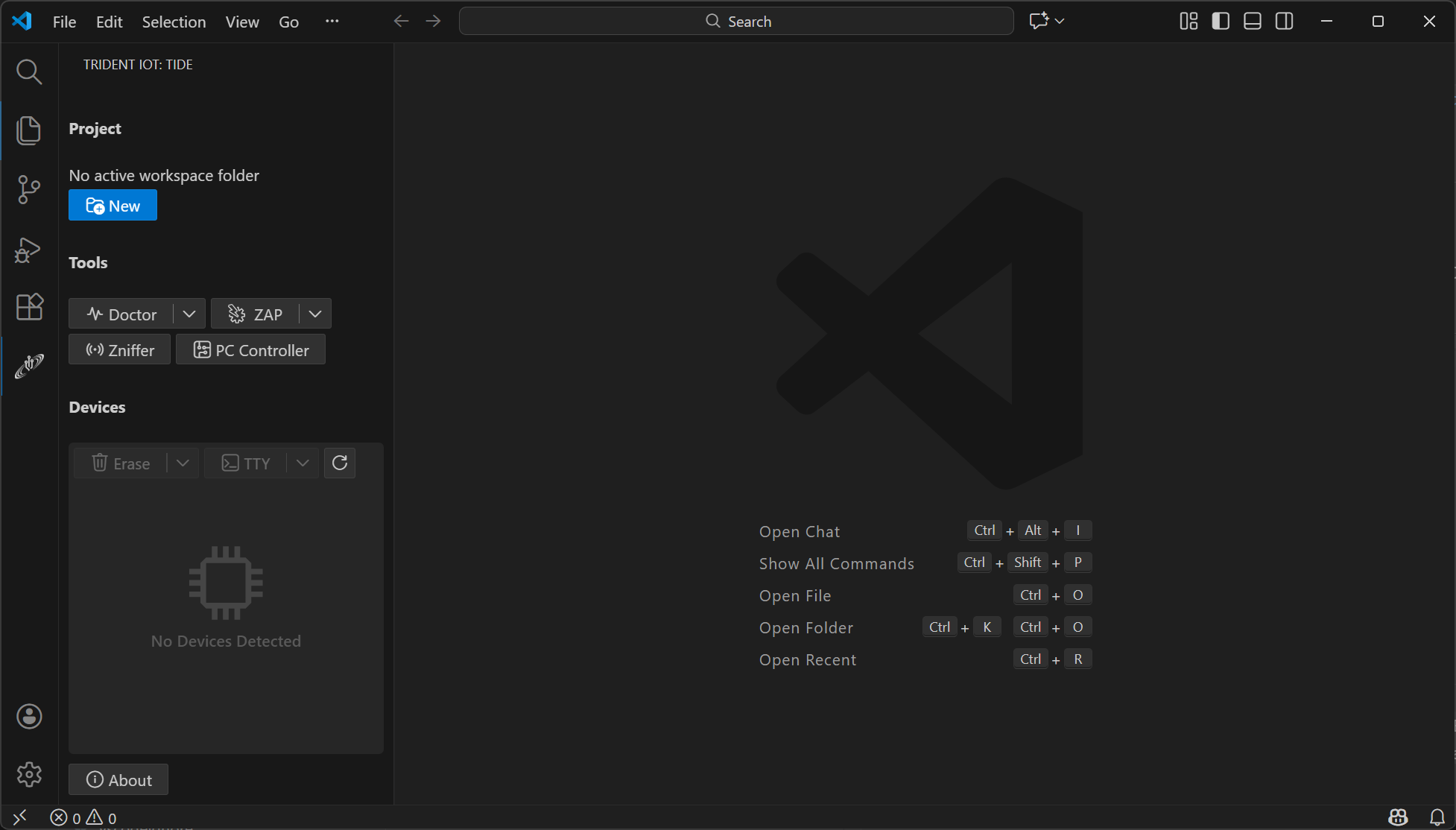
By default, no project will be set as "active". TIDE will then implicitly set the "active" project based on:
- Which file was most recently opened in the editor (and which project that file belongs to)
- Which project folder was most recently opened in VS Code
To change the "active" project, simply open a file from that project in the editor.
Building & Flashing a Project
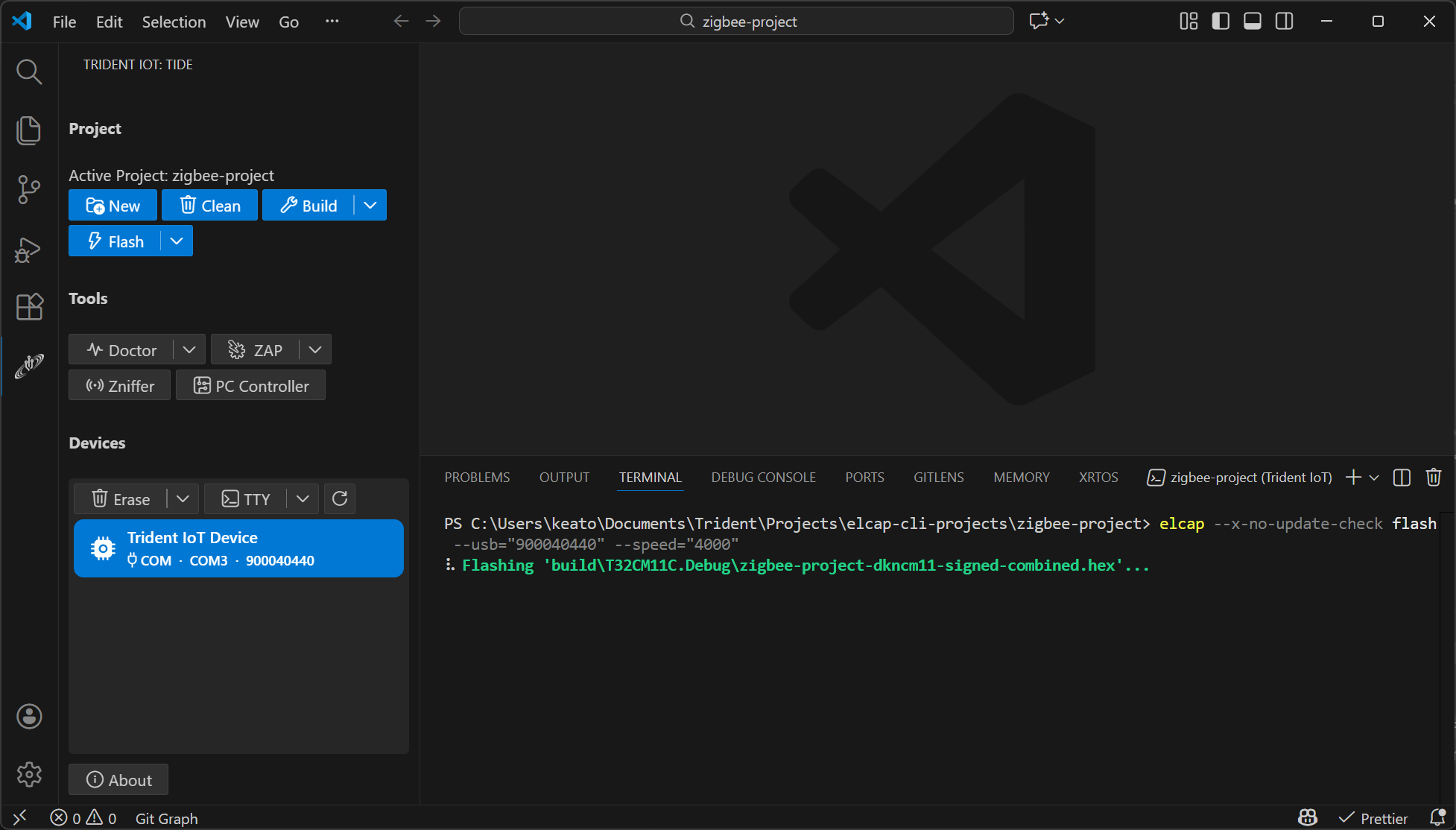
Once an "active" project has been set, you can Build and Flash it using the respective buttons in the TIDE sidebar.
Note: Several buttons (including Build and Flash) offer additional settings in their options dropdown menus. To access these menus, click the down arrow beside the relevant button.
Updating ElCap from TIDE
ElCap can be partially updated from within TIDE. To update ElCap from TIDE, navigate to the Update view, then click the Check For Updates button.

Note: To perform a full ElCap update, download the latest ElCap release from https://github.com/tridentiot/elcap/releases.
Troubleshooting
For all other troubleshooting, contact support using the resources below.
Support & Documentation
License
TIDE is commercial software, not open source. It is free to install, but using it
requires signing in with a Trident IoT account.
Use is governed by the Trident IoT
Master Software License Agreement.
Third-party software
TIDE includes third-party components licensed by their respective owners under
their own terms. Attribution and licence texts are in THIRD-PARTY-NOTICES.md
and LICENSES/ inside the extension. Notably, TIDE ships prebuilt native USB
bindings that incorporate libusb under the LGPL-2.1-or-later,
and the Codicons icon font by
Microsoft Corporation under CC-BY-4.0.
Copyright (c) 2025-2026 Trident IoT, LLC. All rights reserved.

