Image Viewer
View and manage images in your workspace: thumbnail grid, large preview, copy Base64 / path / file name, and per-project include/exclude folders.
This is a fork of ZhangJian1713/vscode-image-viewer (upstream main, which the marketplace ships as v2.0.6), maintained by tobiashochguertel to fix zoom bugs that upstream doesn't ship yet. See Fork changes below.
Fork changes
The full-screen viewer delegates zooming to the
right-image-preview
package. This fork consumes our own build of that library —
tobiashochguertel/right-image-preview@v0.6.1-fork.1
— which upgrades the viewer engine from upstream 0.2.0 to 0.6.1 (plus our
fixes) and repairs the zoom state machine:
Bugs fixed
- Wheel zoom jumped to 200% on large/diagram images. An image opened in
Fit mode can exceed every zoom stop (e.g. an SVG diagram upscaled to ~950%
to fill the viewport). The first wheel-up tick then snapped the zoom down
to the 200% top stop — a zoom-in that visibly zoomed out.
- Wheel-down did nothing in Fit mode. Scrolling out was a dead no-op while
the viewer was in fit mode.
- Broken zoom after pinch. Pinch zoom allows continuous scaling up to
800%, but any subsequent wheel zoom hit a
stops[-1] lookup bug and produced
an undefined zoom level.
- Pinch-in snapped down from a high fit. Pinch clamps ignored that Fit can
already exceed
maxStop, so pinching in at 950% clamped to 800%.
- Toolbar zoom controls capped at 200%. Typing a value into the zoom input
was clamped to the top stop, and the − button was disabled in fit mode.
Behaviour changes
- Zoom in past the top stop continues geometrically (each step = the ratio
of the last two stops, 200/175 ≈ 1.14) — no more dead ceiling at 200%.
- Zoom out steps down from the fit-equivalent and rejoins the discrete stop
ladder when it crosses back below 200%.
zoomInAtMaxBehaviour now only controls the onMaxStopReached
notification; zoom-in is never blocked at the top stop.
Building this fork
yarn install
yarn package   # or: yarn vsix  → produces the .vsix installer
The dependency is pinned to a git tag (github:tobiashochguertel/right-image-preview#v0.6.1-fork.1),
so no private registry is needed to build.
Screenshots
Main panel
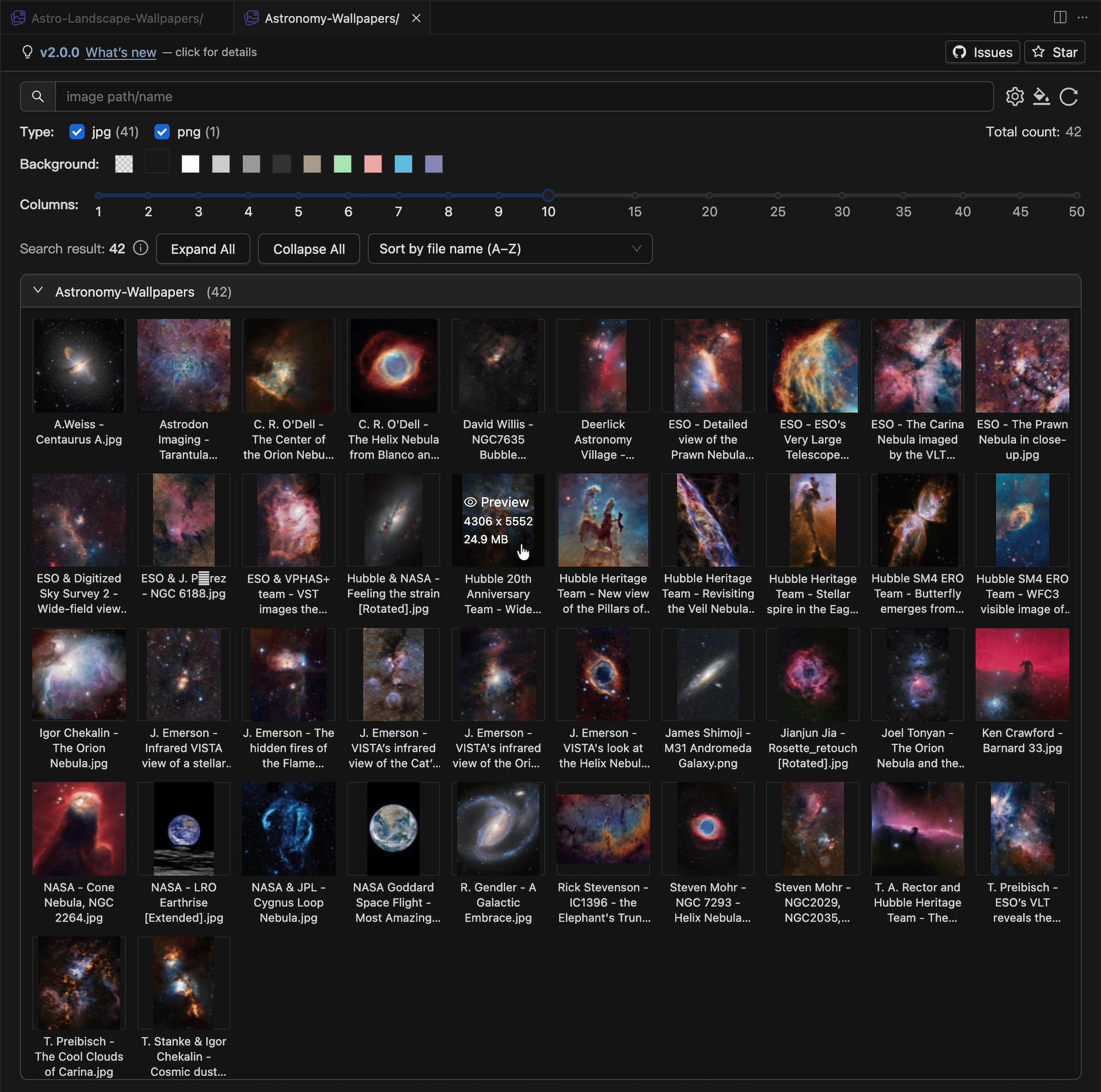
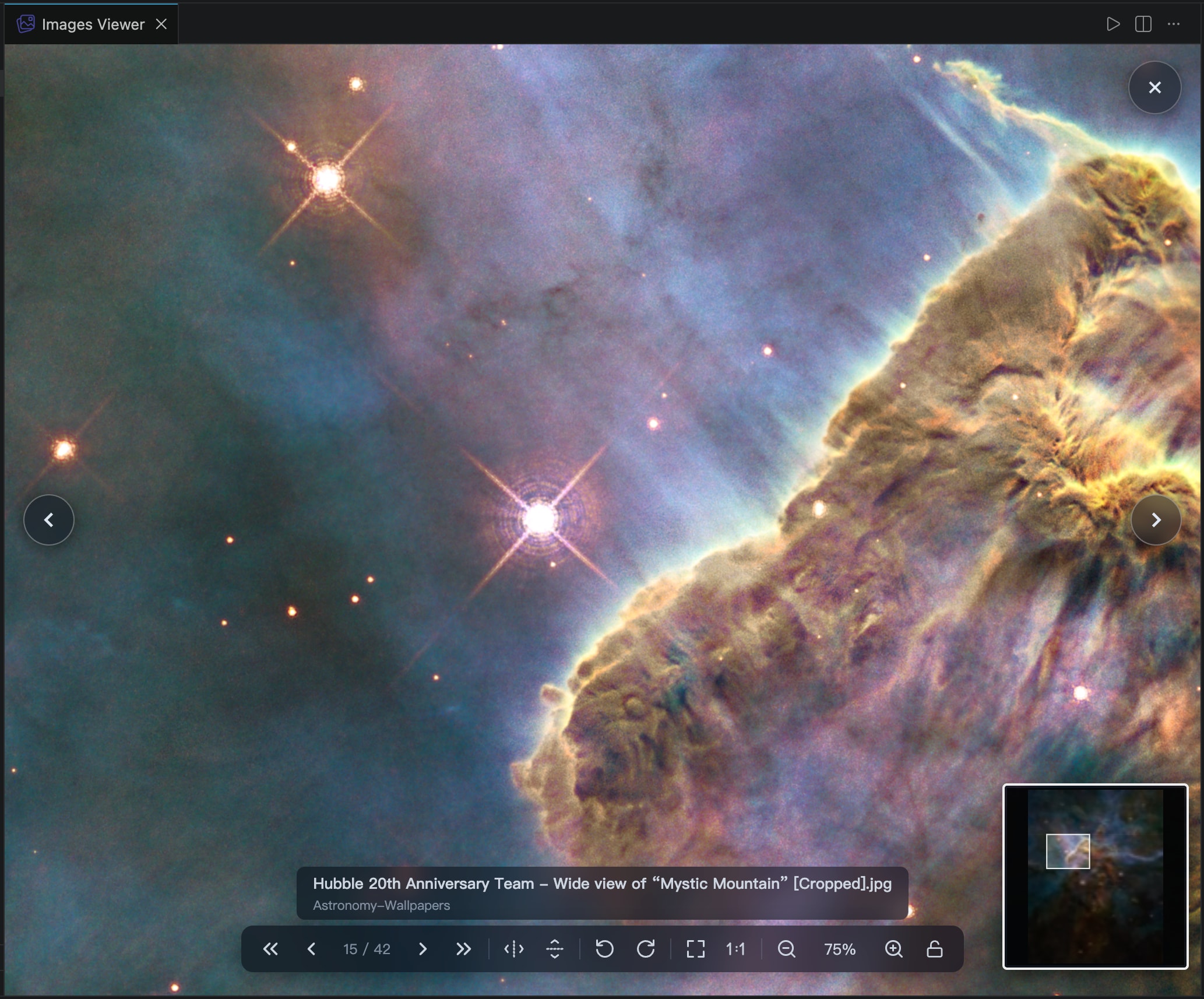
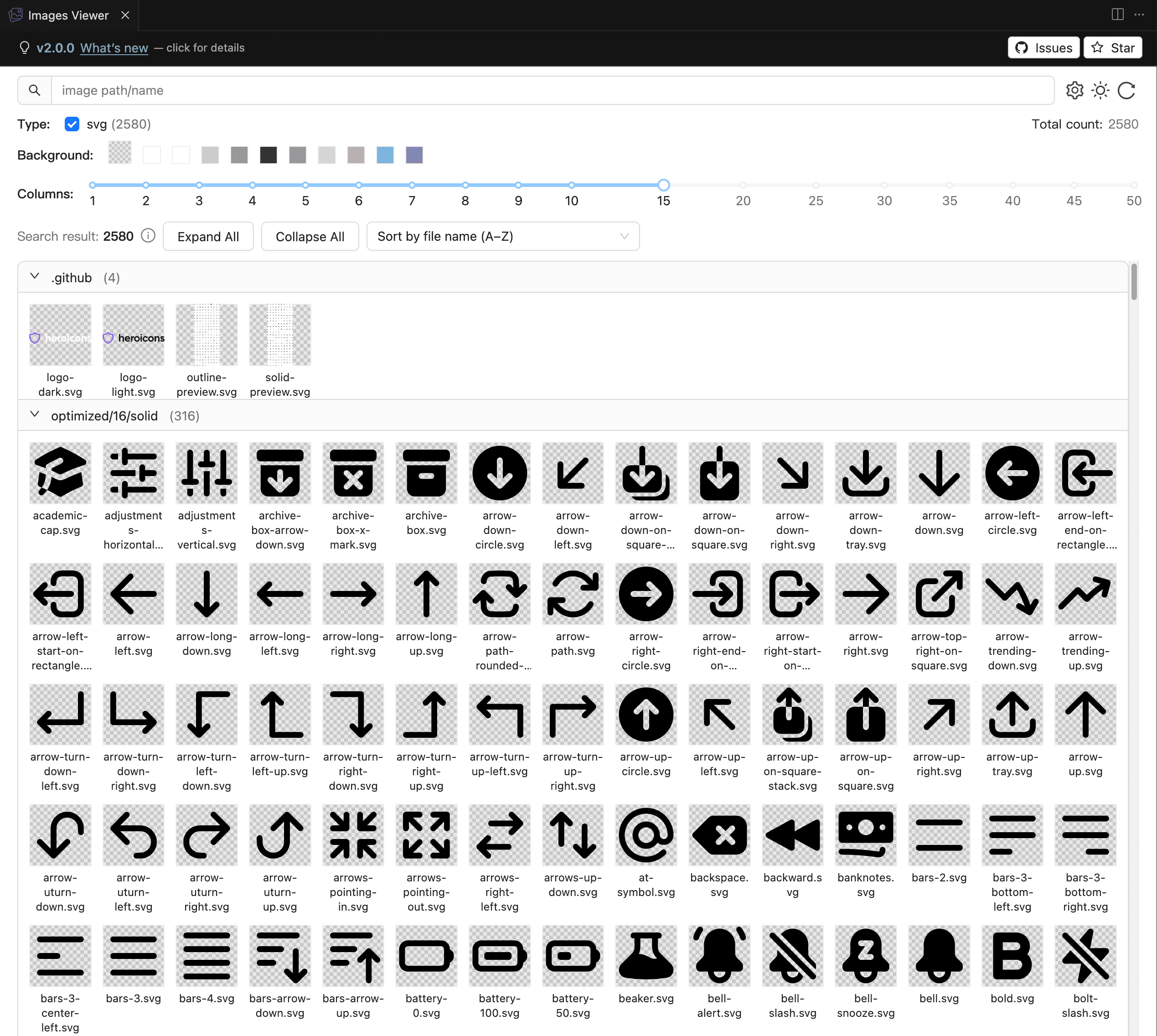
This shows another light theme style, as well as switching to a checkerboard background to reveal the transparent parts of SVG images.
Features
- The full-screen viewer is now powered by our own preview engine, with a smoother browsing experience.
- Moving to next/previous images now feels more natural and follows the folder order you see in the panel.
- The small overview map in preview looks clearer and loads faster, especially for very large images.
- Preview interactions are richer and easier to use (mouse wheel zoom, double-click zoom, quick flip, and easier navigation buttons).
- Thumbnail grid with lazy loading and tuning for large libraries (many high-resolution images).
- Column count controls grid density (uses panel width efficiently).
- Sort images inside each folder (name, modified time, size, asc/desc).
- Light / dark UI for the panel; default follows your VS Code or Cursor theme (toggle in the toolbar).
- Preview backdrops: checkerboard, transparent (default), and solid swatches; useful for PNG/SVG with alpha.
- Zoom and navigate with keyboard.
- Search by path/name; filter by file type.
- Include / exclude folders
- Copy path, file name, or Base64 from the image menu.
- Open a folder from Explorer: only that folder tree is scanned (fast in huge repos). Multiple Image Viewer tabs for different folders; tab title includes the folder name.
- Optionally register Image Viewer as the default editor so clicking an image in Explorer opens it directly in the full-screen viewer without loading the image library first.
How to use
- Open a folder or workspace in VS Code / Cursor.
- Whole workspace:
Ctrl+Shift+P / ⌘⇧P → run View Images (command id: vscode-infra.webviewImageViewer).
- Folder only: In the Explorer, right-click a folder (or an image file) → View Images 🌄. Only that directory (and subfolders) is indexed in that panel; the editor tab title reflects the folder.
- Open images on a normal click: run Image Viewer: Use as Default Image Editor once. Run Image Viewer: Restore VS Code's Default Image Editor to remove Image Viewer's global associations and return to VS Code's normal editor selection behavior.
You can also switch editors for an individual file with VS Code's Reopen Editor With... command.
The default-editor commands update the global User workbench.editorAssociations setting. Workspace or Workspace Folder associations can override the global choice. Before uninstalling Image Viewer, run the restore command if you want to remove these global associations; uninstalling an extension does not edit your User settings.
More documentation
Questions or feedback
zhangjian1713@gmail.com

