A visual Windows Forms designer that runs inside VS Code, on any OS.
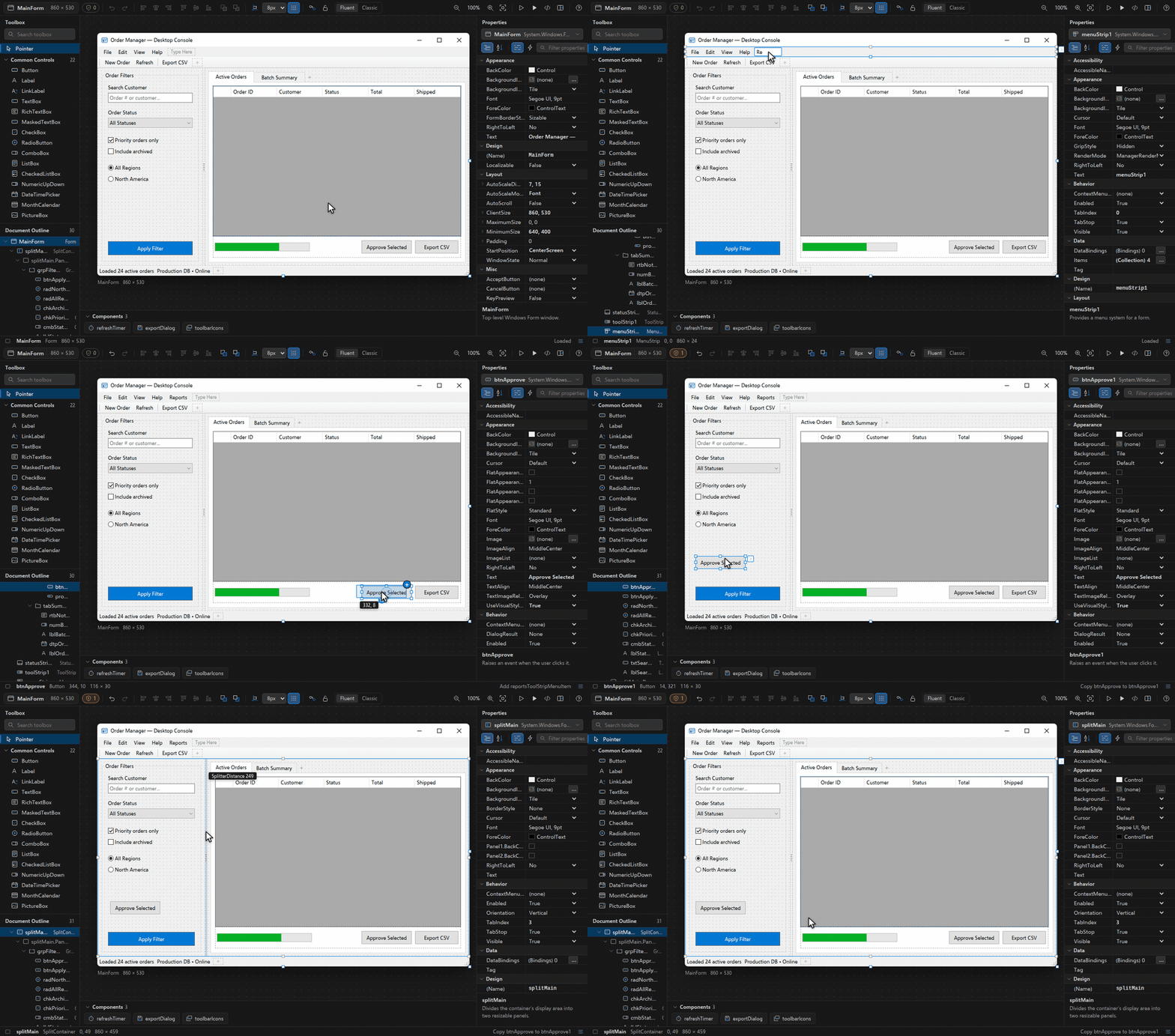
Open a .Designer.cs file and you get a Visual Studio-style design surface in an editor tab: Toolbox, Document Outline, Property Grid, Component Tray, snaplines, collection editors and an interactive preview. Every edit is written back to your C# with surgical precision. No external window, no bin/ to compile first, and no .NET runtime needed to design.
What sets it apart
|
Modern WinForms Designer |
External Windows .exe designers |
| Where it runs |
Inside VS Code on Windows, macOS, Linux, WSL and ARM64 |
A separate window, Windows only |
| Setup |
Small VSIX. No .NET runtime needed to design |
Requires a matching .NET Desktop Runtime |
| Opening a form |
Works immediately from source; no bin/ build first |
Usually needs a compiled project or assembly |
| Rendering |
Pixel-faithful Fluent (Windows 11) and Classic (Win32) styles that match compiled WinForms in design mode and in Live Preview |
Host-OS rendering, design mode only |
| Preview |
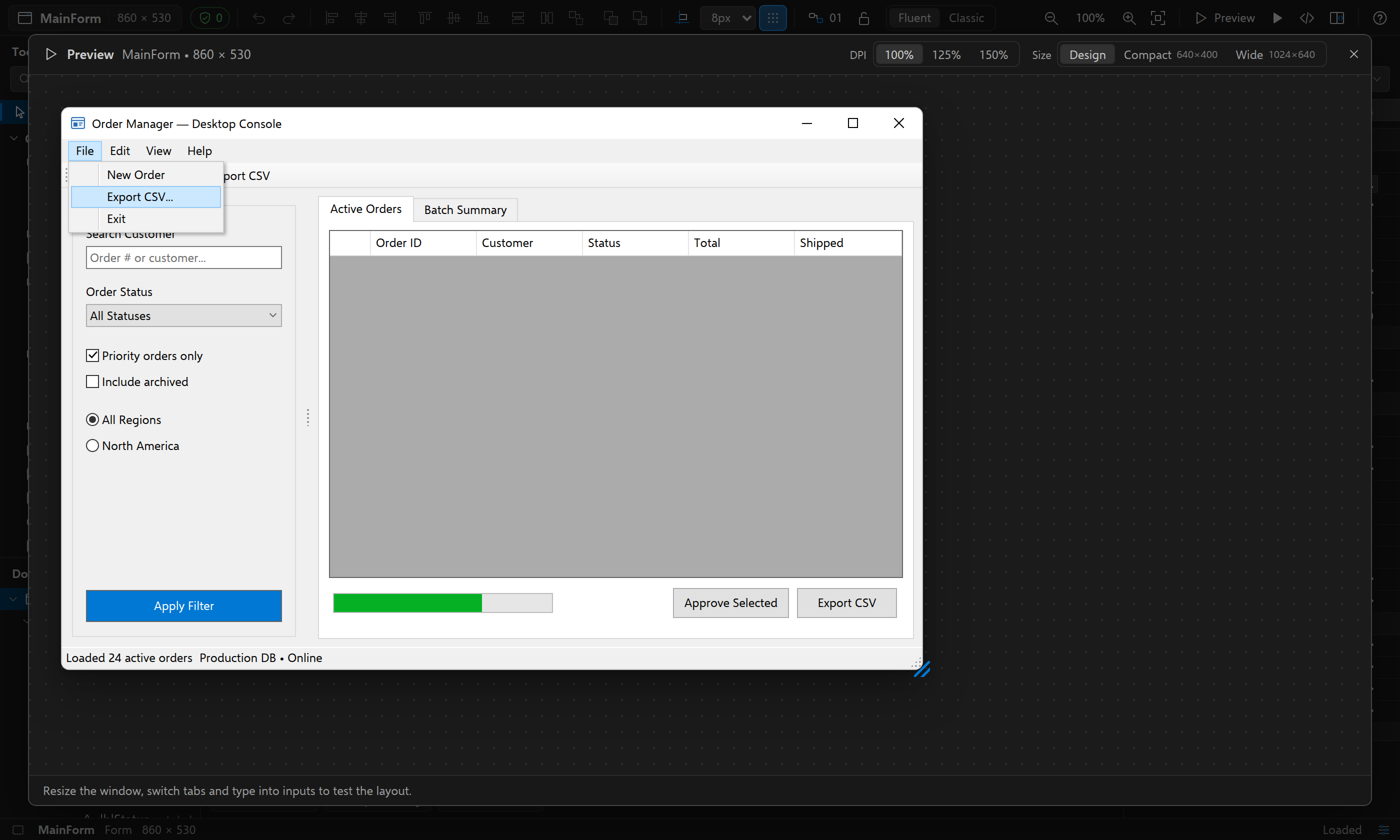
Interactive: MenuStrip dropdowns, NumericUpDown spinners, TrackBar, DataGridView sorting, 100% / 125% / 150% DPI, Compact / Wide reflow |
Run the app to find out |
| Run and build |
One-click Run / Build / Stop from the toolbar and status bar |
Switch back to a terminal or IDE |
| Layout checks |
Live layout, High-DPI and accessibility auditor with one-click Fix and Fix All |
None |
| Saving |
VS Code's own buffer: Ctrl+S, undo/redo, side-by-side text edits stay in sync |
Separate save flow, external edits not synchronized |
| Code safety |
Surgical edits that keep comments, helper methods, custom controls, ComponentResourceManager and DataGridViewCellStyle |
Often regenerates the whole file |
Quick start
- Open any
Form.cs or Form.Designer.cs.
- Press
Shift+F7, click Open WinForms Designer in the editor title bar, or right-click the file in the Explorer.
- Drag controls from the Toolbox, set properties or wire events in the Properties pane, and save with
Ctrl+S.
- Press
F7 to jump to the code-behind, or click Run in the toolbar to build and launch the app.
No project yet? Run New WinForms Project... from the Command Palette or the WinForms Explorer and pick net10.0-windows, net9.0-windows, net8.0-windows or net48.
A design surface that behaves like Visual Studio
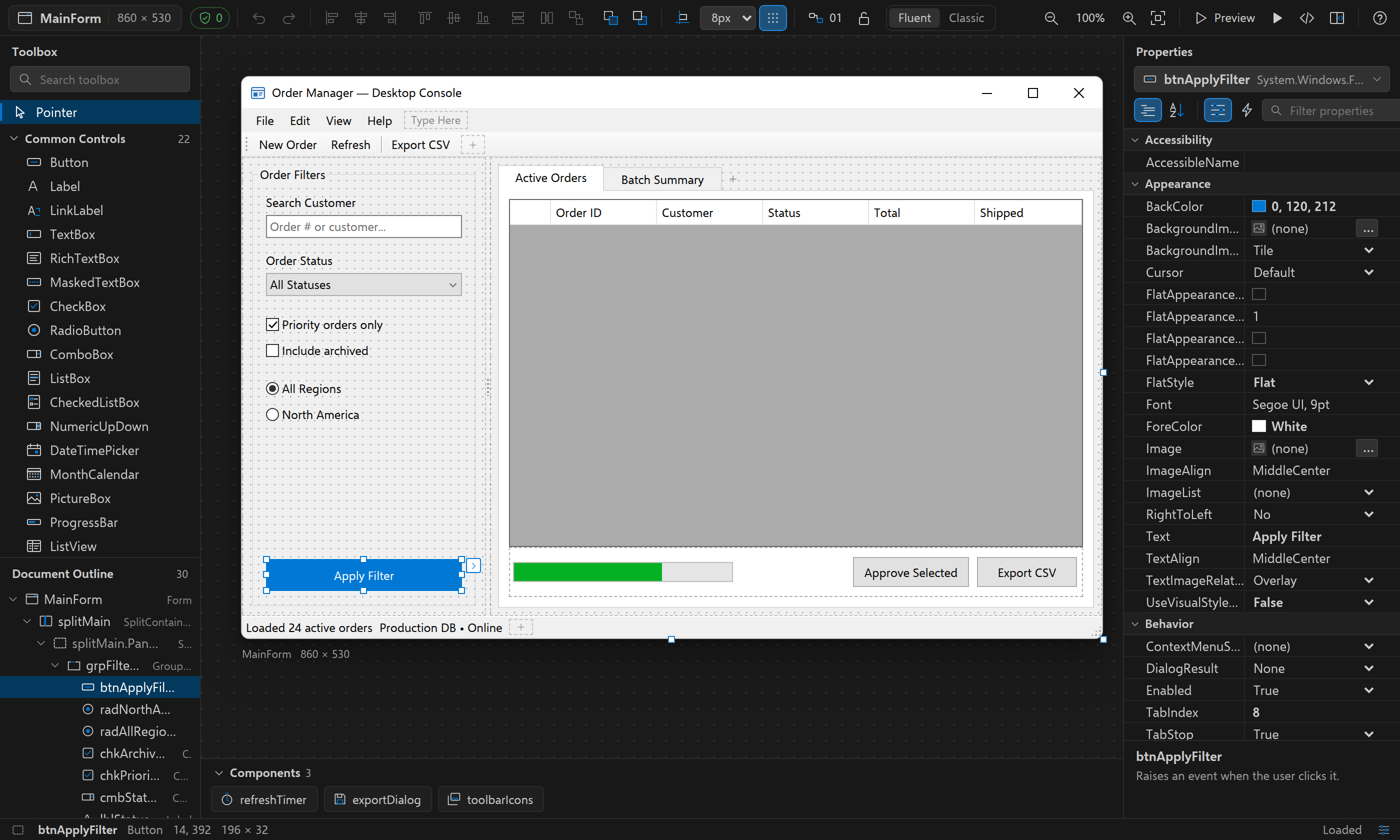
- Snaplines and grid. Blue edge, margin and padding snaplines, magenta text-baseline snaplines, a 4 / 8 / 12 / 16 px grid, and
Alt-drag to place freely.
- Real container layout.
Panel, GroupBox, TabControl, SplitContainer with a draggable splitter, FlowLayoutPanel, TableLayoutPanel and docked strips. Drag controls between containers to reparent them.
- Anchor and Dock. Resize the form or a container and anchored children move and stretch exactly as they will at runtime.
- On-canvas strip editing. Click Type Here on a
MenuStrip, ToolStrip or StatusStrip to add items, double-click to rename, and hover to delete.
- Ctrl+Drag to duplicate. Hold
Ctrl while dragging to drop a copy with fresh names; the original stays put.
- Selection tools. Marquee and multi-select, align, match sizes, equalize spacing, center, lock and Z-order, plus smart tags,
F2 inline text editing, a Component Tray and a Document Outline.
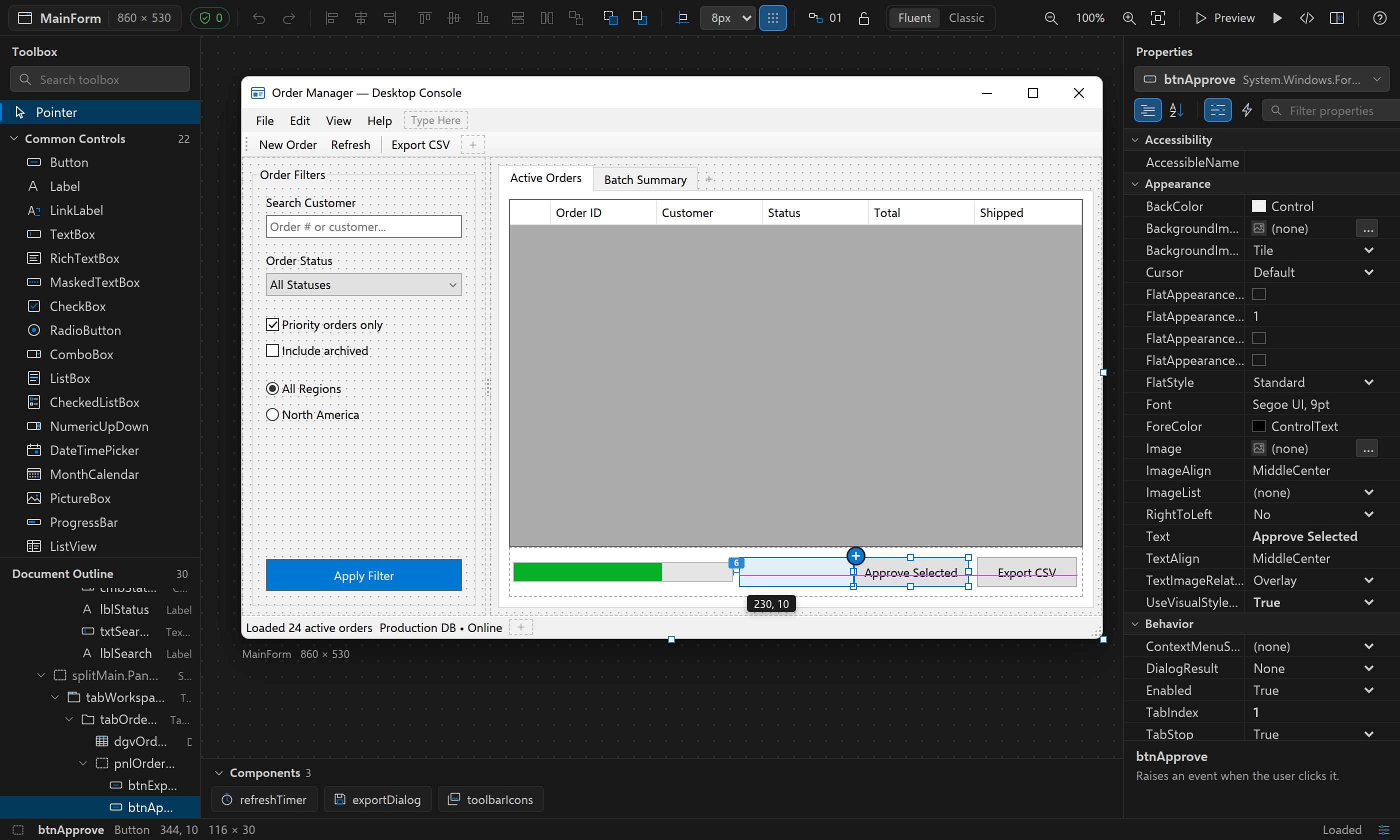
Property Grid and editors
- Categorized and alphabetical views, search, multi-object editing, bold modified values and right-click Reset.
- Visual pickers for Anchor, Dock, ContentAlignment, Color, Font, control references and
.resx-backed Image / Icon.
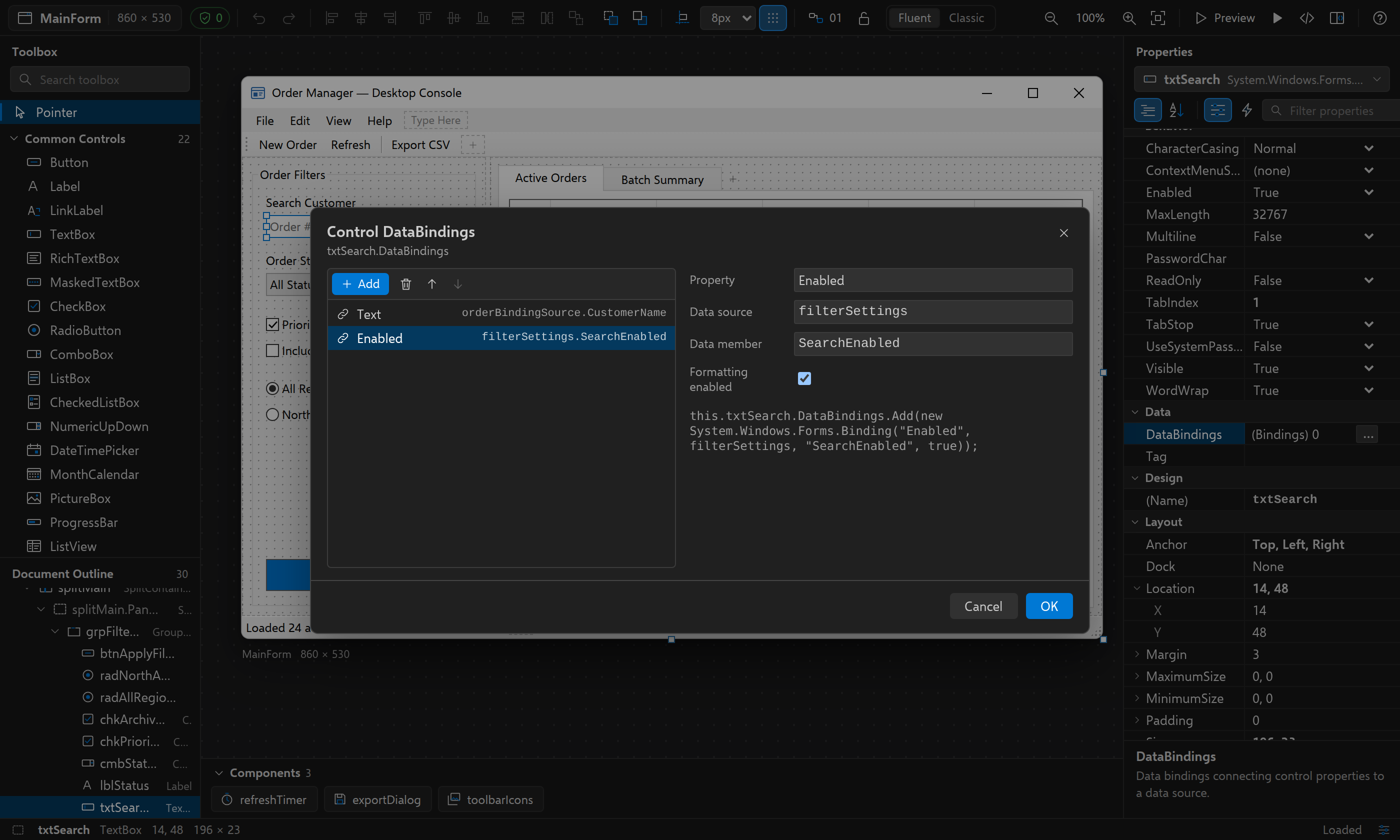
- Collection editors for items,
DataGridView and ListView columns, TreeView nodes, TabPages, strip items, TableLayoutPanel rows and columns, and DataBindings.
Events and themes
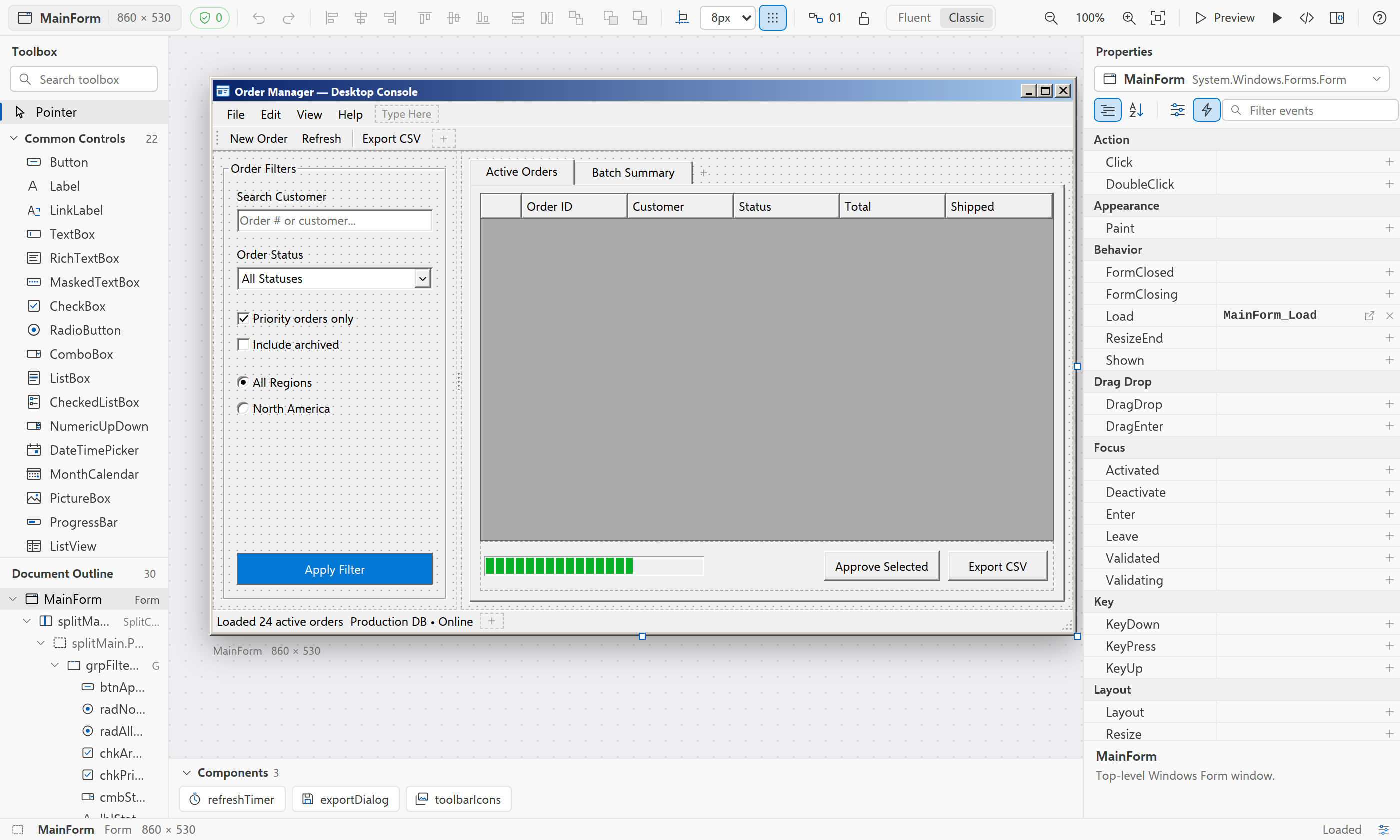
- The Events tab lists handlers already in your code-behind. Double-click a control to wire
+= in .Designer.cs and generate a typed stub in .cs.
- Switch between Fluent (Windows 11) and Classic (Win32) rendering. The designer follows your VS Code Dark, Light or High Contrast theme.
Live Preview and the layout auditor
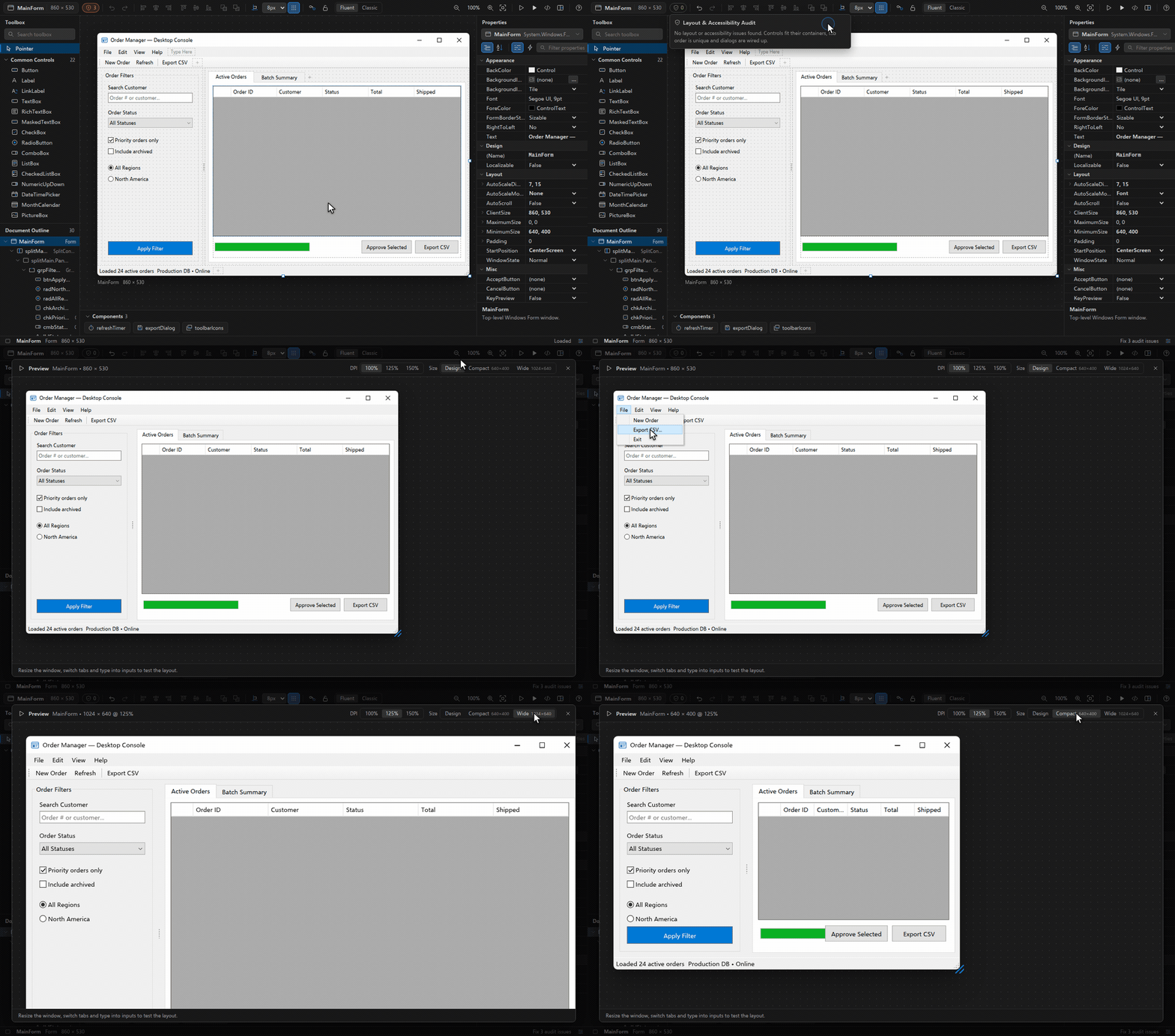
- Live Layout, High-DPI and Accessibility Auditor. Flags overlapping or out-of-bounds controls, duplicate
TabIndex, AutoScaleMode.None, missing dialog AcceptButton / CancelButton, missing accessible text, and invalid NumericUpDown, ProgressBar and SplitContainer values. Fix corrects one issue; Fix All corrects every fixable issue in a single undo step.
- Interactive Live Preview. Open MenuStrip dropdowns, spin NumericUpDowns, drag TrackBars, sort DataGridView columns and type into inputs. Switch between 100% / 125% / 150% DPI and Design / Compact / Wide sizes to watch Anchor and Dock reflow. No design-time artifacts are shown.
Visual Tab Order
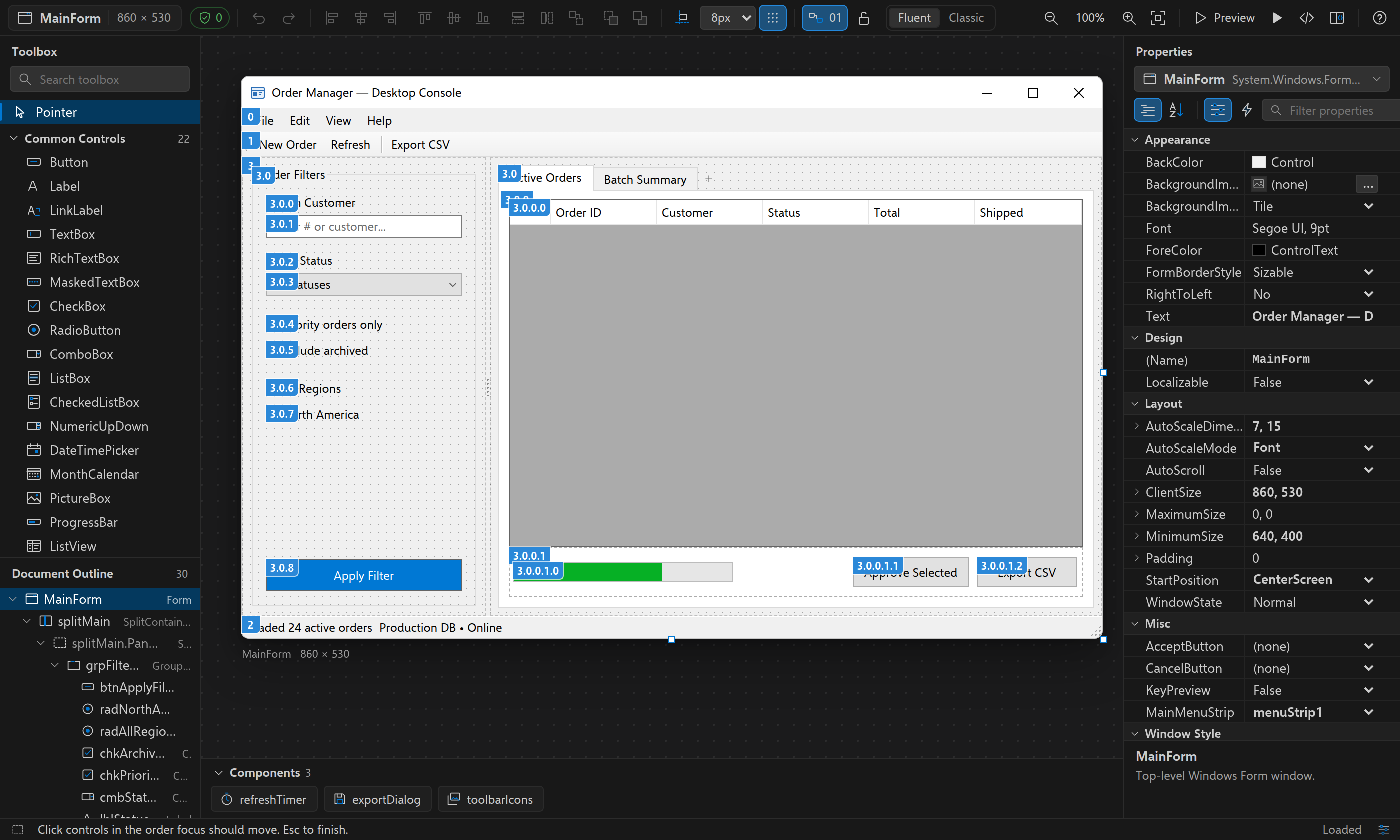
Toggle Tab Order in the toolbar, then click controls in the order focus should move. Press Esc when you're done.
Run, Build and Stop
The toolbar Run button and a status bar item (Run, Building..., Stop) drive the active project. The designer saves all files and stops the previous instance first, so builds never hit a locked .exe (MSB3027).
- Windows, .NET 6–10:
dotnet build / dotnet run.
- Windows, .NET Framework 4.x: finds MSBuild through
vswhere, builds, then launches the .exe.
- WSL: uses Windows
dotnet.exe with wslpath-converted paths, so the window opens on your Windows desktop.
- macOS and Linux: compile-check with
EnableWindowsTargeting=true, with Live Preview for the UI.
- WinForms Explorer in the Activity Bar lists every form and user control in the workspace.
- New WinForms Project... for
net10.0-windows through net48, New Windows Form... with six starter templates, and New User Control....
- Delete Form & Sibling Files removes
.cs, .Designer.cs and .resx together.
- Explorer file nesting groups
.Designer.cs and .resx under their form by default.
- Inherited forms are resolved statically from source. Inherited controls are badged, read-only and never written into the derived file.
- Localization: switch between culture
.resx files from the toolbar and edit localized text in place.
C# round-tripping
- Handles .NET Framework 4.x and .NET 6–10 styles, and matches whichever the file already uses.
- Keeps comments, helper methods,
Dispose(bool), local DataGridViewCellStyle variables, ComponentResourceManager / ApplyResources calls, custom control types and unrecognized property expressions.
- Opens in read-only mode when
InitializeComponent() contains #if blocks or isn't in the standard shape.
Keyboard shortcuts
Press ? on the canvas for the full reference.
| Action |
Shortcut |
Open designer from .cs / .Designer.cs |
Shift+F7 |
| Jump to code-behind |
F7 |
| Focus Properties / Toolbox search |
F4 / Ctrl+Shift+T (Ctrl+F6) |
| Nudge by grid / 1 px |
Arrow / Ctrl+Arrow |
| Resize by grid / 1 px |
Shift+Arrow / Ctrl+Shift+Arrow |
| Drag without snapping / drag a copy |
Alt+Drag / Ctrl+Drag |
| Edit text in place |
F2 |
| Go to default event handler |
Enter or double-click |
| Duplicate / Copy / Cut / Paste / Delete |
Ctrl+D / Ctrl+C / Ctrl+X / Ctrl+V / Del |
| Undo / Redo |
Ctrl+Z / Ctrl+Y (Ctrl+Shift+Z) |
| Zoom in / out / reset |
Ctrl++ / Ctrl+- / Ctrl+0 |
Settings
| Setting |
Default |
Description |
winformsDesigner.gridSize |
8 |
Snap grid spacing in pixels (4, 8, 12, 16). |
winformsDesigner.layoutMode |
"snaplines" |
Default alignment mode ("snaplines" or "grid"). |
winformsDesigner.showGrid |
true |
Show the dot grid on the design surface. |
winformsDesigner.renderStyle |
"fluent" |
Control rendering ("fluent" or "classic"). |
winformsDesigner.codeStyle.useThisQualifier |
"auto" |
Prefix control references with this. ("auto", "always", "never"). |
winformsDesigner.codeStyle.eventHandlerStyle |
"auto" |
Event wiring syntax ("auto", "shorthand", "explicitDelegate"). |
Requirements
- VS Code 1.85 or newer.
- OS: Windows, macOS, Linux or WSL, on x64 or ARM64. Designing needs no .NET runtime. Running a WinForms app still needs Windows and the .NET SDK (or MSBuild for .NET Framework).
Links
| |

