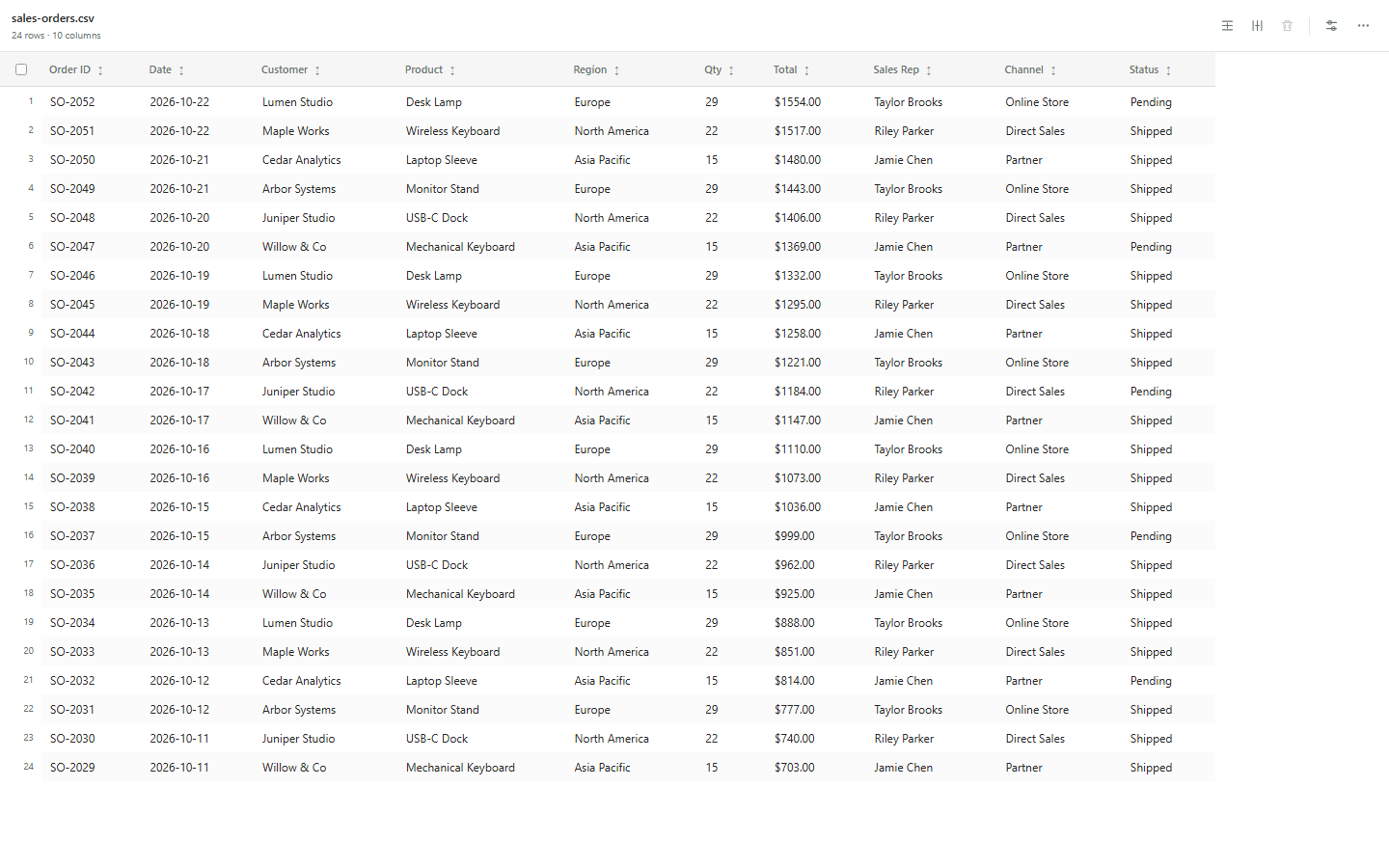
Edit and view CSV, TSV, and other delimited text files as tables in VS Code. Auto-detect delimiters, edit cells, sort and filter columns, and add or delete rows and columns.
Installation
Launch VS Code Quick Open (Ctrl+P), paste the following command, and press enter.
View and edit CSV and TSV files as tables in Visual Studio Code. CSV Simple Editor detects the delimiter, keeps your data in the same editor tab, and makes common table edits quick.
Features
Automatically detects commas, semicolons, tabs, and pipes, and preserves the delimiter when saving.
Opens CSV and TSV files in a table in the same editor tab.
Sizes columns to their contents; drag a column edge to resize it, or double-click the edge to restore automatic sizing.
Sorts columns from the header or context menu; filter each column from its header icon.
Selects a column from its context menu and highlights it in the table.
Keeps original row numbers visible when the table is sorted.
Uses VS Code's native Find (Ctrl+F / Cmd+F) across table rows.
Edits cells with a double-click, Enter, or F2; Tab moves to the next cell.
Moves between cells with the arrow keys; Home and End jump to the first and last cell in a row.
Copies individual cells or rows as tab-separated values; copy a row or the visible column as a newline-separated list from its heading.
Optionally colorizes columns with colors from the active VS Code theme. CSV files do not store cell colors.
Optionally shows subtle gridlines between table rows and columns.
Lets you choose whether CSV and TSV files open in the table by default from the table settings or VS Code's extension settings.
Adds rows and columns; deletes selected rows or individual columns.
Syncs edits with the regular VS Code document. Save with Ctrl+S / Cmd+S.
Changes the delimiter and clears filters or sorting from the compact tools menu.
Usage
Open a .csv or .tsv file to start in table view. Click a column heading to sort; click its filter icon to filter. Right-click a cell or heading for more actions. Use the editor title action to switch back to the text view.
The table follows the active VS Code color theme and keeps the toolbar compact. Open the settings button beside the tools menu to toggle column colors and gridlines, choose the default editor for CSV and TSV files, or restore automatic column widths.
Development
The extension has no runtime dependencies. Run npm test for the CSV and extension regression tests, and npm run package on Windows to build the VSIX. The editable logo is in media/csv-simple-editor-favicon.svg; media/extension-icon.png is the raster version used by the Marketplace.